Billing
Billing periods let administrators open and close weekly or monthly periods to control logging and editing of time in the space. A closed period blocks logging or editing work on those dates, which helps keep what is logged consistent with what is billed.
Access
- Open the space in Jira.
- Open Space settings and select LogSense Settings.
- Open the Billing periods tab.
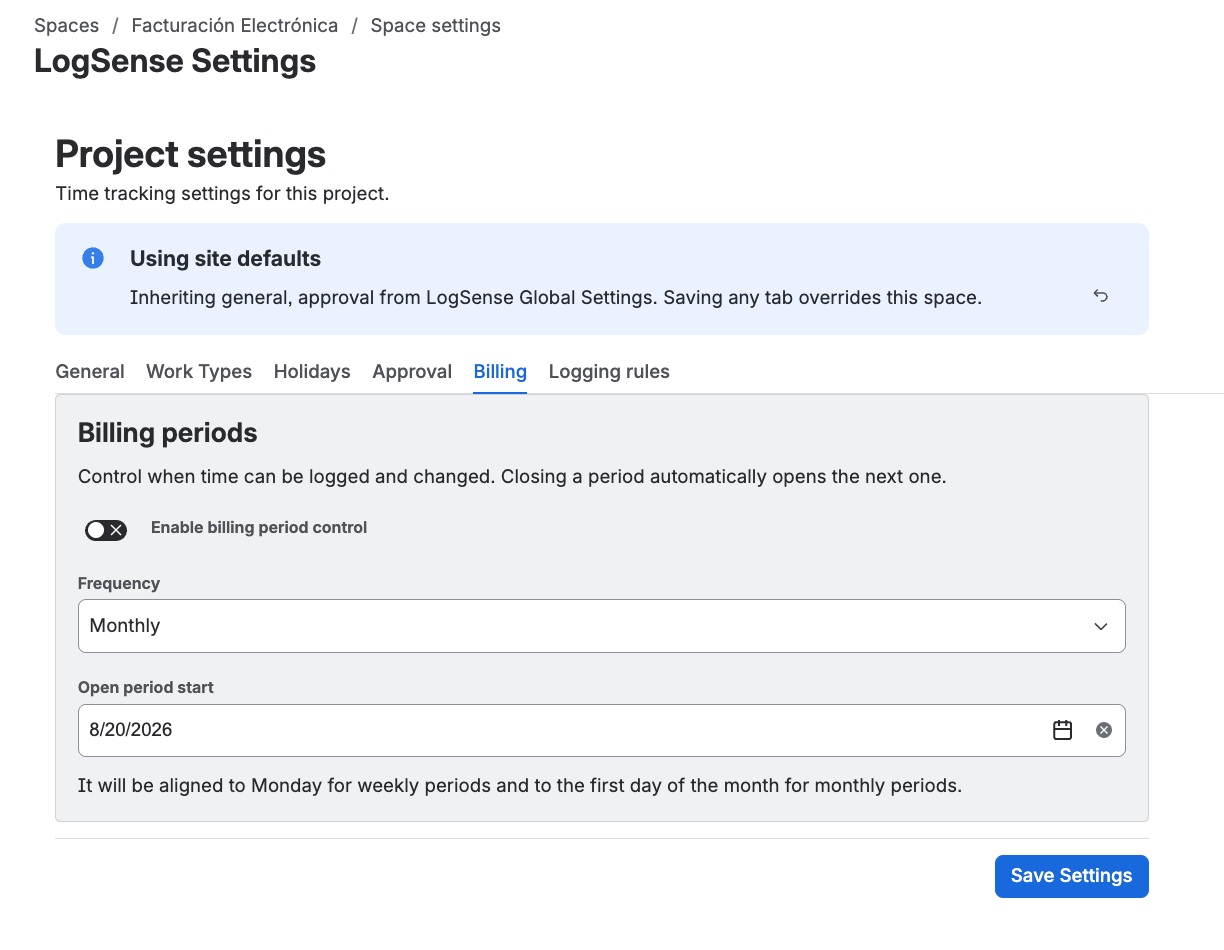
Configure the period type
The space administrator defines the periodicity that applies to the space periods:
| Periodicity | Description |
|---|---|
| Weekly | Each period covers one natural week, aligned to Monday. |
| Monthly | Each period covers one natural month, aligned to the first day of the month. |
Each space uses a single periodicity (weekly or monthly). If different teams need different cycles, configure each space separately.
Period control
The Billing periods tab works as a single control: a toggle that enables period control, the periodicity, and the start date of the open period.
- Enable billing period control: enables or disables period control in the space. When enabled, worklogs can only be created or edited within the open period.
- Frequency: periodicity (weekly or monthly) of the space.
- Open period start: start date of the current open period.
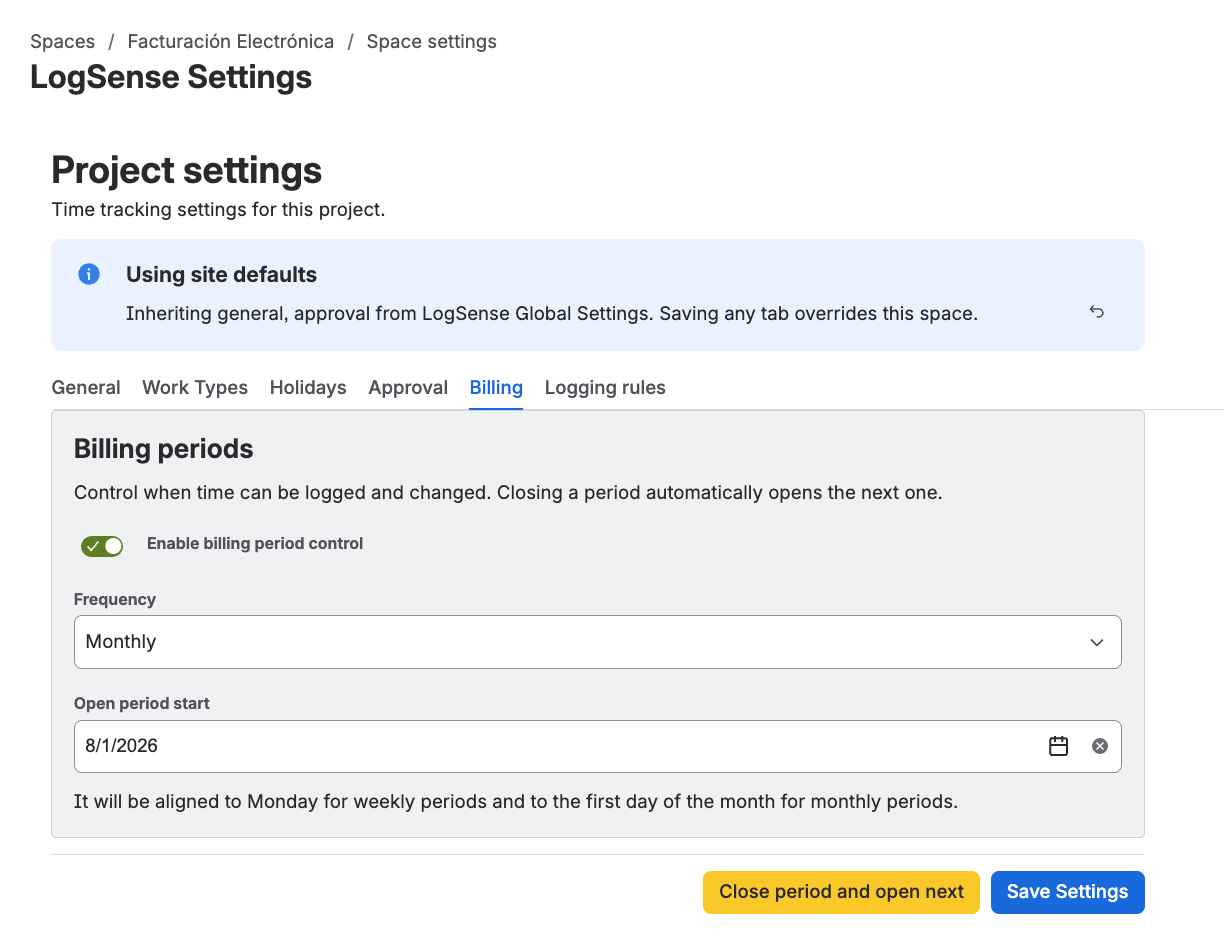
Close a period and open the next one
To move to the next period (for example, from August open to September open):
- Click Close period and open next on the Billing periods tab.
- The current period is closed (blocking logging and editing on its dates) and Open period start automatically moves to the start of the next period.
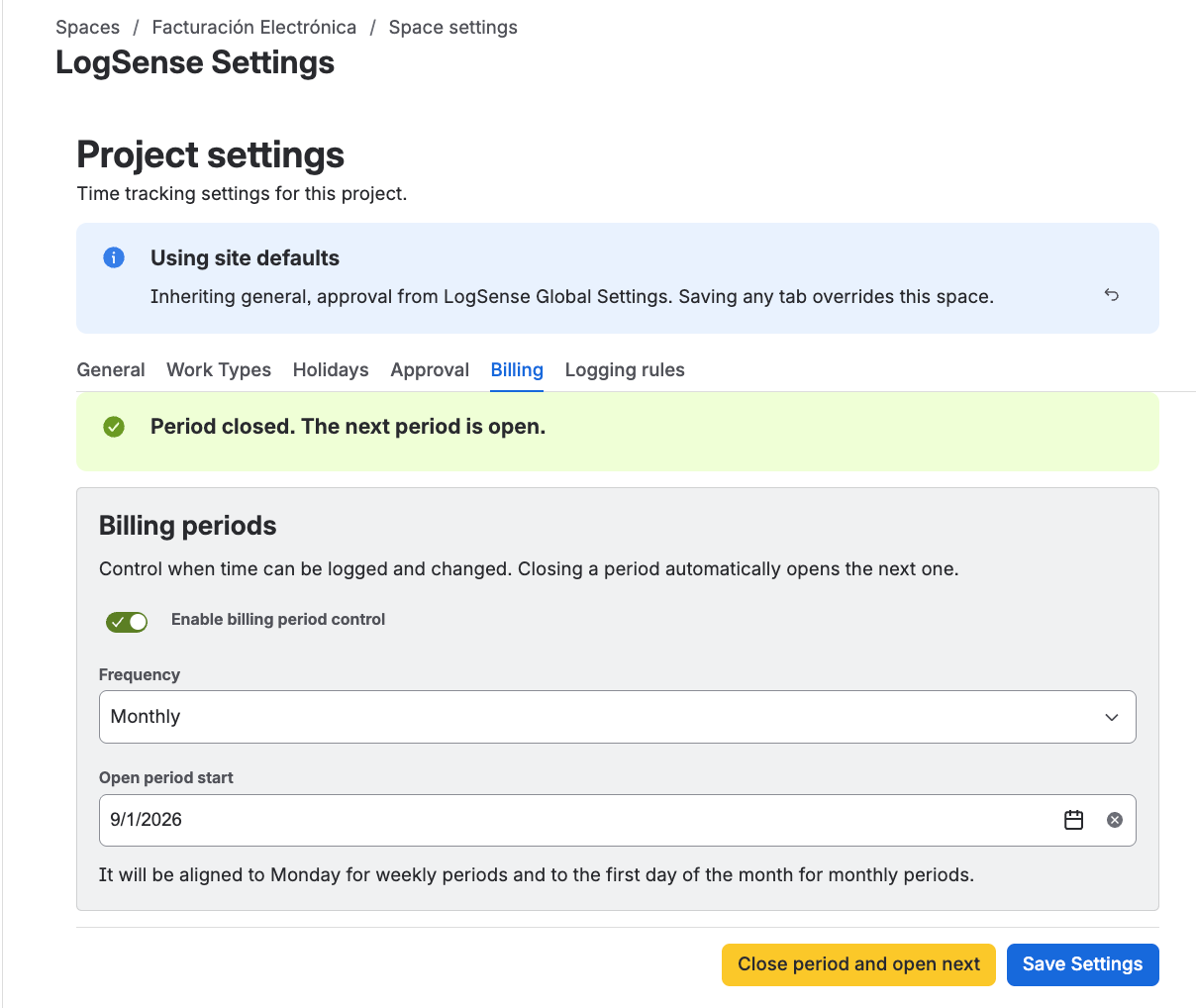
Once a period is closed, new entries must be logged in the new open period. A closed period is locked: LogSense prevents logging or editing time on those dates.
Close periods regularly (for example, on the first business day of the new period) to avoid entries outside the correct period.
Effect on logging and editing time
| Period state | Allows logging? | Allows editing existing worklogs? |
|---|---|---|
| Open | Yes | Yes |
| Closed | No | No |
If the user tries to log or edit time in a closed period, LogSense shows a clear message stating the period does not allow changes and the change is blocked.
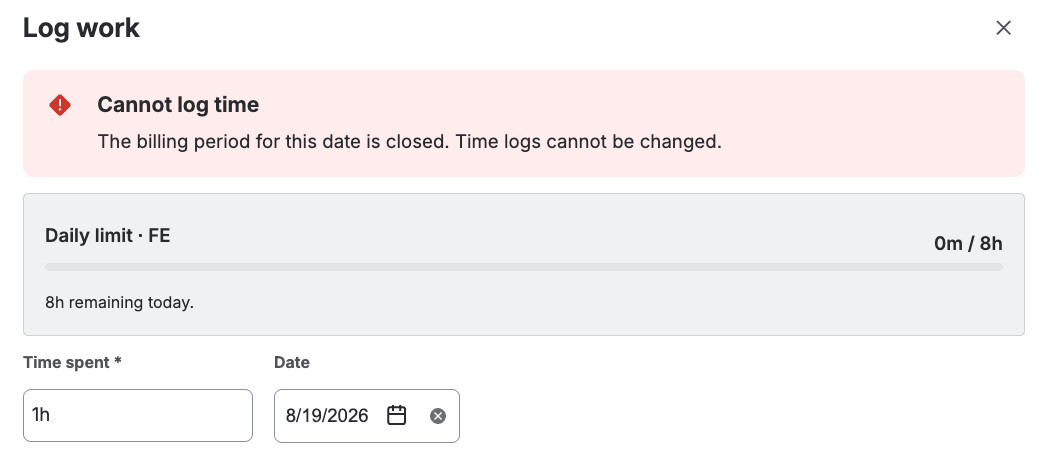
Closed-period blocking combines with the rest of LogSense validations (daily limit, holidays, active status, active work item types, required notes). If any validation fails, logging or editing does not complete.
Out of scope
Billing periods focus on controlling logging and editing of time. They do not include budgeting or costs features: budget, cost, or profitability calculations are out of scope for this release.
Best practices
- Define the periodicity (weekly or monthly) based on the client or team billing cycle.
- Close each period as soon as it stops accepting entries to keep reports consistent.
- Coordinate with the space approvers: worklogs in PENDING state must be approved before the period closes.
- If a user needs to log time in an already closed period, ask the administrator to revert the close before saving (the control moves back to the previous period).