Logging rules
The Logging rules tab controls which work item states and types allow time logging in the space. These restrictions apply when creating and editing worklogs.
Access
- Open the space in Jira.
- Open Space settings and select LogSense Settings.
- Open the Logging rules tab.
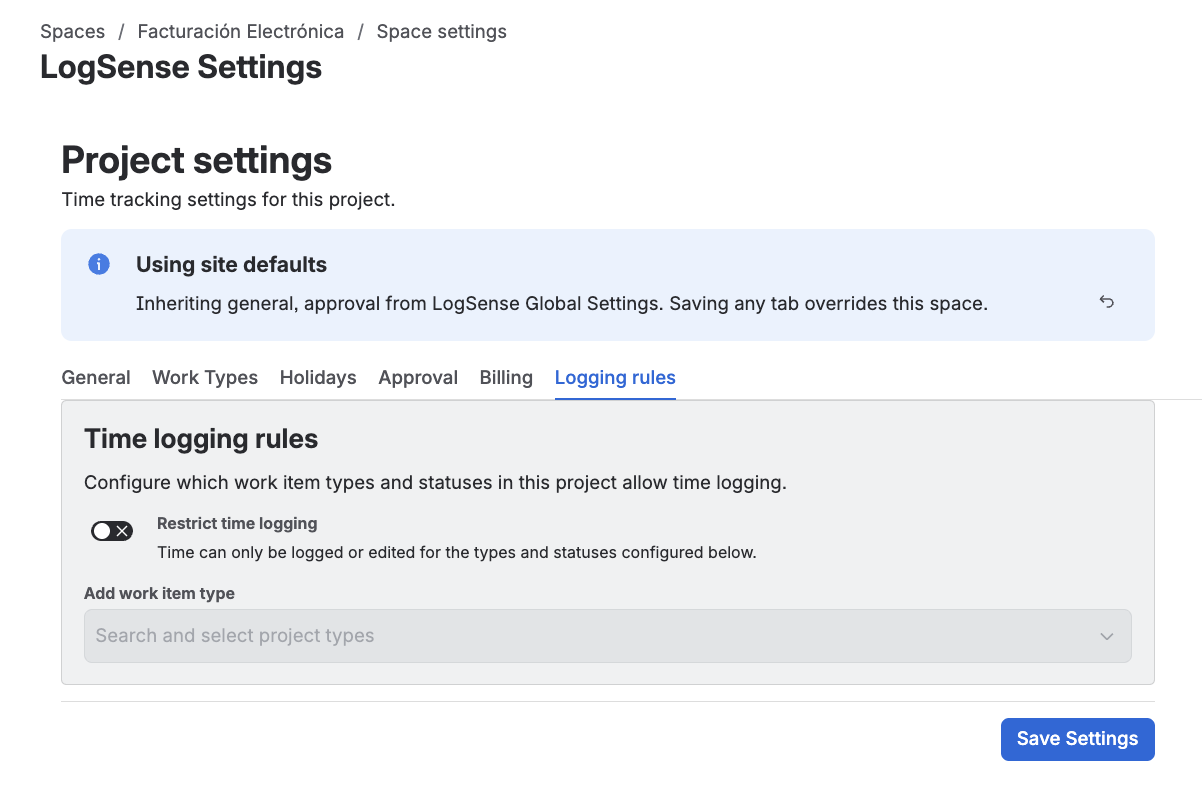
Restrict time logging
This section includes a master toggle that enables the two validations in the tab:
- Enabled: LogSense validates the work item's state and type before allowing logging or editing.
- Disabled (default): time logging works on any state and work item type, without restrictions.
If the space has not saved its own value for this section, it inherits the value from the site global configuration. Saving a value in the space creates an override that no longer depends on the global.
Active Status
Define, per space, the work item states in which LogSense allows time logging.
- Enabled: the user can only log time if the issue is in one of the selected states.
- Disabled (default): time logging works on any work item state.
If the issue's current state is not in the active states list, LogSense blocks the entry and shows a clear message stating the state does not allow Log work.
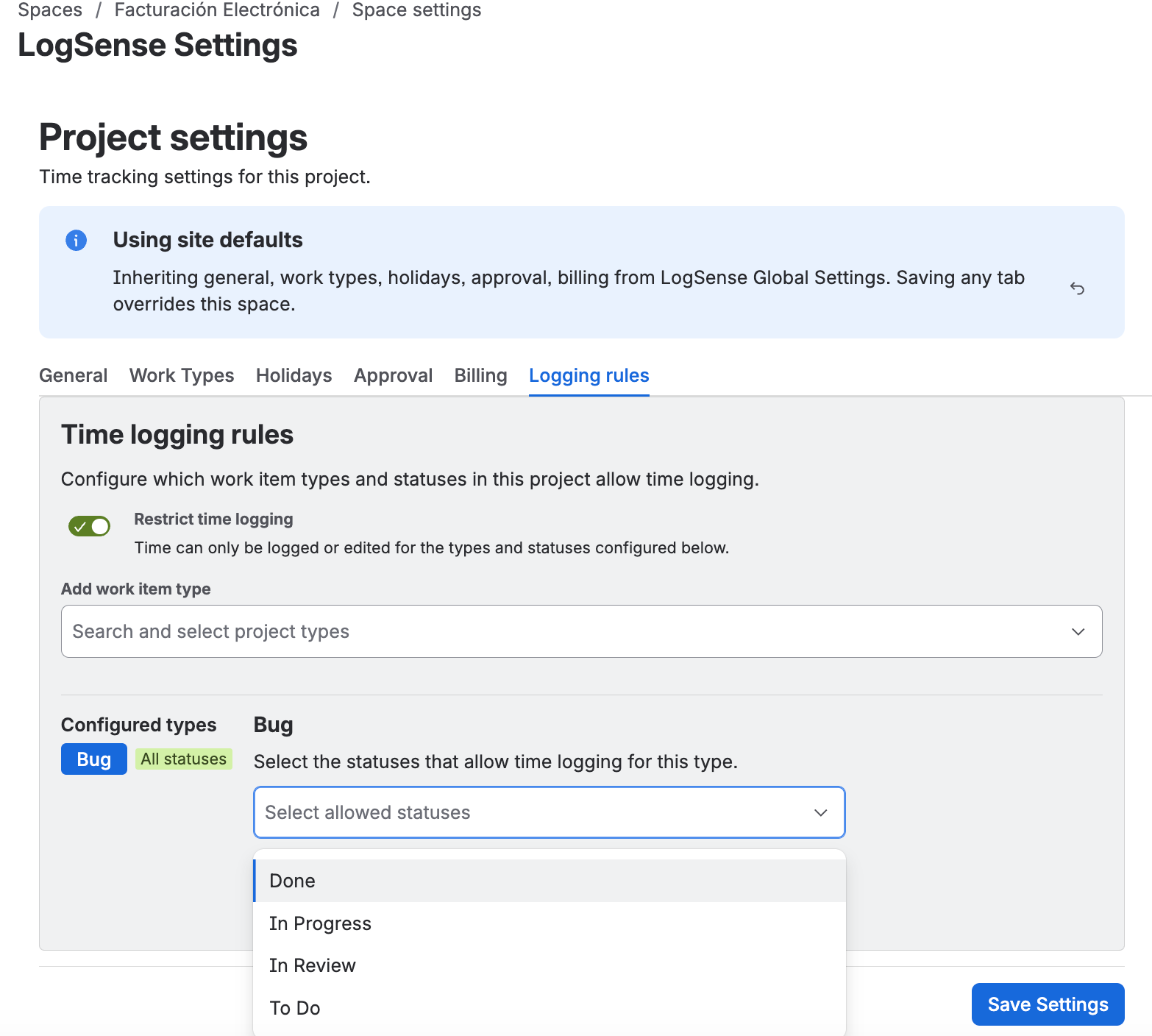
Enable Active Status in spaces where it only makes sense to log work in certain workflow states (for example, "In Progress" and "In Review"), avoiding entries in terminal states like "Done" or "Closed".
Active Work Item Types
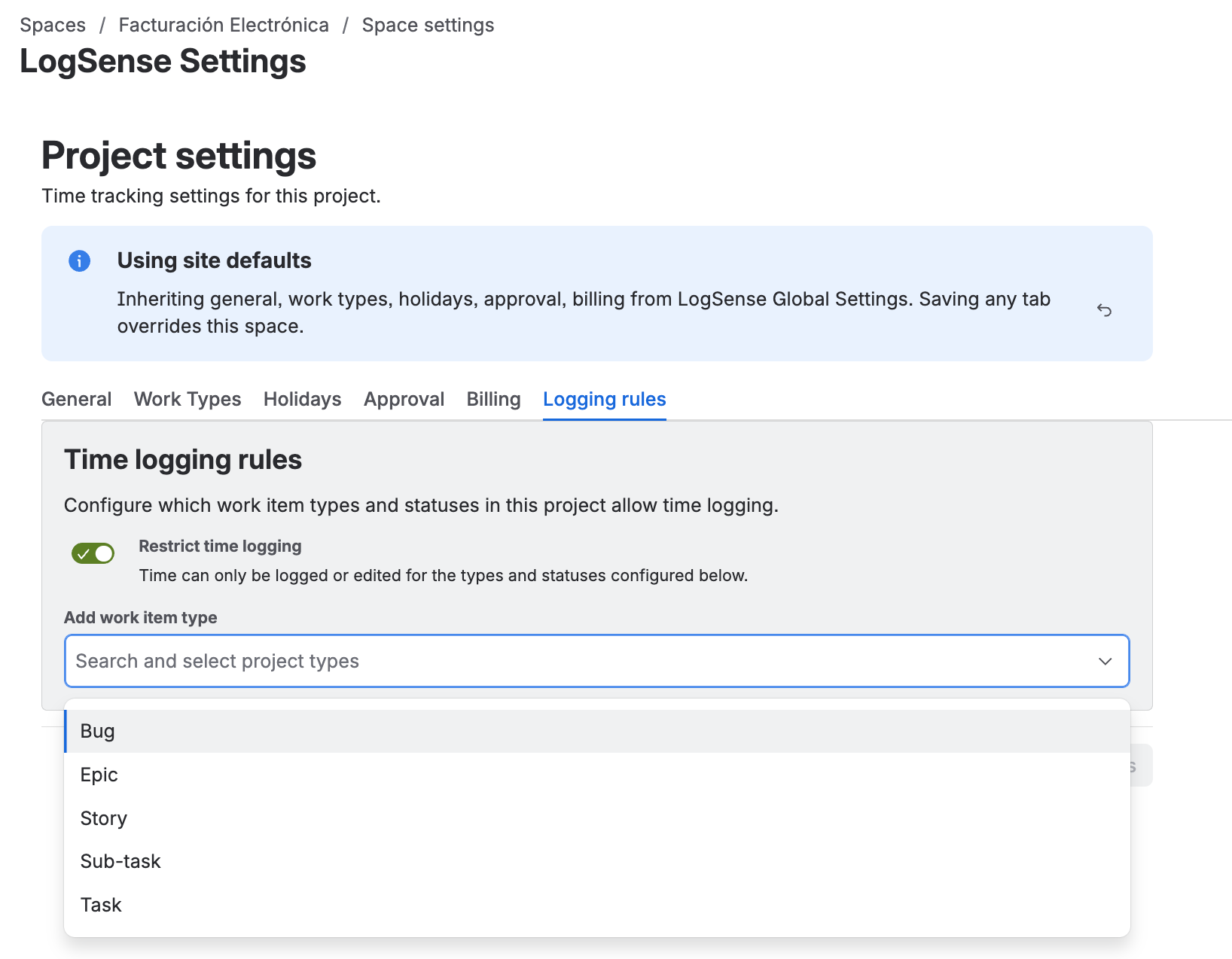
Define, per space, the work item types (issue types) that allow time logging. The behavior is consistent with Active Status.
- Enabled: the user can only log time on the selected work item types.
- Disabled (default): time logging works on any work item type in the space.
If the issue's type is not in the active types list, LogSense blocks the entry and shows a clear message.
Inheritance and overrides
The Active Status and Active Work Item Types selections follow the same inheritance model as the rest of the tabs: if the space saves no own value, it inherits the defaults set in the site global configuration. Saving a value in the space creates an override that stops depending on the global.
Best practices
- Use Active Status and Active Work Item Types to limit where logging makes sense; keep the list updated when the team changes its workflows.