Hours report and timesheet
The Hours report is a global LogSense page, titled Hours logged, that summarizes the hours logged in a month, without adding gadgets or building a dashboard. On the same page, the Timesheet view shows the team's hours by person and day.
The report is another way to review hours. The Billable hours and Pending approvals dashboard gadgets are still available and work the same way.
Open the report
- In the Jira sidebar, open Apps.
- Under Your apps, select LogSense.
The Hours logged page opens with the Summary view active. The page is available once the app is installed; no prior configuration is required.
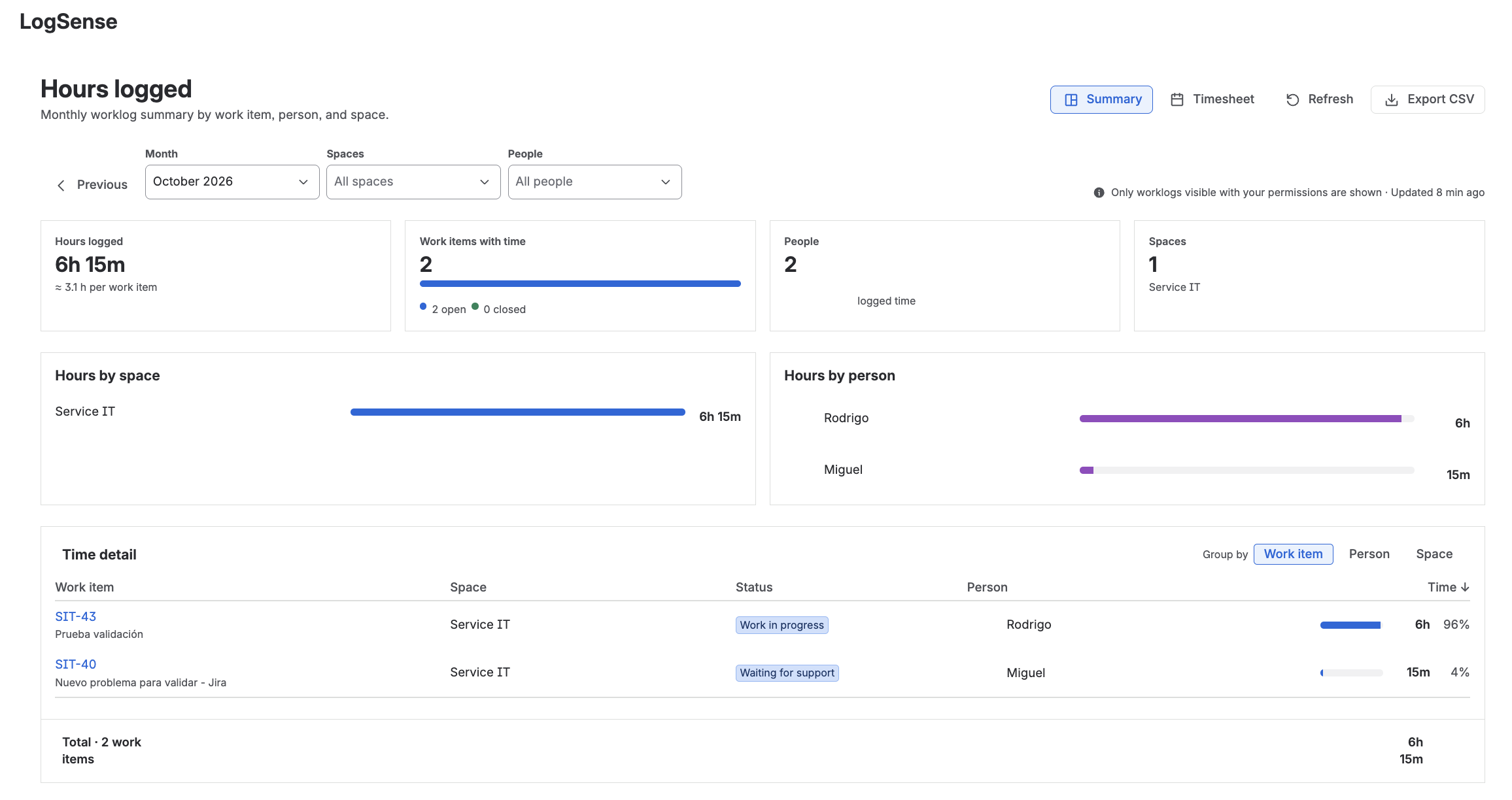
Filters
Filters apply to both the Summary and Timesheet views:
| Filter | Description |
|---|---|
| Month | Month to review. Previous moves to the prior month. |
| Spaces | One or more spaces. Defaults to All spaces. |
| People | One or more people who logged time. Defaults to All people. |
Refresh reloads the data; next to the filters, the page shows when it was last updated.
Summary view
Month indicators
The top of the page summarizes the filtered month:
| Indicator | Content |
|---|---|
| Hours logged | Month total and average per work item. |
| Work items with time | Work items with hours in the month, split into open and closed. |
| People | People who logged time. |
| Spaces | Spaces with logged time. |
Totals are shown in full, including when they exceed 99.
Hours by space and by person
The Hours by space and Hours by person charts show how the month's total is distributed.
Time detail
The Time detail table lists each work item with time in the month: space, status, person, time logged, and percentage of the total. Both open and closed work items are included, and the last row shows the total.
With Group by you can reorganize the detail by Work item, Person, or Space.
Timesheet view
Use the Summary / Timesheet selector to switch to the Team timesheet calendar view. It uses the same month, space, and people filters.
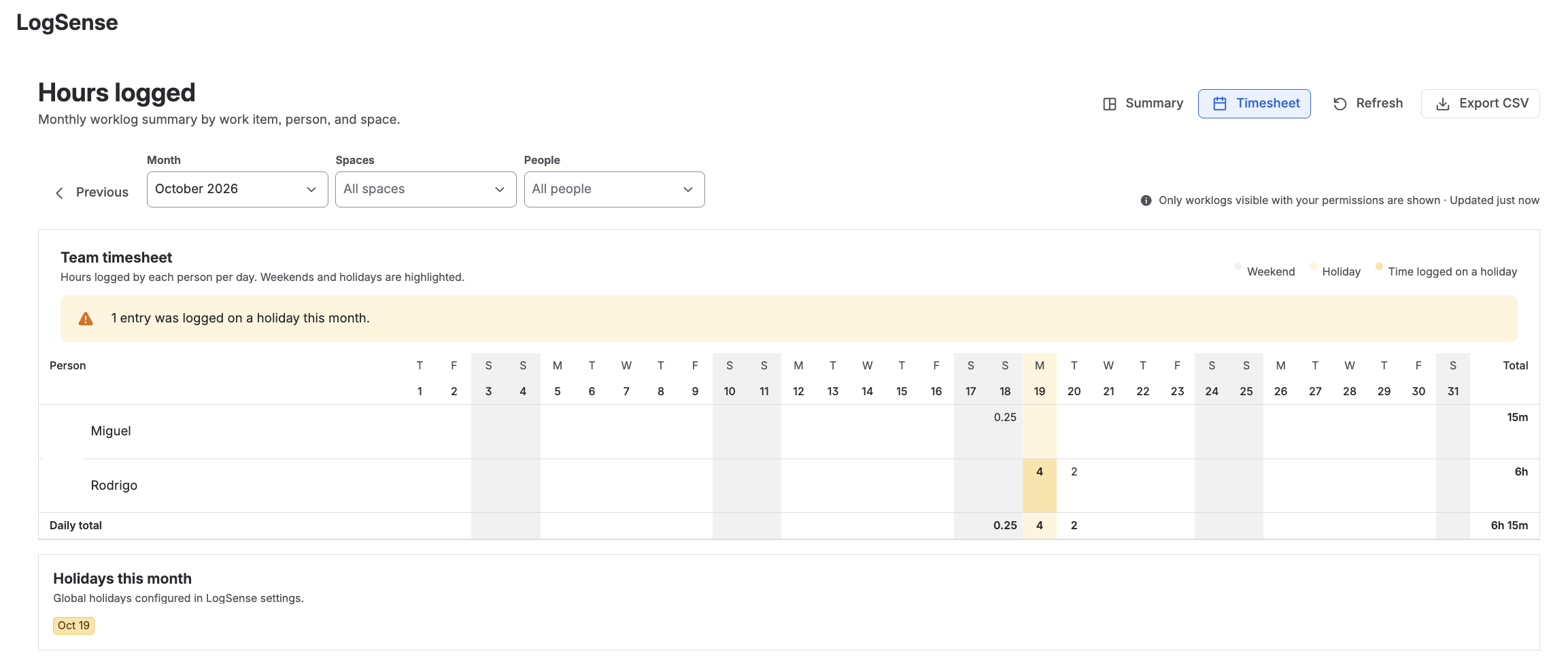
Reading the grid
- Each row is a person and each column is a day of the month. Cells show the day's hours as decimals (for example,
0.25is 15 minutes). - The Total column shows the total per person, the Daily total row shows the total per day, and their intersection shows the month's grand total.
- Hovering over a cell with hours shows a tooltip with the person, the date, and the time logged.
Weekends and holidays
The grid legend distinguishes three highlights: Weekend, Holiday, and Time logged on a holiday.
- Saturdays and Sundays are highlighted in the grid.
- Holidays are also highlighted and listed in the Holidays this month card, which also states where they come from (for example, Global holidays configured in LogSense settings.).
- If someone logged hours on a holiday, the cell is highlighted and a warning above the grid says so (for example, 1 entry was logged on a holiday this month.).
The holidays shown depend on the spaces filter:
| Spaces filter | Holidays used |
|---|---|
| One or more spaces selected | Each space's holidays or, if a space has no list of its own, the site's global holidays. |
| All spaces | Global holidays only. The Holidays this month card indicates this. |
The timesheet reads the holidays already configured in Space holidays and in the global settings. It does not modify them or change holiday blocking when logging time.
Which people appear
LogSense does not manage its own teams. The timesheet team is made up of the people who logged time in the month within the selected filters. Anyone who did not log hours that month does not appear in the grid.
What each person sees
The report shows the worklogs that Jira returns to the person opening it, and says so next to the filters: Only worklogs visible with your permissions are shown. The app does not apply its own permission or any extra filter:
- Someone who can only see their own worklogs sees only theirs.
- Someone who can see other people's worklogs sees that scope.
Visibility depends on the Jira configuration: permission to browse the space, the work item security level, and each worklog's visibility. If a worklog does not appear, review those permissions with your Jira administrator.
Export to CSV
Use Export CSV to download a CSV file of the current view:
- In Summary, it exports the detail with the grouping and filters applied.
- In Timesheet, it exports the person-by-day grid.