Team Management
The Teams section is the organizational core of Jira Capacity Planner. This is where user groups are defined, assigned a work profile, linked to calendars, and their workload is filtered. A correct definition of teams is vital for capacity planning to be a true reflection of your organization's reality.
To get started, navigate to Administration > Manage apps > Capacity Planner > Team Management.
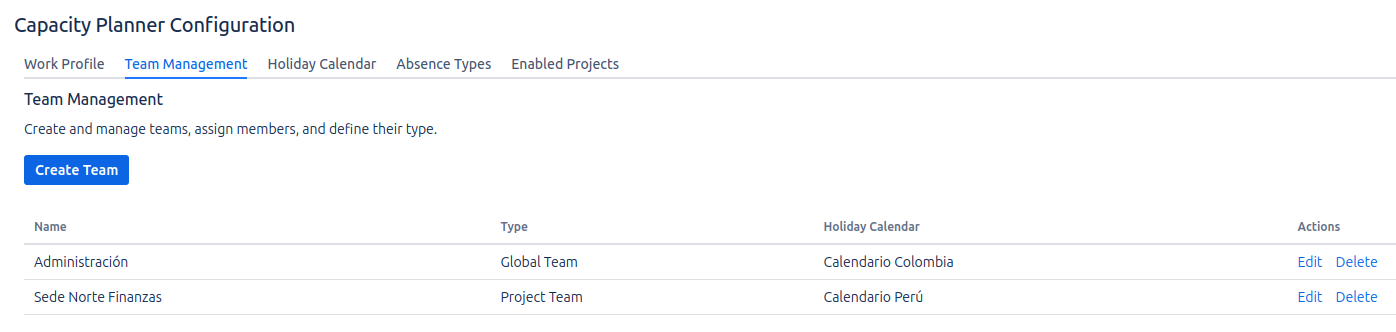
Creating a New Team
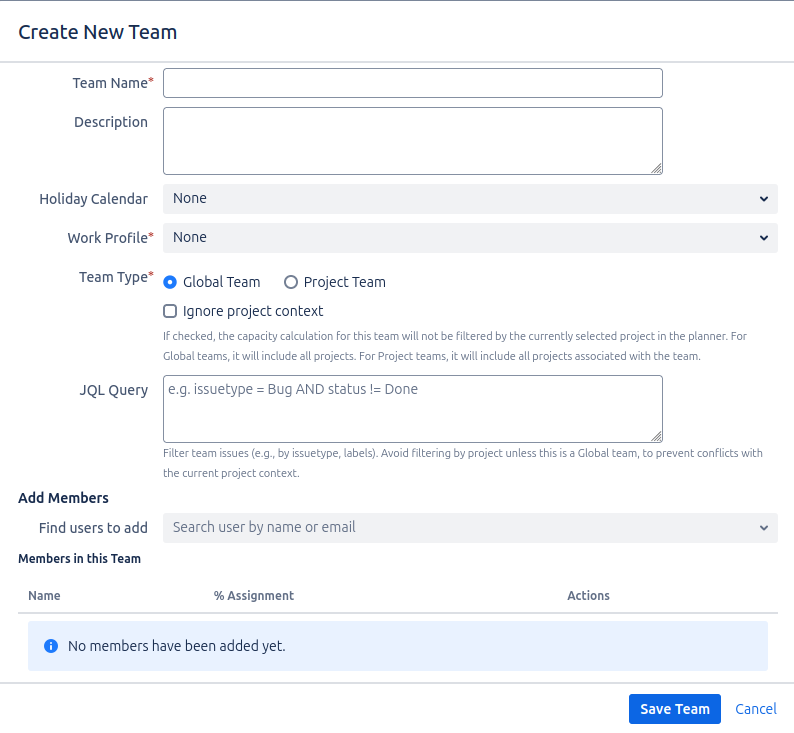
Team creation is done in a single modal to streamline the configuration process. When you click Create Team, a unified modal will be displayed.
1. Basic Information and Scope
- Team Name: A unique and descriptive identifier, such as
Frontend Development Team. - Description: Optional text to clarify the team's purpose.
- Work Profile: Select the work profile that defines the work schedule (working days and daily hours) for this team.
- Holiday Calendar: Select the applicable holiday calendar.
- JQL Filter: Enter a JQL query to filter the issues that will be considered in the team's workload calculation. For example,
status = "In Progress"will only account for the hours of tasks in progress. If left empty, all assigned issues will be considered. - Team Type: Determines the team's visibility.
Global: Visible in all enabled projects.Project: Visible only in the projects you select below.
2. Member Assignment and Dedication
In the same window, you will find the section to build the team:
- Add Members: Use the search to select the Jira users who will be part of the team.
- Define Dedication (Allocation %): For each member, assign the percentage of their time they will dedicate to this team's tasks. For example, if the Work Profile defines an 8-hour day, a
50%dedication is equivalent to 4 hours of daily availability for this team.
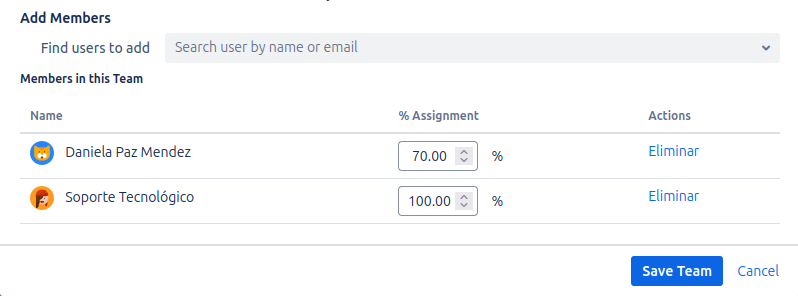
The system protects against overallocating a person's total capacity.
- A user cannot have a total dedication of more than 100% across all the teams they belong to.
- If a user already has 100% of their capacity allocated, they cannot be added to any other team.
3. Save the Team
Once you have filled in all the fields, click Save Team. The team will be created with all its settings, ensuring that planning is accurate from the start.