Audit Logs (Logs)
The Logs feature of Jira Secure Fortress provides a detailed and extended record of all important interactions with your encrypted fields. This is essential for regulatory compliance, security auditing, and for maintaining strict control over your sensitive information.
To access the logs:
- Navigate to the Secure Fortress Dashboard.
- In the page's side menu, select the Logs option.
Log View
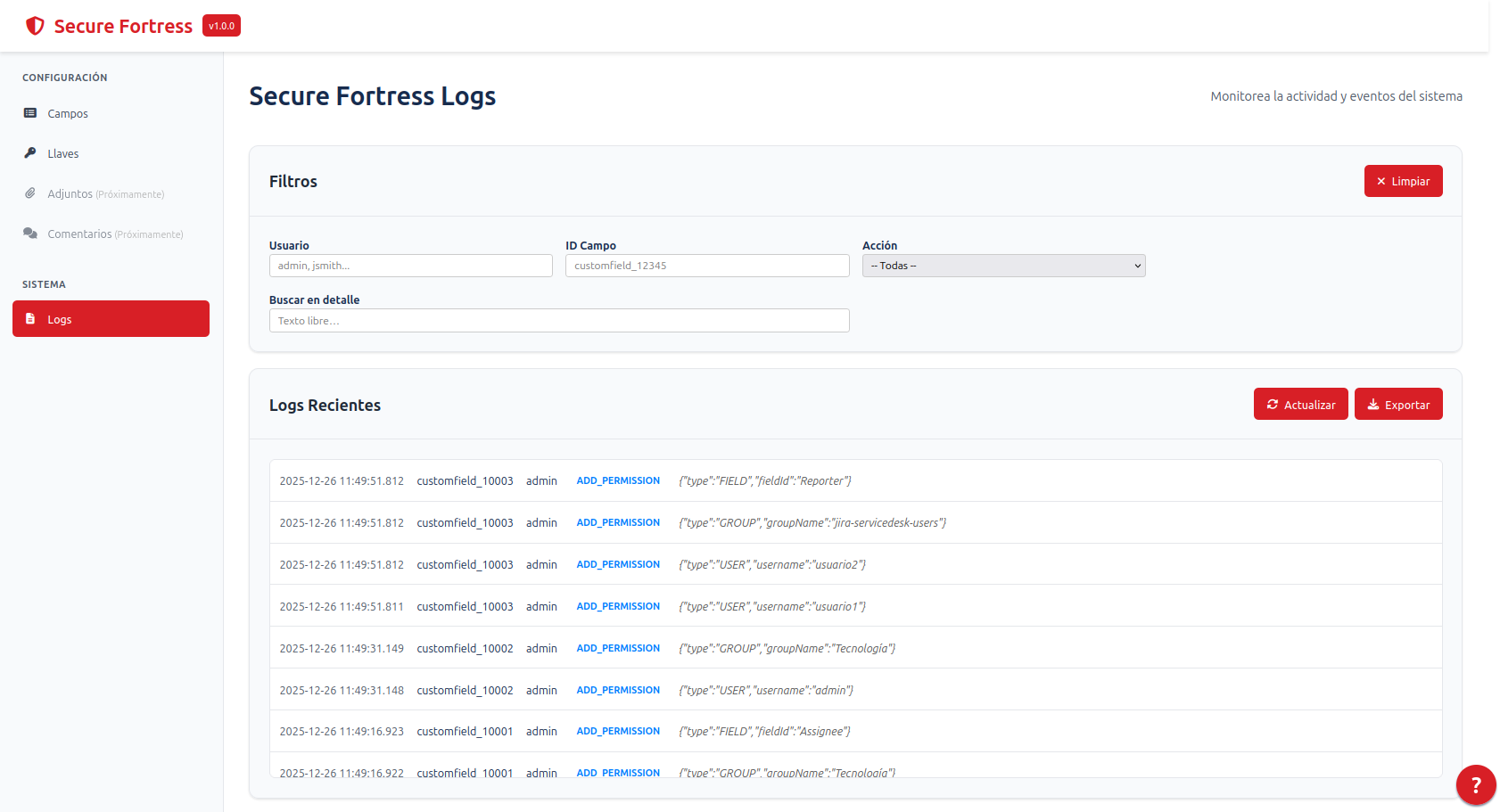
The log table displays the following information:
- Date: The exact date and time the action was performed.
- Custom Field Id: The identifier of the affected field.
- User: The user who performed the action.
- Action: The type of event recorded.
- Value: Contextual information about the action (e.g., the permission added/removed).
- Key: The key of the issue where the event occurred (e.g.,
PROJ-123), if applicable.
As of version 1.1.0, the actual content of the encrypted fields is never saved in the audit logs. The Value column no longer exposes sensitive data, correcting a critical vulnerability and ensuring that the logs are secure.
Recorded Events
The audit system records a wide range of events to provide complete traceability, including:
- Data visualization (
DECRYPT_VIEW): Every time a user accesses the content of a field. - Permission modification: Additions, removals, and modifications to a field's access settings.
- Administrative actions: Other management operations on the fields or the add-on.
Log Filtering
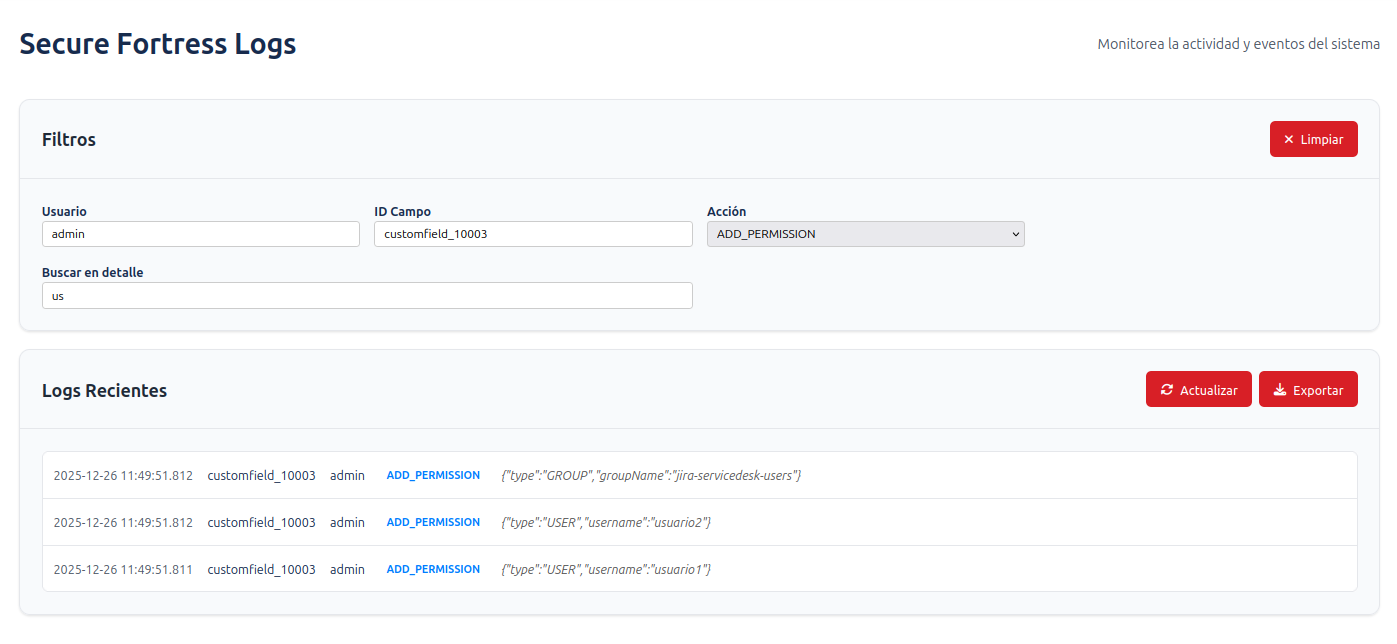
To facilitate the search for specific events, the Logs section includes powerful filtering controls. You can narrow down the results by:
- Date Range: Select a start and end date to view events in that period.
- User: Search for all actions performed by a specific user.
- Action: Filter by a specific event type (e.g.,
DECRYPT_VIEW). - Custom Field: View all logs associated with a specific encrypted field.
- Issue Key: Display only the events that occurred in a particular issue.
After applying the filters, the log table will update automatically.
Export Logs
You can export the filtered results to a text file (.txt) for external analysis or archiving. To do this, click the Export button located at the top right of the table.