Using the Field
The Jira Issue Picker field allows you to search and select Jira issues quickly and easily. The experience is consistent whether you are working in a Jira issue or creating a request in a Jira Service Management (JSM) project portal.
On the Jira Service Management (JSM) Portal
You can now use the Issue Picker field directly in the JSM portal. The experience is the same as using it in a Jira issue, allowing customers and portal users to search for and attach issues to their requests interactively.
Creating a Request
When you create a new request on the JSM portal, you will see the Issue Picker field ready to use:
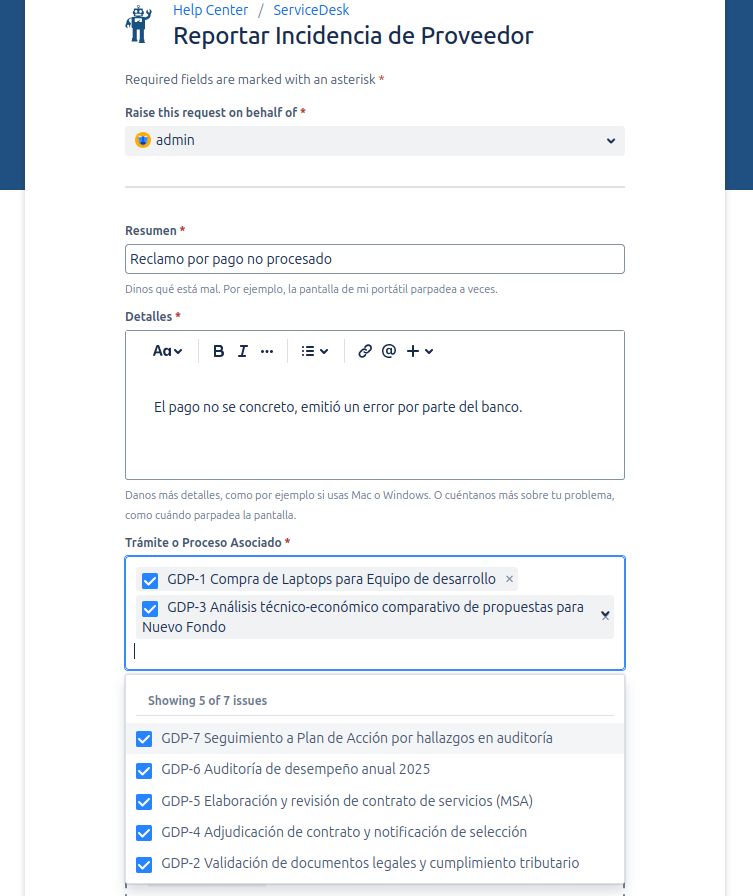
- Click on the field to activate the search.
- Search for the issue by its key (e.g., "PROJ-123") or by words in its summary.
- Select from the list of results that appears.
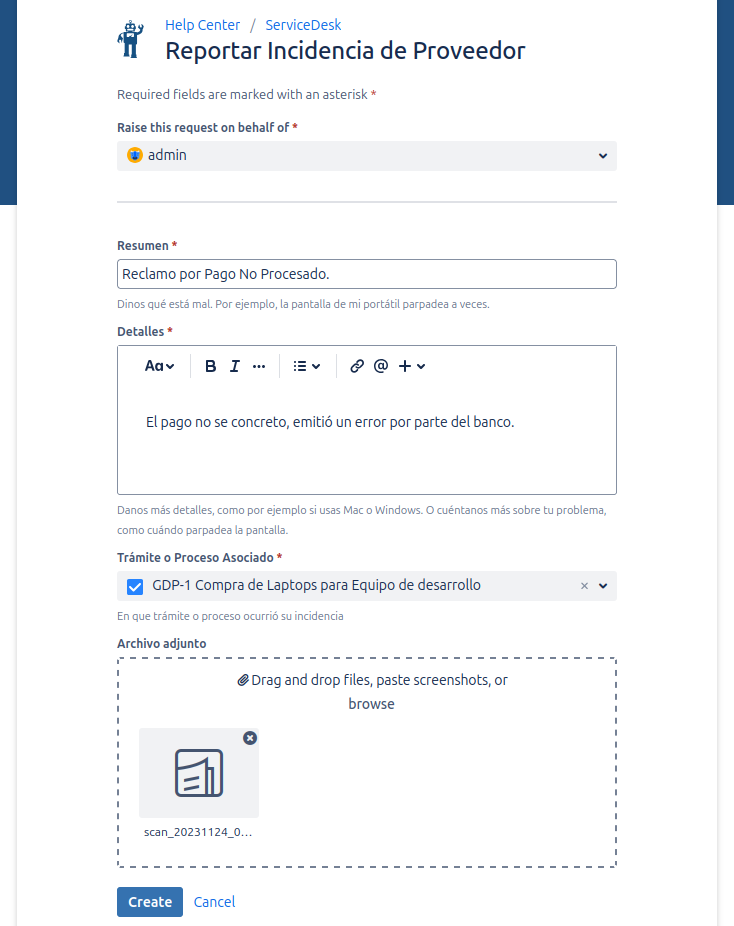
If the field is configured for multiple selection, you can add several issues. The selected issues will be clearly displayed in the field.
Viewing the Request
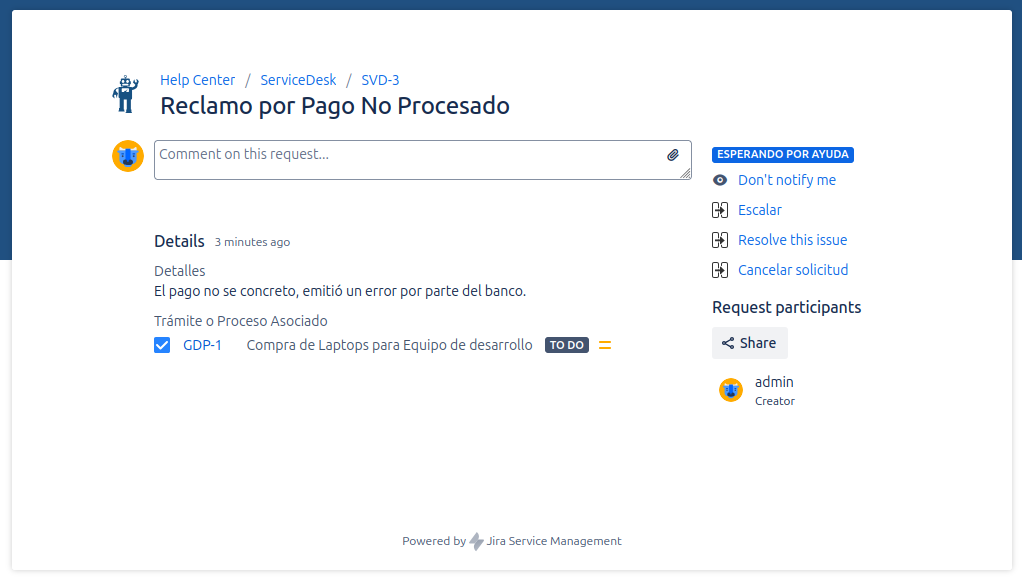
Once the request is created, the selected issues are visible to both the customer in the portal and the agents in the issue view.
In Jira Issues (Software, Core)
When you are creating or editing a Jira issue, the Jira Issue Picker field provides the same easy way to search for and select other issues.
How to Select an Issue
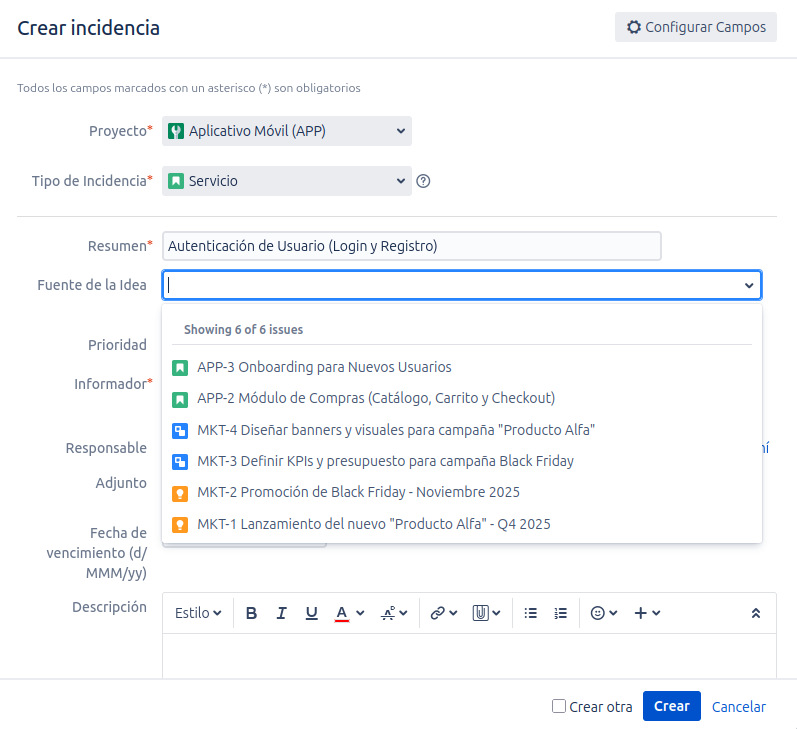
- Click the Field: The field looks like a standard select box. Click on it to activate the search.
- Start Typing: You can search for issues in two ways:
- By typing the issue key (e.g., "PROJ-123").
- By typing words from the summary (e.g., "Fix login button").
- Select from the List: A dropdown list will appear with matching issues. Each option shows the issue's icon, key, and summary to help you choose the correct one.
- Click to Select: Click on the desired issue from the list to select it.
If the field is configured for Multiple Selection, you can repeat this process to add more issues.
Understanding Invalid or Excluded Selections
Sometimes, a previously selected issue may appear with a red background when we try to save changes.
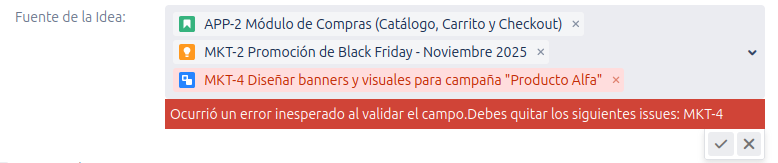
This happens when the selected issue no longer matches the JQL filter configured by your Jira administrator.
- Example: The field is configured to only allow "Open" issues. You previously selected
BUG-456. Later,BUG-456was resolved, and its status changed to "Done". The next time you edit the issue and try to save changes,BUG-456will appear highlighted in red because it is no longer "Open".
You must remove the invalid selection(s) before you can save the changes to the issue. This ensures data integrity and that all linked issues comply with the rules set by the administrator.