Space attachments
The Space attachments page provides a space-level view for locating attachments from work items you can access. To learn how to open this page by space type and how to create or edit labels, see How to configure and use attachment labels.
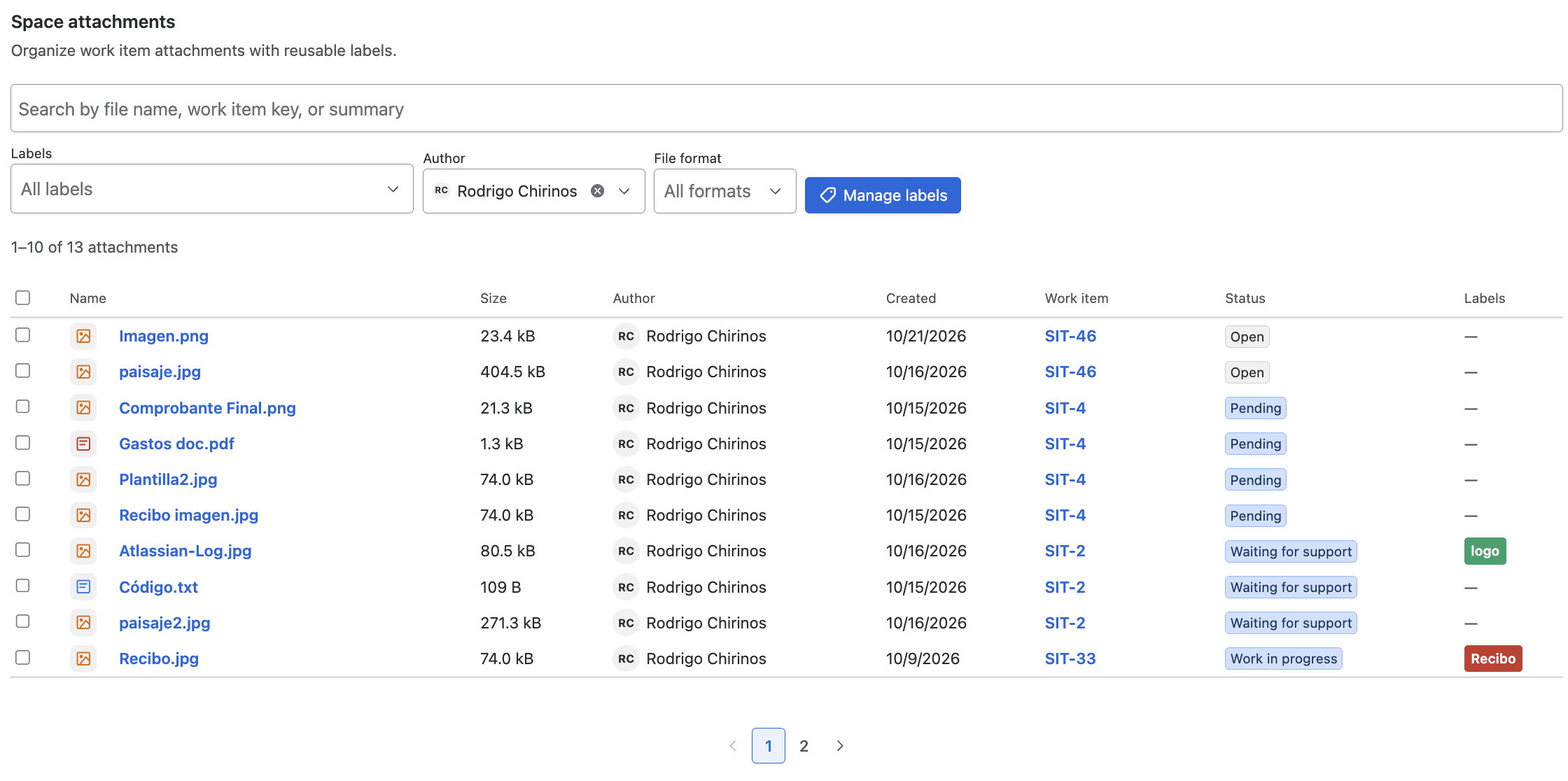
Search and filter files
- Open the Space attachments page from the space.
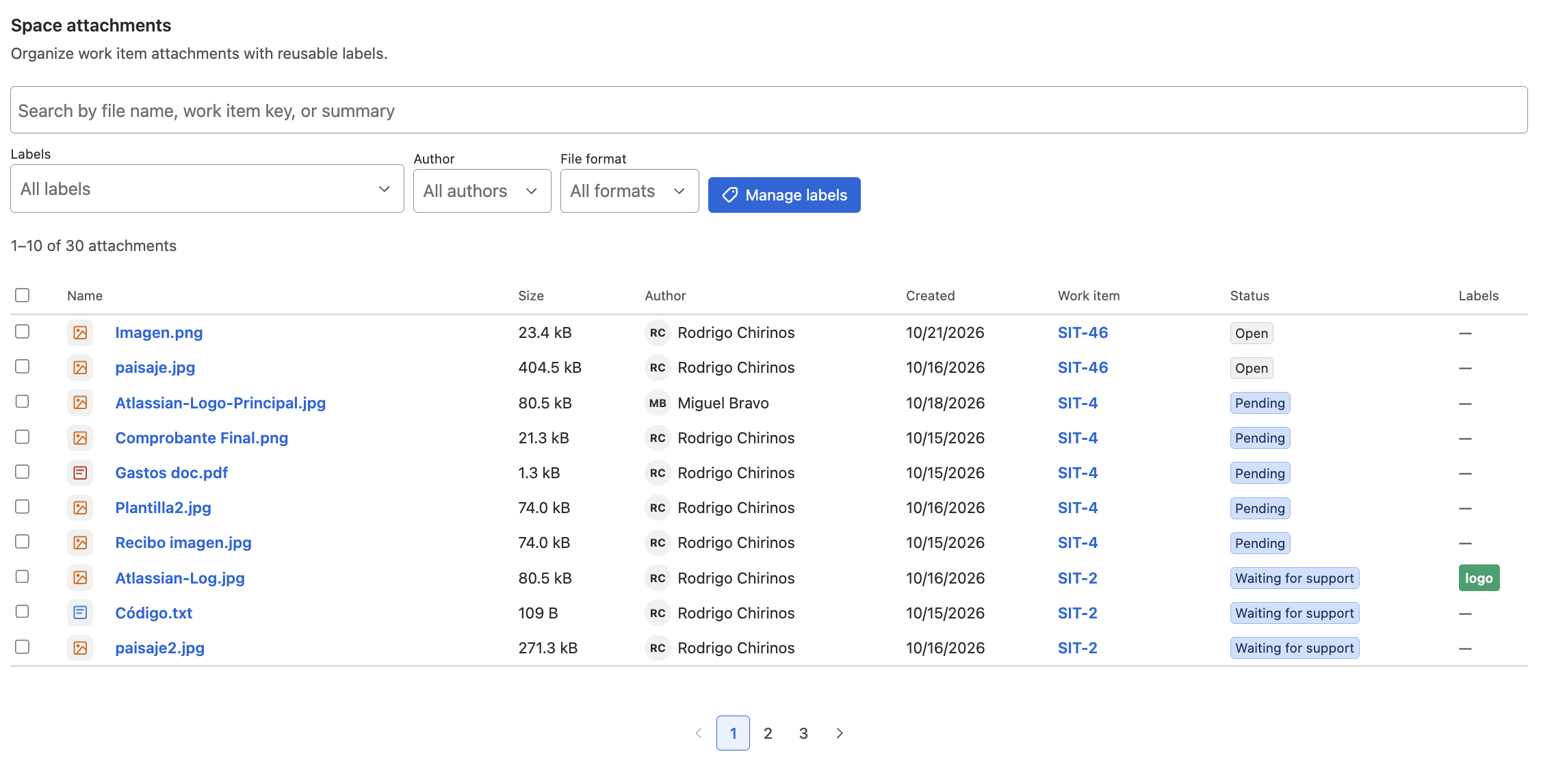
- Search by file name, work item key, or summary.
- Refine the results by label, author, format, or work type.
Each row references the work item, including its key or summary, together with the attachment's labels.
In the Author column and in the author filter, each person appears with their name and a circle showing their initials (for example, "Miguel Bravo" is shown as "MB"). The circle does not show the profile photo. You can filter and sort by author as usual.
Assign and remove labels
From the Space attachments view:
- Select one or more attachments.
- Choose Manage labels and select the labels to apply.
- To remove them, select the files and choose Remove labels.
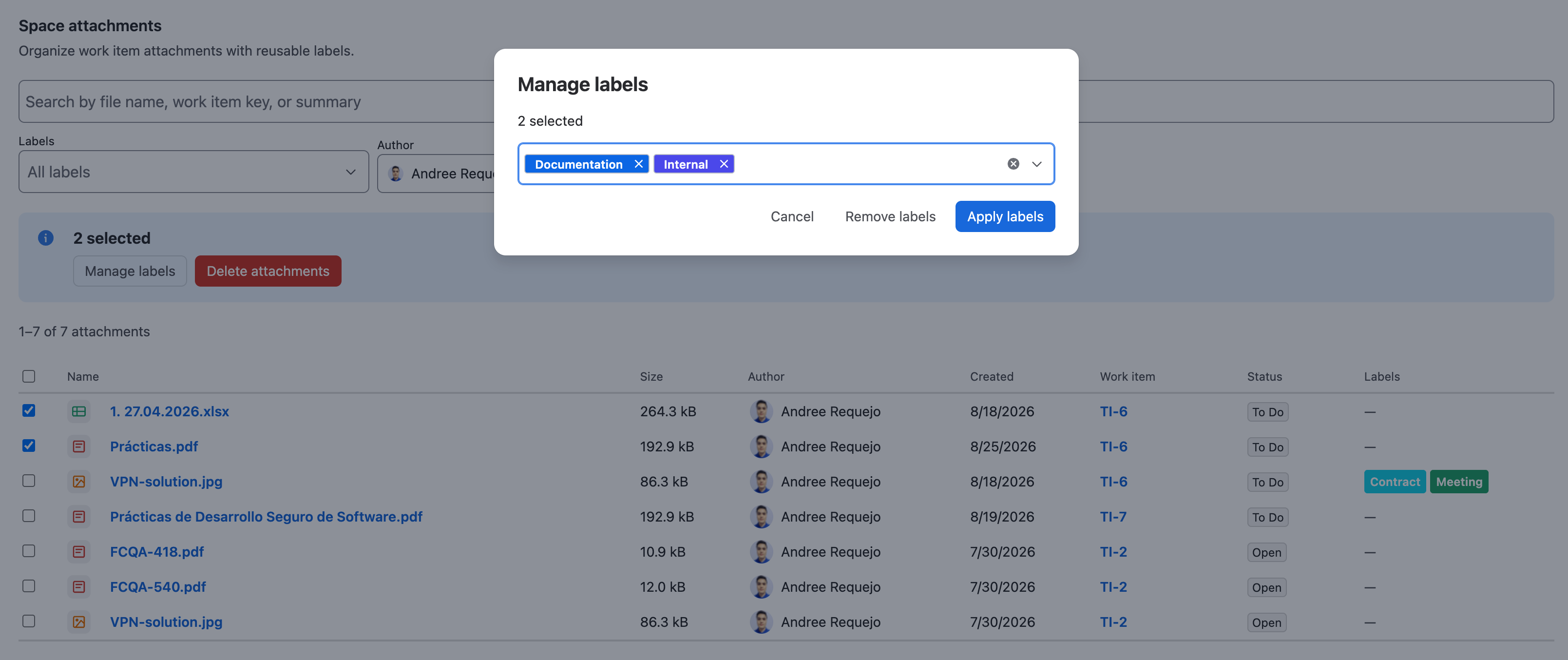
Labels can be reused on other attachments in the same space. They appear next to each file in compatible views, making it easier to identify the document type.
Manage labels in bulk
Select multiple files in the results and use the actions to apply or remove labels. You can only work with attachments from work items visible to your user. Labels are created and edited from Manage labels, as explained in the previous guide.
The page lists up to 100 attachments. If you cannot find a file, check your permissions, search, and apply filters to narrow the results.