Advanced Visibility Configuration
Jira PDF Merger DC version 1.1.0 introduces advanced configuration settings that give administrators granular control over where and when the PDF merging functionality is available. This ensures the tool is relevant to the teams that need it and keeps the Jira interface clean for everyone else.
Activation and Deactivation by Project
Administrators can enable or disable the PDF merging functionality at the project level.
How to Configure It
- Navigate to Jira Administration > Manage apps.
- Search for "PDF Merger" in the list of installed apps and click on "General Configuration."
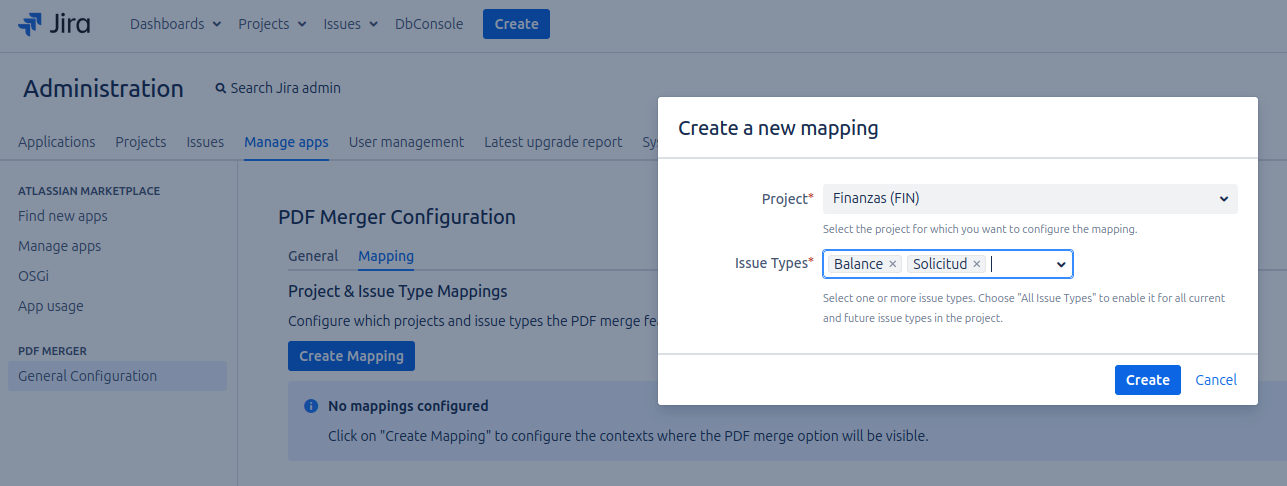
- Within the configuration screen, under the Mapping tab, you will find a new section dedicated to defining Project and Issue Type Mappings.
- Select the "Create Mapping" option.
- A window will open with a project selector. Once the project is selected, the Issue Type selector will be activated.
- The issue types belonging to the selected project will be listed. Select those for which you want the functionality to be available. If you select "All," it will apply to all issue types within the selected project.
- Select "Create," and the new mapping will be saved.
Impact on the User
When the PDF merging functionality is disabled for a specific project or issue type, the PDF merge button or option will simply not appear in the Jira interface, simplifying the user experience and reducing confusion.