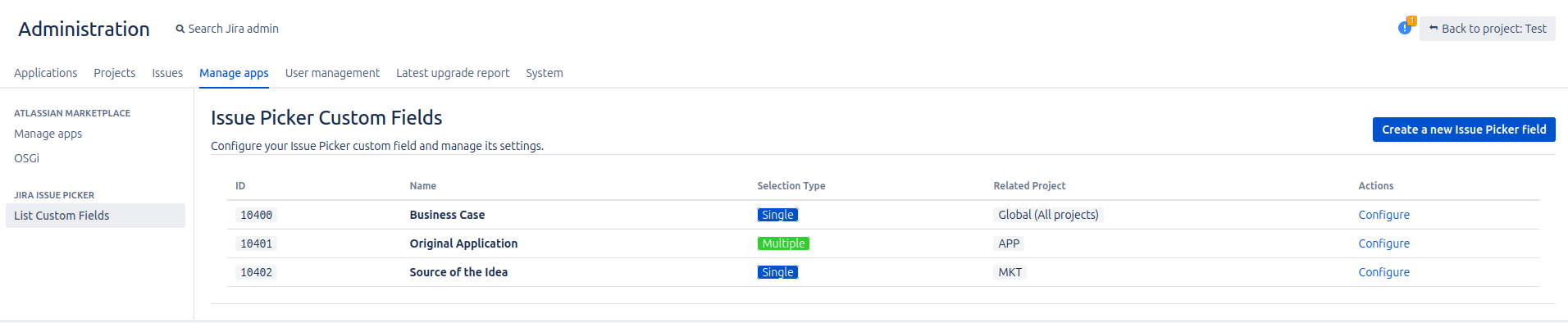
The Main Administration Panel
The Jira Issue Picker add-on includes a centralized panel where you can view and manage all the Issue Picker fields you have created.
How to Access the Panel
- Navigate to Jira Administration > Manage apps.
- In the left sidebar, you will see a new section titled Issue Picker. Click on it to open the panel.
Understanding the Panel
The panel displays a table with every custom field of the "Jira Issue Picker" type in your Jira instance. If you haven't created any yet, you will see a message guiding you to do so.
The table provides the following information for each field:
- ID: The unique identifier of the custom field. You can click it to easily copy the ID to your clipboard.
- Name: The name you gave to the custom field.
- Selection Type: Shows whether the field is configured for Single or Multiple issue selection. This is highlighted with a colored tag for quick identification (Blue for Single, Green for Multiple).
- Related Projects: Indicates in which projects the field is used. If it is available for all projects, it will be displayed as "Global (All projects)".
- Actions: Provides quick actions for the field.
- Configure: This is the most important action. Clicking it will take you to the detailed configuration page for that specific field.