Absence Management
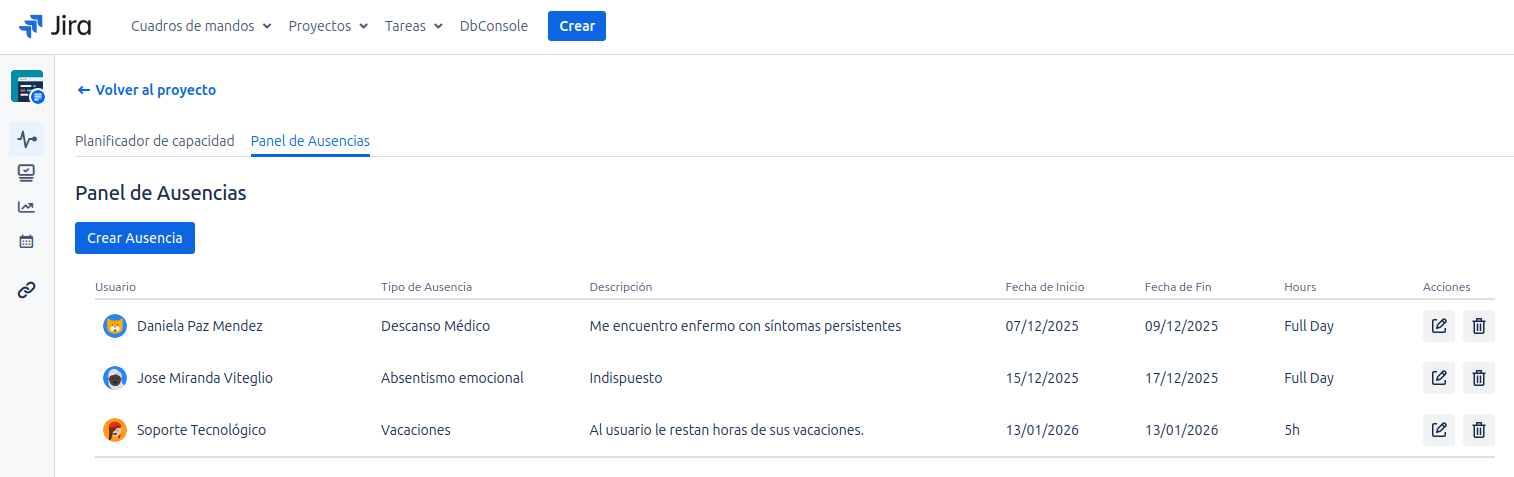
In addition to the capacity planner, the tool includes a dedicated Absence Panel, which allows you to record and visualize users' periods of unavailability, such as vacations or sick leave. Both full-day and partial-day absences by hours can be recorded.
Access and Visibility
You can access this view by clicking on the "Absence Panel" tab, located next to the "Capacity Planner" tab.
The information you will see and the actions you can perform in this panel depend on your permissions:
- If you are a standard user: You will only see a list of your own absences and can only register new absences for yourself.
- If you are an administrator or project lead: You will have a complete view of all users' absences and can register absences for anyone on the team.
Registering a New Absence
- Click the "Create Absence" button.
- A modal will open for you to complete the required information.
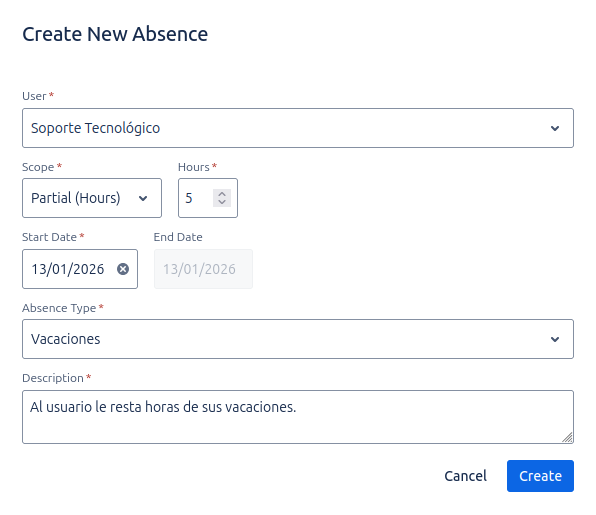
- User: If you are an administrator, you can search for and select the user. If you are a standard user, this field will be pre-filled with your name and cannot be modified.
- Scope: Choose between a full-day or partial-day absence.
Full Day: The absence covers one or more full days. You will need to specify a start and end date.Partial Day: The absence is only for a specific number of hours on a single day. You will need to specify the start date and the number of hours.
- Start / End Date: Define the date range (for
Full Day) or the single date (forPartial Day). - Hours (only for
Partial Day): Indicate the number of hours the absence will last. - Absence Type: Select one of the categories predefined by the administrator (e.g.,
Vacation,Medical Appointment). - Description: Add a brief context about the reason for the absence.
- Click Create.
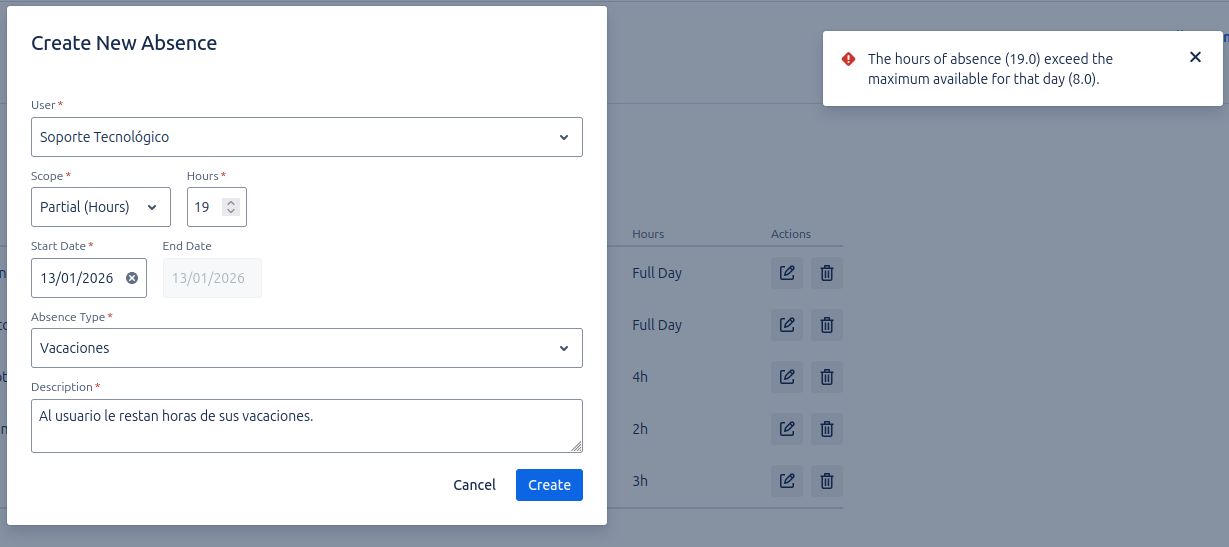
When registering a Partial Day absence, the system validates that you cannot register more hours than the user has available for that day according to their work profile. If you try to register, for example, 5 hours of absence on a day where the work profile only has 4 hours available, the system will display a clear error and will not allow the creation.
The absence will be added to the list and will be automatically reflected in the Capacity Planner view, impacting the user's availability.
Visual Representation in the Calendar
Absences are displayed differently in the planner so you can distinguish them at a glance:
- Full-Day Absence (
Full Day): The entire day's cell is colored a pastel orange, indicating that the user's availability is zero. - Partial-Day Absence (
Partial Day): Instead of coloring the whole cell, an orange bar is displayed at the top edge of the cell. The number of available hours for that day is reduced as indicated in the absence, but the cell can still show a workload if there are hours available.