Holiday Calendars
Holiday Calendars are an essential tool for accurately adjusting your teams' real capacity. They allow you to register specific non-working days, such as national or regional holidays or company events, that are not part of the standard weekend defined in the Work Profile.
Each calendar can be associated with one or more teams, offering flexibility for organizations with a presence in different geographies.
To access this section, navigate to Administration > Manage apps > Capacity Planner > Holiday Calendars.
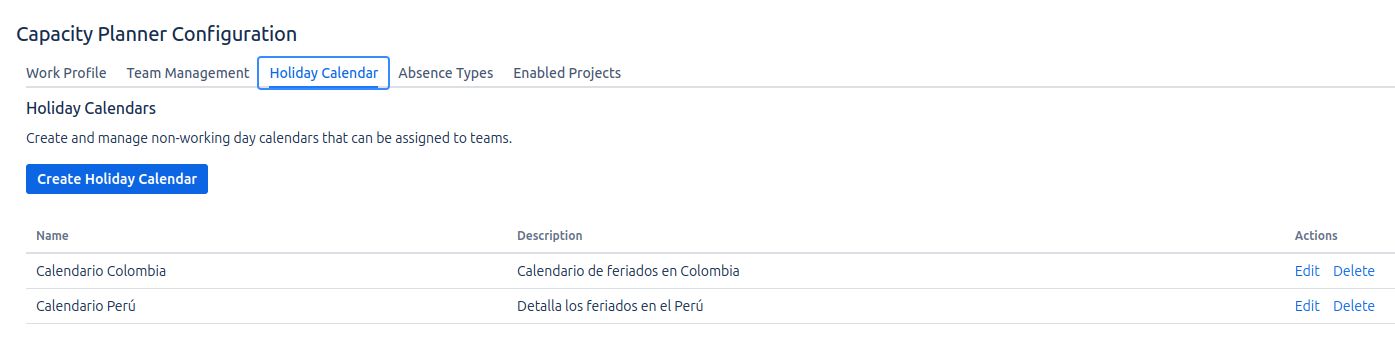
If your organization operates in multiple countries or regions, it is recommended to create a separate holiday calendar for each one. This will allow you to accurately assign non-working days to the corresponding team, ensuring that capacity calculations are correct for everyone.
Creating a Holiday Calendar
The creation of a calendar and the addition of its dates are done in a single, efficient step.
- Click the Create Holiday Calendar button. A unified modal will open for you to enter all the information.
- Complete the Calendar details:
- Calendar Name: Assign a clear and descriptive name. For example,
USA Holidays 2024orCorporate Events Q3. - Description: Add optional text to clarify the calendar's scope.
- Calendar Name: Assign a clear and descriptive name. For example,
- Add the Holiday Dates:
- Within the same modal, you will find a section to register the dates.
- Complete the details for each holiday.
- Click "Add Holiday" to add a new row.
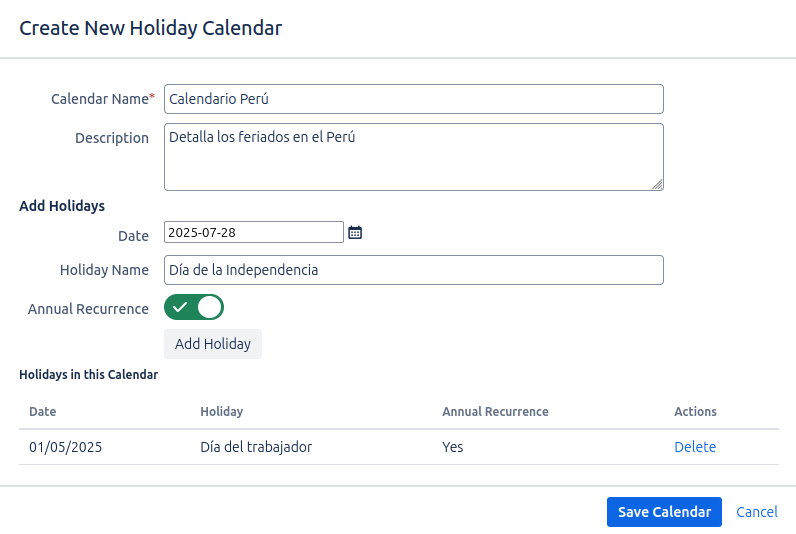
- Date: The exact day, month, and year of the holiday.
- Holiday Name: The name of the holiday (e.g.,
Independence Day). - Repeat Annually: Activate this switch if the holiday occurs on the same date every year. By doing so, the system will automatically consider this day as non-working in future years, without needing to register it again.
- Save the Calendar:
- You can add as many holidays as you need within the modal.
- Once you have entered the name, description, and all relevant dates, click Save Calendar.
The calendar will be created with all its associated holidays in a single operation. Any day registered as a holiday in a calendar associated with a team will result in the availability of that team's members being 0 for that date, which will be visually reflected in the planner.