Email Custom Field
The Email custom field lets you record an email address associated with an issue, with format validation and integrated search support through Jira's engine.
This section describes how to create the field, associate it with your screens, and understand the validation rules applied by the add-on.
Create the Email Field
-
Navigate to Jira Administration > Issues.
-
In the left sidebar, under Fields, click Custom fields.
-
Click Add custom field in the upper-right corner.
-
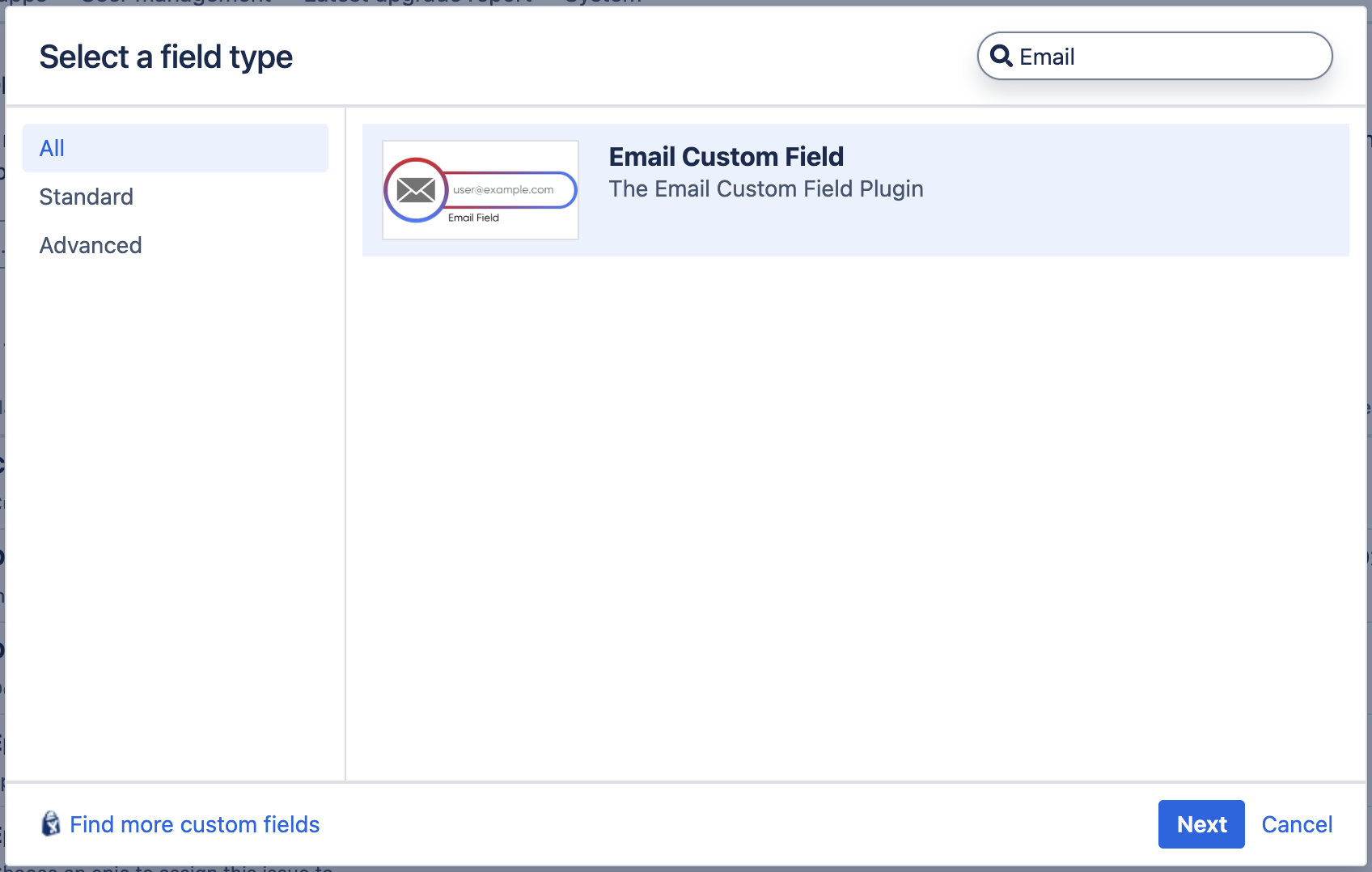
On the "Select a field type" screen, find and select Email Custom Field. Click Next.
💡 You will recognize it by its description: "The Email Custom Field Plugin".
-
Name and Description:
- Enter a Name for the field (for example, "Requester email", "Contact email").
- Add an optional Description. This text appears below the field to guide users.
-
Click Create.
-
Associate with screens: Jira will ask you to select the screens where the field will appear (for example, the default screen, create issue, or edit issue). Select the appropriate ones and click Update.
From this point on, the field will be available on the configured screens and users can capture email addresses on their issues.
Validation Rules
The add-on validates input on the server, ensuring consistent data regardless of the source (Jira forms, REST API, importers, external integrations).
The rules applied are:
- Format: The value must match the HTML5 pattern for
<input type="email">(the same applied by the browser). This ensures symmetry between client and server validation. - Total length: The address cannot exceed 254 characters (RFC 5321 limit).
- Local part length: The segment before
@cannot exceed 64 characters (RFC 5321 limit). - Empty allowed: If the field is not required in Jira configuration, leaving it blank is valid.
If the value does not meet any of the rules above, Jira will show an error message and will not allow saving the change.
Because validation runs on the server, it also applies when an issue is created or updated via the REST API or an importer. This prevents "gaps" where invalid addresses could be introduced by bypassing browser validation.
Search Support (Searcher)
The Email field is registered with an integrated searcher for Jira's search engine. This allows you to:
- Filter issues by email from basic search in the Issues view.
- Use the field in JQL queries. For example:
where
"Requester email" = "client@example.com"Requester emailis the name you assigned when creating the field.
Values are indexed automatically as issues are created or updated; no additional configuration is required.
Rendering on the Issue View
On the issue view, the field value is rendered as a mailto: link ready to open the user's default mail client when clicked.
The add-on applies secure encoding of the value (RFC 6068) before building the link, ensuring non-standard characters are serialized correctly in the link URL.