Gantt and plans
The Stratify Gantt shows work items from several spaces based on a JQL, draws them as bars over time, and nests them according to the configured hierarchy, the Parent Element field, and, when that field is empty, Jira's native Parent.
Open Stratify from the app's global page (Command Center focused on the Gantt).
Create or open a plan
- Enter a JQL. Stratify shows an approximate count before saving.
- Run the search. You will only see work items your permissions allow you to read.
- Save the plan (JQL + view) to reopen it later.
- If the JQL is invalid or you do not have permission, you will see a clear message; fix the query and run it again.
Each work item is drawn as a bar between its start and end date (or the configured date fields). If a date is missing, the UI shows it (placeholder or incomplete state). Each bar shows at least key and summary.
The timeline supports basic zoom and pan.
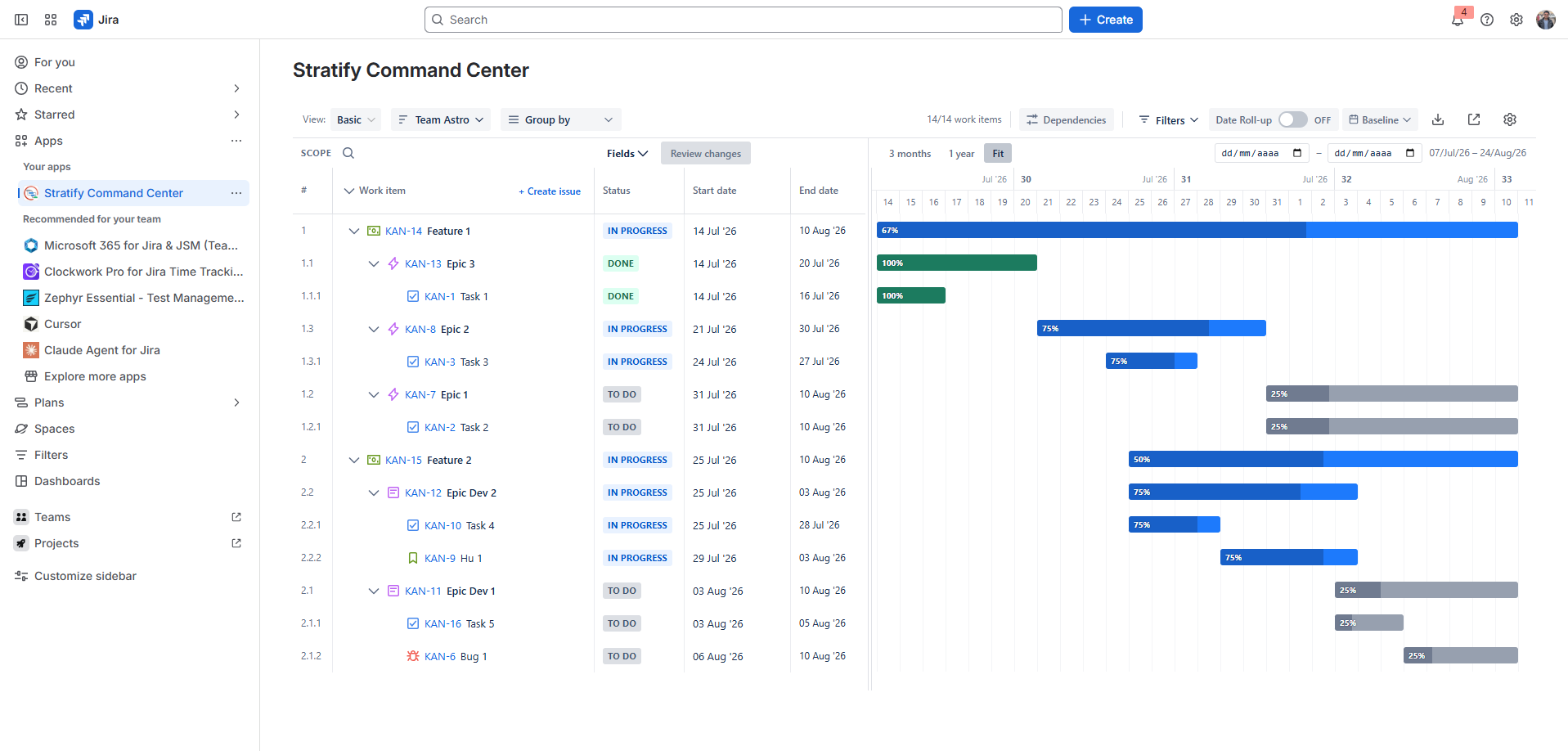
Nesting
Bars are grouped by these rules, in this order:
- If the work item has a value in Parent Element, that value wins.
- If Parent Element is empty and the work item has a Jira native Parent, the Gantt uses that Parent to nest. The parent type must be allowed by the hierarchy and the parent must be in the plan JQL.
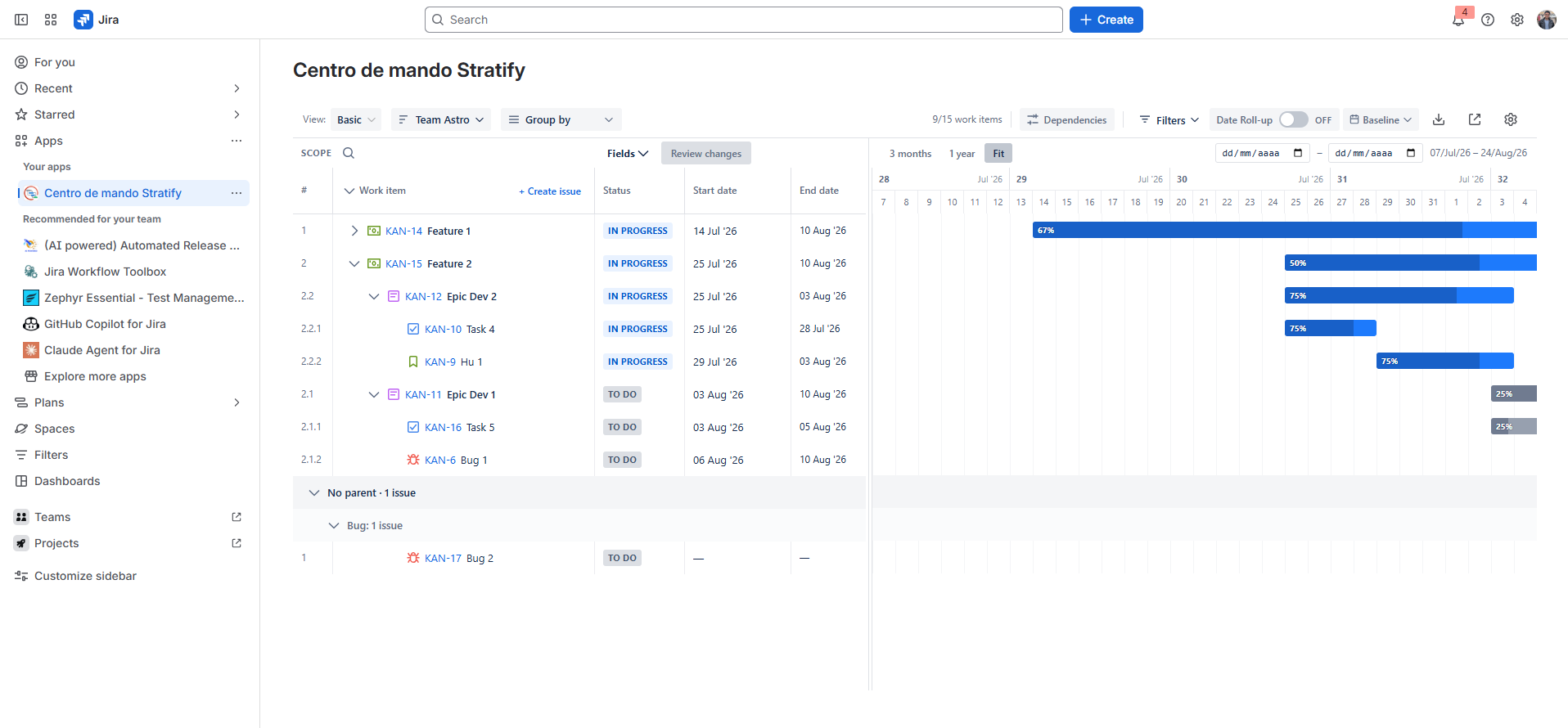
- If the parent type is not allowed or the parent is not in the JQL, the work item is grouped under No parent.
Stratify does not copy the native Parent into Parent Element. The field only changes when the user saves it.
You can expand and collapse levels. Work items without a parent or whose parent is not in the JQL result are grouped explicitly (for example No parent).
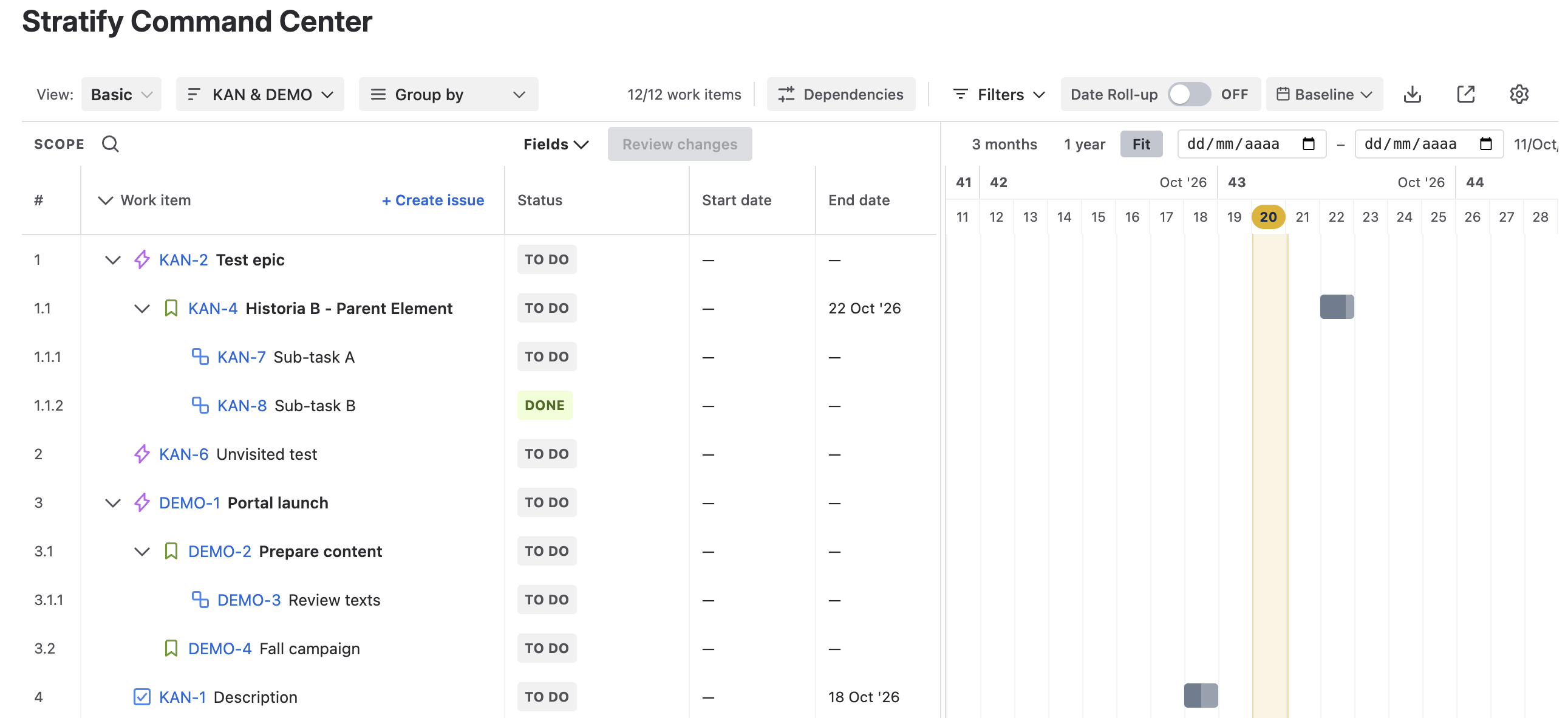
Sub-tasks
A sub-task always hangs from its Jira native Parent, even when Parent Element has another value. Its ⋯ menu does not show the Parent Element picker.
- If the plan JQL returns sub-tasks and their type is included in the hierarchy, the Gantt shows them.
- Each sub-task nests under its Parent when that parent is in the plan.
- If the parent is not in the plan, the sub-task goes to No parent, with the same rule as the rest.
- Effort and date roll-ups include visible sub-tasks, like any other child.
Creating sub-tasks from the plan's + Create issue button is not part of this version.
Parent Element picker in the Gantt
The work item's ⋯ menu lets you change Parent Element without leaving the plan. It uses the same picker as the field:
- Search by key or summary, with recent and suggested results.
- Each option shows the issue type icon, key, and summary, grouped by sections.
- Only parent types allowed by the hierarchy appear.
- The value can be cleared.
The saved value remains the work item reference. A sub-task does not offer this picker.
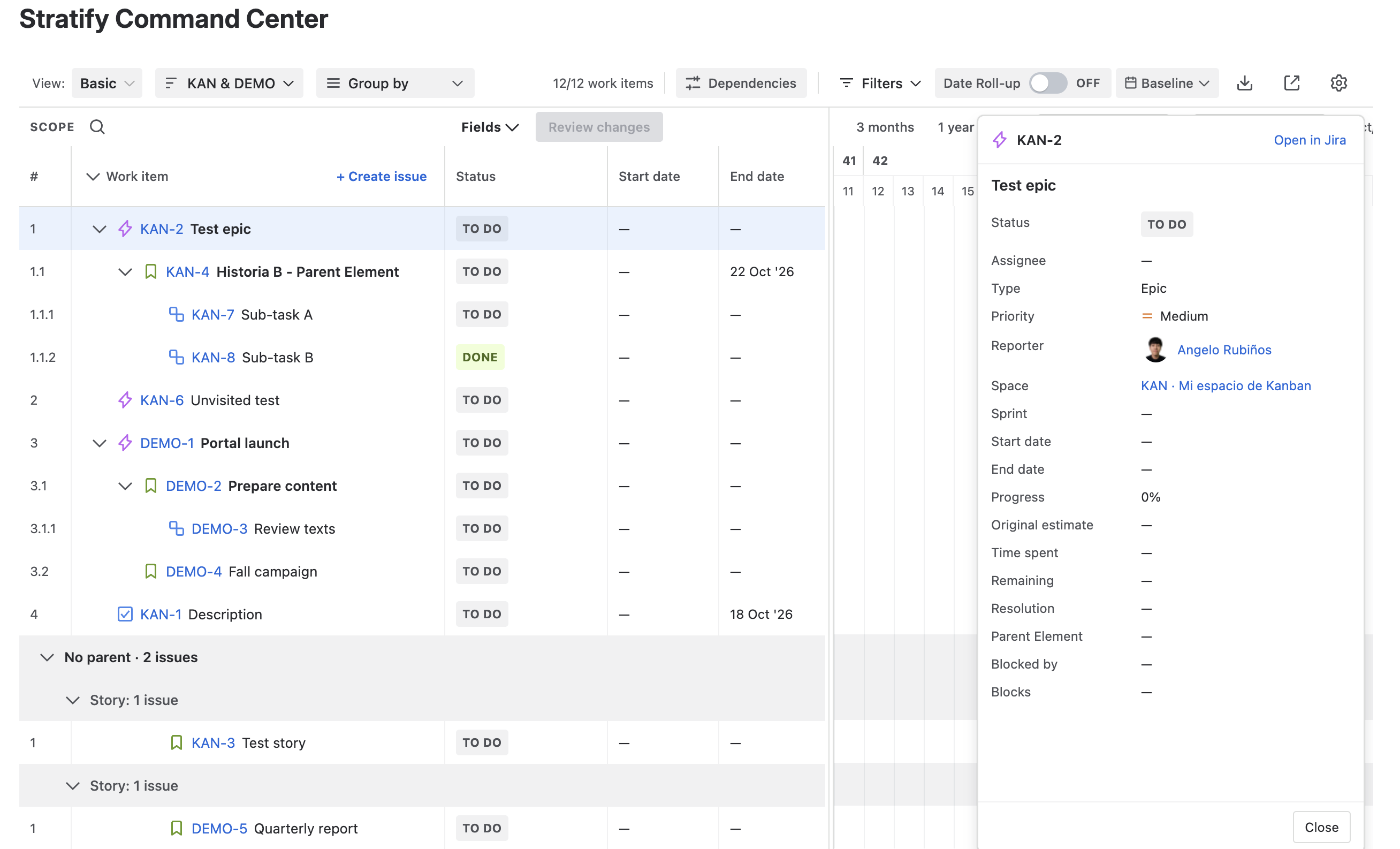
Work item preview
The row key or a click on the bar without dragging it opens a panel with the work item details inside the Gantt. Dragging the bar does not open the panel.
The panel shows real work item data:
- Key, summary, type, status, and assignee.
- Priority, reporter, resolution, and space.
- Dates, sprint, progress, estimates, and links, taken from the plan.
It closes with Close or Escape. You can keep editing the plan while the panel is open. It includes Open in Jira.
It is not the Jira issue panel and does not show budget, cost, or sample data.
If the user cannot view the work item, the panel shows a clear error: no permission, the work item no longer exists, or a generic error with Retry.
Group by Space
The Group by control lets you group bars by Space (en-US) or Espacio (es-ES). Work items with no resolved space are grouped under Unknown space / Espacio desconocido.
When you create a work item without a space, the notice says: “Space, work type, and summary are required.” If the hierarchy does not have the space name yet, the fallback is Espacio {id}.
The example JQL still uses project = .... Jira's project field and API keys are not renamed.
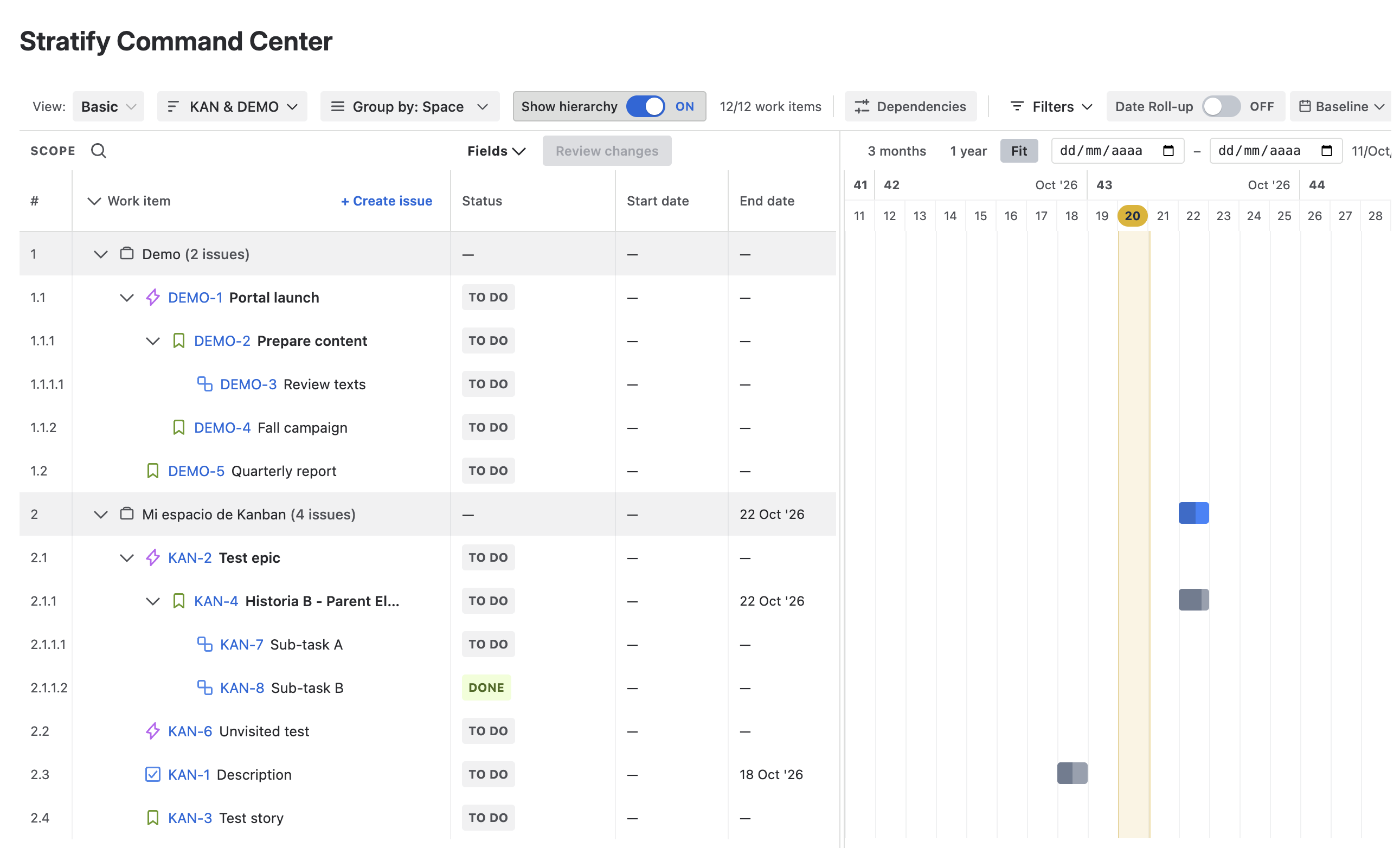
Fields menu
The Gantt fields menu is fully visible: the search box and the full field names (Status, Assignee, and the rest) are shown without clipping.
The view is remembered
Stratify restores each plan's layout and some global user preferences:
- Collapsed tree rows, table scroll, and timeline scroll: per plan.
- Column widths, collapsed column headers, and the splitter position between the table and the Gantt: for all plans.
The splitter is saved when you release the drag and does not crush the estimate column after a reload. The text in that column and the collapsed column labels are centered.
Next step
Dates you move in the Gantt do not go to Jira until you sync. See Sandbox and sync.