Worklog approval workflow
When the administrator enables Enable approval workflow in global or per-space settings, worklogs are created in PENDING state and must be approved to count toward totals and reports.
Approval states
Each worklog displays an icon indicating its status:
| Status | Icon | Counts in LogSense? |
|---|---|---|
| PENDING | ⏱ (clock) | No |
| APPROVED | ✓ (check) | Yes |
| REJECTED | ✗ (cross) | No |
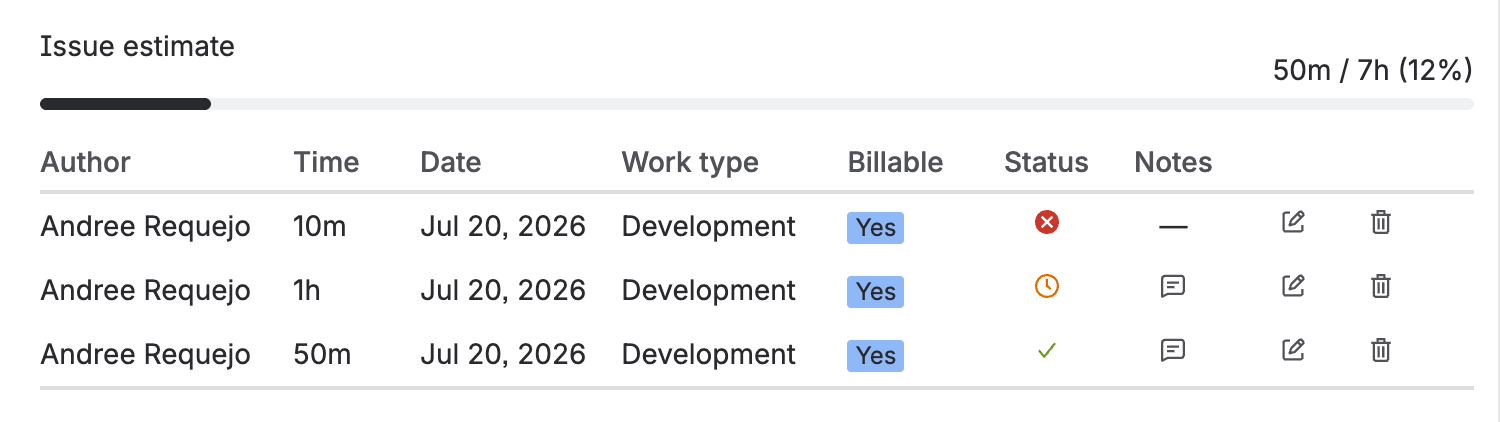
PENDING
- Initial state for every new worklog when the approval workflow is active and approvers are configured.
- The worklog is created in Jira (the author is the original logger).
- Does not count in side panel KPIs, gadget reports, activity, provider, or any LogSense totals.
- Displayed with a clock icon ⏱.
APPROVED
- The worklog is effective for LogSense.
- Counts toward all totals, reports, and aggregations.
- Displayed with a check icon ✓.
REJECTED
- The worklog exists in Jira but LogSense excludes it from calculations.
- Displayed with a cross icon ✗.
Approver actions
Users on the space's approver list can click the clock icon ⏱ on a PENDING worklog to open a modal with the following options:
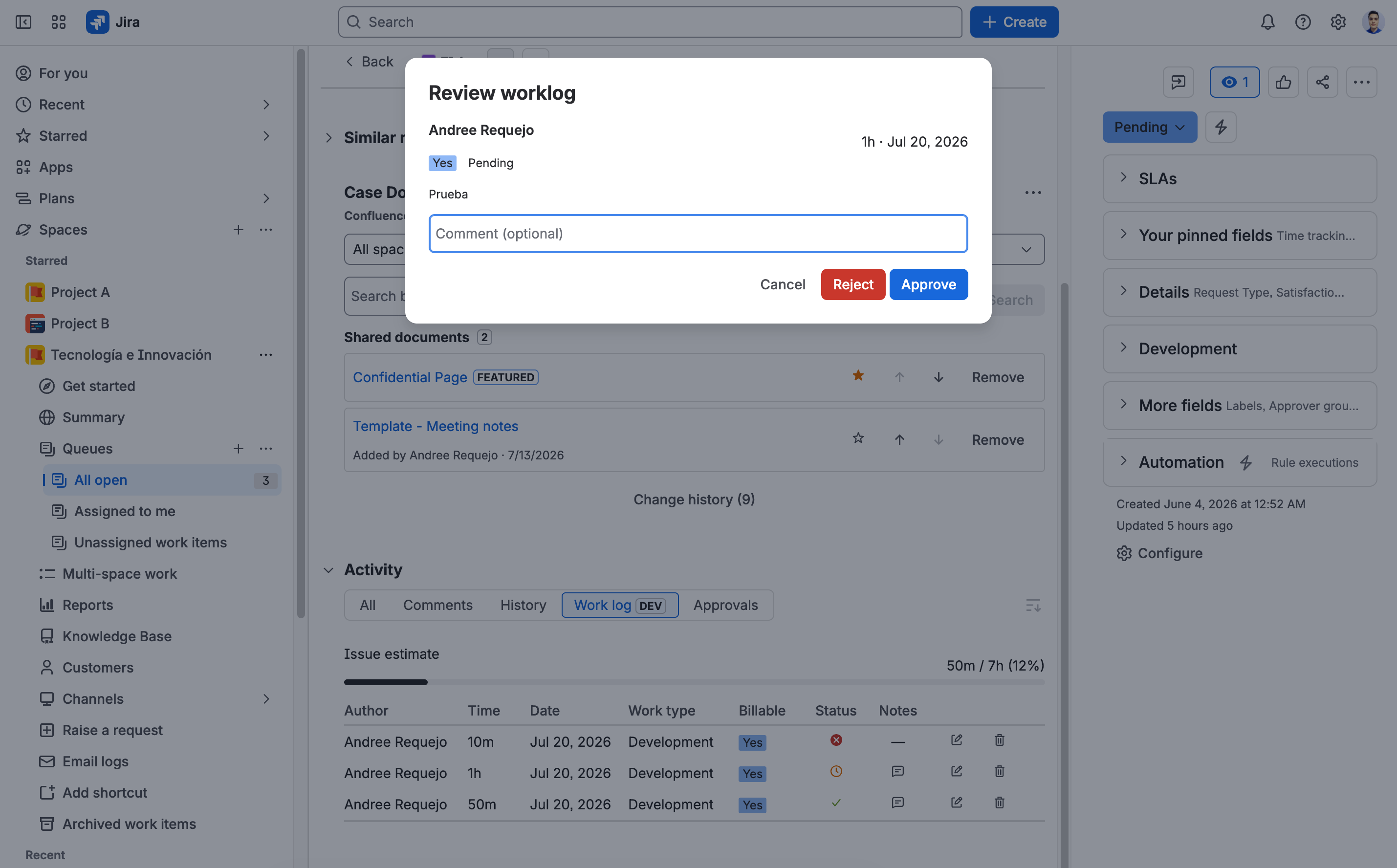
| Action | Effect |
|---|---|
| Approve | Changes status to APPROVED. The worklog starts counting toward totals. |
| Reject | Changes status to REJECTED. The worklog is excluded from totals. Optionally, the worklog can be deleted from Jira if permissions allow. |
Optional comment
The modal includes an optional comment field. When approving or rejecting, LogSense automatically adds a comment to the Jira worklog:
- In Service Management spaces, the comment is added as internal (visible to the team only).
- In Software spaces, the comment is added as public (visible to the project customer).
Backward compatibility
Worklogs recorded before v2.4.0 do not have the approvalStatus field. LogSense treats them as APPROVED automatically, so they continue to count without requiring migration or administrative action.
Configuration
The approver list is configured per space in:
Space Settings → LogSense Settings → General → Approvers
See Approver configuration in the administrator guide.