Logging time with LogSense
When LogSense is active as the time tracking provider, time is logged from the issue Log work action.
Open the logging form
From Log work action
- Open an issue in Jira.
- In the actions menu (⋯) or action bar, select Log work.
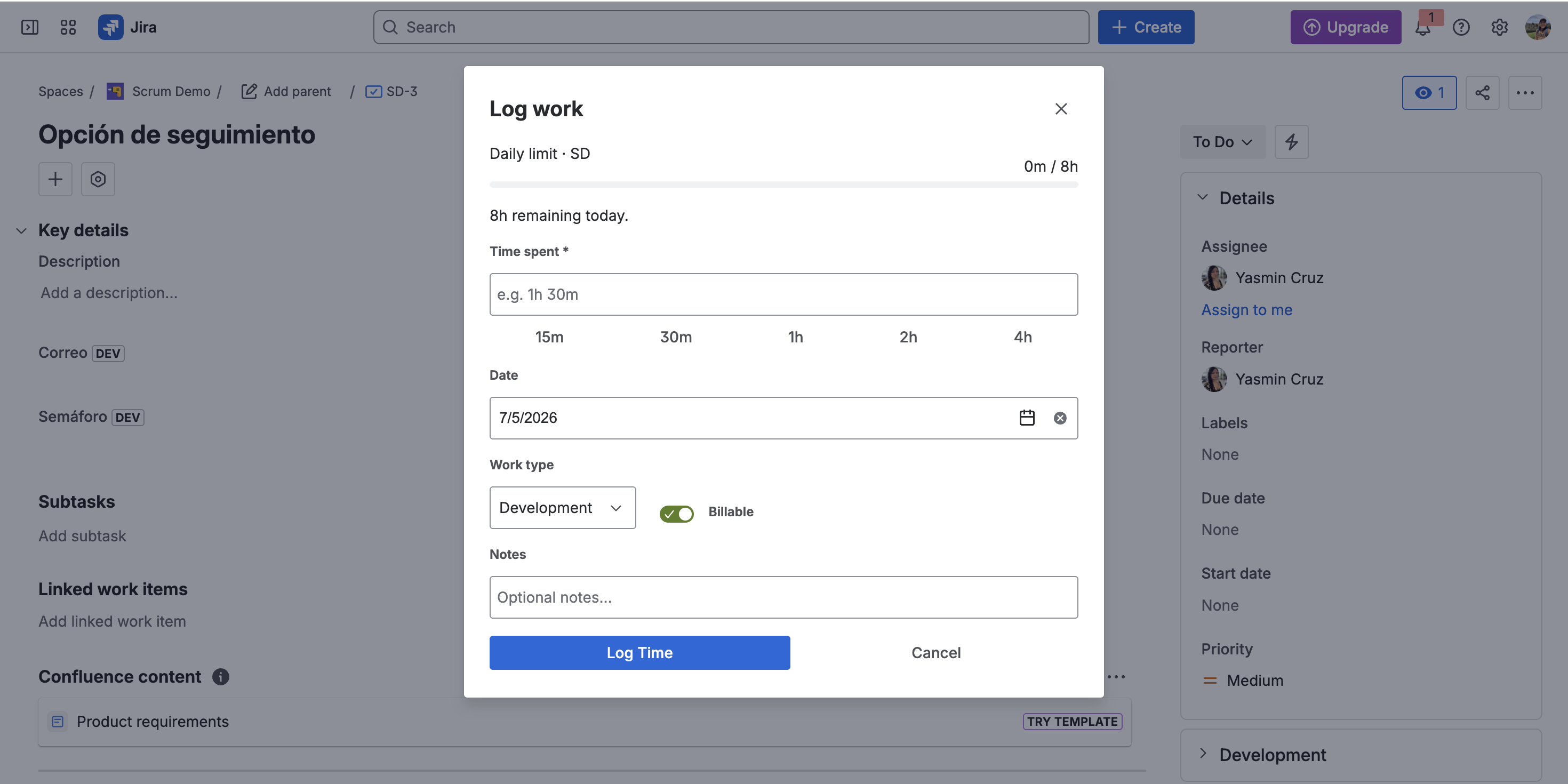
Form fields
| Field | Description |
|---|---|
| Date | Calendar date picker (DatePicker), respecting user locale. |
| Time spent | Manual duration or shortcuts. |
| Billable | Billable / non-billable classification. |
| Work type | Effort category (space catalog). |
| Notes | Optional entry comment. |
Time shortcuts
Use shortcut buttons to speed up logging:
- 15m — fifteen minutes
- 30m — half hour
- 1h — one hour
- 2h — two hours
- 4h — four hours
Shortcuts fill the duration field; you can adjust manually afterward.
Progress bars
The form shows two visual indicators:
Issue estimate
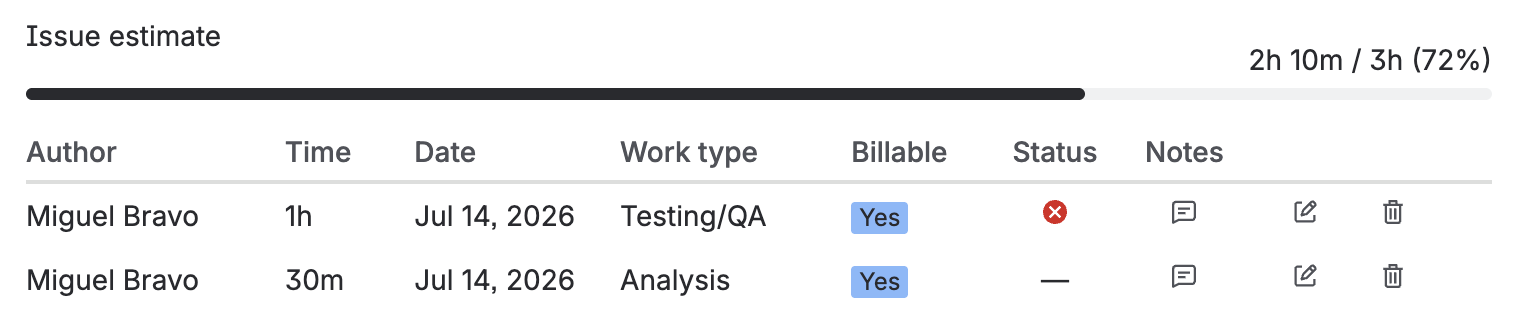
Bar relating time already logged on the issue to its original estimate (if any).
Daily limit
Bar showing how much of the space's daily limit the user has consumed on the selected date. LogSense calculates the total via the getDailySummary resolver, aggregating the current user's worklogs for the day in the space.
If Jira cannot verify the daily limit (API error or permissions), LogSense allows logging to avoid blocking users due to transient failures.
Daily limit validation
On save, LogSense checks that the new entry does not exceed the daily limit configured in Space settings → LogSense Settings → General. If it does, the form shows an error and does not save until duration or date is corrected.
Holiday validation
If the space has holiday blocking active and the selected date is a holiday, the entry is rejected. Check with the space administrator in Space settings → LogSense Settings → Holidays.
Save the entry
- Complete required fields (if Require notes is active, the Notes field is required and shows an asterisk *).
- Review progress bars if applicable.
- Confirm with Save / Log work.
Metadata (billable, work type) is stored in Forge KVS associated with the Jira worklog.
Edit an existing worklog
From version 2.3.0, LogSense allows editing existing worklogs without deleting and recreating them.
- Open an issue in Jira.
- In Activity → Work log tab, locate the entry to edit.
- Select Edit from the worklog actions.
A form will open with the previously entered data, where you can modify the necessary fields.
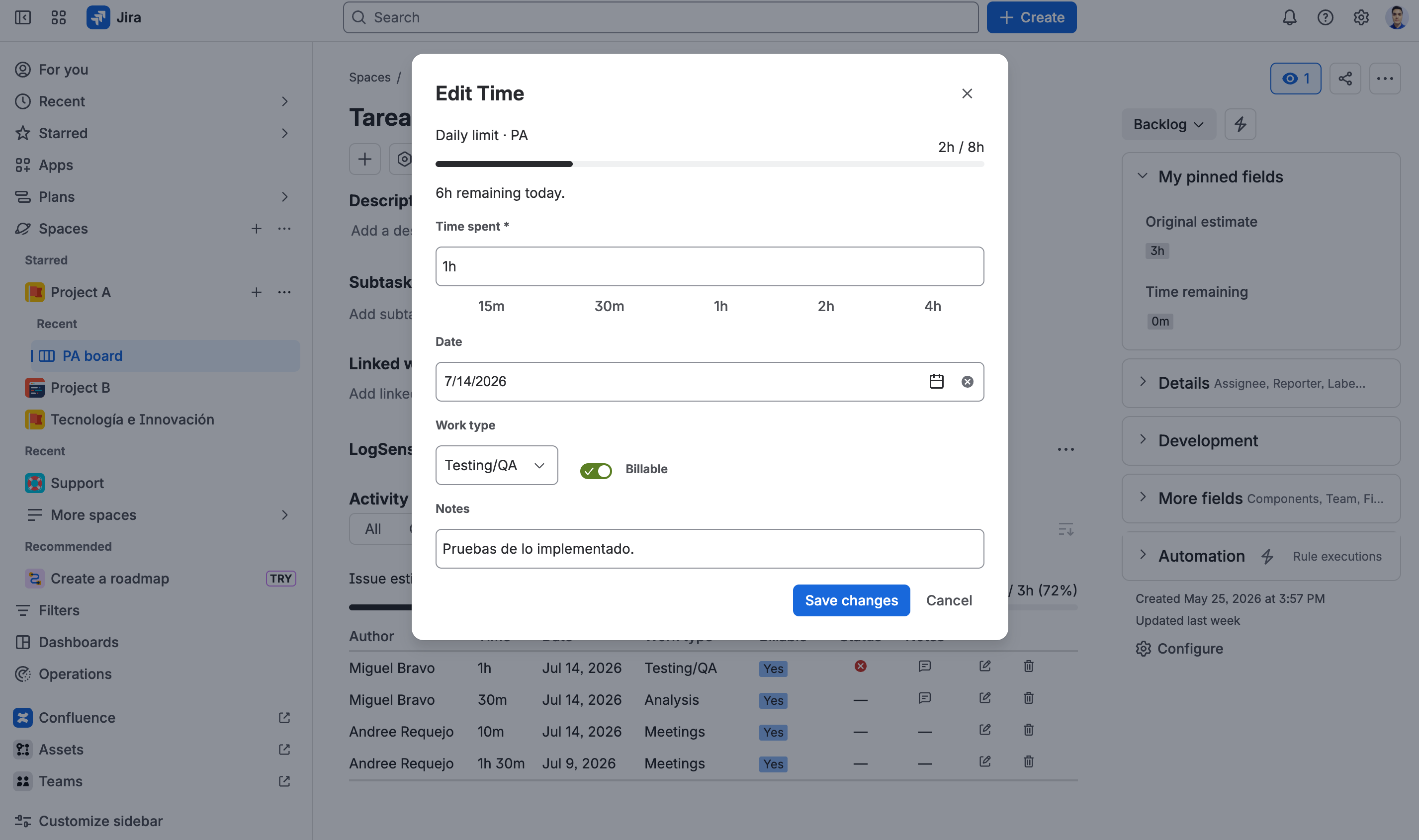
Editable fields
| Field | Description |
|---|---|
| Date | Entry date (calendar picker). |
| Time spent | Manual duration or shortcuts. |
| Billable | Billable / non-billable classification. |
| Work type | Effort category (space catalog). |
| Notes | Entry comment (required if Require notes is active). |
Validations when editing
- Daily limit: verifies the new value does not exceed the configured limit.
- Holidays: if the edited date is a holiday and blocking is active, editing is rejected.
- Issue estimate: the progress bar updates after saving.
- Permissions: if you don't have
EDIT_OWN_WORKLOGSorEDIT_ALL_WORKLOGS, the Edit button does not appear.
Required Notes behavior
If the administrator enabled Require notes in global or space configuration, the Notes field is mandatory both when creating and editing. The form shows:
- Label with asterisk (*)
- Placeholder without "optional"
If you try to save without completing Notes, the form shows an error and won't proceed.
| Permission | Effect |
|---|---|
EDIT_OWN_WORKLOGS | Allows editing only the current user's worklogs. |
EDIT_ALL_WORKLOGS | Allows editing any worklog in the project. |
| No edit permissions | The Edit button is not shown. |
Worklog approval states
From version 2.4.0, new worklogs can go through an approval workflow before becoming effective for LogSense.
What each status means
| Status | Icon | Counts in LogSense? |
|---|---|---|
| PENDING | ⏱ (clock) | No |
| APPROVED | ✓ (check) | Yes |
| REJECTED | ✗ (cross) | No |
Who can approve or reject?
Only users on the space's approver list (configured by the administrator in Space Settings → LogSense Settings → General) can change a worklog's status by clicking the clock icon ⏱ on a PENDING worklog to open a modal where they can approve or reject, with the option to add a comment.
Worklogs before v2.4.0
Worklogs recorded before this version do not have an approval status. LogSense treats them as APPROVED automatically for backward compatibility.
Administrator configuration
See Approver configuration in the administrator guide.