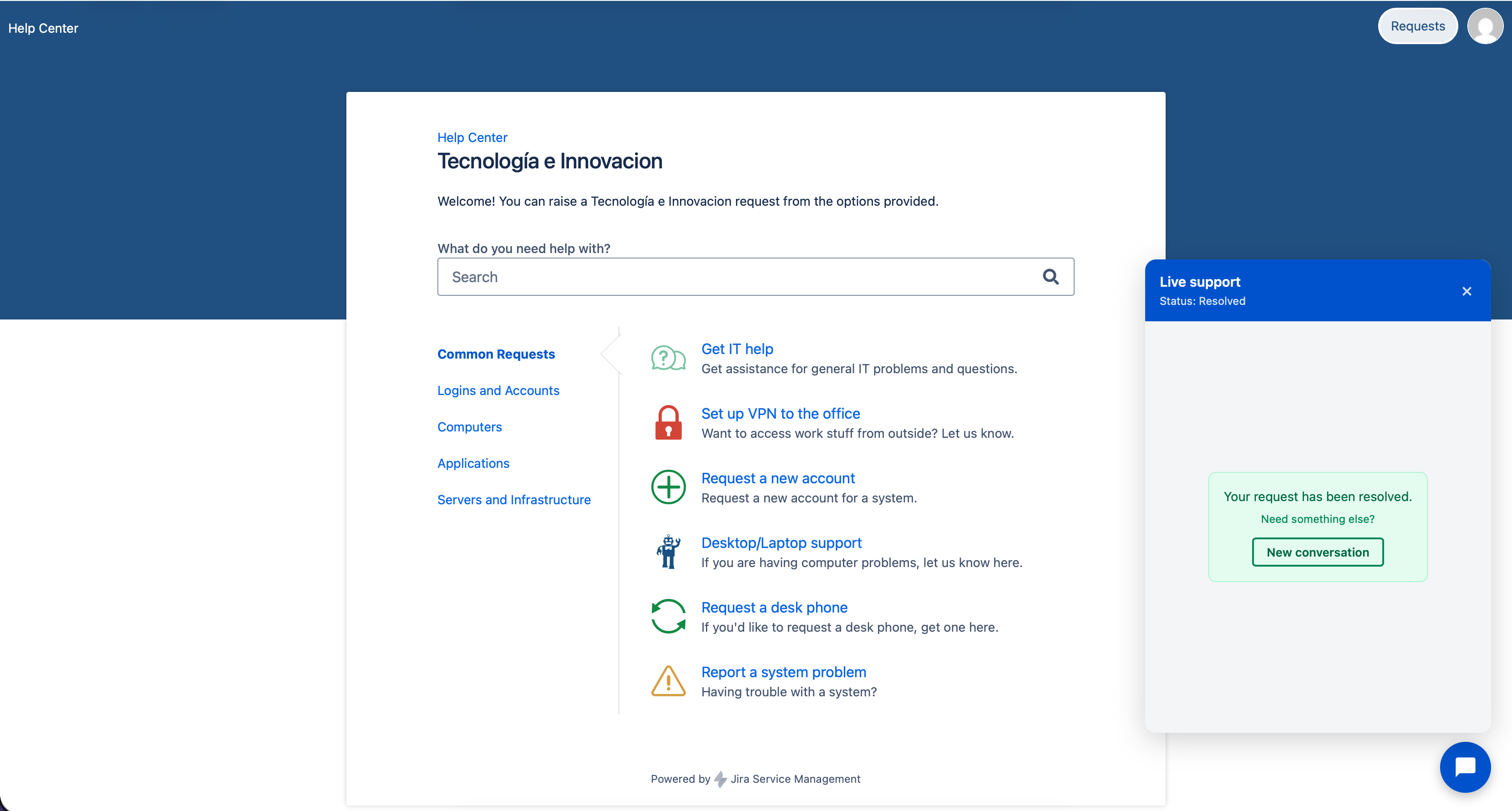
Portal Chat
The Jira Live Chat (DC) widget allows customers to communicate in real-time with support agents directly from the JSM service portal.
Starting a Chat
- Access your Jira Service Management service portal.
- In the bottom right corner, locate the floating Live Chat button.
- Click the button to open the widget.
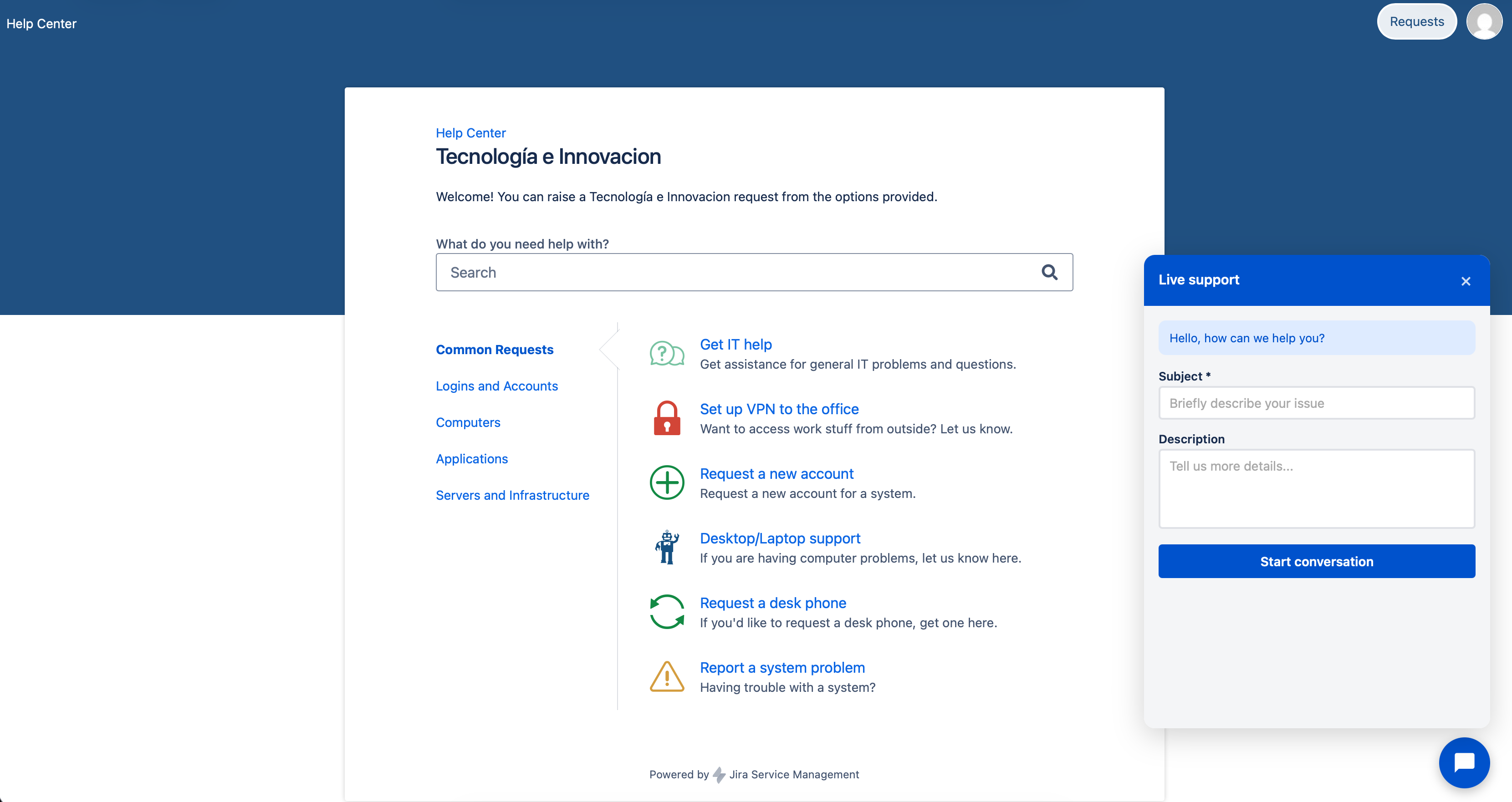
- Complete the start form:
- Summary: A brief title for your inquiry.
- Description: Explain your issue or question in detail.
- Click Start chat to submit your request.
The system will automatically create a JSM issue and connect you with an available agent.
Sending Messages
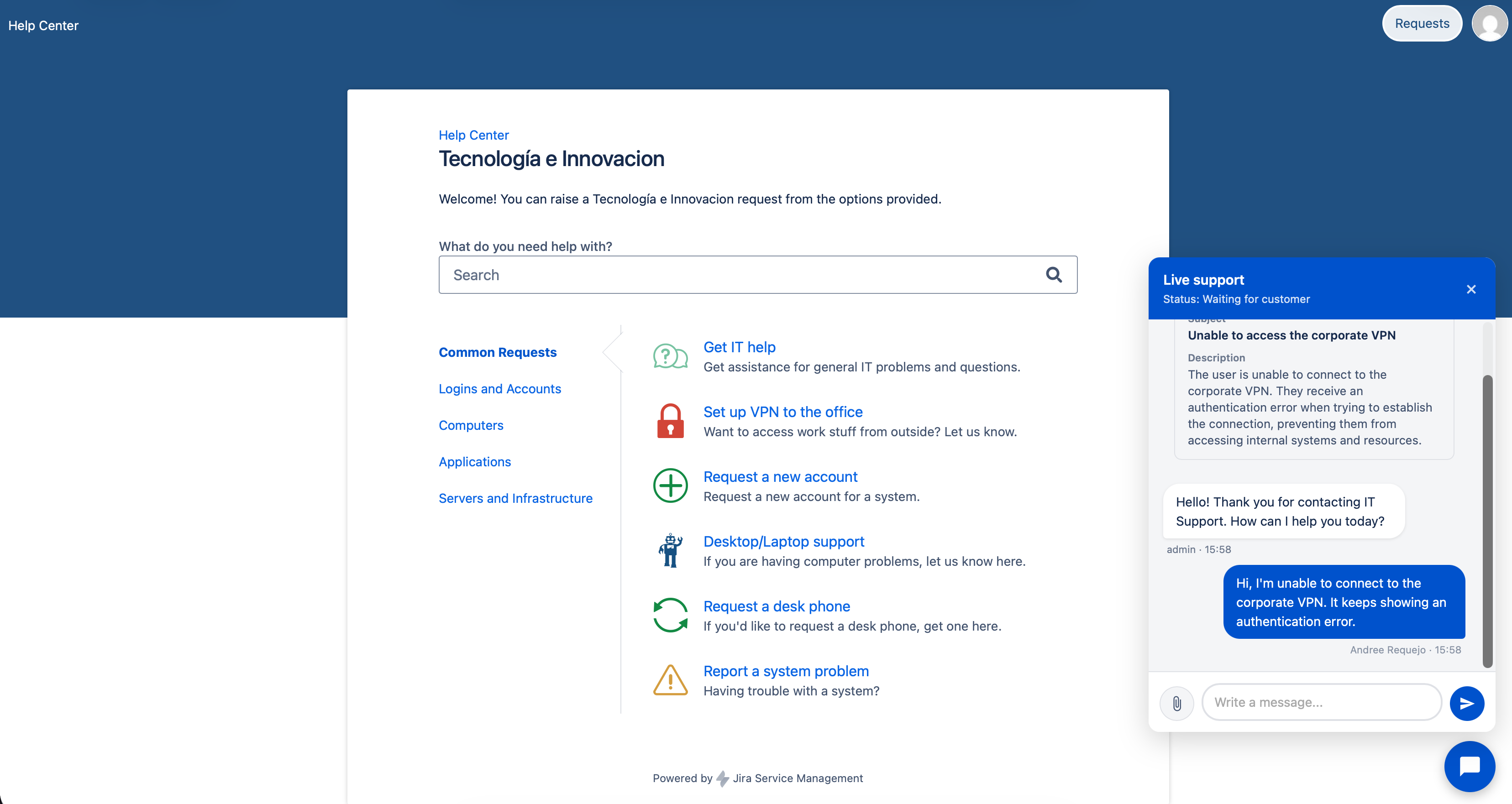
Once connected, you can send real-time text messages:
- Type your message in the text field at the bottom of the widget.
- Press Enter or click the send button to send your message.
- Messages appear as bubbles in the conversation. Your messages are left-aligned; the agent's messages are right-aligned.
Sending Attachments
You can attach files to your messages to provide additional information:
- Click the file attachment icon (paperclip) next to the message field.
- Select one or more files from your computer.
- Optionally, type a text message to accompany the files.
- Click Send.
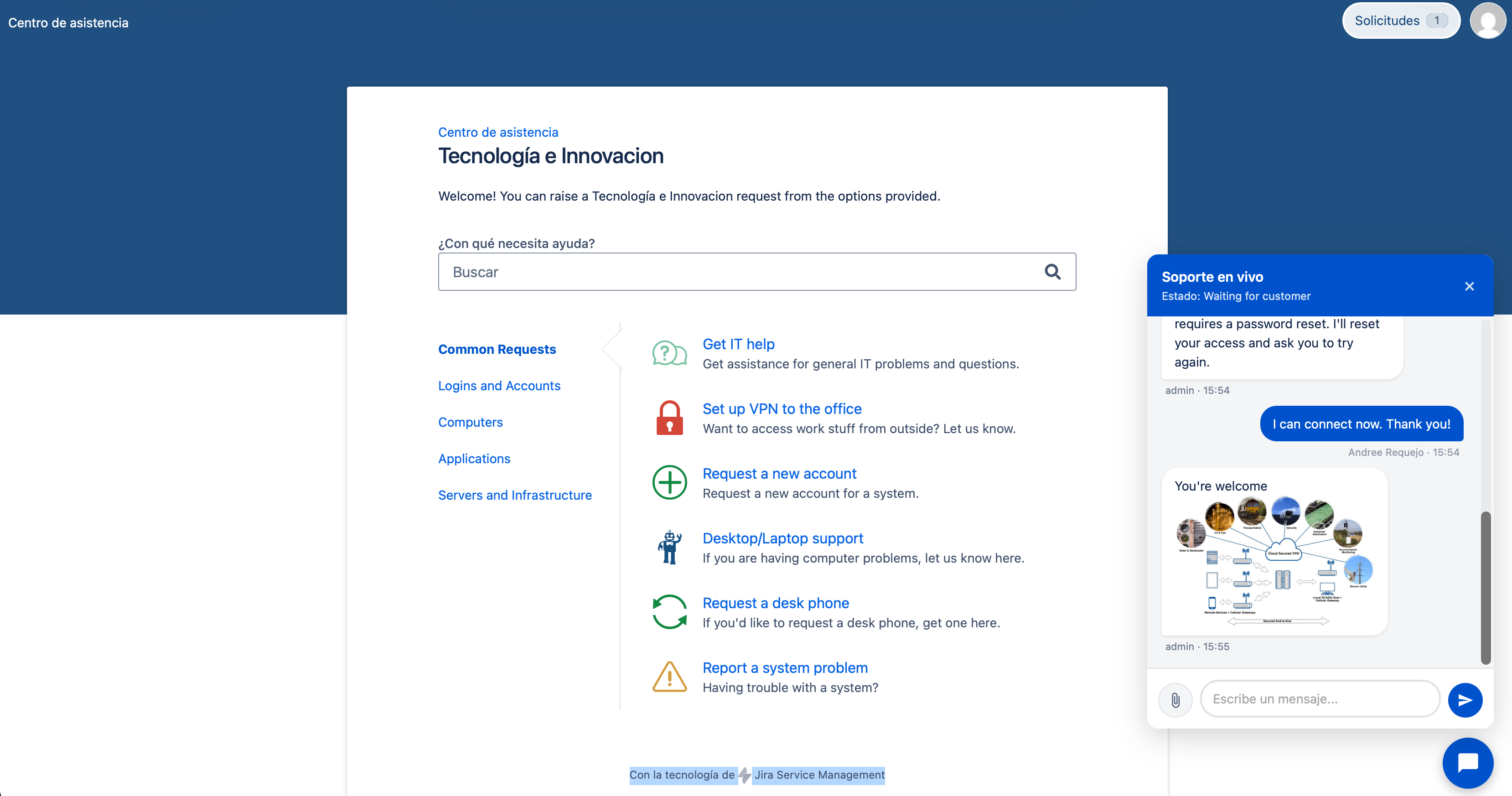
Note: Files are stored as native JSM issue attachments. Images are shown as inline previews; other file types display a download link.
Session Persistence
Your chat session remains active even if:
- You reload the portal page.
- You accidentally close the widget.
- You temporarily lose connectivity.
The widget uses sessionStorage to preserve the conversation state. When you reopen the widget, you can continue where you left off.
Chat Closure
The chat ends when the agent resolves the associated issue. You will receive a message indicating that the conversation has been closed. You can review the conversation history while the widget remains open in your session.
If you need further assistance after closure, start a new chat from the portal.