Portal Chat
The Jira Live Chat (DC) widget lets you communicate in real time with support agents from the JSM service portal.
The administrator decides which portals offer it. If the current portal is not enabled, the Live Chat button will not appear and you can use the portal's other help options.
Starting a chat
- Access your Jira Service Management service portal.
- In the bottom-right corner, locate the floating Live Chat button.
- Click the button to open the widget.
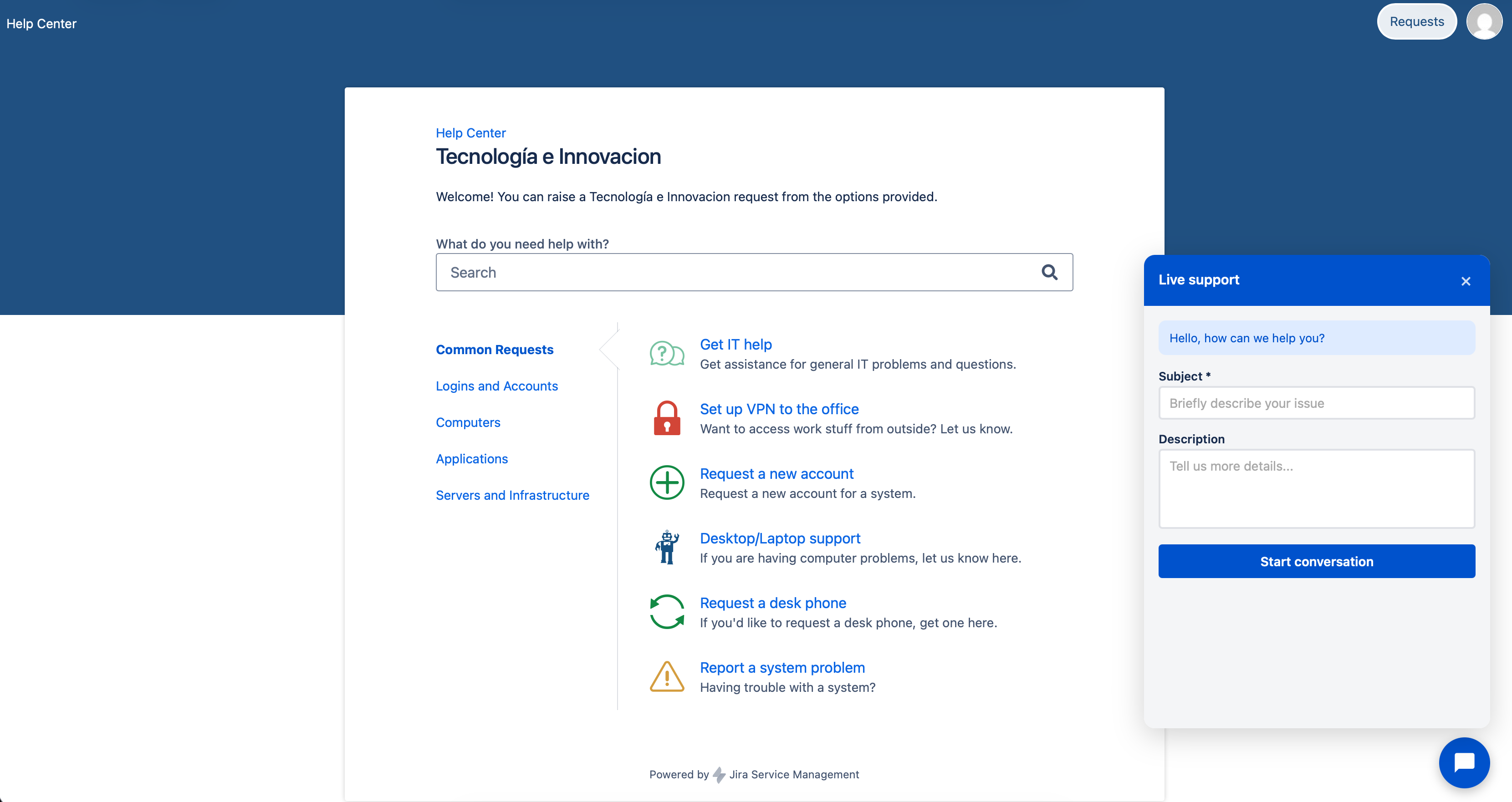
- Complete the start form:
- Summary: A brief title for your inquiry.
- Description: Explain your issue or question in detail.
- Click Start chat to submit your request.
The request is created in the Service Desk associated with the current portal. The system connects you with an agent when one is available.
Sending messages
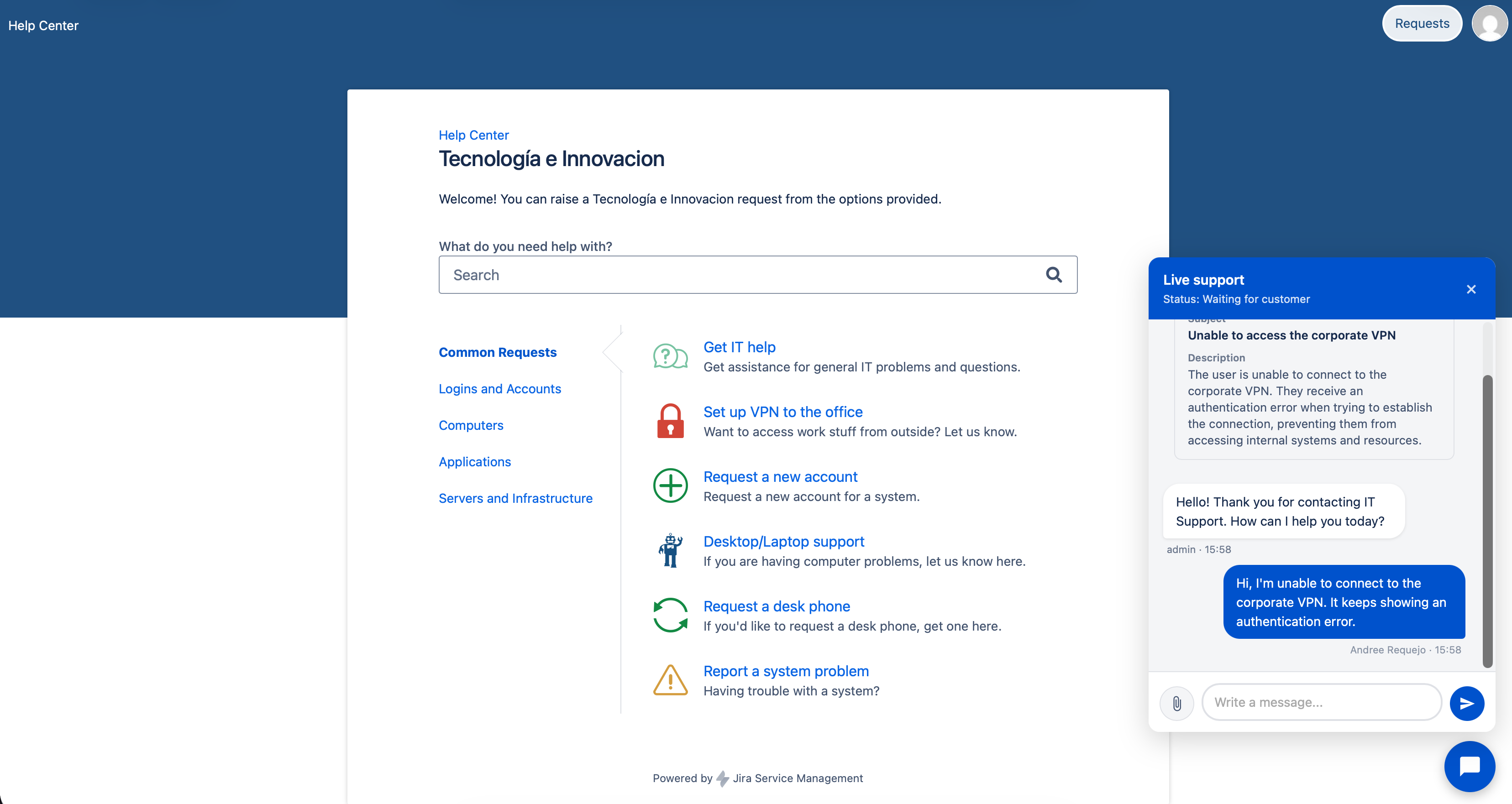
Once connected, you can send real-time text messages:
- Type your message in the text field at the bottom of the widget.
- Press Enter or click the send button.
- Your messages appear in the conversation.
Sending attachments
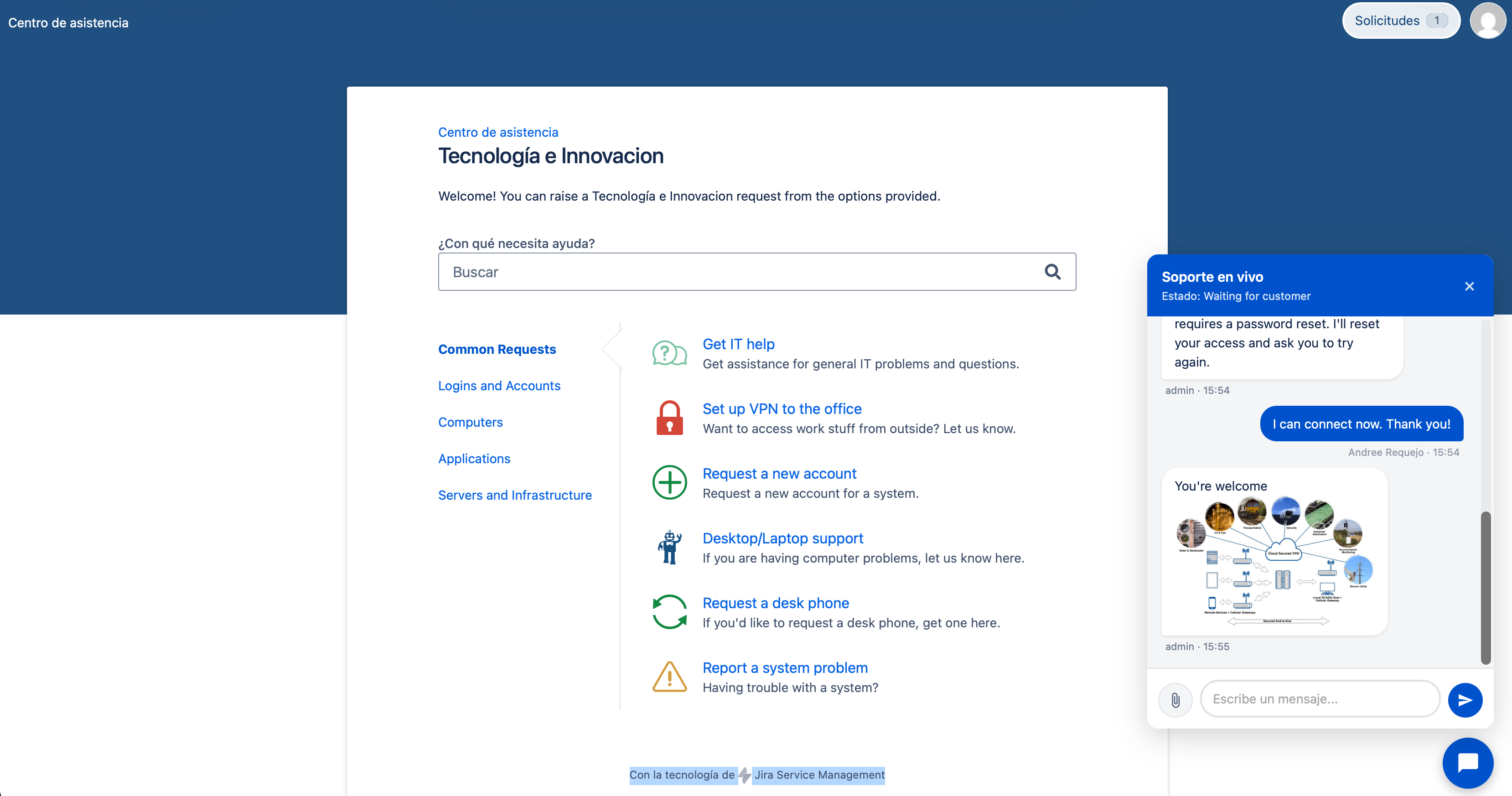
You can attach files to your messages to provide additional information:
- Click the file attachment icon next to the message field.
- Select one or more files from your computer.
- Optionally, type a message to accompany the files.
- Click Send.
Files are stored with the JSM request. Images are shown in the conversation, while other file types display a download link.
Session persistence
Your chat session remains active if you reload the page, accidentally close the widget, or temporarily lose connectivity. The conversation is preserved in your browser so you can resume it when you open the chat again. It is reset only if the request no longer exists.
Using chat on mobile
On small screens, the widget adapts automatically and can use the full screen. This makes it easier to read the conversation, type, and attach files.
Chat closure and satisfaction survey
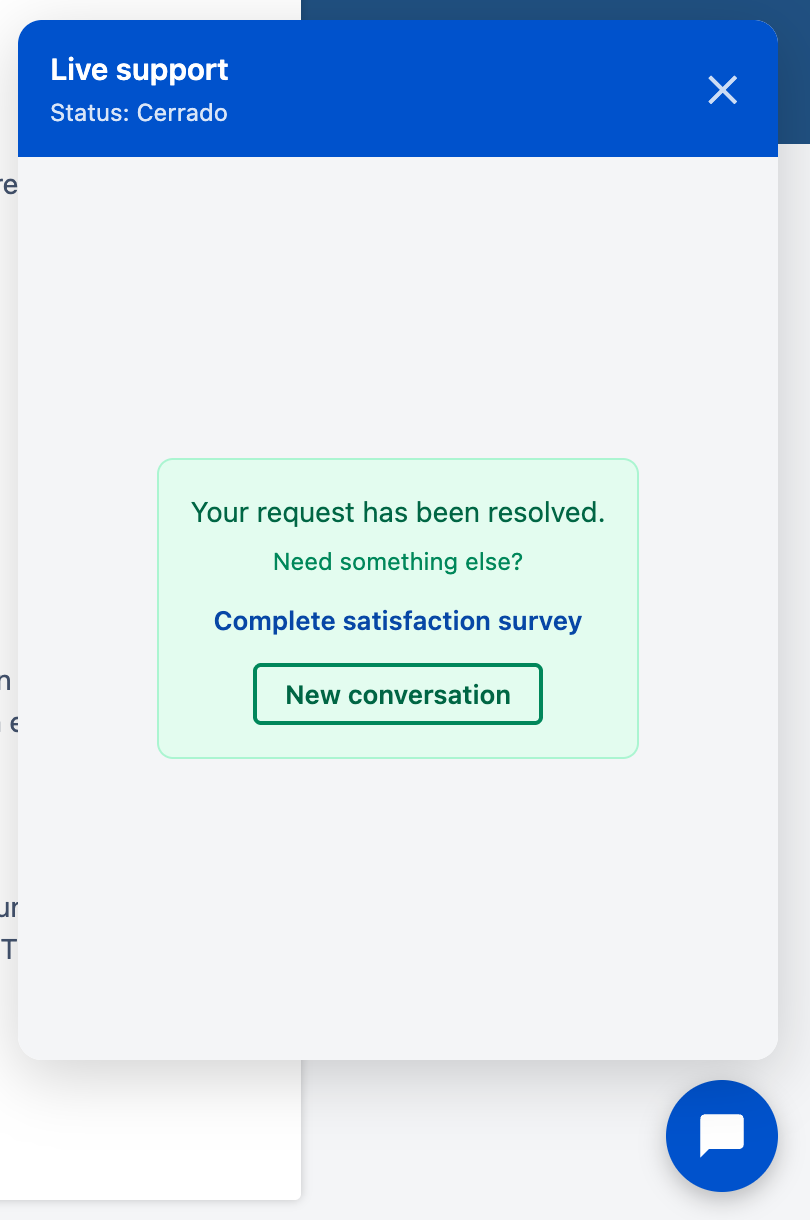
The chat ends when the agent resolves the associated request. You will receive a message indicating that the conversation has been closed.
If the Jira Service Management satisfaction survey is enabled for the project, you can rate the support you received and send comments after the chat closes. It is the same survey shown for other JSM requests, and your rating is available in Jira's satisfaction reports.
If the survey is not enabled, the chat closes normally without showing one. If you need further assistance after closure, start a new chat from an enabled portal.