Viewing Encrypted Data
By default, the value of an encrypted field is always hidden to protect the information. Jira Secure Fortress provides a secure and controlled mechanism for authorized users to temporarily view this value.
The "Secure Fortress" Button
In the issue view, you will find a button or link called Secure Fortress in the actions menu.

Clicking this button will open a modal listing all the encrypted fields present in that issue.
Revealing the Field's Value
Inside the modal, each encrypted field has a Show button.

- Click the Show button corresponding to the field whose value you want to see.
- The system will check in the background if you have the necessary permissions (configured by the administrator).
If You Have Permission
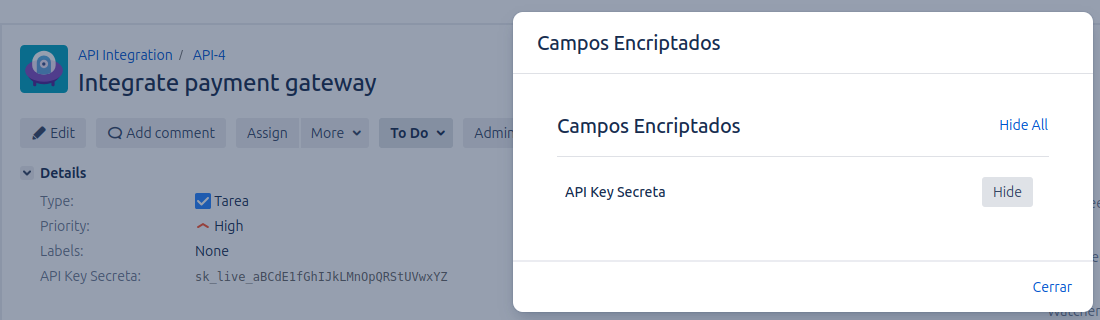
If you are authorized, the field's value in the issue view will be temporarily replaced with its real content.
- Before: The field showed
*******. - After: The field shows "This is the secret value".
If You Do NOT Have Permission
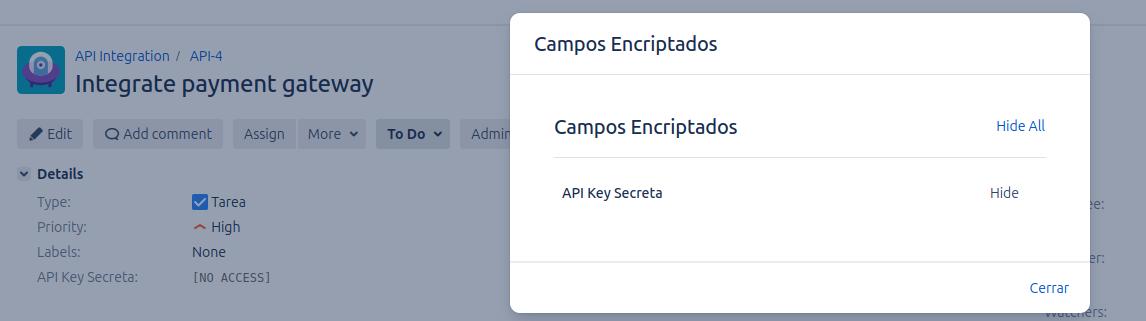
If you are not on the list of authorized users or groups, clicking "Show" will change the value in the issue view to [NO ACCESS]. This informs you that you do not have privileges to view that information.
Hiding the Field's Value
The data display is temporary and personal. To hide the value again, you can do one of the following:
- Reopen the Secure Fortress modal and click the Hide button that will now appear next to the field.
- Refresh the issue page.
- Navigate away from the issue page.
Important: If you reveal a field's value, only you can see it. Other users viewing the same issue will continue to see the encrypted value (*******) until they perform the "Show" action themselves and have the permissions to do so.