Protecting Existing Fields
Jira Secure Fortress allows you not only to create encrypted fields from scratch, but also to convert any existing custom field to an encrypted field, automatically protecting all the information that was already stored in it. Likewise, if you ever need to return an encrypted field to its original state, you can revoke its protection.
The Migration section
When you select Migration in the administration panel's side menu, you will see a table listing all custom fields in your Jira instance. For each field, the table provides two actions:
- Encrypt: Converts the field to an encrypted field and starts the automatic encryption of all its historical values in the background.
- Revert: Disables the field's protection and returns it to its original standard text state.
Both actions are available for every field in the list.
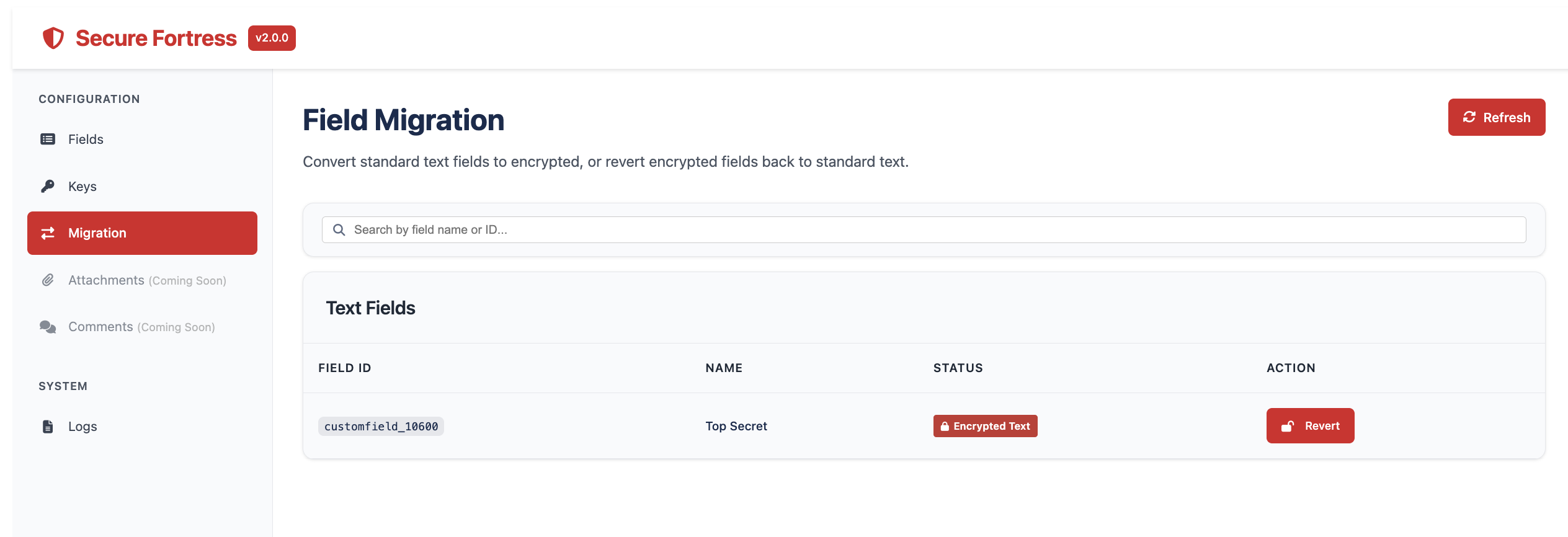
Converting an existing field to an encrypted field
When you convert a standard text field to an encrypted field, the add-on not only protects values entered from that moment on: it also automatically encrypts all historical values of the field in the background, meaning the information that already existed in issues before the conversion.
How to protect an existing field
- Navigate to the Secure Fortress Dashboard.
- In the side menu, select the Migration section.
- Locate the field you want to protect in the list and click the Encrypt button next to it.
- Confirm the action in the dialog box that appears.
The add-on immediately starts the encryption process in the background. You can continue working normally while the operation is completed.
Monitoring progress
You can track the progress of the process directly from the Migration section of the administration panel. The progress bar will show you the current status of the encryption.
Change history protection
The field's change history (the History tab of the issue) is also protected: previously visible values in that tab are replaced with the [Encrypted] indicator, so no trace of the original text remains visible in plain text.
Audit log entry
When the process is complete, the add-on automatically records a full summary of the operation in the Audit Logs section.
Once the field is protected, configure the viewing permissions from the Field Configuration page to define who can access its content.
Revoking field protection
If you need to return an encrypted field to its original standard text field state, you can do so through the revocation action. Upon confirmation, the add-on decrypts all current values of the field across all issues in the background and automatically removes all viewing permissions configured for that field.
By revoking protection, all field values will be stored and visible in plain text. It is not possible to recover the previous encrypted state without reconfiguring protection from scratch. Make sure this is the correct action before confirming.
How to revoke field protection
- Navigate to the Secure Fortress Dashboard.
- In the side menu, select the Migration section.
- Locate the field whose protection you want to revoke in the list and click the Revert button next to it.
- Read the warning shown carefully and confirm the action.
What happens during revocation
- All current values across all issues are decrypted automatically in the background.
- All viewing permissions for the field are removed, as they are no longer relevant.
- The change history is restored as much as possible (see the limitation below).
- When complete, the add-on records a summary of the operation in the audit log.
Important limitation: history from the encrypted period
Change history records created while the field was protected (edits made during the encryption period) will continue showing the [Encrypted] indicator and cannot be recovered in plain text.
This is because the system never stored the original value of those modifications in the history. Only records that existed before the field was first protected can be fully restored.