Understanding the Display View
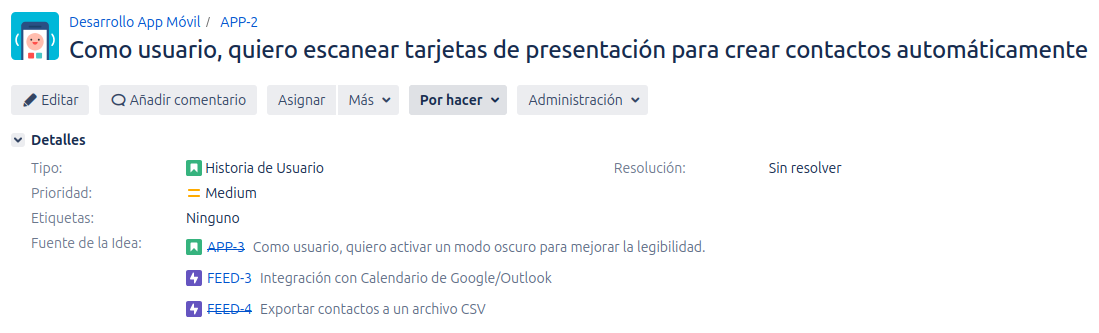
When you are viewing a Jira issue (not editing it), the Jira Issue Picker field displays the selected issues in a clean and informative list.
Standard Display
At a minimum, each selected issue will show:
- Issue Type Icon: A small icon representing the issue type (e.g., Story, Bug, Task).
- Issue Key: The unique key of the issue (e.g.,
PROJ-123). This is a clickable link that lets you navigate directly to that issue. - Summary: The title or summary of the issue.
If an issue has been resolved, its key will be displayed with a strikethrough to indicate it is completed.
Rich Information Display
Your administrator can configure the field to display additional information at a glance for each selected issue:
- Status: The current status of the issue is displayed as a colored lozenge. The color helps to quickly identify the issue's state:
- Green: For "Done" statuses.
- Blue: For "In Progress" statuses.
- Gray: For "To Do" statuses.
- Assignee: The avatar of the user currently assigned to the issue.
- Priority: An icon representing the issue's priority (e.g., Highest, High, Medium).
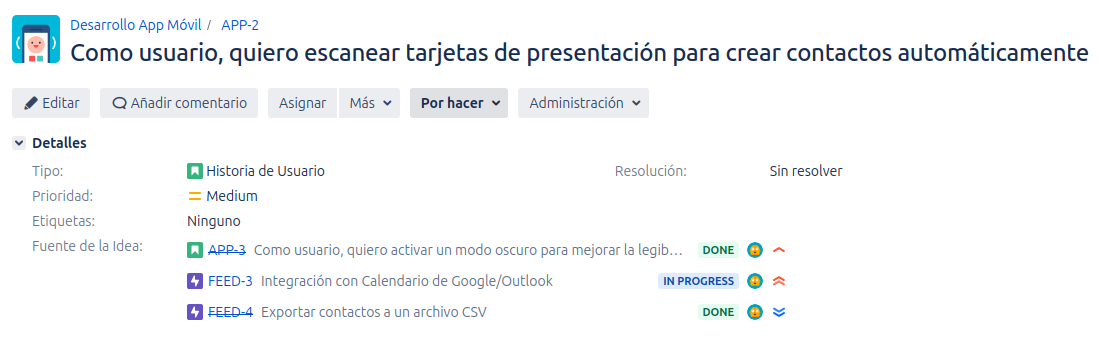
This rich display allows you to get important context about the linked issues without needing to open each one in a new tab.