Using the Field
Interacting with the Issue Picker field is designed to be a quick and intuitive process, allowing you to link Jira issues without interrupting your workflow.
Searching and Selecting Issues
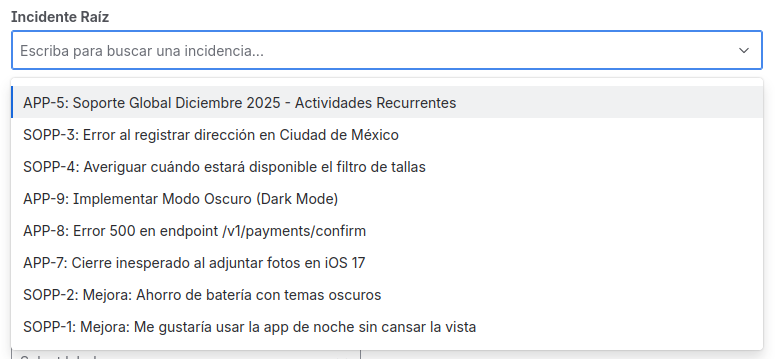
When you encounter an Issue Picker field on an issue, simply click on it to activate it.
- To search for an issue: Start typing the issue key (e.g.,
PROJ-123) or any part of its summary. The field will show you a list of matching results in real-time. - To select an issue: Click on the desired issue from the results list.
If the field is configured for multiple selection, you can repeat the process to add as many issues as you need. To remove an already selected issue, simply click the "x" next to its name.
Invalid Issue Alert
If an administrator changes the JQL filter of an Issue Picker field that already contained values, it is possible that some of the selected issues no longer comply with the new rules.
In this case, you will see a warning above the field that will inform you which issues are no longer valid.

- What can you do?
- You can remove the invalid
issuesand replace them with others that do comply with the new rules.
- You can remove the invalid
If you try to select a new issue that does not comply with the JQL, the field will not allow you to save it and will show you the same warning message.
Viewing Information
Once you have selected one or more issues, the field will display them in a clear and enriched way. Depending on how the administrator has configured the View Tab, you will be able to see not only the key and summary of the issue, but also additional information such as:
- The current assignee.
- The status it is in.
- The priority icon.
This visualization gives you valuable context directly from the issue you are working on.
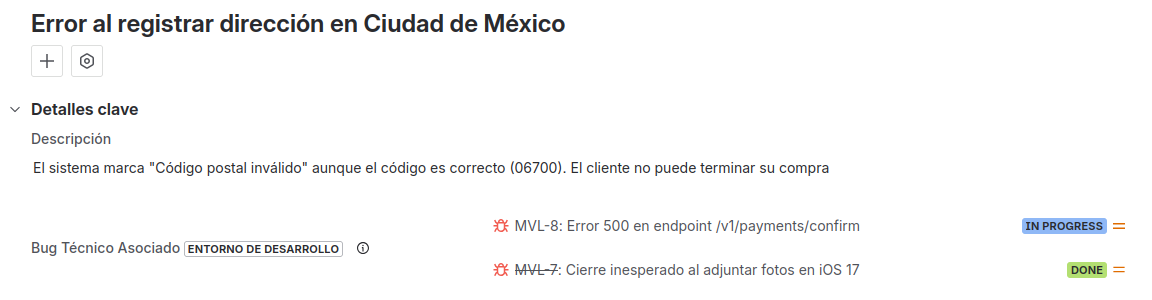
Visual Semantics
The display of selected issues has been enhanced to give you more context at a glance:
- Status Color: The status of an
issueis now displayed with the color of its status category in Jira (gray, blue, or green), allowing you to quickly identify if anissueis to-do, in progress, or done. - Strikethrough for Resolved Issues: The key of an
issue(e.g.,PROJ-123) will appear struck through if theissuehas a resolution set.

Incoming Links Panel
The Issue Picker field not only allows you to link issues, but it also gives you visibility into which issues are linking to you.
When an issue is selected in an Issue Picker field anywhere in Jira, an Incoming Links panel will appear in the view of the linked issue.
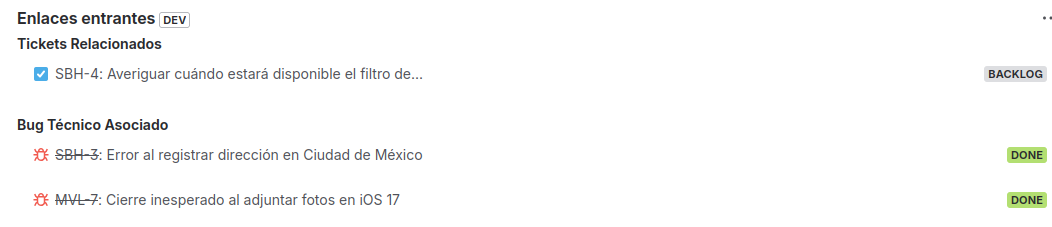
This panel groups the issues by the name of the Issue Picker field that is linking them, and it shows you the following information:
- Issue key: A direct link to the
issuethat is linking to you. - Issue summary: To give you context about what the
issueis about. - Status: The current status of the
issue.
This gives you a 360-degree view of your dependencies without having to navigate to other screens.