Administration, entities and connection
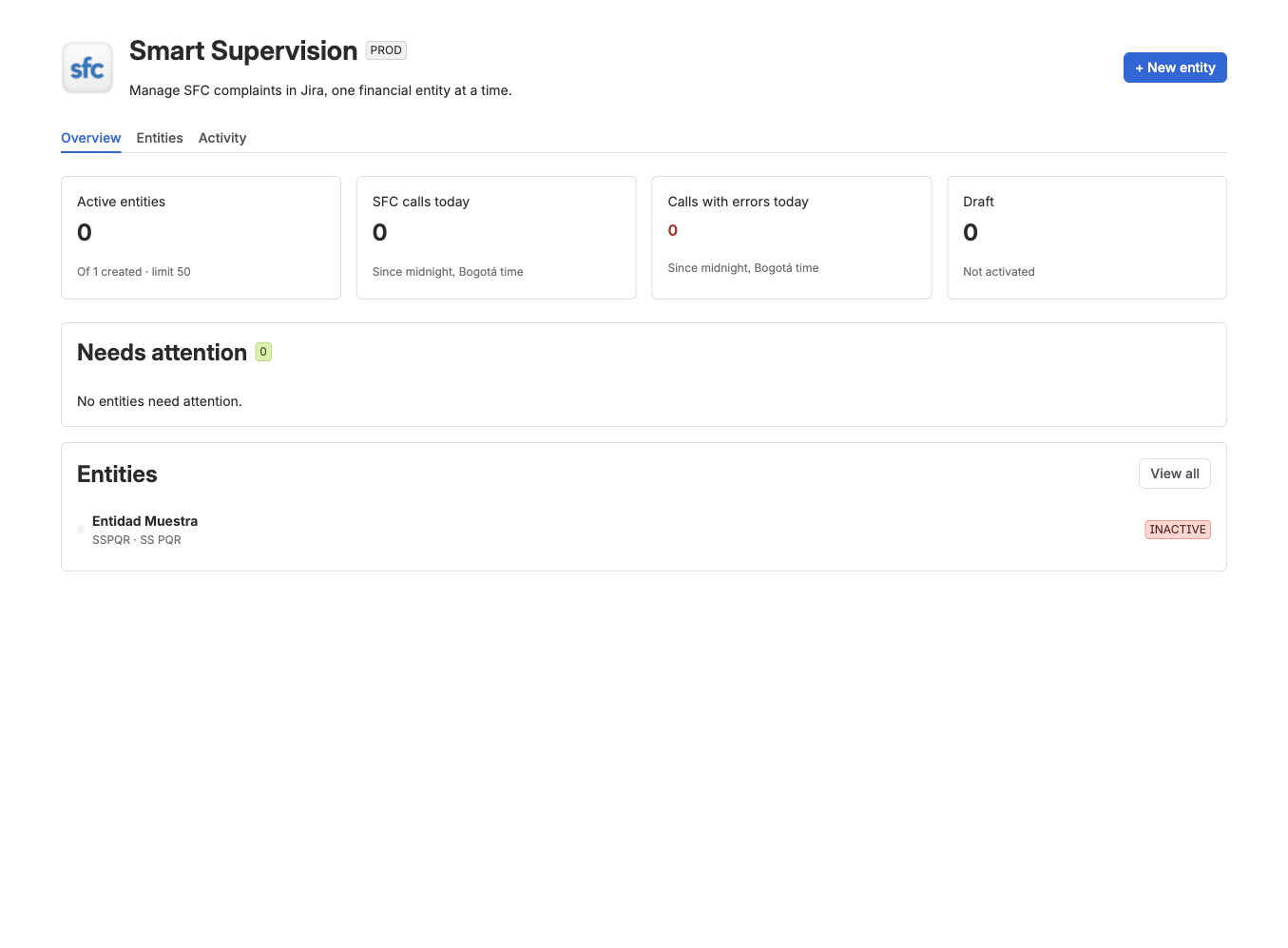
When you open Jira settings → Apps → Smart Supervision for Jira, the home page shows an overview of entities and activity. Use the Overview, Entities and Activity tabs to review daily metrics, entities that need attention, statuses and calls to the SFC. The activity view lets you filter entity call history.
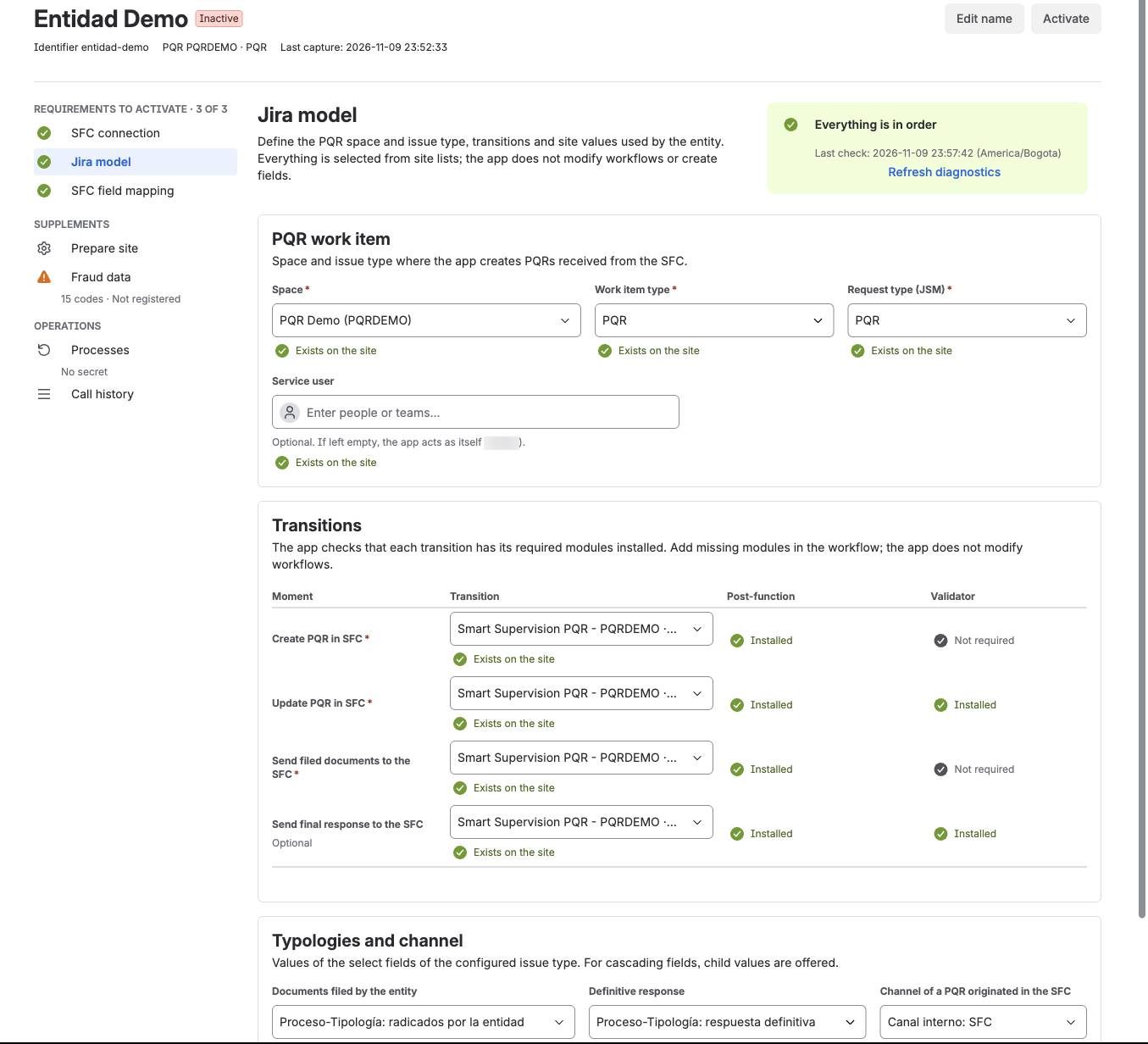
Each entity has its own configuration; activating, editing or disabling one does not change the others. When you open an entity, navigate through its sections, such as SFC connection, Jira model, SFC field mapping, Site setup, Fraud data and Call history.
Create and activate an entity
- Add the entity and complete its configuration.
- Configure the connection for QA or Production with the data provided by the SFC: token URL, username, password, signing secret, and complaint, attachment, ACK, storage and consumer-information URLs.
- Set the retry policy by specifying the number of attempts and the wait between attempts.
- Use Test connection to check the credentials for the selected environment.
- Run Site setup if the JSM project, PQR work item type, fields or request type are not ready; then complete the Jira model and review its diagnostics.
- Activate the entity only when all required items show OK.
Credentials are encrypted and are not displayed again. To switch from QA to Production, update the environment, endpoints and credentials; you do not need to reinstall the app. Never copy secrets into tickets or screenshots.
Diagnostics
Diagnostics report dependency states such as OK, Missing, Wrong type, and other availability, installation or ambiguity issues. In Jira model, checks also confirm that each selected transition belongs to the PQR workflow and has its required post-function or validator installed. Refresh checks after changing the site.
An entity cannot be activated while required fields remain unresolved. The assistant does not replace administrator review: validate changes to existing workflows and manual JSM settings before activating the entity.
The DEV, STG or PROD environment badge refers to the Forge environment; the QA or Production selector in the connection refers to the SFC environment.