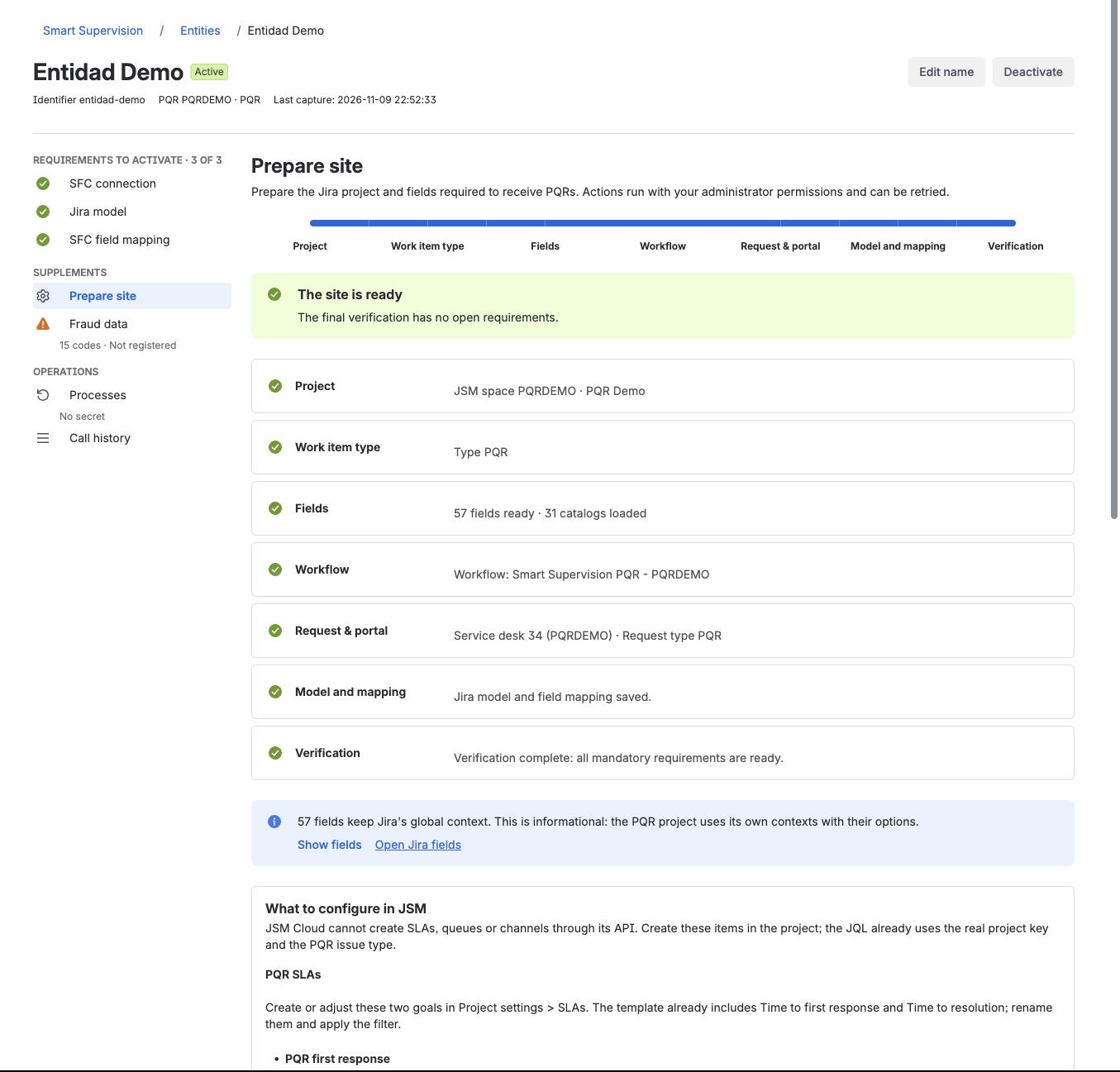
Site preparation assistant
The Site setup assistant guides a Jira administrator through preparing the JSM project and PQR work item type required by the integration. Complete the steps in order; progress is saved so you can resume if interrupted.
Before you start
- Use an account with Jira administrator permissions.
- Decide on a key and name for the company-managed JSM project and a name for the PQR work item type.
- Confirm that any existing fields to be reused have the correct type and options. The assistant does not change an incompatible existing field or alter a global context that could affect other projects.
- If reusing a project, review its workflow first: the assistant inspects it but does not replace or modify it.
Assistant steps
- Project: create or reuse a company-managed Jira Service Management project. If the key belongs to another project type, the assistant does not modify it.
- Work item type: select an existing PQR type or create one and associate it with the project without removing other types.
- Fields: create or reuse integration contract fields. Existing fields are reused only when their name and type match; review selection-field options.
- Workflow: for a new project, create and associate the reference workflow and install Forge rules when Jira accepts them. For a reused project, only inspect statuses, transitions and rules; resolve any differences manually.
- Request type and portal: create or reuse the JSM request type associated with the PQR type and check that it is visible in the portal. The API-created form displays Summary; complaints come from the SFC, not the portal.
- Model and mapping: save the project, PQR type, service desk, request type, transitions and entity field mapping.
- Verification: run the model, field, workflow and JSM diagnostics. Resolve pending items before activating the entity.
The assistant can be paused and resumed. If Jira rejects automatic Forge rule installation, it shows which components must be added to the workflow manually; run the check again afterward.
Manual JSM setup
JSM Cloud does not provide APIs to configure queues, SLAs or channels. Using the assistant links, the administrator must:
- create the PQR queues required by the operation;
- configure first-response and resolution SLAs with the conditions and targets approved by the business;
- review the request type's visibility in the portal;
- account for PQRs being created with the app's identity, not on behalf of the consumer. JSM notifications and the portal do not replace communication with the consumer through the SFC.
The assistant provides guidance and direct links for these tasks. Final verification confirms requirements the app can check; it does not replace manual review of SLAs, queues and channels.
Troubleshooting
- Insufficient permissions: ask a Jira administrator to run the assistant and confirm the Forge upgrade with JSM permissions.
- Project key conflict: the assistant does not modify projects that are not company-managed JSM projects or are team-managed; choose another key or resolve the conflict outside the assistant.
- Incompatible or ambiguous field: correct the field in Jira or resolve the ambiguity before retrying. An incompatible existing field is not changed.
- Missing options in a global context: review the field context and prepare one specific to the PQR project; the assistant does not change the global context.
- Workflow differences: install or correct rules in the existing workflow according to diagnostics. The assistant does not replace it.
- Request type not visible: add it to a portal group in request type settings and verify again.
When final verification reports no pending requirements, continue to Jira model, confirm field mapping and complete the SFC connection before activating the entity.