Receive and manage a PQR
The app periodically checks the SFC for new complaints for active entities. The cycle runs approximately every five minutes. When a complaint is found, the app creates a PQR in the configured space and work item type, avoids duplicating one already received and acknowledges receipt to the SFC.
Received attachments are added to a document linked to the PQR. Open that document to view or download its files. Downloads validate the supported file type and size and record the result in the document Logs.
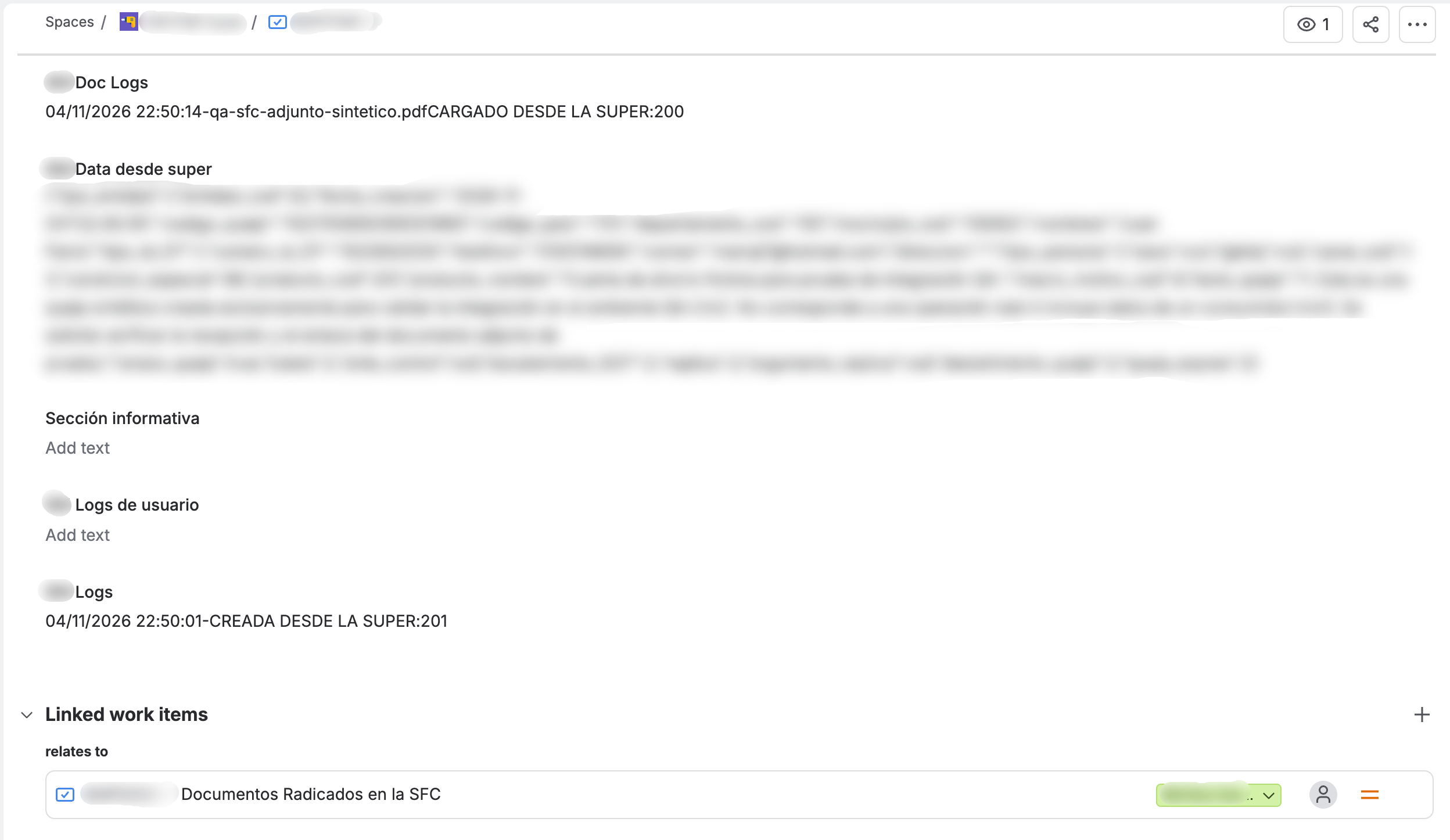
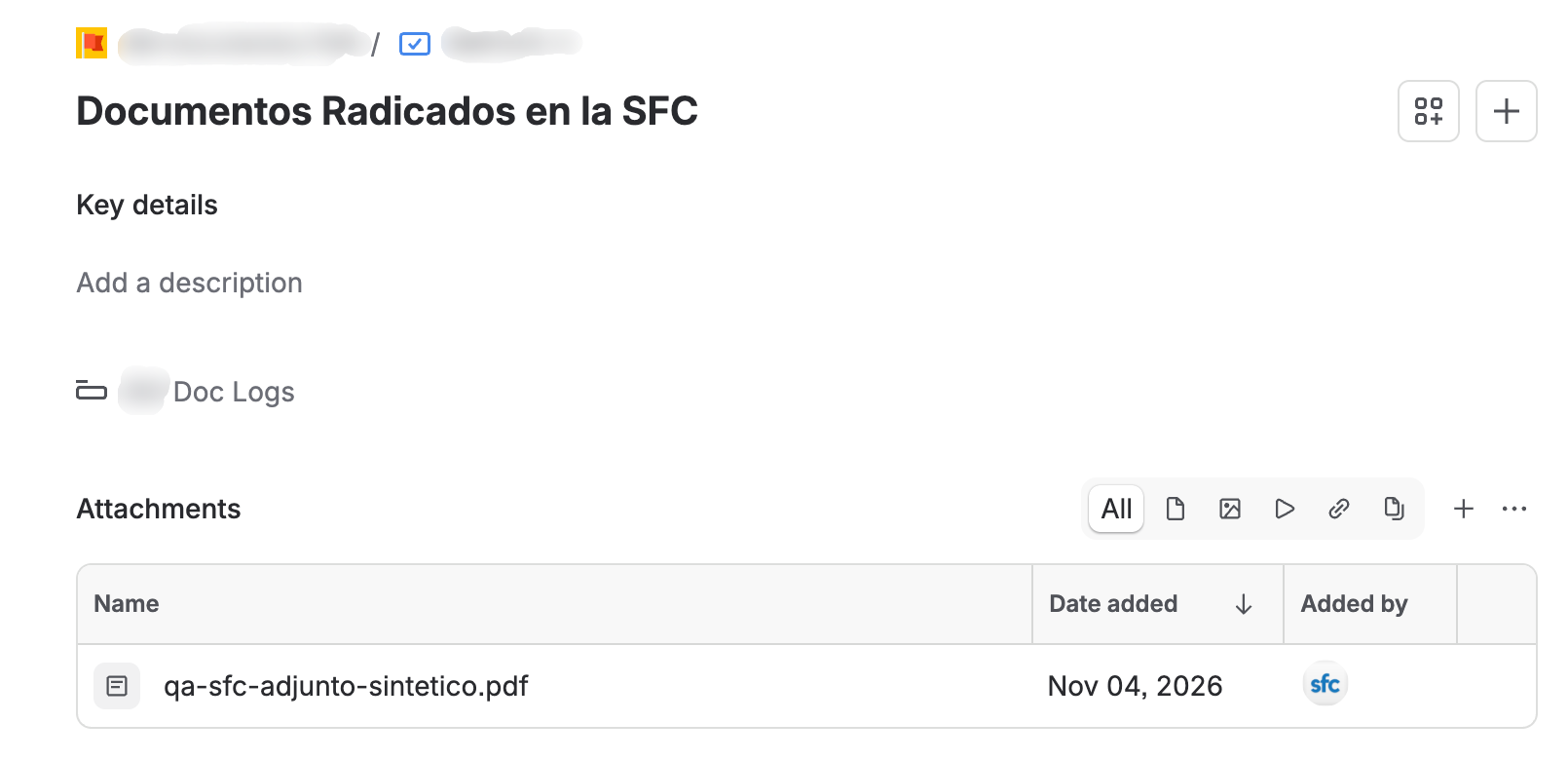
An administrator can also start an immediate capture. If a complaint is missing, ask them to check that the entity is active and that its connection, model and mapping diagnostics have no errors.
Manage the complaint
Use the transitions configured by your administrator to create or update the PQR in the SFC. Complete any required fields shown by the workflow. If the Reason requires fraud data, Jira asks for typology, modality and amounts before allowing the transition. If data is missing, the message reads: “La transición no se puede completar: el motivo {code} es de fraude y faltan estos datos: {fields}.” (The standard dialog title may be “Transition failed” in Jira configured in English.)