Documentation on transitions and issue creation
The Case Documentation Jira field lets you add, remove and feature case documents without leaving a transition or the issue create dialog.
The field is not a separate selection. It shows and edits the same document list as the Case Documentation panel and the portal (Shared Documentation). What you change in the field is what the panel and the customer see.
Where the field appears
| Location | Behavior |
|---|---|
| Transition screen | Full editor: add, remove and feature. |
| Create dialog | Full editor: the selection is shared on the case once the issue is created. |
| Issue view (Details section) | Read-only: shows a hint to edit from the panel or during a transition. |
| Bulk edit | Read-only, same as in Details. |
| Customer portal | Not shown. |
The administrator must add the field to the transition screen and, if it is used at creation, to the create dialog. See the screen checklist.
Editing during a transition
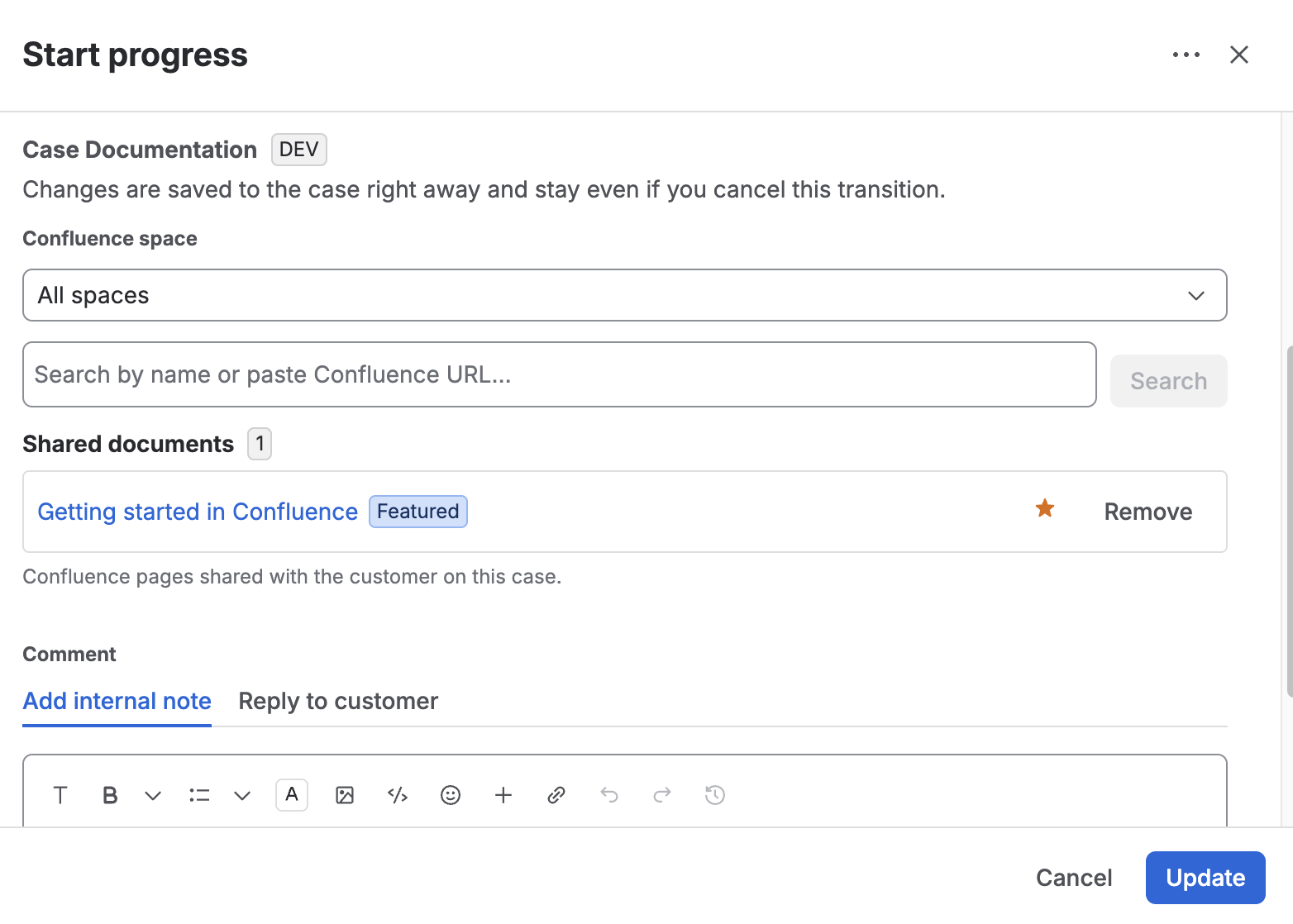
- Run a transition whose screen includes the Case Documentation field.
- The field shows the documents the case already has, the same as in the panel.
- Add documents as you would in the panel: title search, space filter or Confluence URL. See Search and filter by space.
- Remove (Remove) or feature (★) documents as needed. The featured document shows the Featured label.
Changes are saved right away
Adding, removing and featuring are saved to the case as soon as you do them, not when you confirm the transition. The field says so: "Changes are saved to the case right away and stay even if you cancel this transition."
That means:
- If you cancel the transition, the changes you made stay.
- If a documentation validator rejects the transition, the changes you made also stay. Fix what is missing and try again.
- The agent panel and the customer portal (after reloading) show the result even if the issue status did not change.
List rules
- The same document (same Confluence page) is never saved twice.
- There is still only one featured document per case. Featuring another one removes the mark from the previous one.
- Reordering (↑ / ↓) is not available in the field. Do it from the panel, as explained in Managing documents.
Adding documents when creating the issue
In the create dialog the issue does not exist yet, so the selection is kept in the field value:
- Open Create and fill in the form.
- In the Case Documentation field, add the documents and, optionally, feature one.
- Create the issue.
Once the issue is created, the selection moves to the case list and is visible in the Case Documentation panel and in the portal.
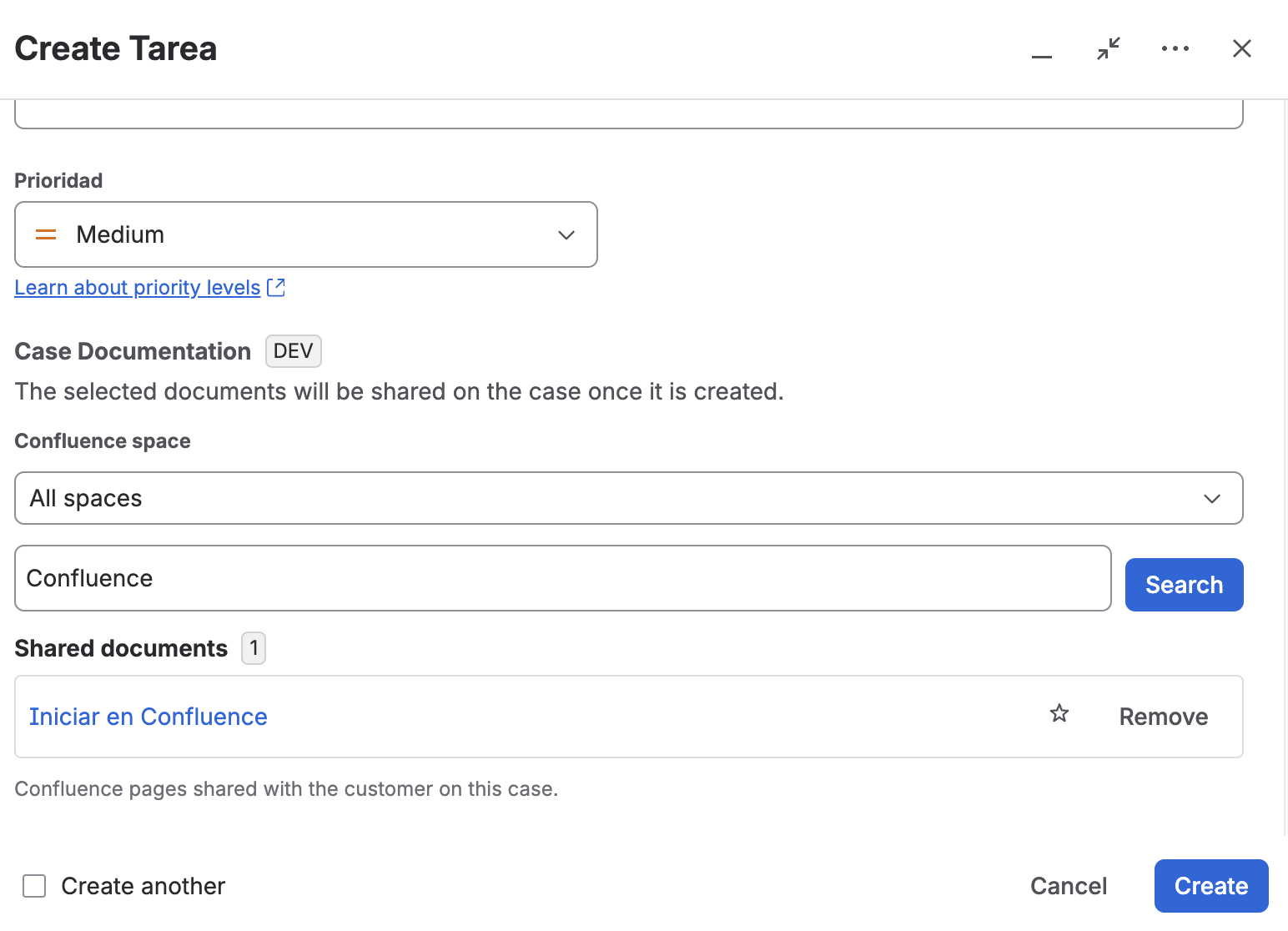
URLs that do not match the selected Confluence page are discarded when the issue is created.
The field in the issue view
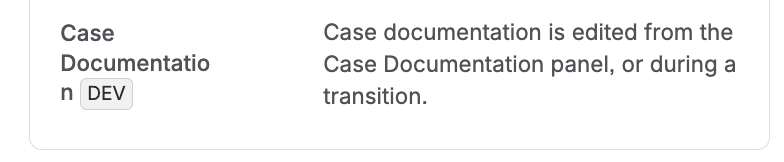
In the Details section of the issue view, and in bulk edit, the field is not an editor. It shows the hint "Case documentation is edited from the Case Documentation panel, or during a transition." and does not expose or let you save the field's internal value.
To change the documentation from the issue view, use the Case Documentation panel. The audit trail (who added each document and the deletion history) is also in that panel.
Limitations
- There is no post function that copies a selection when the transition finishes: changes are saved right away.
- Reordering is not available from the transition or the create dialog.
- The agent panel remains the editor in the issue view.
- Team-managed projects are not supported.