Add-on Configuration
The Jira Live Chat (DC) administration panel is located at Jira Administration > Manage apps > Jira Live Chat (DC). In version 2.0.0, you can manage each service portal's configuration independently.
Configuring multiple portals
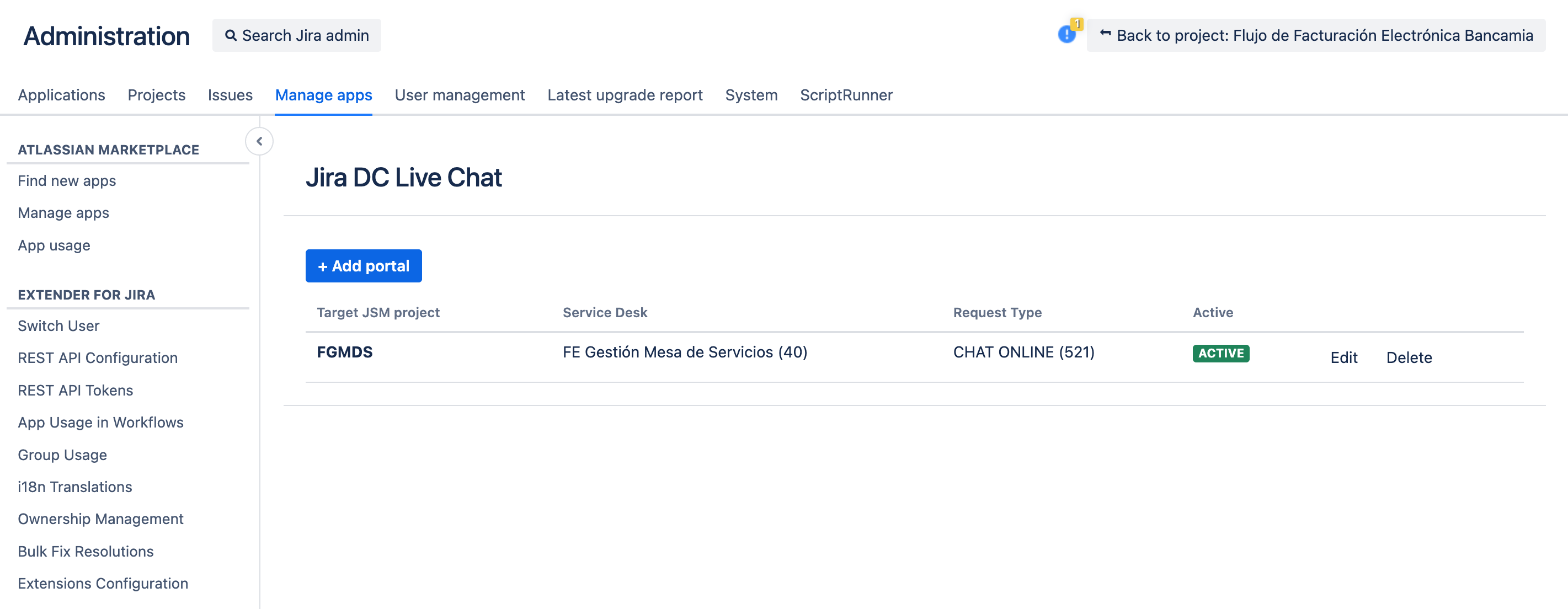
Each configuration connects a service portal to the project, Service Desk, and request type where chats will be created. The chat therefore no longer has one global destination: each customer uses the configuration for the portal where they start the conversation.
The configured portals list shows:
- The Jira Service Management project.
- The associated Service Desk.
- The request type.
- Whether the portal is Active.
Adding a portal
- Open Jira Administration > Manage apps > Jira Live Chat (DC).
- Click Add portal.
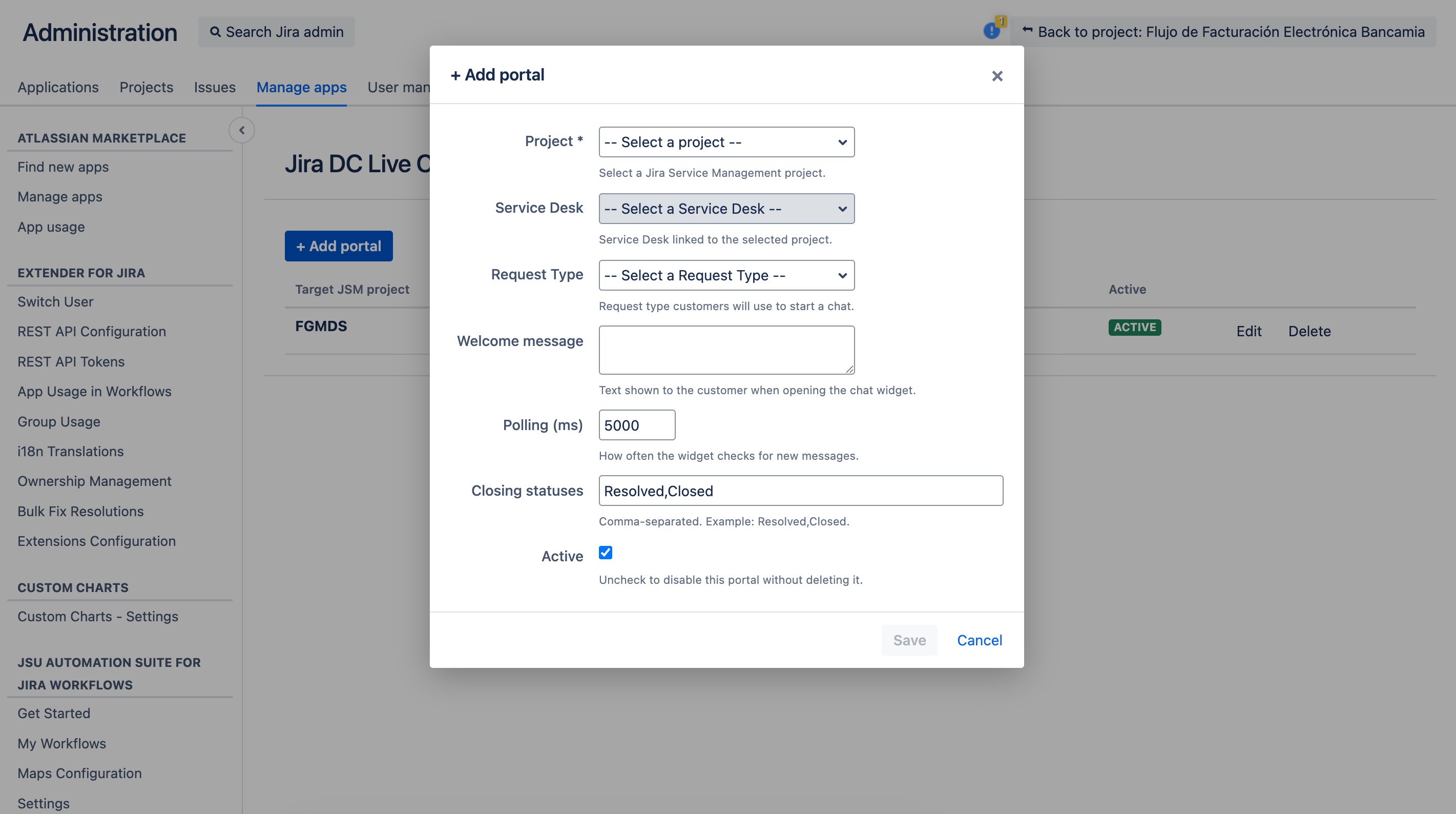
- Select a Jira Service Management project.
- Select the Service Desk associated with that project.
- Select the Request Type customers will use to start a chat.
- Complete the welcome message and chat closing statuses.
- Select Active to show the widget in that portal.
- Save the configuration.
Only Jira Service Management projects are shown. Projects from other products or types cannot be used for chat.
Editing, activating, or deactivating a portal
Select a portal from the list and click Edit to change its details. Each portal keeps its own configuration:
- Project and Service Desk where requests will be created.
- Request Type, which must include the Description field.
- Welcome message customers see when they open the chat widget.
- Polling (ms), which determines how often new messages are checked.
- Closing statuses, which indicate when the conversation ends.
- Active, which controls whether the widget appears in the portal.
Clearing Active does not delete the portal configuration. The widget stops appearing and no chats are created from that portal until you activate it again.
Deleting a portal
Click Delete next to the portal you no longer want to use and confirm the action. After it is deleted, the add-on stops offering chat in that portal. This action does not delete requests or chat history that were already created in Jira.
Validations
The add-on checks the following before saving:
- There cannot be two configurations for the same Service Desk.
- A Request Type is required when the portal is active.
- The Request Type must include the Description field.
- The selected project must be a Jira Service Management project.
If information is missing or a configuration already exists for that Service Desk, a message appears so you can correct it.
Welcome message and Polling (ms)
The welcome message appears when the customer opens the widget for the first time. The suggested value is: Hello, how can we help you?. Use plain text without HTML tags.
Polling (ms) determines how often the widget checks for new messages. The default value is 5000 milliseconds (5 seconds). A lower value may display messages sooner, but it increases the number of requests to Jira.
Closing statuses and satisfaction survey
In Closing statuses, enter the workflow statuses that should end the chat, separated by commas. For example: Resolved,Closed. Enter them exactly as they appear in Jira so the Resolve option can find the correct closing transition.
The satisfaction survey is not provided by the add-on; it is Jira Service Management's standard satisfaction survey. If it is enabled for the project, the customer can complete it after the chat closes. If it is disabled, the chat closes normally and no survey is shown.
Migration from version 1.x
When updating from an earlier version, the previous single configuration is automatically converted into the first entry in the portals list. If it had a valid Service Desk and request type, the entry is created as Active.
Migration preserves the destination and behavior of the portal that was already configured. You do not need to create that configuration again. After updating, you can add, edit, activate, deactivate, or delete portals from the same screen.