Fields Required Validator
The Fields Required (Admin Essentials) validator blocks a workflow transition when one or more work item fields are empty at the time of execution. It's useful when a workflow state requires minimum information to move forward (for example, "Resolved" without a root cause, or "In Review" without an assignee).
Unlike marking a field as required globally, this validator lets you define which fields are enforced on each individual transition, without affecting other screens or other workflow states.
When to use this validator?
- Ensure a work item has a comment before being closed.
- Require root cause, impact, or action plan to be filled in before moving to "Under Analysis".
- Enforce that a work item has an estimate or a due date before moving to "In Progress".
- Force the Assignee field to be set before taking an acceptance transition.
- Require a Cascading Select (e.g. Category/Subcategory) to have a value before closing a work item.
The validator does not add fields to the transition screen, nor modify the rest of the workflow: it only checks that the fields have values when the transition runs. If you want the user to fill them in during the transition, make sure those fields are included in the corresponding transition screen.
Add the validator to a transition
-
In Jira, open the workflow you want to edit:
- For space-scoped workflows: Space settings → Workflows → Edit.
- For global workflows: Jira settings → Work items → Workflows → Edit.
-
Select the transition you want to enforce the rule on.
-
Open the Validators tab.
-
Click Add validator.
-
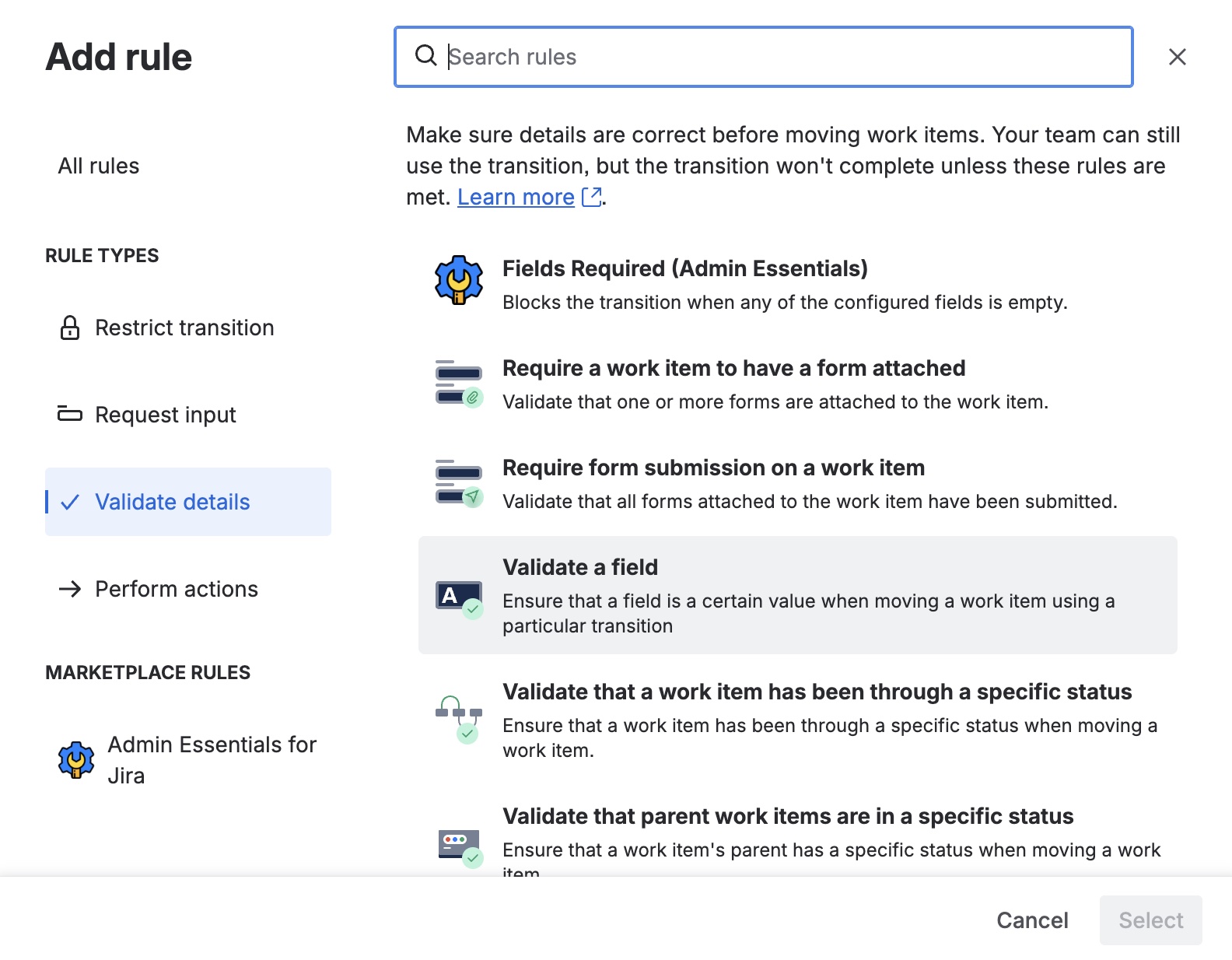
From the available validators list, pick Fields Required (Admin Essentials) and click Add.
-
Configure the required fields (next section) and save.
-
Publish the workflow so the changes take effect.
Configure the required fields
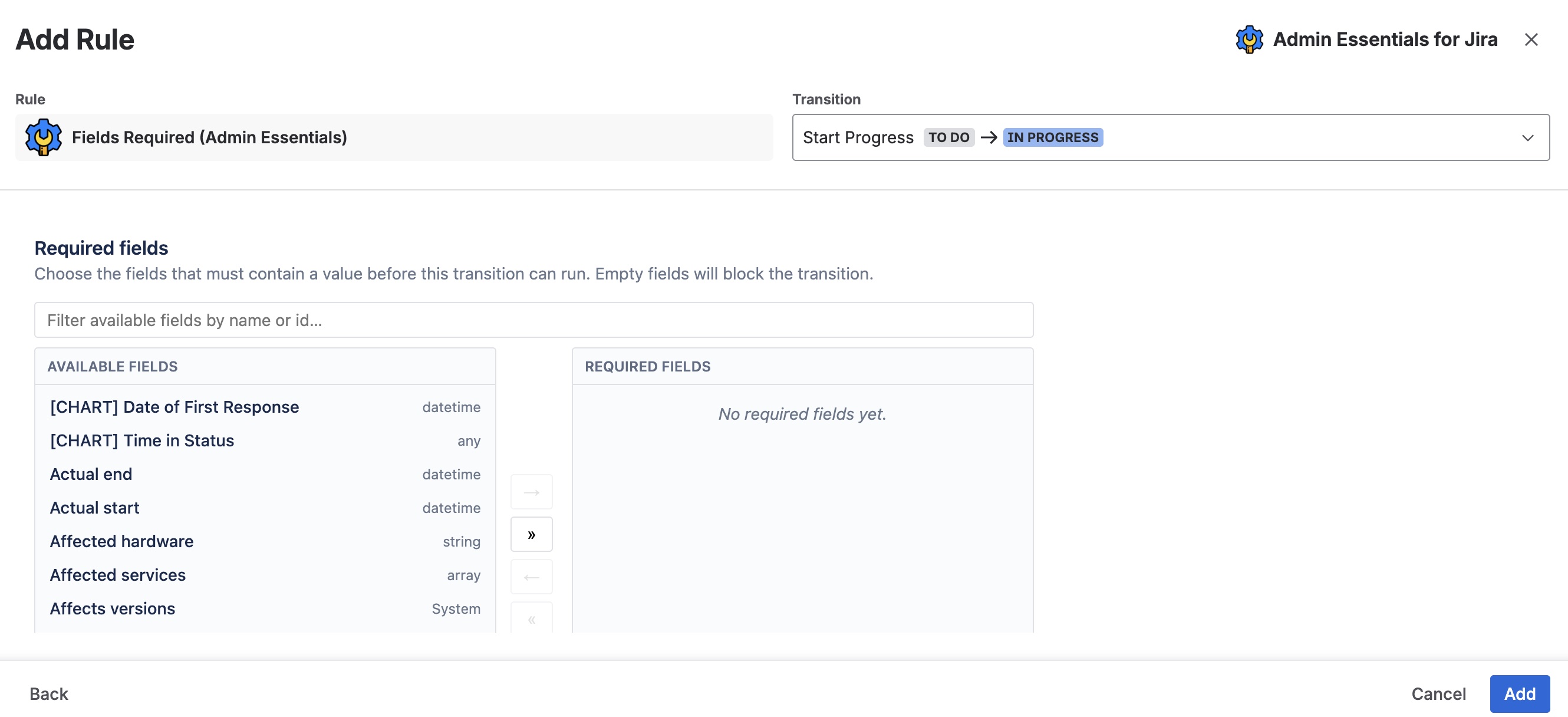
When you add or edit the validator, its configuration panel opens (a Custom UI served by Forge) with three blocks:
1. Dual field list
On the left, Available fields lists every custom and standard Jira field that can be marked as required. On the right, Required fields shows the ones already part of the rule.
- Click a field on the left and use the → button to add it to the required list.
- Click a field on the right and use the ← button to remove it.
- Use the search box at the top to filter by name.
Cascading Select fields (dropdowns with parent and child values) now appear in the Available list and can be added as required. The validator checks that the field has any value selected (parent option chosen); it does not validate a specific value or a specific parent/child combination.
Limitation: the Field Dependency validator does not support Cascading Select as a trigger field, so it cannot enforce a specific cascade value. Use Fields Required when you only need to check that the field has a value.
2. Custom error message (optional)
Enter the text shown to the user when the transition is blocked by missing fields. If you leave it blank, the add-on's default message is used; it automatically includes the list of missing fields.
3. Ignore context
The Ignore context checkbox controls how the validator handles custom fields not configured for the current space or work type:
- Off (default): fields that don't apply to the work item's context are silently skipped. Useful when the same workflow is shared across spaces with different field schemes.
- On: fields are enforced always, even if they're not configured for the context. Useful for catching misconfigured contexts (the user will see an error on transition).
When you save, the selected fields appear summarized in the transition's validator list. You can edit the validator at any time to add or remove fields.
Behavior at transition time
When a user attempts to run the transition:
- If all required fields have values, the transition runs normally.
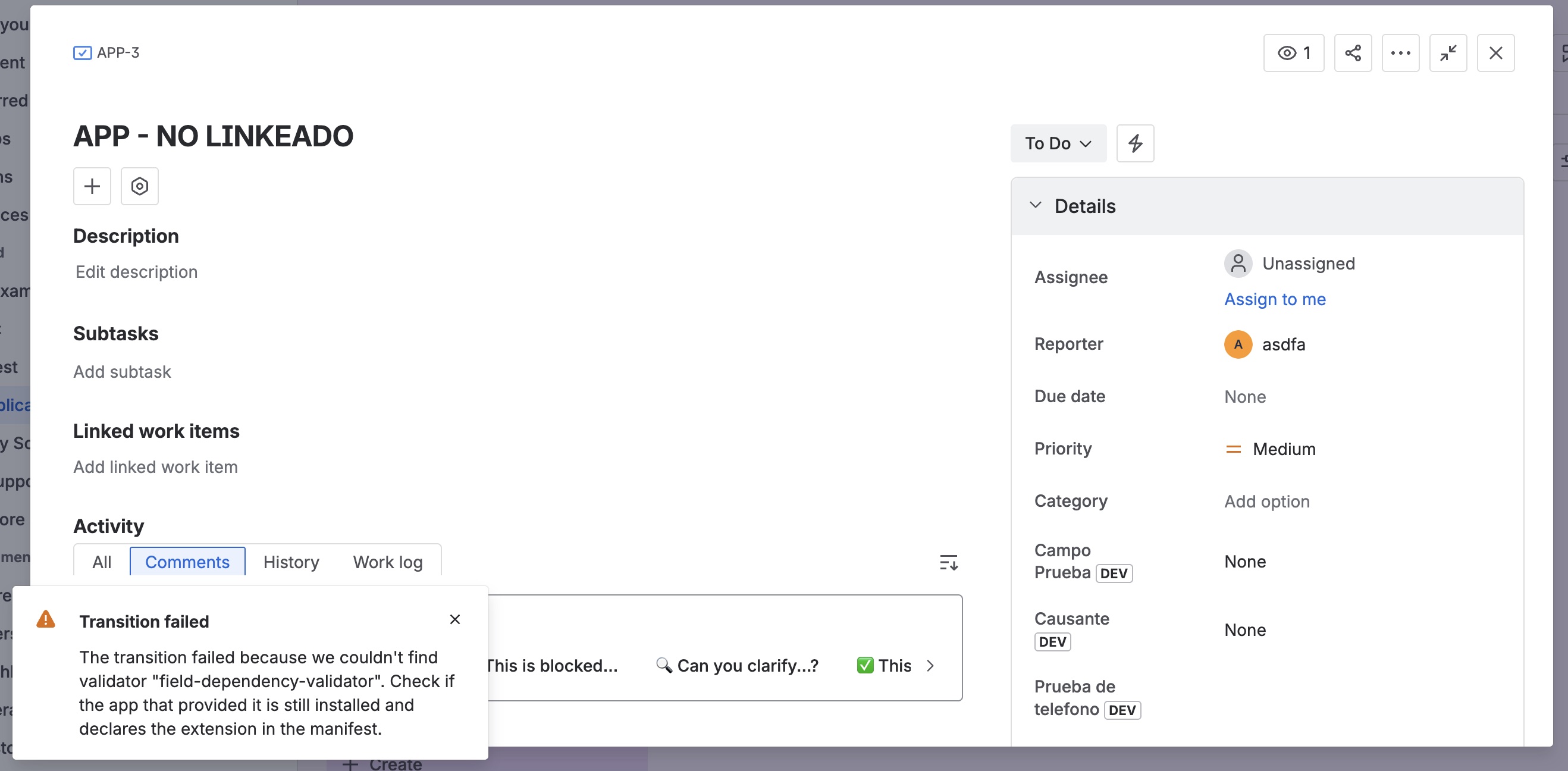
- If one or more fields are empty, the transition is aborted and Jira shows an error message clearly indicating which fields are missing. The work item stays in the previous state and no change is recorded.
A field is considered "filled" when it has a non-empty value according to Jira's standard rules (non-empty text, a number, a selected date, at least one user in a user picker, etc.). For Cascading Select fields, the field is considered filled when a parent option is selected, regardless of whether a child option is also chosen.
For the best experience, we recommend associating the transition with a screen containing the enforced fields. The user sees the fields to fill in before confirming the transition, instead of discovering the error at the end.
Example: closing a work item with resolution and comment
Consider the "Resolve" transition on a support workflow. The team requires that no work item can be closed without a resolution and a closing comment.
- Edit the "Resolve" transition of the workflow.
- Add the Fields Required (Admin Essentials) validator.
- In the dual list, move to the right:
ResolutionComment
- (Optional) Enter the custom message: "To close the ticket, you must record a resolution and an explanatory closing comment."
- Save and publish the workflow.
From that moment on, any attempt to run "Resolve" without those fields will be blocked with the configured message.
Example: require Category/Subcategory before closing
Consider the "Close" transition on a support workflow. The team uses a Cascading Select Category field (parent: work type; child: subcategory) and wants to block closing unless at least the parent category is chosen.
- Edit the "Close" transition of the workflow.
- Add the Fields Required (Admin Essentials) validator.
- In the dual list, move the Cascading Select
Categoryfield to the right (or whatever name it has in your field scheme). - (Optional) Enter the message: "Before closing, select the ticket category."
- Save and publish the workflow.
Closing is blocked while the field has no parent option selected. Remember: a specific subcategory or parent/child combination is not validated.
Key differences from the Data Center version
| Aspect | Data Center | Cloud (Forge) |
|---|---|---|
| Config UI | Native Velocity template | Custom UI served by Forge |
| Validation runtime | Java plugin on the server | Jira expression generated on save |
| Transition-screen fields | Direct support | Equivalent support (see technical note) |
| Global workflows | Yes | Yes |
On Cloud, the validator does not evaluate fields at transition time by running Java code. Instead, the Custom UI generates a Jira expression when configuration is saved, encoding the rule "every selected field must have a value". Jira runs that expression natively during the transition. This gives the same reliability as Jira's native validation with no performance penalty.