Attachment Field
The Attachment Field custom field allows files to be attached directly to a specific work item field — for example, Invoices, Evidence Photos, or PQR Documents — independently of the other fields on the same work item. Each field stores its own files separately: different fields on the same work item do not share attachments, and a parent work item's field does not mix its files with those of its subtasks.
As of version 1.8.0, files uploaded through the field are stored as native Jira attachments: the field now behaves as a filtered view over the work item's native Attachments panel, instead of using storage of its own.
Create the Attachment Field
-
In Jira, open Settings (cog) → Work items (on some sites this appears as Work items).
-
In the sidebar, under Fields, open Custom fields.
-
Click Create field.
-
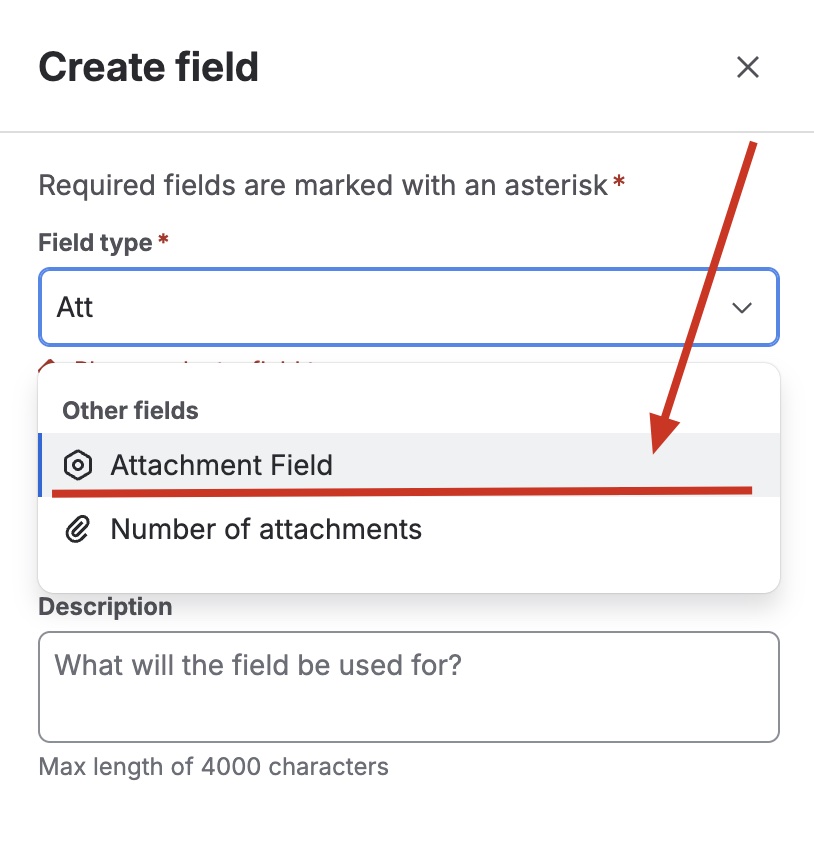
In the Field type dropdown, search for and select Attachment Field.
-
Enter a Name for the field (for example, "Invoices", "PQR Evidence", "Photographs") and, optionally, a Description.
-
Click Create.
-
Associate with screens: Select the screens where the field should appear (create, edit, transition, view) and click Update.
The field is now available for use on work items in the associated space or work type.
Per-context configuration
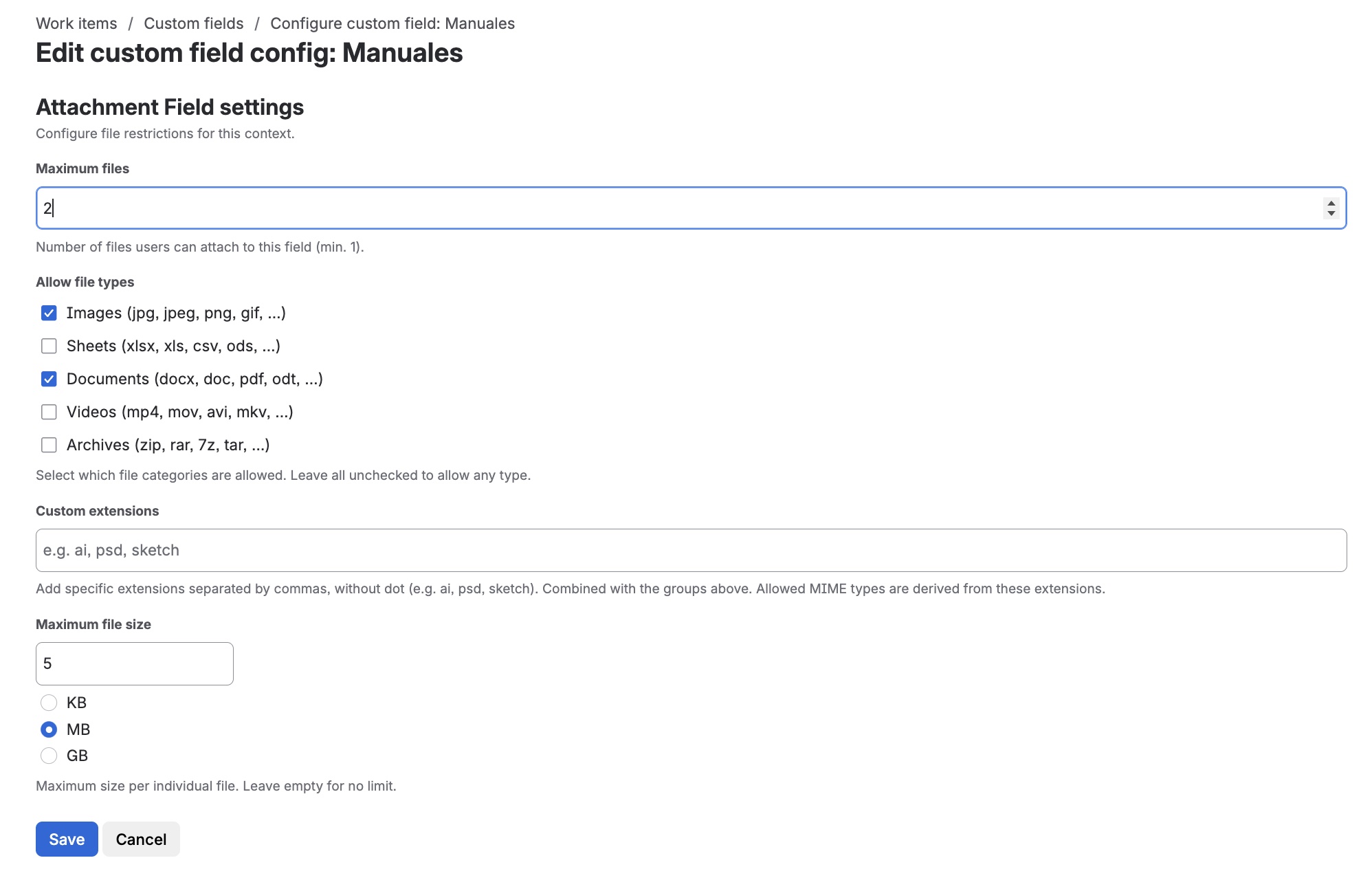
Each field context can have its own file restrictions. To configure them:
- In Jira, go to Settings → Work items → Custom fields.
- Locate the Attachment Field and click
⋯→ Contexts and default value. - Select the context you want to configure.
- Fill in the parameters below in the field configuration section.
- Click Save.
Configuration parameters
| Parameter | Description | Example |
|---|---|---|
| Maximum files | Maximum number of files the field can hold on a single work item, from 1 to 7. Default: 5. | 5 |
| Allowed types | Accepted file categories: images, spreadsheets, documents, videos, compressed archives. Multiple categories can be selected. If none are checked, any type is accepted. | Images + Documents |
| Custom extensions | Additional allowed extensions, comma-separated and without a leading dot. | dwg, step, dxf |
| Maximum file size | Maximum size per individual file (KB, MB, or GB). Leave empty for no limit. | 10 MB |
You can have multiple contexts for the same field — one per space or work type — and apply different restrictions to each. For example, the "Invoices" field can accept only PDFs and spreadsheets in the accounting spaces context, while also allowing images in the support spaces context.
The field saves every file up to the configured maximum, whatever the file name length, when creating, editing, or transitioning a work item, and from the JSM portal.
From version 1.9.0, Maximum files accepts values from 1 to 7. If a context had a higher value saved, 7 applies and the context configuration shows the warning "This context allowed N files. The maximum is now 7, so 7 applies until you save." Save the context to confirm the new value.
To require a minimum or maximum number of files on a specific transition (for example, at least two pieces of evidence to approve), use the Attachment Count Validator.
Storage: native Jira attachments
As of version 1.8.0, every file uploaded through the field is created as a native attachment of the work item. The field no longer stores binaries or a reference to storage of its own: it stores only the identifiers of the native attachments that belong to it. Preview and download are served directly from those native attachments.
| Aspect | Uploads since version 1.8.0 | Previous uploads |
|---|---|---|
| Where the file lives | Native attachment of the work item | The app's own storage |
| Appears in the native Attachments panel | Yes | No |
Detected by attachments is not EMPTY | Yes | No |
| Deleting from the field | Permanently deletes the native attachment | Permanently deletes the object from the app's own storage |
| On app uninstall | The file remains in Jira | Not applicable (the file already lived outside Jira) |
The field only shows the files whose identifier it has stored — that is, the ones uploaded through that specific field —, while the work item's native Attachments panel lists every attachment on the issue, including ones that did not arrive through this field (for example, added manually or through another Attachment Field). This preserves independence between fields: an "Invoices" field and a "Photographs" field on the same work item still keep their files separate, even though both now appear in the same Attachments panel.
Coexistence with files from previous versions
Files uploaded before version 1.8.0 are not automatically migrated to the new storage: they stay where they were, in the app's own storage, and the field keeps displaying them normally. A work item updated from a previous version can end up with a mix of older files (app storage) and new files (native attachments) within the same field; from the end user's perspective, the card looks the same in both cases, except that only the new files also appear in the native Attachments panel.
Available surfaces
The Attachment Field is available on the following Jira surfaces:
- Work item view: each file is displayed as a card (see Card view below).
- Create screen: allows files to be uploaded when creating a work item.
- Edit screen: allows adding or removing files on existing work items.
- Transition screen: allows attaching files during a workflow transition.
- Jira Service Management: the field behaves like the other Admin Essentials custom fields: agent view and customer portal (request form and request detail), if it is associated with the corresponding screens. The card view is the same on both surfaces.
Card view
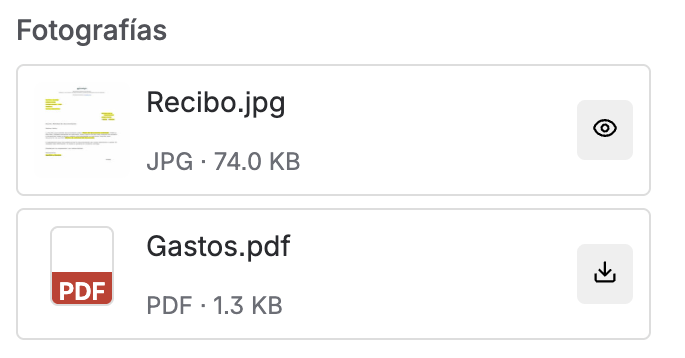
Each file is rendered as an independent card, with:
- A thumbnail for supported raster formats (JPG, PNG, GIF, WEBP, BMP), or a type icon for everything else (PDF, Word, Excel, and other documents).
- The filename and a line with type · size.
- A single action: a preview icon (eye) when a preview is available, or a download icon when it is not. These are icon-only controls, with a tooltip on hover.
When the field holds several files, the cards are shown stacked. SVG files and other formats that are not safe to preview inline (for example TIFF) always use a type icon instead of a thumbnail, and only offer the download icon.
Preview and download
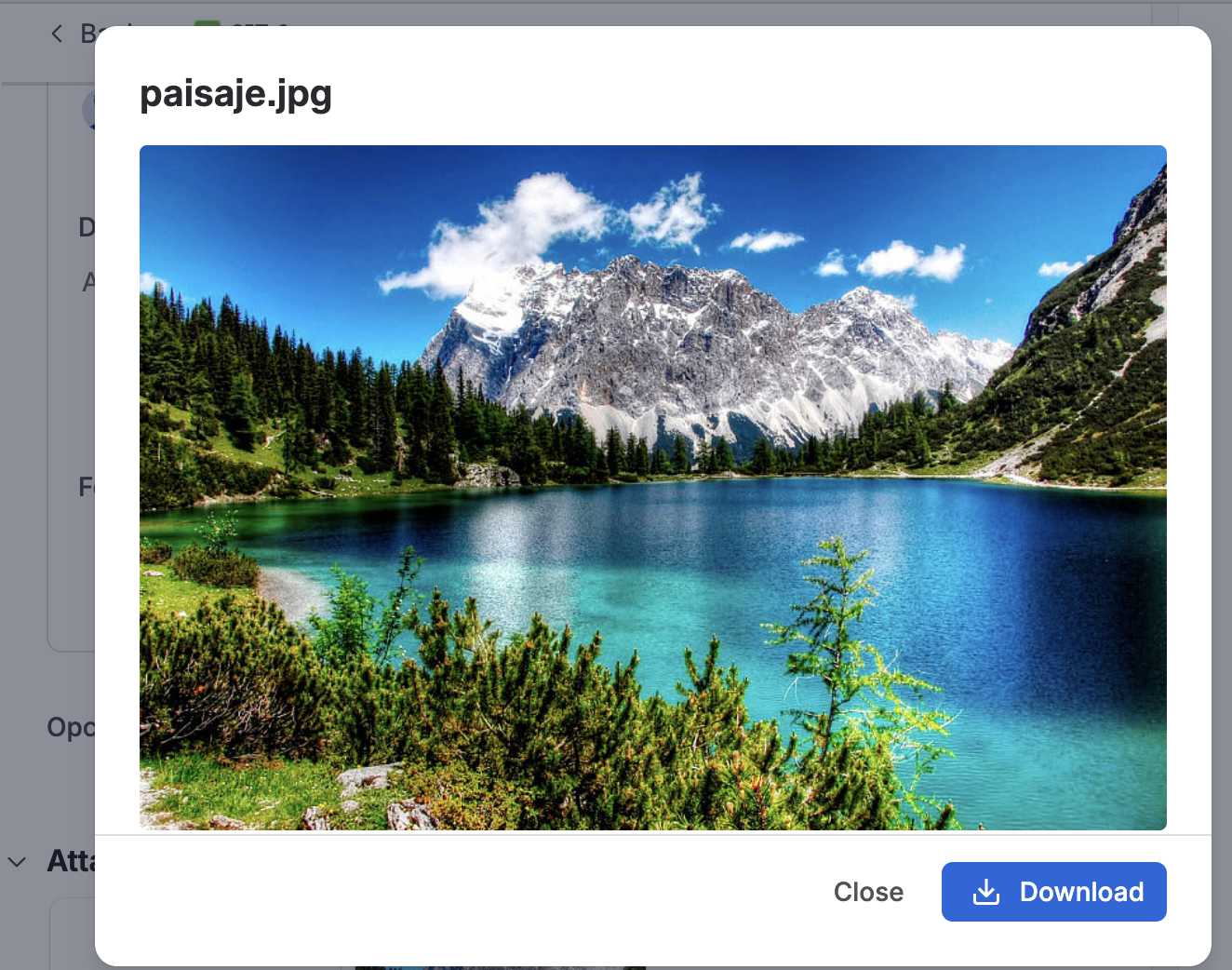
The preview icon opens a window with the file's content and two buttons: Download and Close. Download saves the file with its original name, without leaving the preview.
| File type | Action on the card | Preview window |
|---|---|---|
| Images: JPG, PNG, GIF, WEBP, BMP | Preview (eye) | Yes, with Download and Close |
| Text: TXT, CSV, JSON, XML, and similar | Preview (eye) | Yes, with Download and Close |
| PDF, Word, Excel, and every other format | Download | No |
| SVG and TIFF | Download (type icon, no thumbnail) | No |
The work item view and the JSM portal behave the same way. In edit mode, each file keeps the compact row with the preview and download icons side by side.
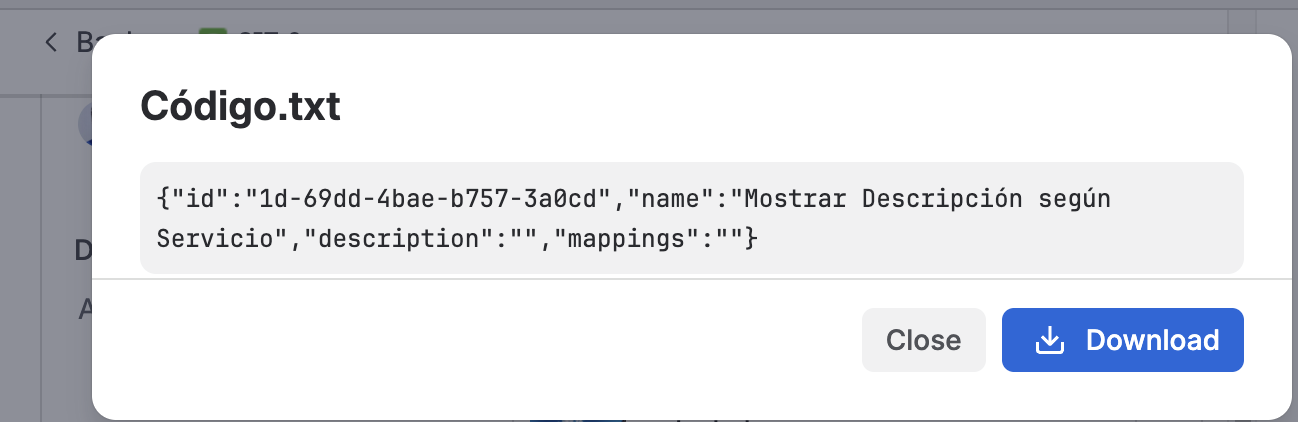
Validation messages
If a user tries to upload a file that does not meet the configured restrictions, the field shows a message indicating the reason:
- Maximum files reached: the field has reached the allowed limit; the user must delete an existing file before uploading a new one.
- File type not allowed: the file does not belong to any configured category or extension.
- File too large: the file exceeds the maximum size defined for the context.
JQL search
The Attachment Field supports the is EMPTY and is not EMPTY operators in JQL, on the field's name:
"Invoices" is not EMPTY
"PQR Evidence" is EMPTY
This answers "does this field have files?" and is different from querying the native panel:
attachments is not EMPTY
attachments is not EMPTY evaluates the work item's native Attachments panel as a whole: as of version 1.8.0, it does detect files uploaded through the Attachment Field (because they are now native attachments), along with any other attachment on the issue. It does not let you identify which field a file came from — for that, keep using the field's name, as in the example above.
It is not possible to search by filename, extension, or file type using JQL, either on the field or on the native panel. Only the presence or absence of files can be filtered.
Uninstalling the app
Files uploaded through the Attachment Field as of version 1.8.0 are native Jira attachments: if the app is uninstalled, the files remain on the work item, like any other native attachment. Only the custom field itself (and its context configuration) stops being available.
Files that were left in the app's own storage before version 1.8.0 are not affected by this behavior change; contact support if you need to recover them after an uninstall.