Attachment Count Validator
The Attachment Count (Admin Essentials) validator blocks a workflow transition when an Attachment Field has fewer or more files than configured. Available from version 1.9.0 and exclusive to Jira Cloud.
The Fields Required validator only checks that a field has some value. This validator requires a number of files: for example, "at least 2 pieces of evidence to approve" or "at most 5 invoices".
When to use this validator?
- Procurement: require at least one invoice and one purchase order before moving to "Approved".
- Legal: require a minimum number of signed documents before closing a contract.
- QA: require at least two evidence screenshots before moving a bug to "Verified", and set a cap to avoid bulk uploads.
| Need | Recommended extension |
|---|---|
| The field must have some value | Fields Required |
| The field must have a value only when another field meets a condition | Field Dependency |
| The Attachment Field must have a minimum and/or maximum number of files | Attachment Count (this guide) |
| The transition button must not appear unless a criterion is met | Expression Condition |
Add the validator to a transition
- In Jira, open the configuration of the workflow you want to change.
- For workflows associated with a space: Space settings → Workflows → Edit.
- For global workflows: Jira settings → Work items → Workflows → Edit.
- Select the transition you want to add the rule to.
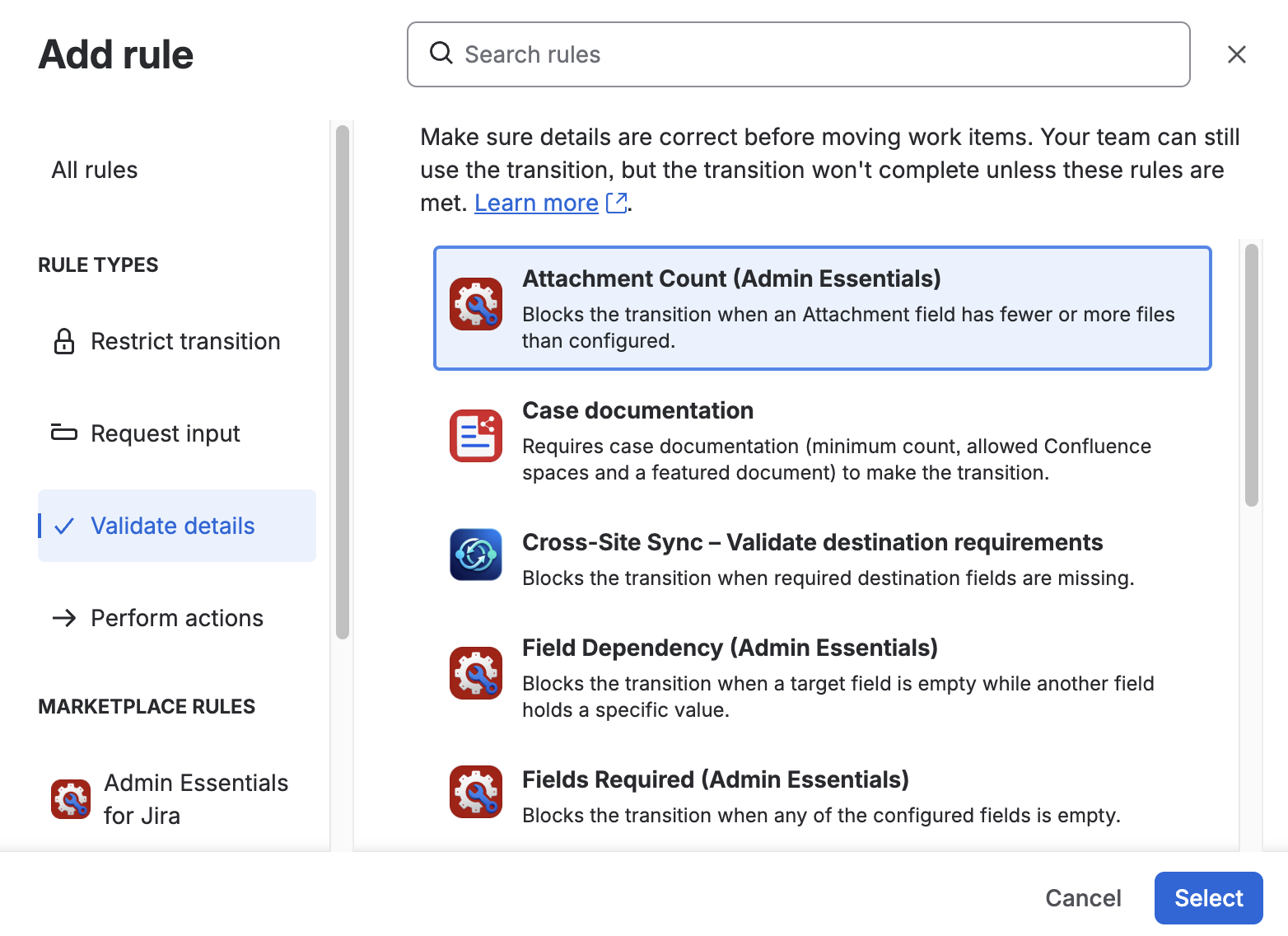
- Click Add rule.
- Under Validate details, select Attachment Count (Admin Essentials) and click Select.
- Configure the fields and their limits (see next section) and save.
- Publish the workflow so the changes take effect.
You need at least one Attachment Field on the site. If there is none, the form shows "There are no Attachment fields (Admin Essentials) on this site yet. Create one first."
Configure the validator
The configuration form is an app Custom UI, like the other validators. Only Jira administrators can create or edit it.
1. Fields and limits
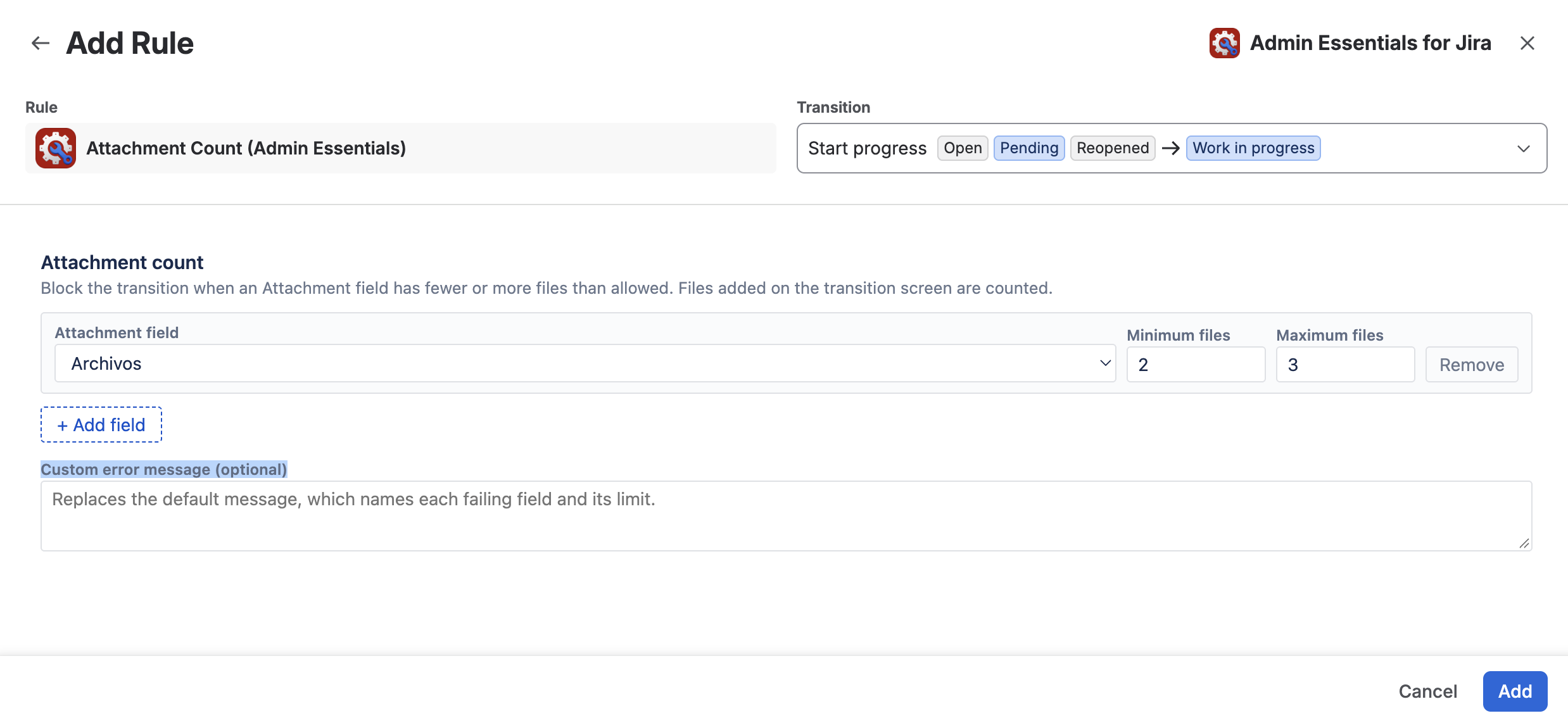
Each row in the form corresponds to one Attachment Field:
- Attachment field: the Attachment Field to count.
- Minimum files: minimum number of files the field must have. Leave it empty (No limit) if you don't want a minimum.
- Maximum files: maximum number of files allowed. Leave it empty (No limit) if you don't want a maximum.
Use + Add field to add another Attachment Field to the same validator, and Remove to delete a row. Each field is evaluated separately: for example, Invoices with a minimum of 1 and Evidence with a minimum of 2.
The form doesn't allow saving an invalid configuration and flags the error on the affected row:
| Situation | Message |
|---|---|
| A row without a selected field | Select an Attachment field. |
| The same field in two rows | This field is already configured in another row. |
| A row with neither minimum nor maximum | Set a minimum, a maximum, or both. |
| A limit that isn't a whole number ≥ 0 | Minimum (or Maximum) must be a whole number of 0 or more. |
| Minimum greater than maximum | Minimum cannot be greater than maximum. |
2. Custom error message (optional)
Enter the text users see when the transition is blocked. If you leave it empty, the default message is used, which names each failing field, its limit, and the current count:
- "Evidence needs at least 2 file(s); it has 1."
- "Invoices allows at most 5 file(s); it has 6."
The default message is stored in the language of the administrator who saved the validator. A custom message is shown exactly as the administrator wrote it.
Once saved, the configuration appears summarised in the transition's rule list. Editing or opening the validator summary loads the saved configuration.
Behaviour at transition time
- The count is the number of files in the Attachment Field, not the attachments in the work item's native Attachments panel.
- An empty field counts as 0, so it fails any minimum of 1 or more.
- If the transition has a screen with the Attachment Field, files added on that screen are counted before the transition is confirmed.
- If a field is not in context for the work item's space or work type, the validator skips it.
- If any field doesn't meet its limit, the transition is aborted and Jira shows the message. The work item stays in its previous status.
The Attachment Field only shows its file picker on transition screens with Jira's new transition experience (enabled in personal settings or site-wide). The legacy transition dialog shows the field as a text box: don't type in it, because it would replace the field's file list.
What this validator doesn't do
- It doesn't validate the native Attachments panel of the work item: it only counts the Attachment Field's files.
- It doesn't validate file type, extension, or size. Those restrictions are configured in the Attachment Field context and apply when the file is uploaded.
- It doesn't replace Fields Required: if you only need the field to have some file, Fields Required is enough.
- It doesn't hide the transition button: users see the transition and get the error when they confirm it. To hide the button, use a condition.
Example: approval with evidence and invoices
The "Approve" transition in a procurement workflow requires at least one invoice and between 2 and 5 pieces of evidence.
- Edit the "Approve" transition and add the Attachment Count (Admin Essentials) validator.
- First row: field Invoices, minimum
1, maximum empty. - + Add field. Second row: field Evidence, minimum
2, maximum5. - (Optional) Custom message: "To approve, attach at least one invoice and between 2 and 5 pieces of evidence."
- Save and publish the workflow.
A work item with one invoice and one piece of evidence can't be approved until a second piece of evidence is added, either on the work item view or on the transition screen.
License
The validator follows the same rule as the app's other validators: without an active license it can't be created or edited. A validator already saved in the workflow keeps running even if the license expires. See Atlassian Marketplace Licensing.