Field Dependency Validator
The Field Dependency (Admin Essentials) validator blocks a workflow transition when a target field is empty while another field (the trigger) holds a specific value. It is the natural way to model "if A happens, then B is required" relationships without making the field mandatory in every situation.
A single validator can hold several independent rules, each with its own trigger → required pair and, optionally, its own error message.
When to use this validator?
- When Priority is Highest, require the Assignee field before closing.
- When Issue Type is Bug, require a custom "Severity" or "Steps to reproduce" field.
- When a specific Resolution is chosen (for example Won't Do), require an explanatory comment.
- When a "Ticket source" select takes a specific value (e.g. VIP Customer), require a follow-up owner.
- When the Percentage field meets a threshold (e.g.
>= 50), require the Approver field. - When the Email field contains a corporate domain, require an additional tracking field.
Unlike Fields Required, where a field is enforced on every transition, this validator only enforces it when the condition holds, preventing unnecessary blocks.
Add the validator to a transition
-
In Jira, open the workflow you want to edit:
- For project-scoped workflows: Project settings → Workflows → Edit.
- For global workflows: Jira settings → Issues → Workflows → Edit.
-
Select the transition you want to protect.
-
Open the Validators tab.
-
Click Add validator.
-
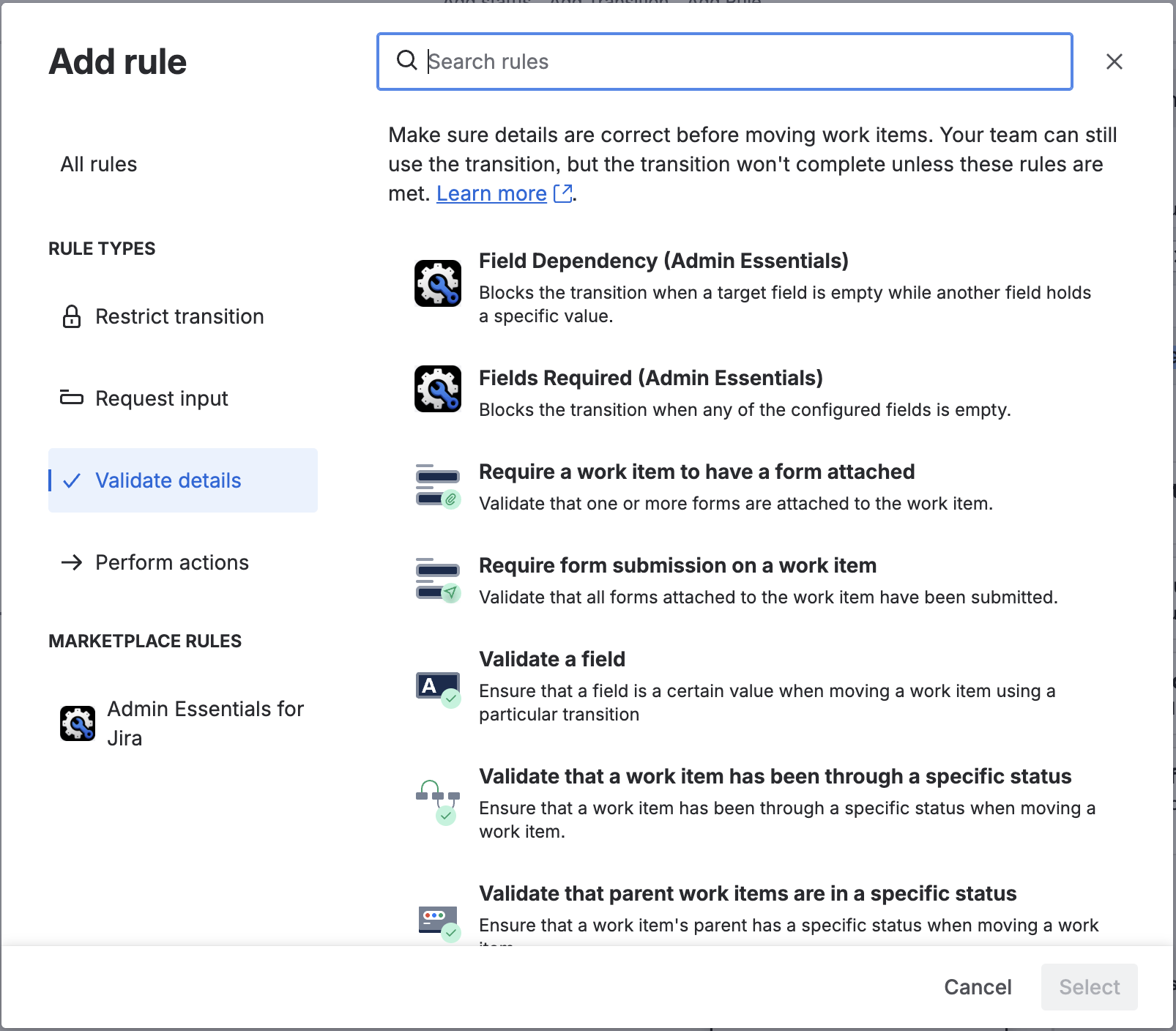
From the available validators list, pick Field Dependency (Admin Essentials) and click Add.
-
Define one or more rules (next section) and save.
-
Publish the workflow so the changes take effect.
Configure the rules
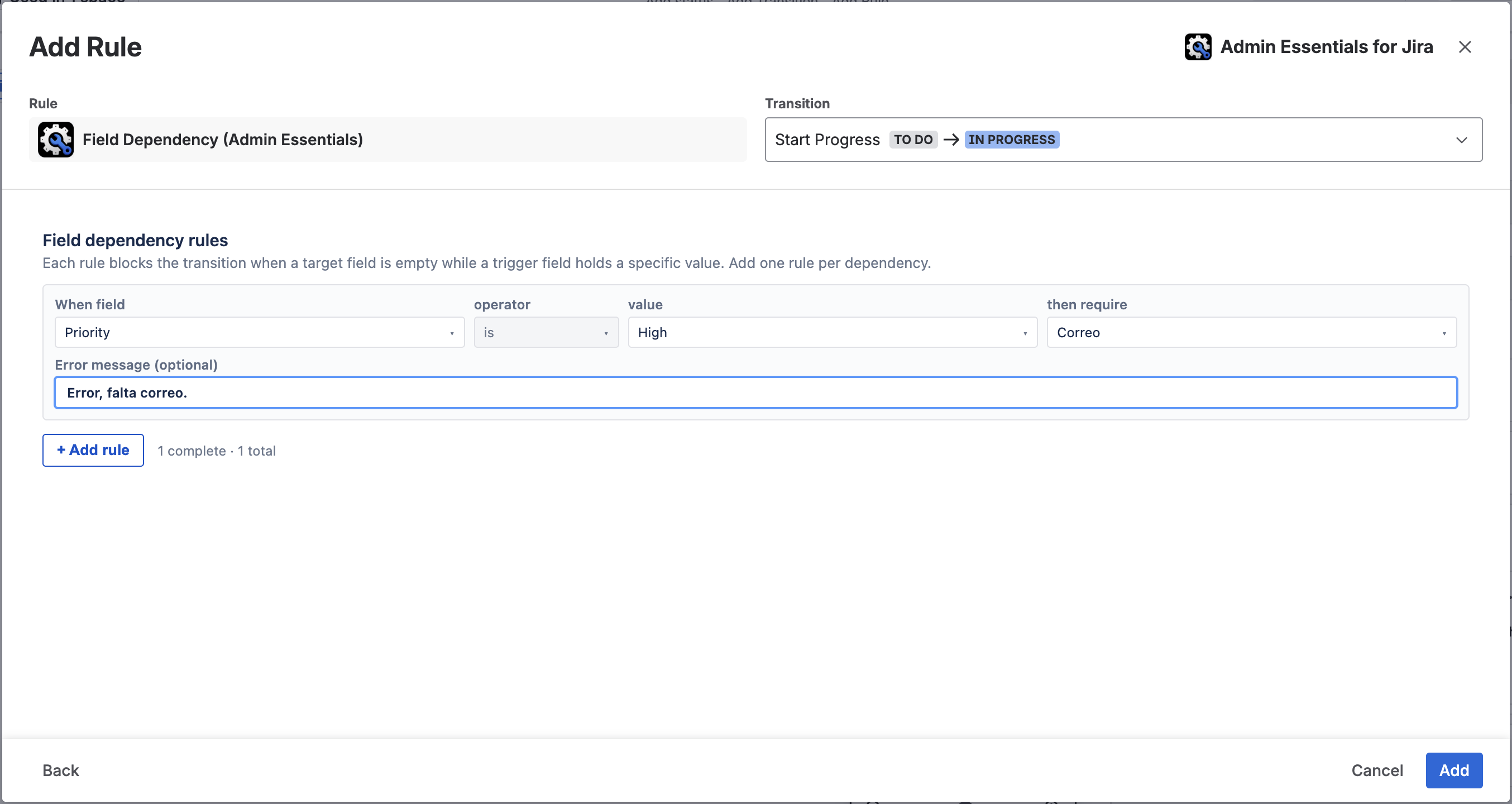
When you add or edit the validator, its configuration panel opens (a Custom UI served by Forge). Each rule is configured as an independent row. The rule format changes depending on the selected trigger field type:
- Select mode:
<trigger field>is<value>→ then require<required field> - Numeric mode:
<trigger field><operator><threshold>→ then require<required field>(e.g.Percentage >= 50) - String mode:
<trigger field><operator><value>→ then require<required field>(e.g.Email contains @company.com)
And below, optionally, an Error message specific to that rule.
Supported trigger field types
| Mode | Fields available as trigger | Operators | Value control |
|---|---|---|---|
| Select | Priority, Issue Type, custom Single-select or Radio fields | is (exact equality) | Value list loaded automatically from Jira |
| Numeric | Currency, Percentage, Traffic Light KPI | =, !=, <, <=, >, >= | Free numeric text input |
| String | Email, Phone Number | equals, does not equal, contains, is empty, is not empty | Free text input (hidden for is empty / is not empty) |
Numeric mode
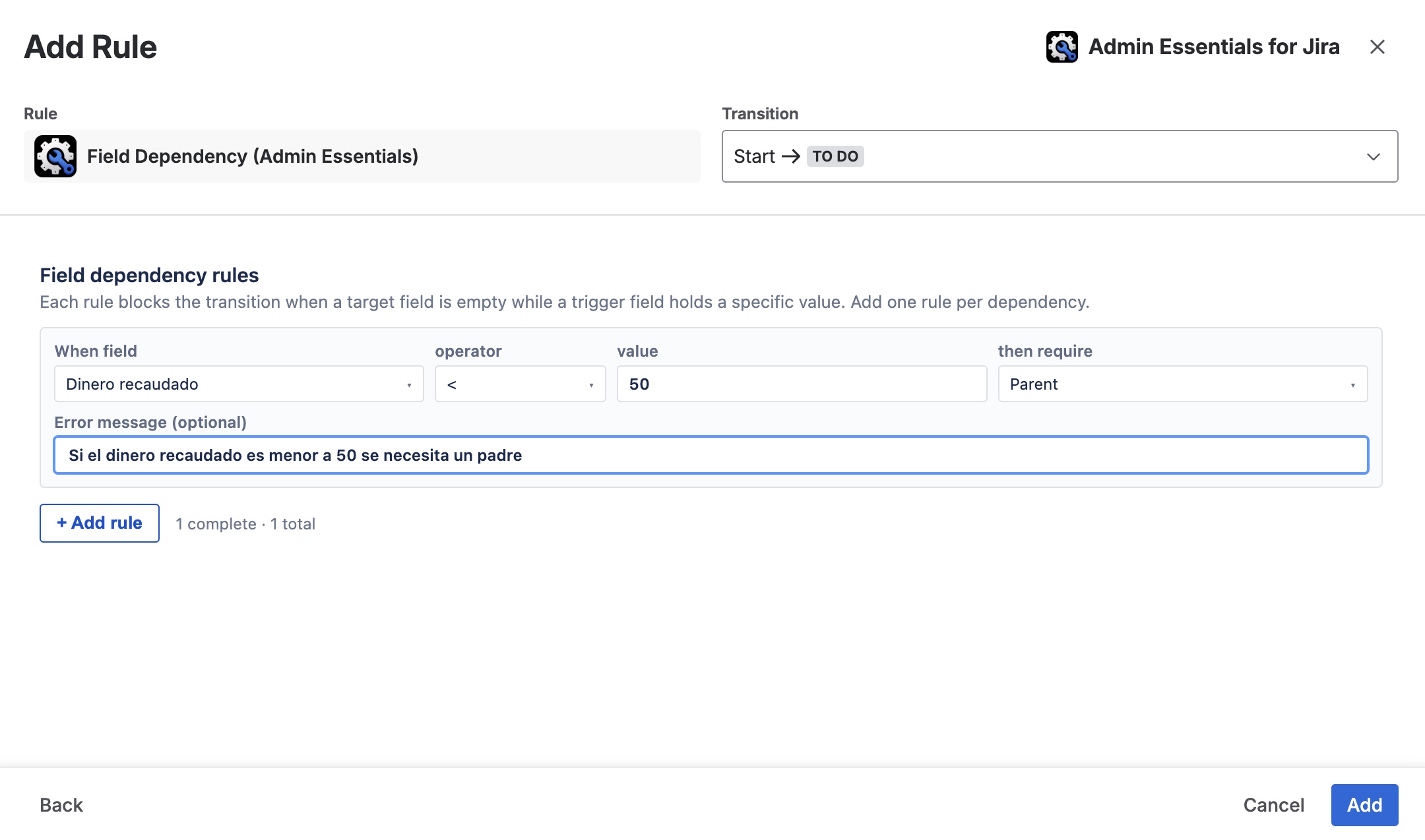
When the trigger field is numeric (Currency, Percentage, or Traffic Light KPI), the validator shows an operator selector (=, !=, <, <=, >, >=) and a text field for entering a numeric threshold. The comparison is made against the stored value of the field.
Example: Percentage >= 50 → then require Approver. With this rule, any transition on an issue where the Percentage field value is 50 or more will require the Approver field to be filled in.
In version 3.1.0, a trigger on Traffic Light KPI compares the stored numeric value, NOT the rendered colour band (🔴/🟡/🟢). To express "if the light is red, require Assignee", configure the equivalent numeric threshold (e.g. <= 30). Colour-band comparison arrives in version 5.0.0.
String mode
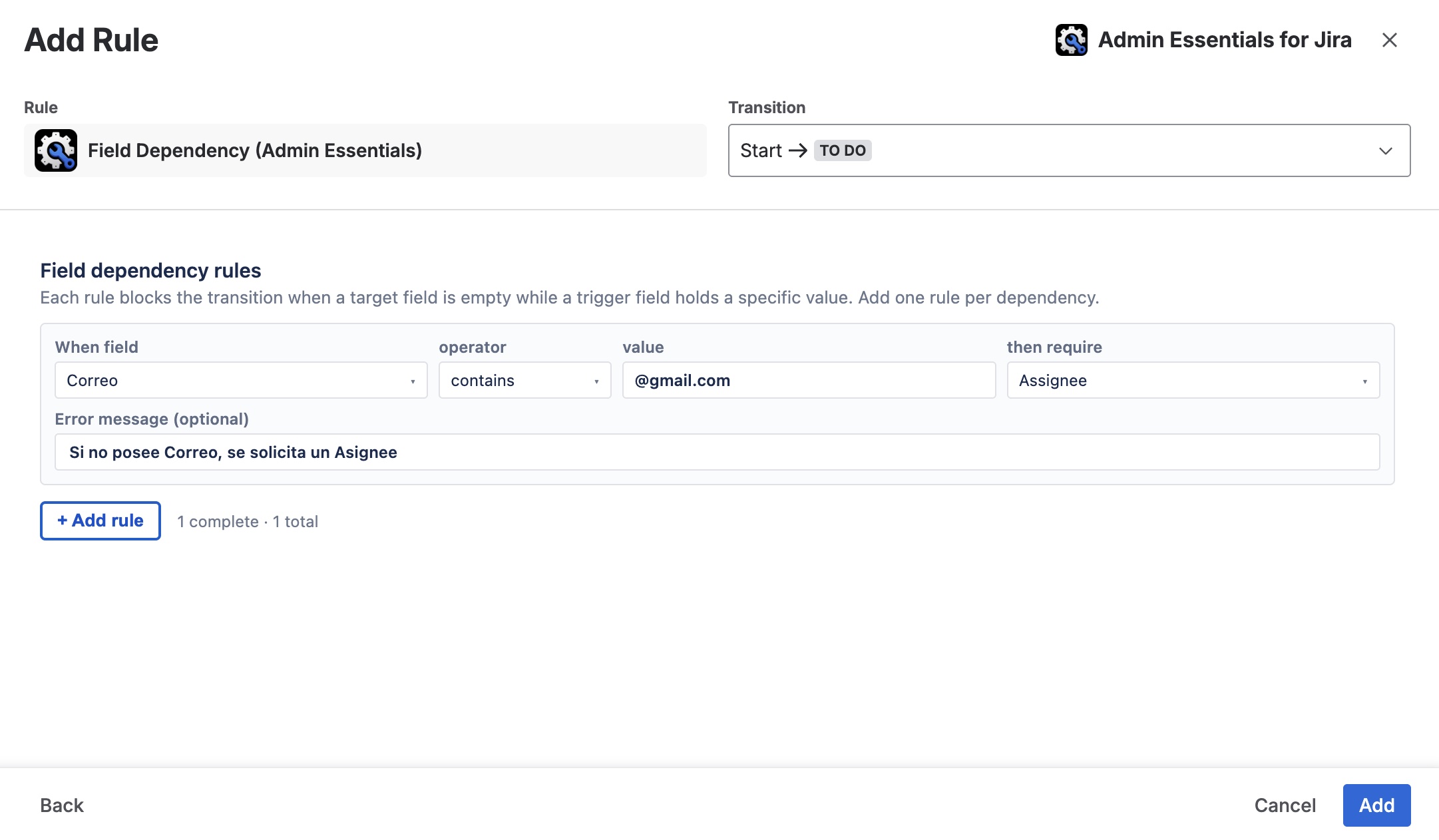
When the trigger field is a text field (Email or Phone Number), the validator shows a string operator selector. For the is empty and is not empty operators, the value input is automatically hidden because no comparison value is needed.
Available operators:
equals— exact match with the entered value.does not equal— the field does not exactly match the value.contains— the field contains the entered substring.is empty— the field is empty (no comparison value needed).is not empty— the field has any value (no comparison value needed).
Example: Email contains @company.com → then require Approver. With this rule, if the Email field contains the corporate domain, the Approver field becomes mandatory at transition time.
Required field
The required field can be any field from the Jira catalog (system or custom), including Assignee, Comment, Description, Labels, Fix Versions, etc. The validator checks that the field has a non-empty value at transition time.
Custom error message
Each rule can carry its own Error message. If left blank, the add-on shows a default message of the form "Assignee is required when Priority is Highest.".
Multiple rules
You can add as many rules as you need by clicking + Add rule. Each rule is evaluated independently, and any that fire at the same time must all pass for the transition to run (rules are combined with AND).
Behaviour at transition time
When a user attempts to run the transition:
- If no rule fires (no trigger field satisfies the configured condition), the transition runs normally.
- If one or more rules fire and their corresponding required fields are empty, the transition is aborted and Jira shows the error messages of each failing rule. The issue stays in the previous state.
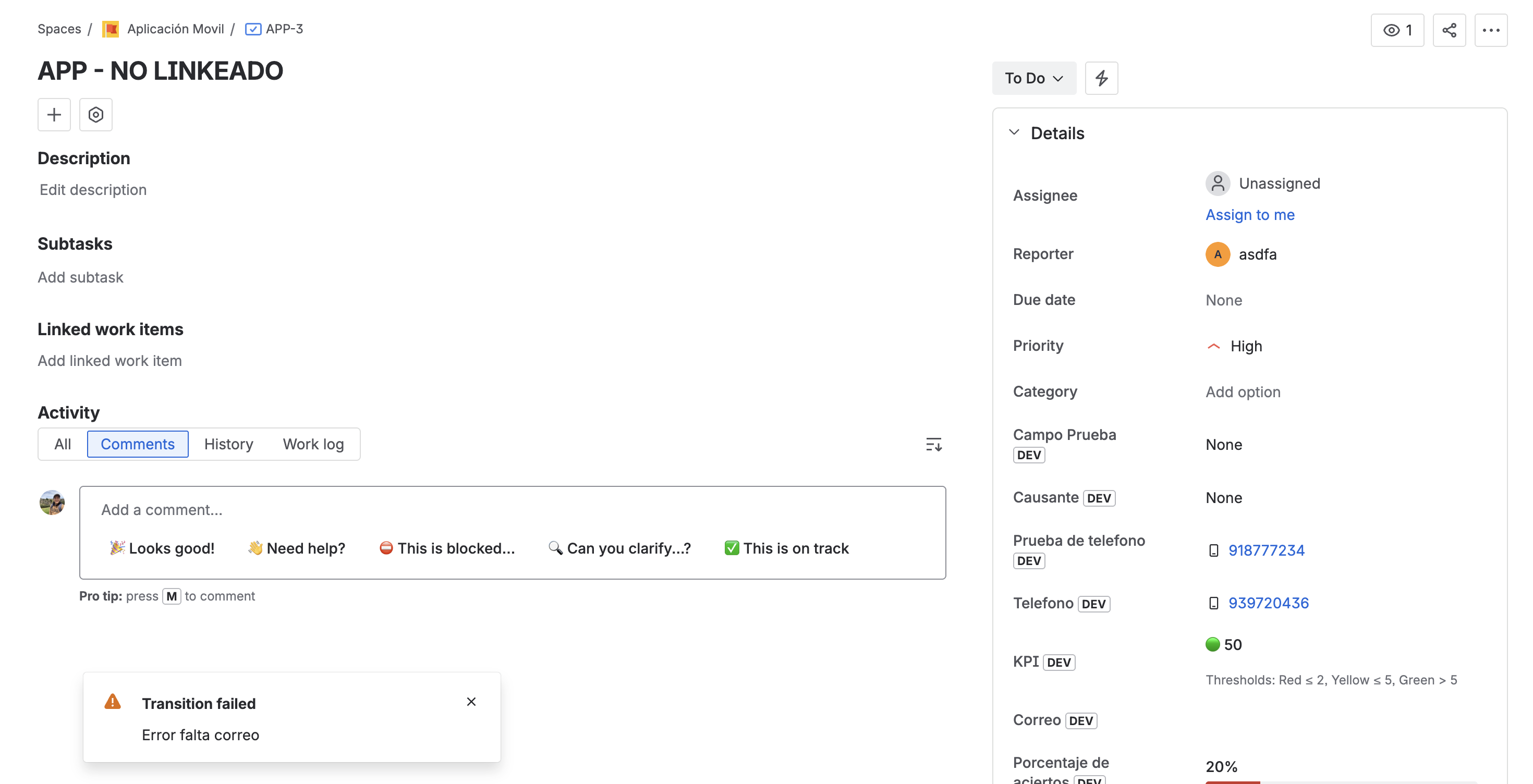
As with any validator, we recommend associating the transition with a screen that contains the required fields. That way the user can complete them during the transition rather than discovering the error at the end.
Compatibility with rules configured in v3.0.0
Rules created with the v3.0.0 validator (the "v1 shape": no kind or operator property) continue working without any manual reconfiguration. When the administrator opens the rule editor in v3.1.0, existing rules are automatically migrated to the new "v2 shape" (assigning operator = "equals" and kind = "select") without losing any existing configuration. There is no need to rebuild rules from scratch.
Example: Assignee required when Priority is Highest
Suppose the team wants to guarantee that no Highest-priority issue ever moves to In Progress without an assignee.
- Edit the "Start Progress" transition of the workflow.
- Add the Field Dependency (Admin Essentials) validator.
- Configure the rule:
- When field:
Priority - is:
Highest - then require:
Assignee
- When field:
- (Optional) Error message: "Please pick an assignee before starting a Highest-priority issue."
- Save and publish the workflow.
From that point on:
- A Medium-priority issue can move to In Progress without an assignee.
- A Highest-priority issue without an assignee gets blocked with the configured message.
Example: Comment required depending on issue type
If the team wants all Bugs to carry a comment when moving to Resolved:
- Edit the "Resolve" transition of the workflow.
- Add the Field Dependency (Admin Essentials) validator.
- Configure the rule:
- When field:
Issue Type - is:
Bug - then require:
Comment
- When field:
- (Optional) Error message: "To resolve a bug, please record an explanatory closing comment."
Other issue types (Story, Task, etc.) pass through without needing a comment.
Example: Percentage greater than or equal to 50 → Approver required
If the process requires formal approval when a progress indicator reaches 50% or more:
- Edit the "Submit for approval" transition of the workflow.
- Add the Field Dependency (Admin Essentials) validator.
- Configure the rule:
- When field:
Percentage(or the name of the Percentage field in your instance) - operator:
>= - threshold:
50 - then require:
Approver
- When field:
- (Optional) Error message: "When progress is 50% or more, you must designate an approver before continuing."
- Save and publish the workflow.
Issues with a Percentage value below 50 can advance without an approver, while those at or above 50% are blocked until the field is completed.
Example: Email as a condition for requiring an approver
If issues from contacts with a corporate email domain require an additional approver:
- Edit the "Escalate" transition of the workflow.
- Add the Field Dependency (Admin Essentials) validator.
- Configure the rule:
- When field:
Email(or the name of the custom Email field) - operator:
contains - value:
@company.com - then require:
Approver
- When field:
- (Optional) Error message: "Contacts with a corporate email require an approver before escalating."
- Save and publish the workflow.
Issues with an Email that does not contain @company.com (or with an empty field) will pass the transition without requiring an approver.
If you use Phone Number as a trigger with the is empty operator, remember that the rule only fires when the field is empty. If you want the transition to block only when the phone field has a specific value, use equals or contains. The is empty and is not empty operators are particularly useful for requiring that a text field is or is not filled in as a prerequisite for another requirement.
Differences from "Fields Required"
| Aspect | Fields Required | Field Dependency |
|---|---|---|
| When the field is required | Always when the transition runs | Only when a trigger field satisfies the condition |
| Rules per validator | A single list of required fields | Multiple rules (each with its own trigger → required pair) |
| Custom message | One global message | One per rule |
| Typical use case | "On this transition, always require Resolution" | "On this transition, require Resolution only when the type is Bug" |
Both validators can coexist on the same transition. If you need a combination, configure each one with its specific part.