Sync rules
A rule defines which work item to create on the remote site, when to create it, and what content to transfer. Before creating one, set up an available connection and make sure the technical account can create work items in the destination space.
Manage rules
The Rules tab shows one card per rule with its name, status, trigger, source-to-destination flow, and sync direction. Each card also summarizes linked work items and those that need attention. Search by name and filter by status to find a rule.

You can edit a rule. Its action menu lets you duplicate, activate or deactivate, simulate, and open its activity in the log. If no rules exist, the page prompts you to create the first one.
The wizard automatically saves a draft. You can return to an earlier step without losing your entries.
Configure a rule
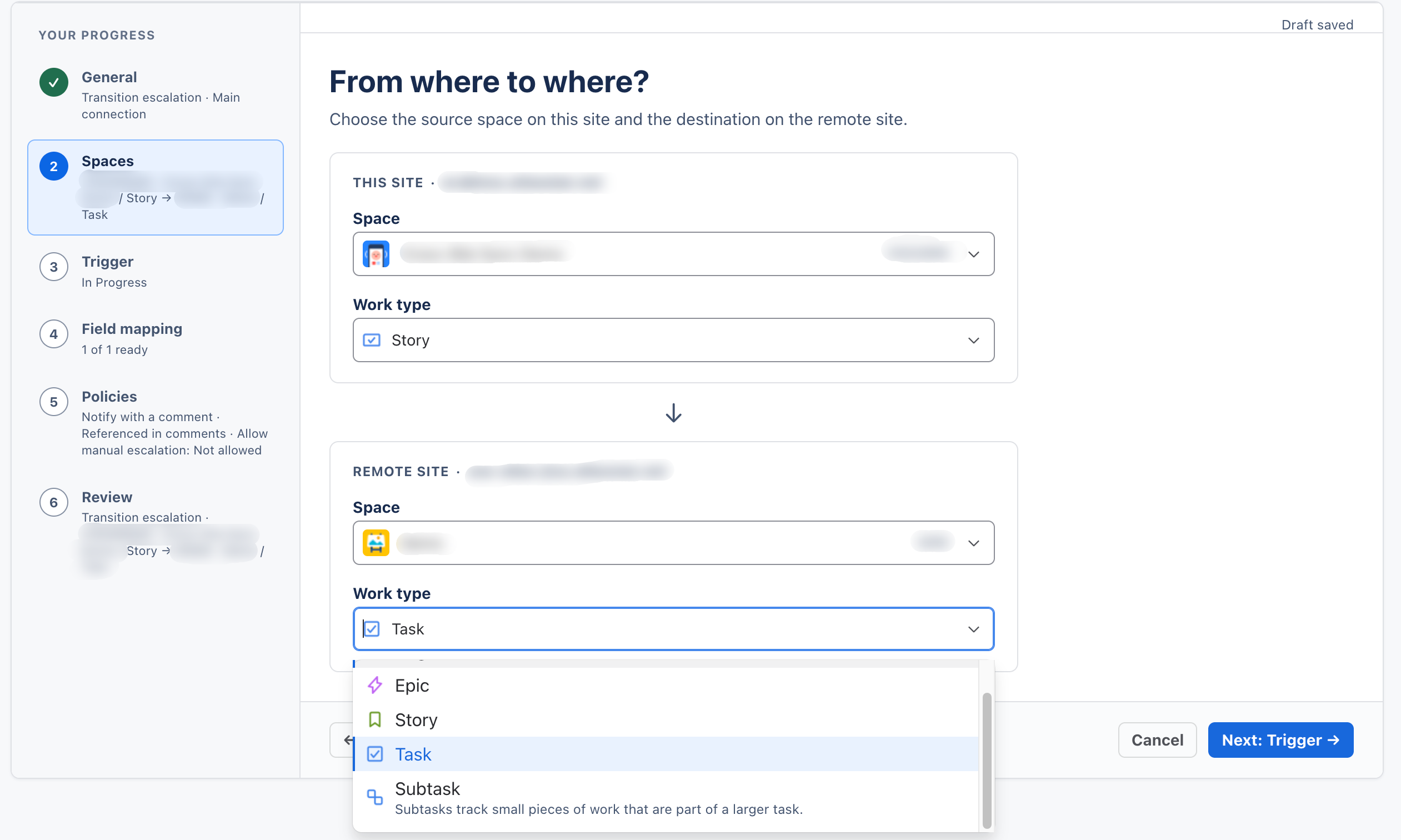
The wizard has six steps:
- General: name the rule and choose a connection.
- Spaces: select the local space and work type, and the remote space and work type. Selectors support search and show icons or avatars; the remote selector identifies the destination site.
- Trigger: choose a workflow transition, a field value, or manual escalation from the panel. Each option explains when it runs.
- Field mapping: map local fields to fields on the remote work item.
- Policies: configure sync in each direction, comments and attachments, notice language, and escalation options.
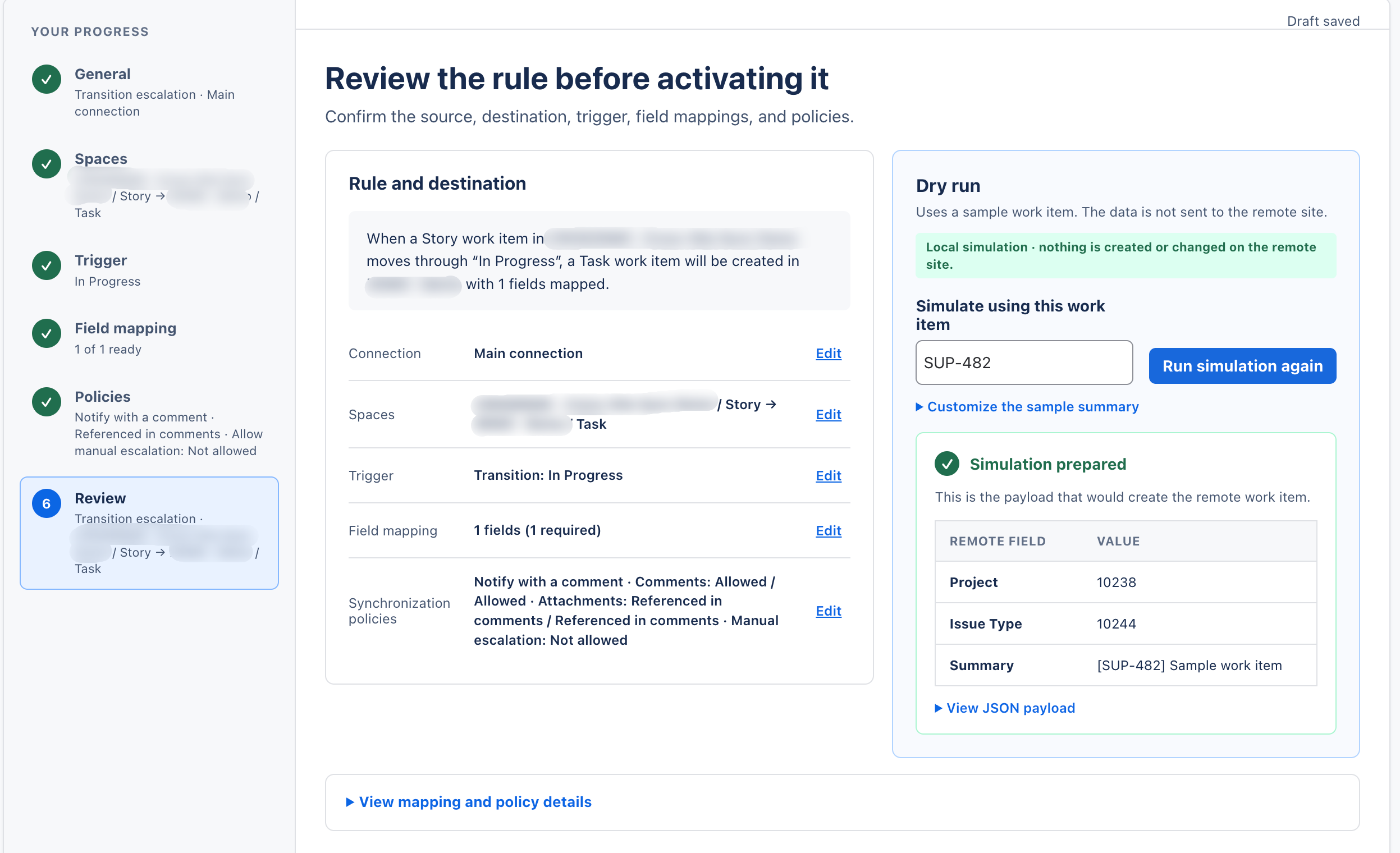
- Review: check a readable summary and simulate the rule with a sample work item. Then select Save as inactive, Save and activate, or Save as draft.
A rule cannot be saved if its connection is unavailable, the account lacks create permission, a required remote field is unmapped, the work types are incompatible, or an active condition is duplicated. The error appears next to the field that needs attention.
Map fields
For each remote field, choose a source:
- Local field: copy the value from the local work item.
- Fixed value: use the same value for every remote work item created by the rule.
- Template: combine text with values such as
{{local.key}}and{{local.summary}}. - Value map: convert local values to remote values and set a default.
For a remote user field, choose Fixed value and enter the account ID of a user on the remote site.
Required remote fields appear first. If a mapping or value is missing, the wizard shows an error in that row and blocks the next step until it is fixed. You can add optional fields. The preview updates with values from the sample work item.
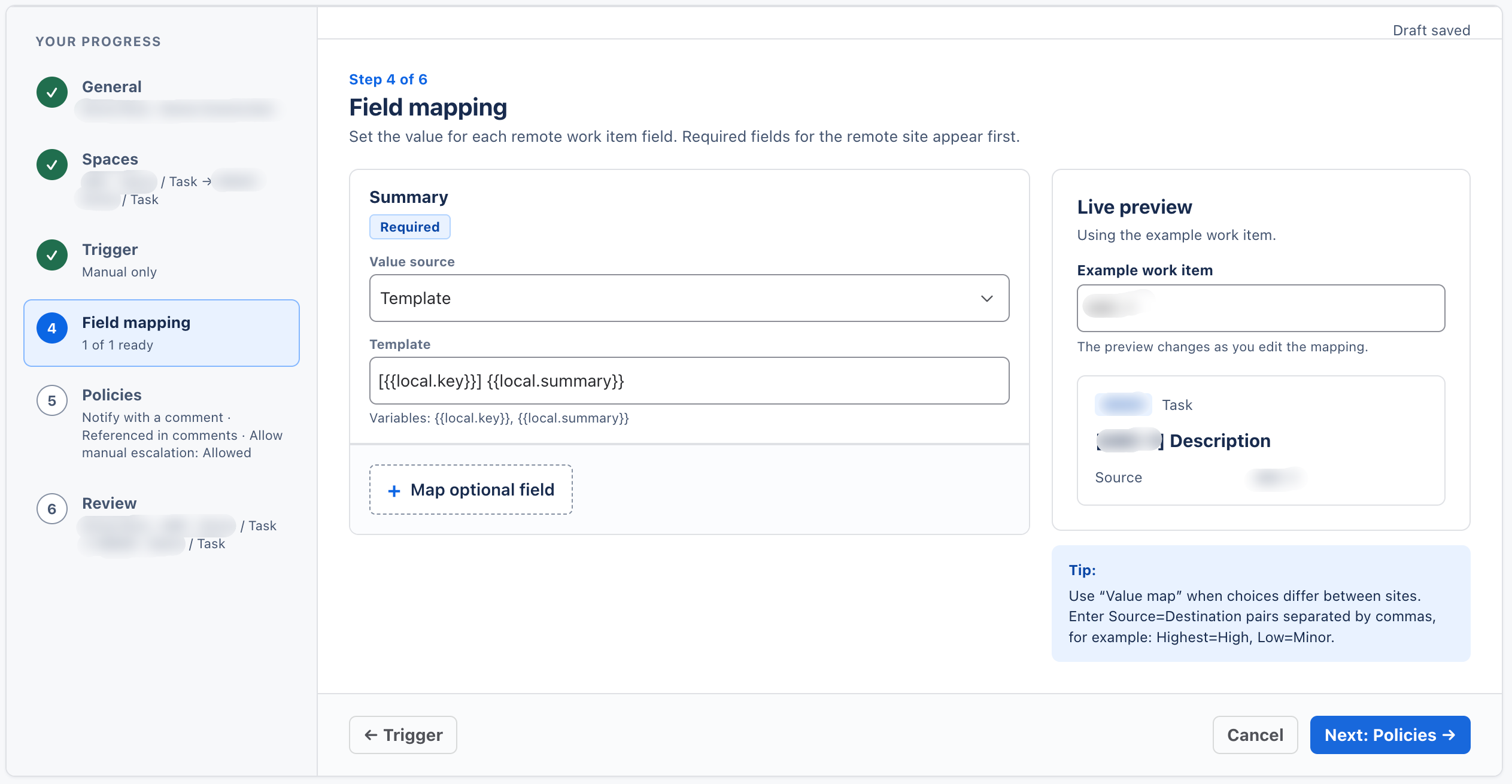
The remote summary must include {{local.key}}, the local work item key. Without a custom mapping, the default is:
[{{local.key}}] {{local.summary}}
The key identifies the source and helps prevent duplicates if an operation is retried. The rule cannot be saved if its summary template omits the key.
Configure policies
Choose what to sync from the local site and from the remote site. To filter comments, select All, With a prefix, or Panel only. Choose whether to include internal notes and whether to remove the prefix when sending. Select the language for notices the app writes to work items. For status updates, choose whether to notify with a comment. This selection is separate from the All new attachment policy.
For attachments, choose a policy for each direction and set the maximum size and blocked extensions. The default limit is 10 MB per file. You can also choose whether to copy the resolution when the remote work item closes, how many days before archiving a link, and whether manual escalation is allowed.
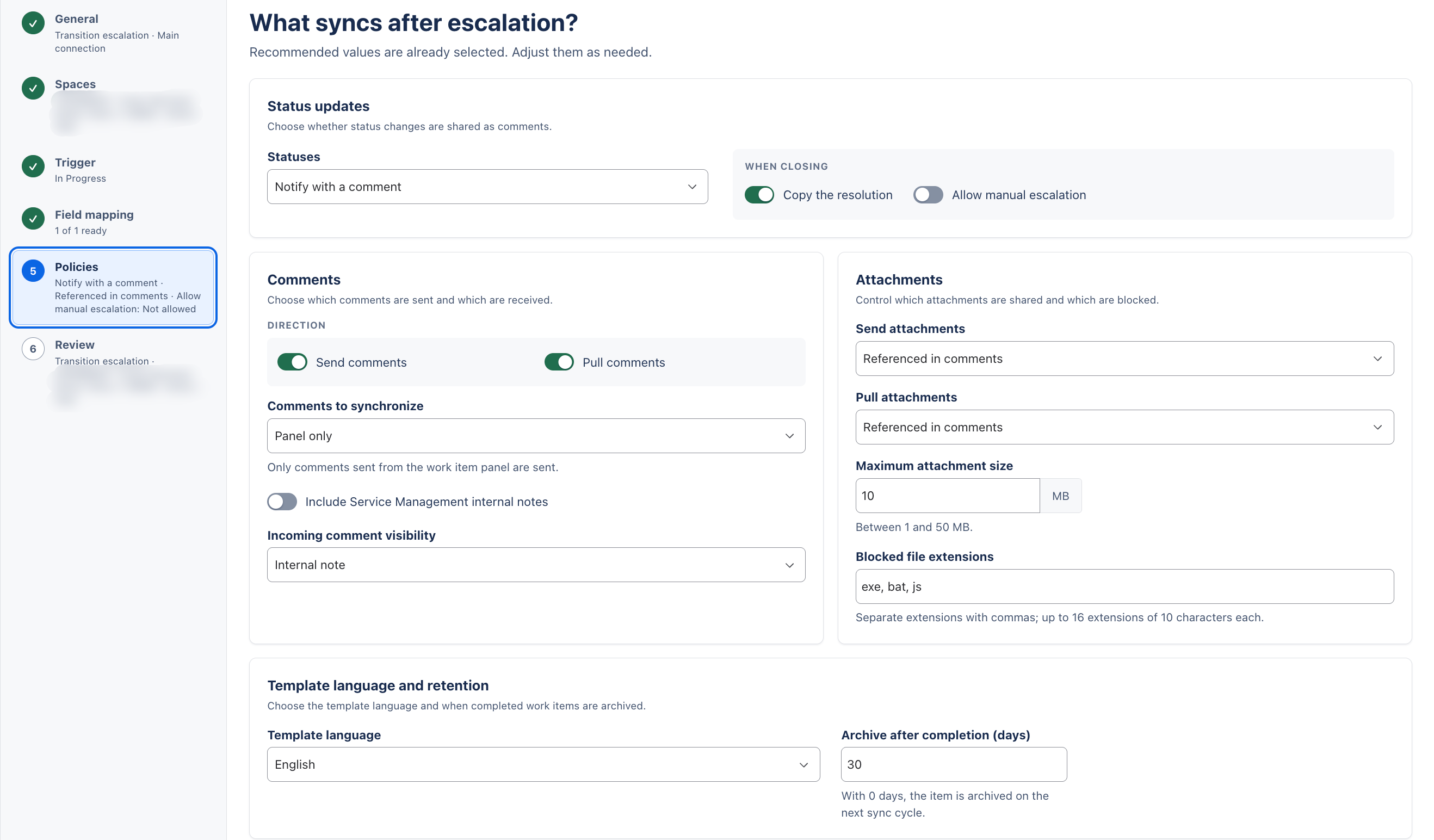
Jira Service Management internal notes are shared only when the policy allows it. For comments received from the remote site, you can choose whether they are internal or public. Comments written by the technical account are not imported again. The app prevents loops and duplicate comments; if a comment exceeds 32,000 characters, it is truncated with a note that the original text continues on the source work item.
Attachment policies include None, Referenced in comments, and All new. With All new, files added after the initial escalation are also transferred. When a comment cites an attachment, the app copies the file before posting the comment and links to the copy in the destination comment. This also works for PDFs and other non-image files. If a file is skipped because of its size, extension, or permissions, the app explains why in the destination comment and activity log. A file that was already copied is not uploaded again or sent back to the other site.
Rich text is adapted for the other site: mentions become @Name and do not notify remote users; inline images become [Attachment: file] and are transferred as attachments. Unsupported content is replaced with [Unsupported content omitted].
Review and simulate
On Review, check the readable rule summary and run a simulation with a sample work item. The preview shows what would be created and any errors that would prevent the operation. A simulation does not create or change work items on the remote site. Select Save as inactive, Save and activate, or Save as draft. If you change the rule or sample, run the simulation again before activating it.
Choose when to create the remote work item
- Transition: create the remote work item when the selected workflow transition runs. You can add the workflow validator to check required fields first.
- Field value: create it when the field has one of the selected values. If a required remote field is missing, the transition is not blocked; the local work item receives an error notice.
- Manual only: an authorized user can start escalation from the panel.
The same rule and local work item create at most one remote work item. A double-click, retry, or delayed response does not create another one.
Notice language
Under Template language, choose Spanish or English for notices the app writes to work items. English is the default. This is independent of the interface language, which is available in Spanish, English, and Brazilian Portuguese. If the user has no other preference, the interface defaults to Spanish (Spain).