Connections
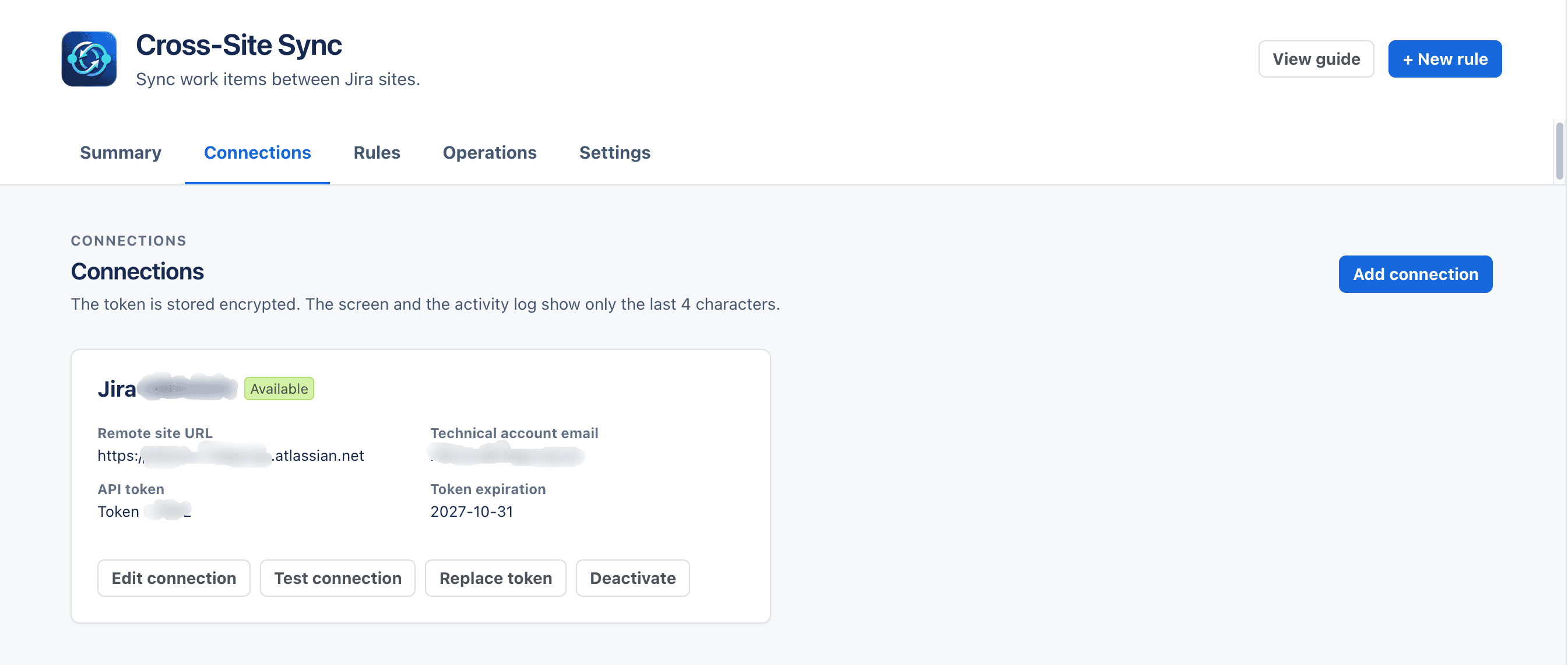
A connection stores access to a remote Jira Cloud site. Only Jira administrators can create or edit a connection, rotate its token, or deactivate it. The list shows its status and the token expiry date, if configured.
Add and test a connection
- Open Cross-Site Sync for Jira administration and select Connections.
- Choose the option to add a connection.
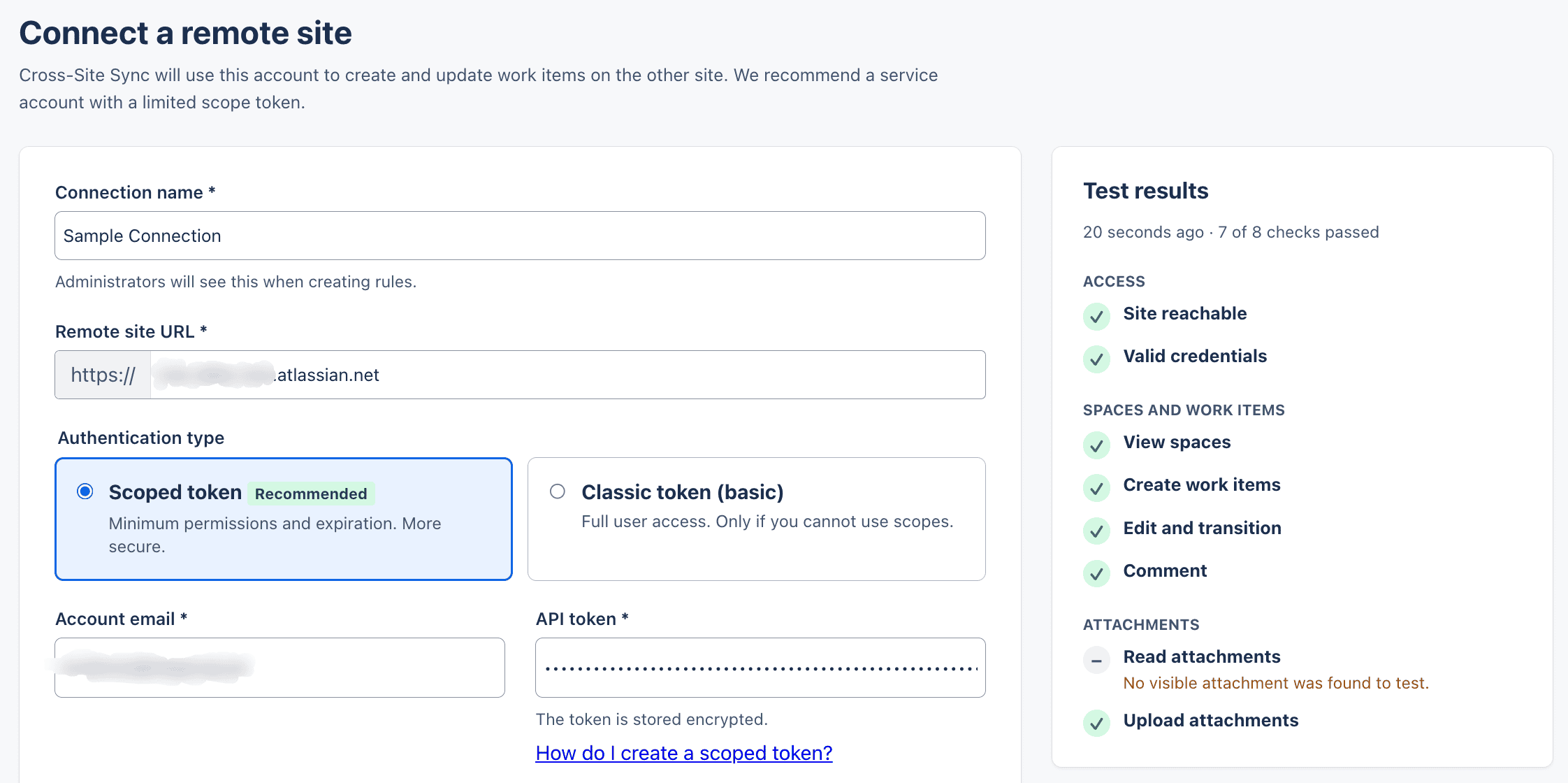
- Enter a name and the remote site URL. Under Account email, enter the email for the account used by the connection and its API token. The form recommends using a service account.
- Select Scoped token (recommended) or Classic token (basic) and, if applicable, enter its expiry date.
- Select Test connection before saving. The results group checks for access, spaces and work types, and attachment permissions. Each problem includes guidance on how to fix it. After the checks finish, select Save connection.
The account used by this connection must be able to create work items in the remote destination space. Permissions for comments and attachments depend on the features enabled in each rule. If the test fails, check the URL, token, and account permissions before trying again.
Protect and rotate the token
- The token is stored encrypted. The interface only shows part of it; you cannot retrieve the full token from the screen.
- To replace the token, select Replace token, enter the new value, and run the test. The app checks the credential before replacing the old one.
- If the token expires, set its expiry date. You can change the notice thresholds in settings; notices are sent by email and appear in Summary.
- If the token expires or the remote site rejects it, the connection needs attention. Pending jobs are paused and kept; fix the connection and resume it to continue.
Connection states
| State | Meaning | What to do |
|---|---|---|
| Available | The connection was validated. | You can use it in a rule. |
| Credential rejected | The remote site did not accept the token. | Check or rotate the token, then test again. |
| No permission | The technical account does not have enough access. | Ask the remote site's administrator to review the account permissions. |
| Site unreachable | The app could not reach the remote site. | Check the URL and site availability, then test again. |
| Deactivated | An administrator deactivated the connection. | Reactivate it or create another connection, if needed. |
The app checks connection health daily. Deactivating a connection requires confirmation and pauses its rules and pending jobs; it does not remove existing links.