Escalation from a workflow
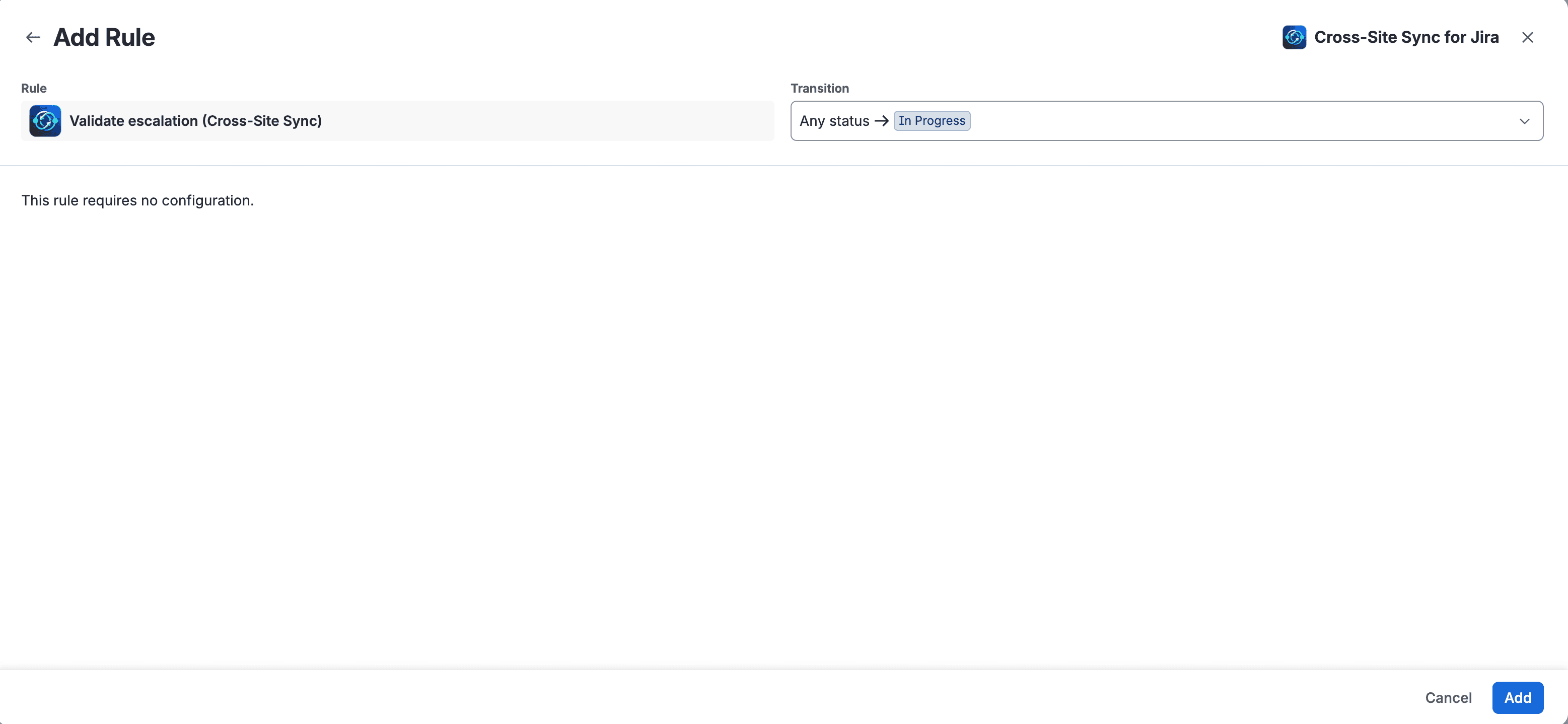
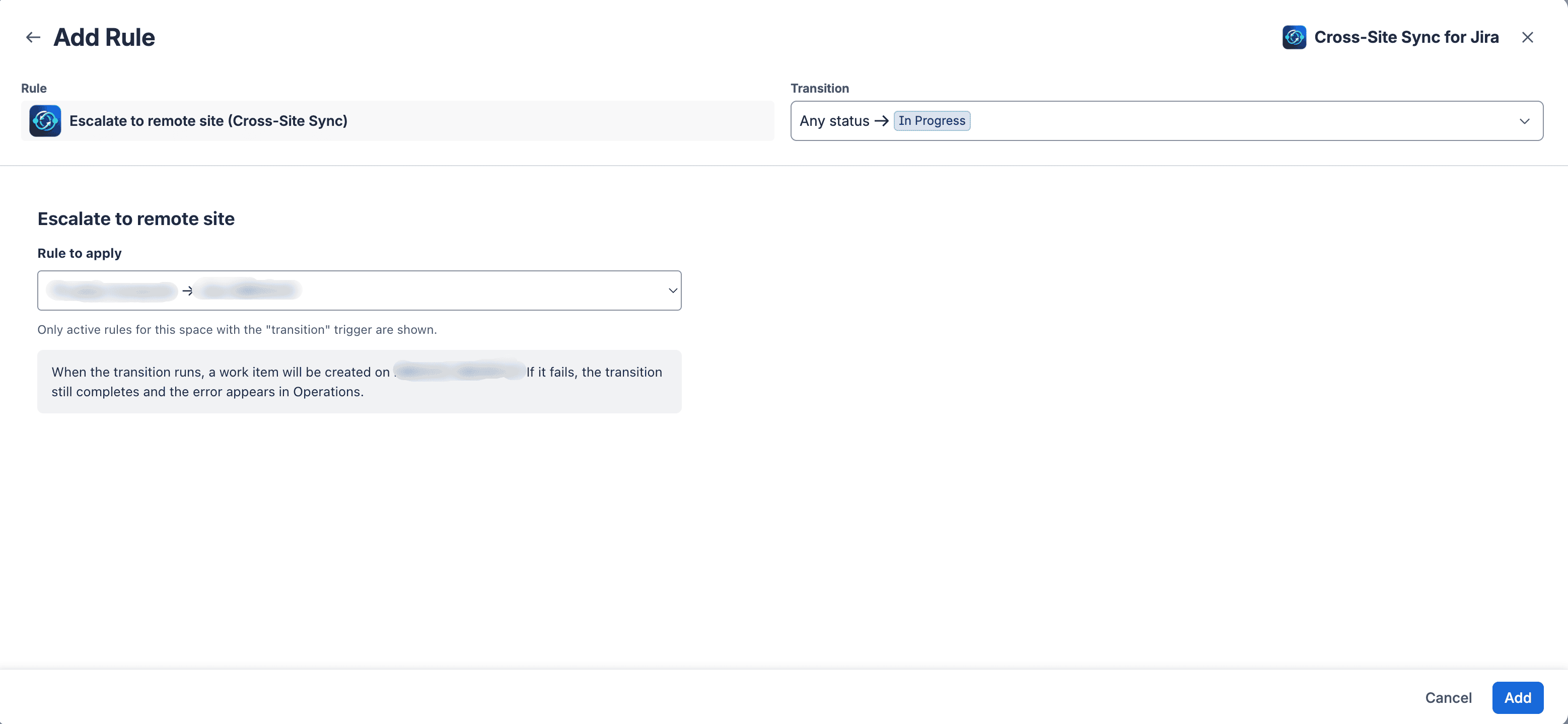
To create a remote work item during a transition, add Validate escalation (Cross-Site Sync) and Escalate to remote site (Cross-Site Sync) to the local workflow. The validator does not require a configuration screen; it checks the required fields from the rule. The post function has a screen for selecting the active rule.
Configure the validator
- Open the local space's workflow configuration and edit the workflow.
- Add Validate escalation (Cross-Site Sync) to the transition that should escalate the work item.
- Check that the transition screen includes the fields the rule must send to the remote site.
- Save and publish the workflow.
The validator checks the destination's required fields before allowing the transition. If a value is missing, it blocks the transition and explains the cause and what to do. Add the necessary fields to the transition screen so the user can provide them.
Configure the post function
- Add Escalate to remote site (Cross-Site Sync) to the same transition.
- On its configuration screen, select an active rule with the Transition trigger for the relevant space and work type.
- Save and publish the workflow. Test the transition with a representative work item.
The post function creates the remote work item using the rule's mappings. When it finishes, Cross-Site Sync adds a comment with the remote key to the local work item, and Jira creates a native remote link on both work items. If creation fails, check the work item notice and link error.
Prevent duplicates and resolve errors
Escalation is idempotent: running the transition twice, retrying it, or receiving a delayed response does not create a second remote work item for the same rule and local work item.
If a rule uses a field value trigger, Jira does not block the transition when a required remote field is missing; the app reports the problem on the local work item. Fix the mapping or value, then retry from the panel when the connection is available.
For Manual only triggers, you do not need a post function. A user with edit permission can start escalation from the panel. See the panel guide.