Search and filter by space
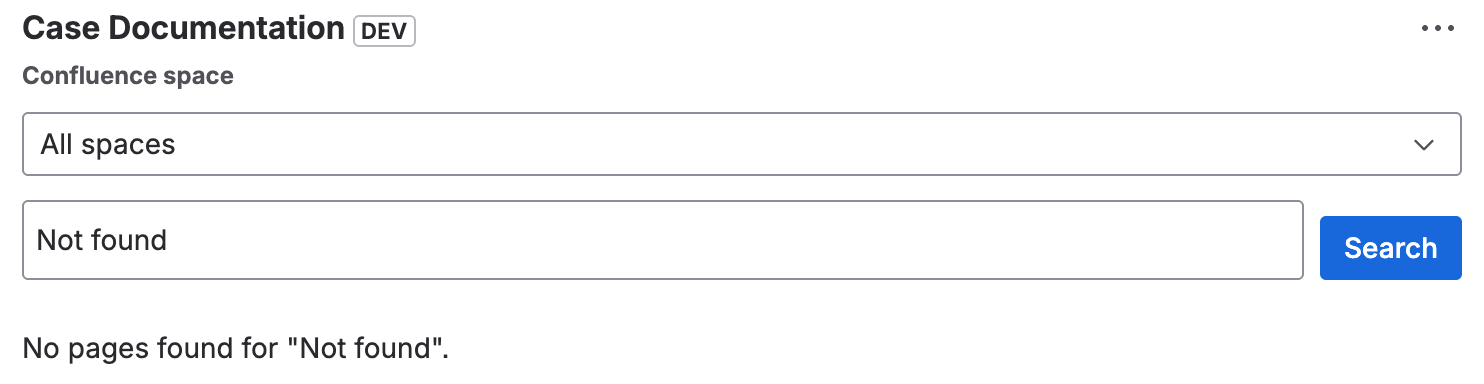
The Case Documentation panel allows you to search Confluence pages by title and filter results by space.
Search by title
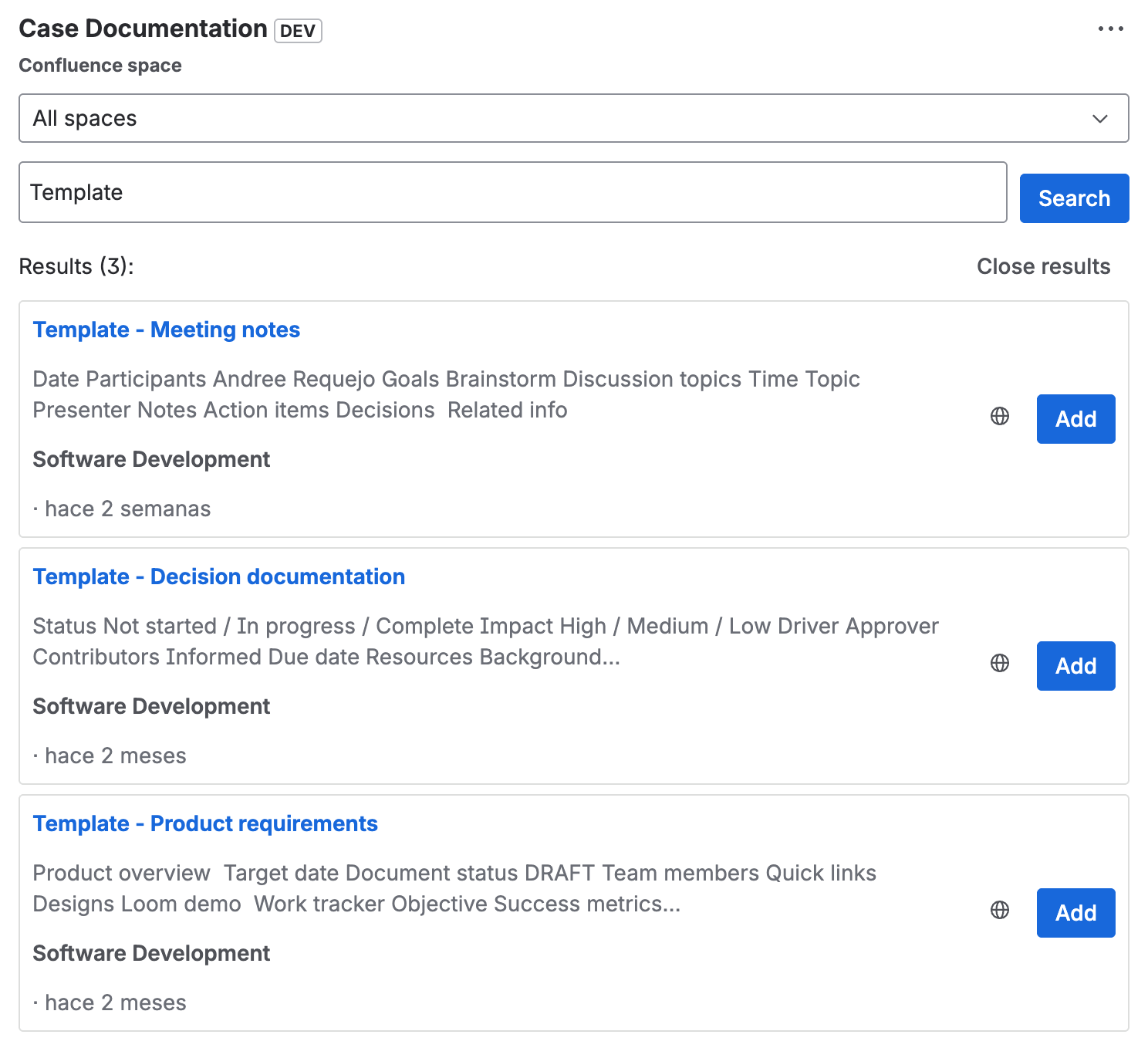
- In the Case Documentation panel, type in the search field.
- Results appear after typing at least 2 characters.
- Up to 8 results are shown, ordered by last modification date (most recent first).
Filter by space
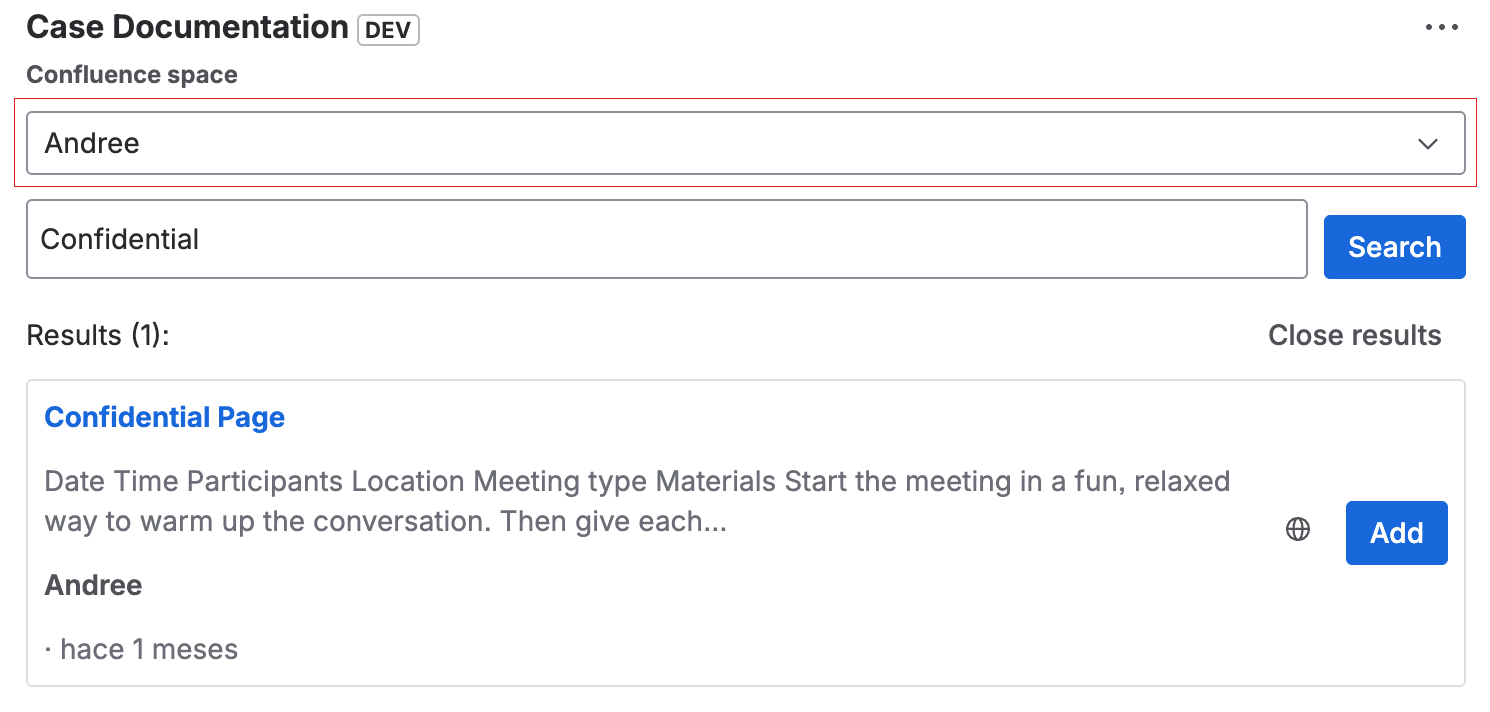
- Use the space selector to filter the search.
- Only spaces accessible to the user are shown.
- Archived spaces are excluded from the selector.
Search preview
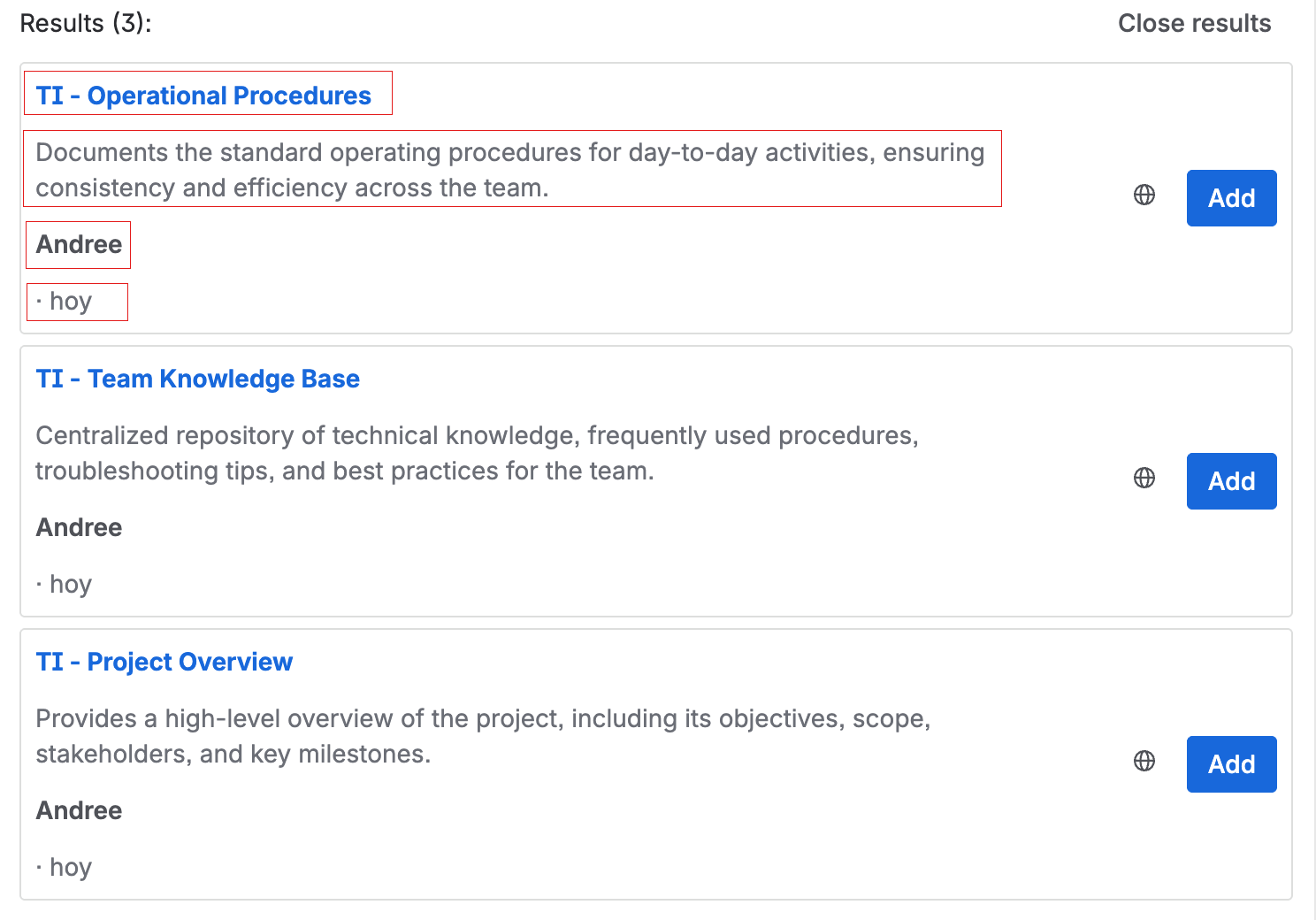
Each search result includes:
- Title of the page.
- Sanitized excerpt (maximum 2 lines).
- Space it belongs to.
- Relative modification date (e.g., "2 days ago").
Add page by URL
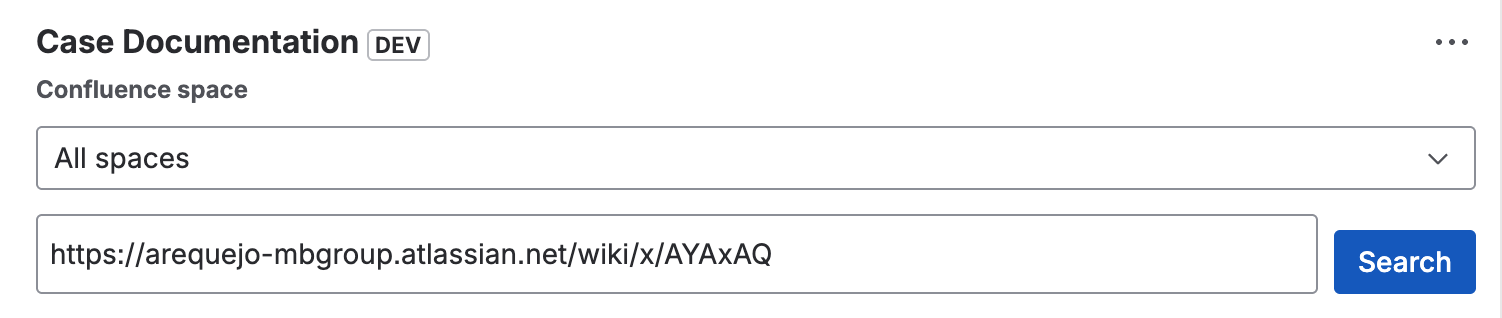
In addition to searching, you can add a Confluence page by pasting its URL directly into the search field:
- Copy a Confluence page URL.
- Paste it into the search field of the Case Documentation panel.
- The app validates the URL and adds the page directly without going through search results.
note
If the search yields no results, a message is shown indicating no pages were found. Search errors (e.g., connection issues) are shown differentiated from "no results".