Chat on the portal
The Live Chat for JSM widget allows you to communicate in real time with support agents from the JSM service portal. The widget is available in English and Spanish and follows your browser language.
The administrator decides which portals have it available. If the current portal is not enabled, the Live Chat button will not appear and you can use the portal's other help options.
To use the chat you must be authenticated on the portal. If you are a portal customer without a Jira license, you can open your conversation, read the agent's messages, and reply, including with attachments. Only you, as the requester, and the portal agents see that conversation. Anonymous chat is not available, and a closed chat does not accept messages or files.
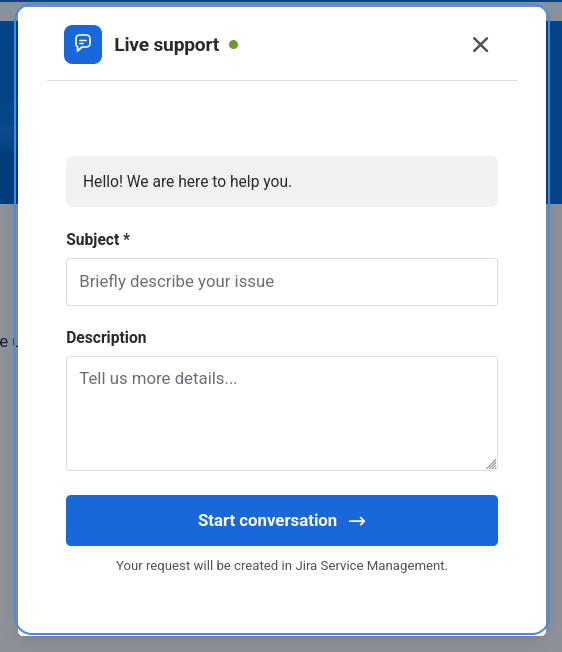
Start a chat
- Access the Jira Service Management service portal.
- In the bottom right corner, locate the Live Chat floating button.
- Click the button to open the widget.
- If the portal has an initial form, complete the fields and submit them. Summary and description are always present. If it does not, type your query in the text field.
- Click Send or press Enter to start the conversation.
The request will be created in the Service Desk associated with the current portal. The system will connect you with an agent when one is available.
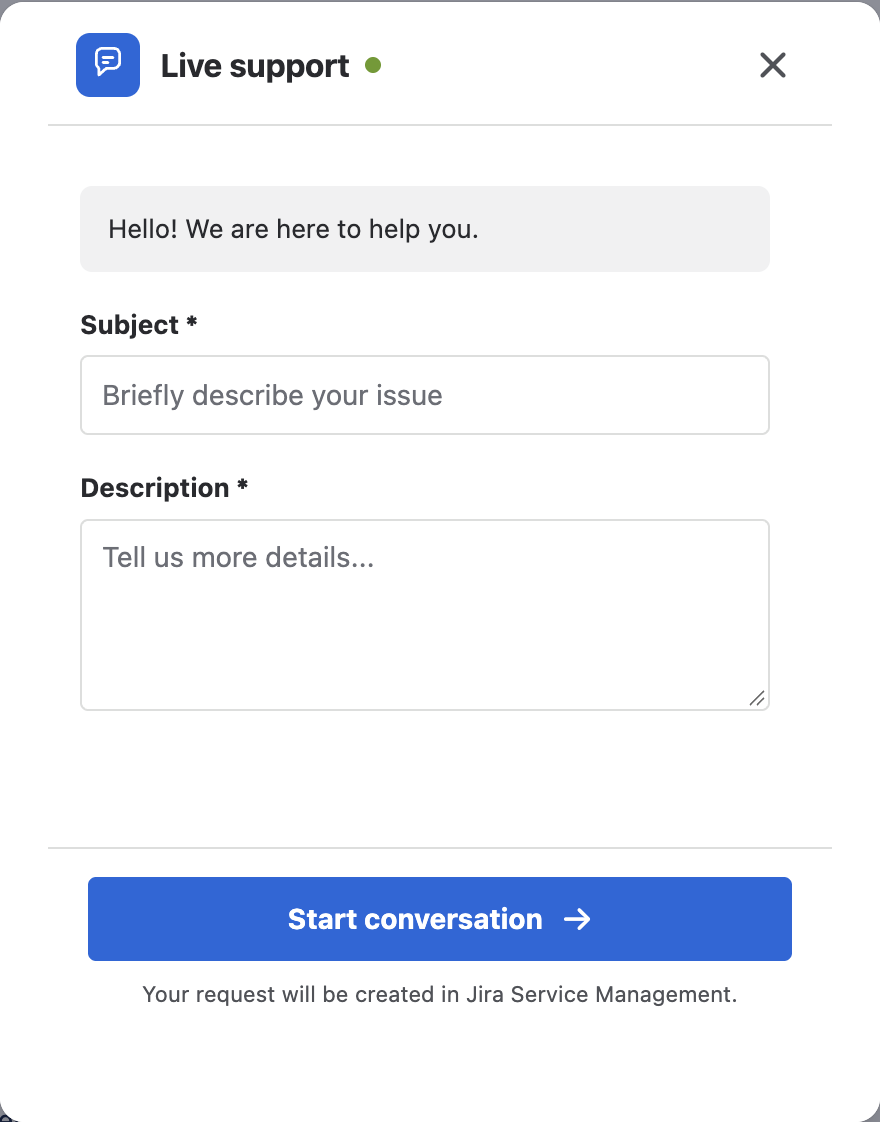
You can only have one open conversation per portal. If there is already an active chat on the portal, the widget reopens that conversation instead of allowing you to create a new one. You must wait for it to close correctly (by agent or closing statuses) to start a different conversation.
Initial team message
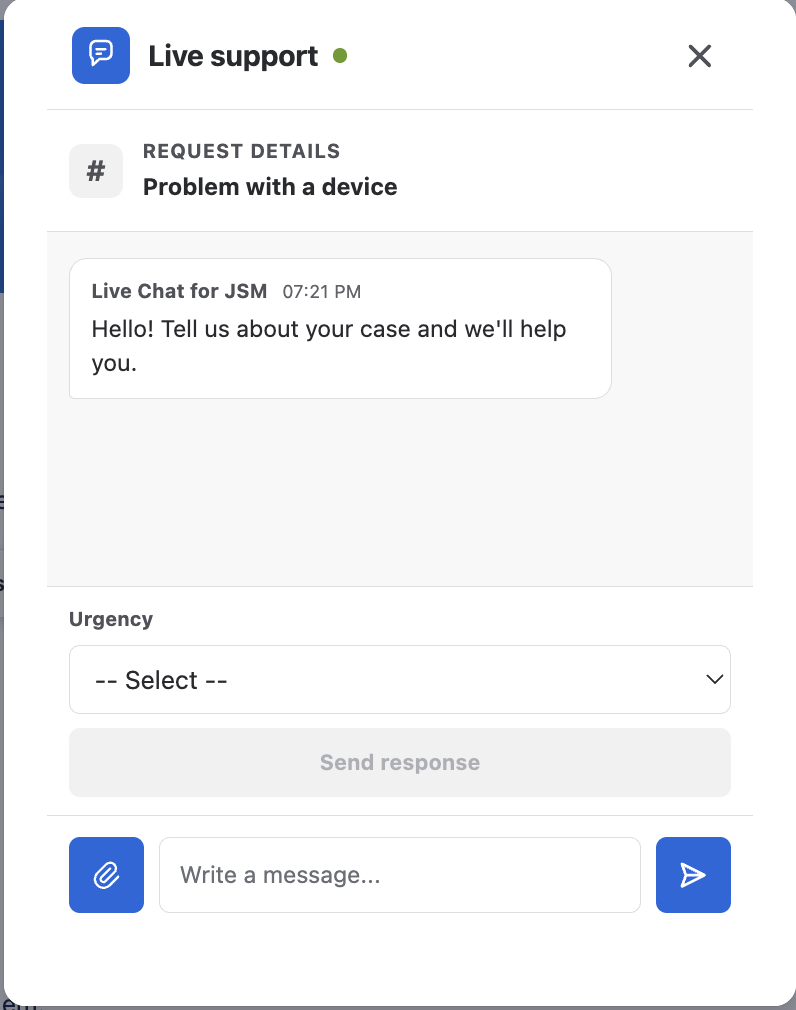
If the portal has an initial message configured, you will see it as the first team bubble when you open the chat. When the message includes an options question, choose an answer: it is saved on the request and appears in the thread. If no message is configured, the chat does not show that bubble.
Send messages
Once connected, you can send text messages in real time:
- Type your message in the text field at the bottom of the widget.
- Press Enter or click the send button.
- Messages will appear in the conversation.
When the agent replies, their messages appear in the thread and you can reply with text or attachments.
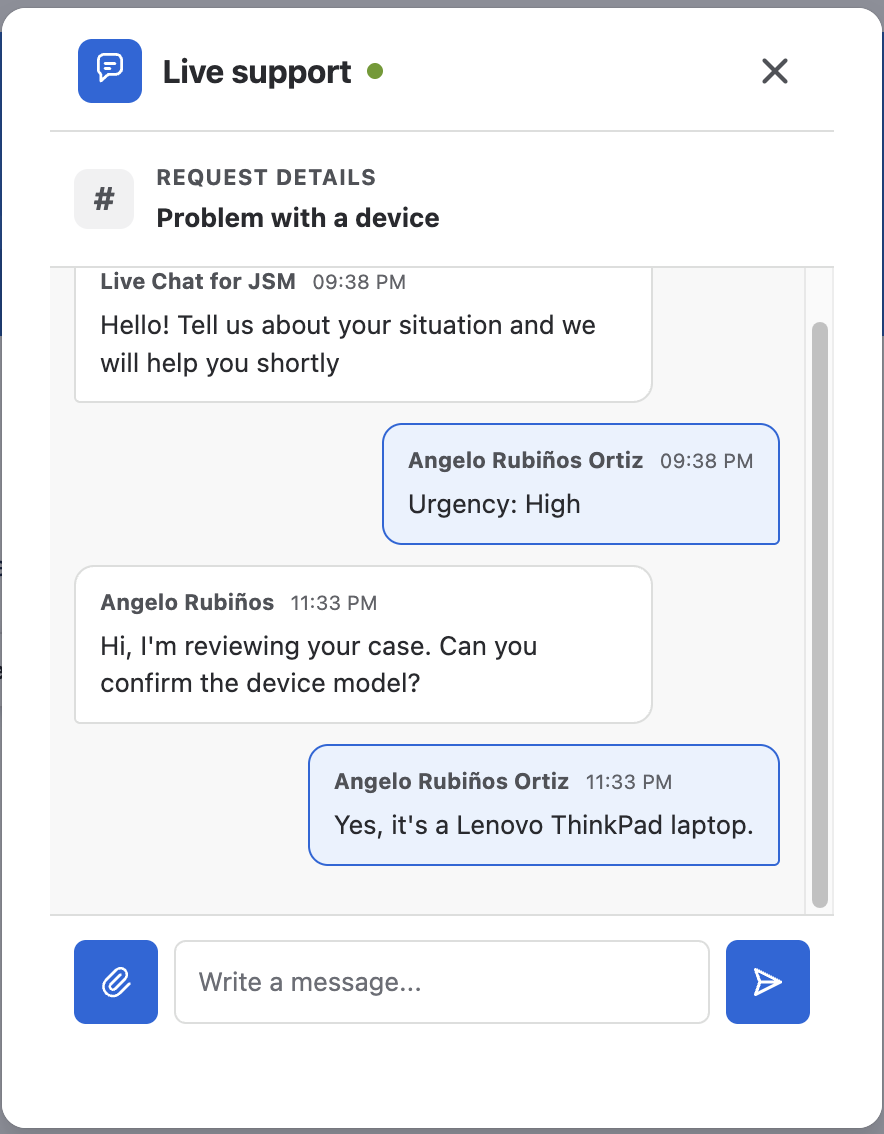
Attach files
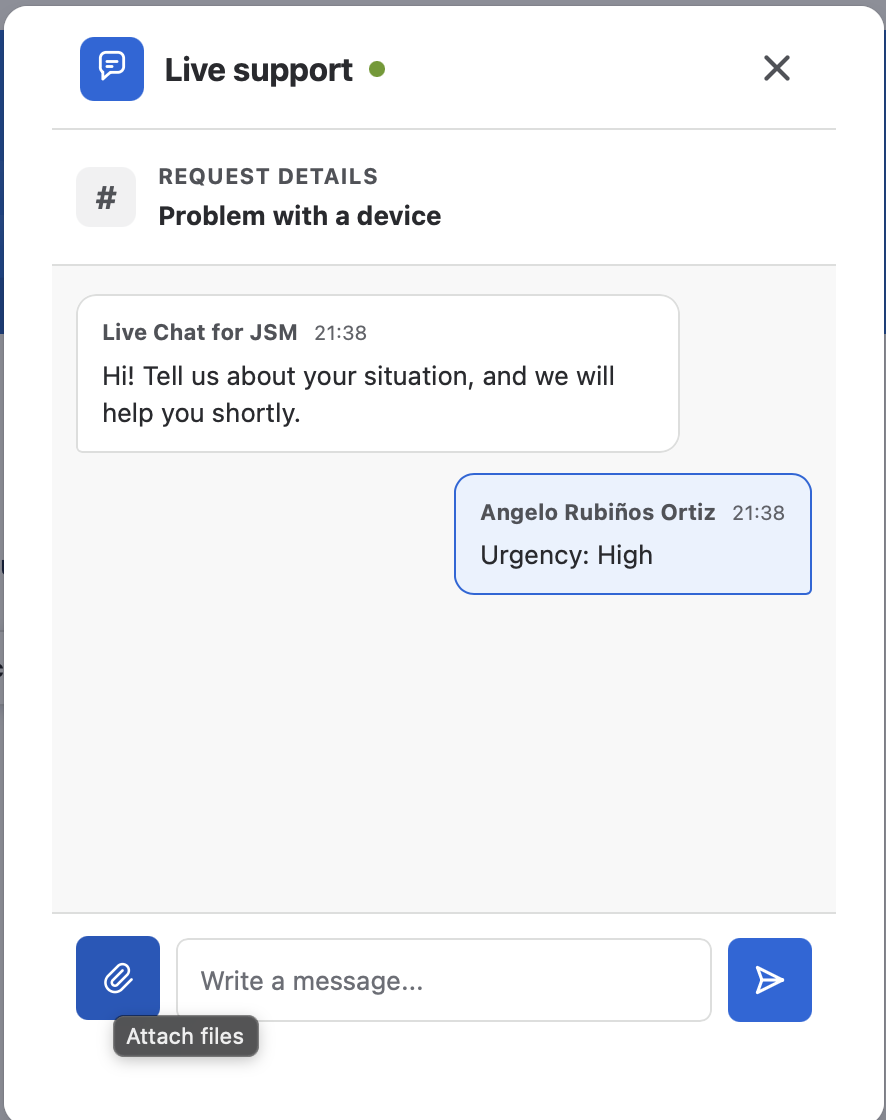
You can attach up to 5 files per message, with the file picker or by pasting them from the clipboard. The attach button shows the Attach files tooltip.
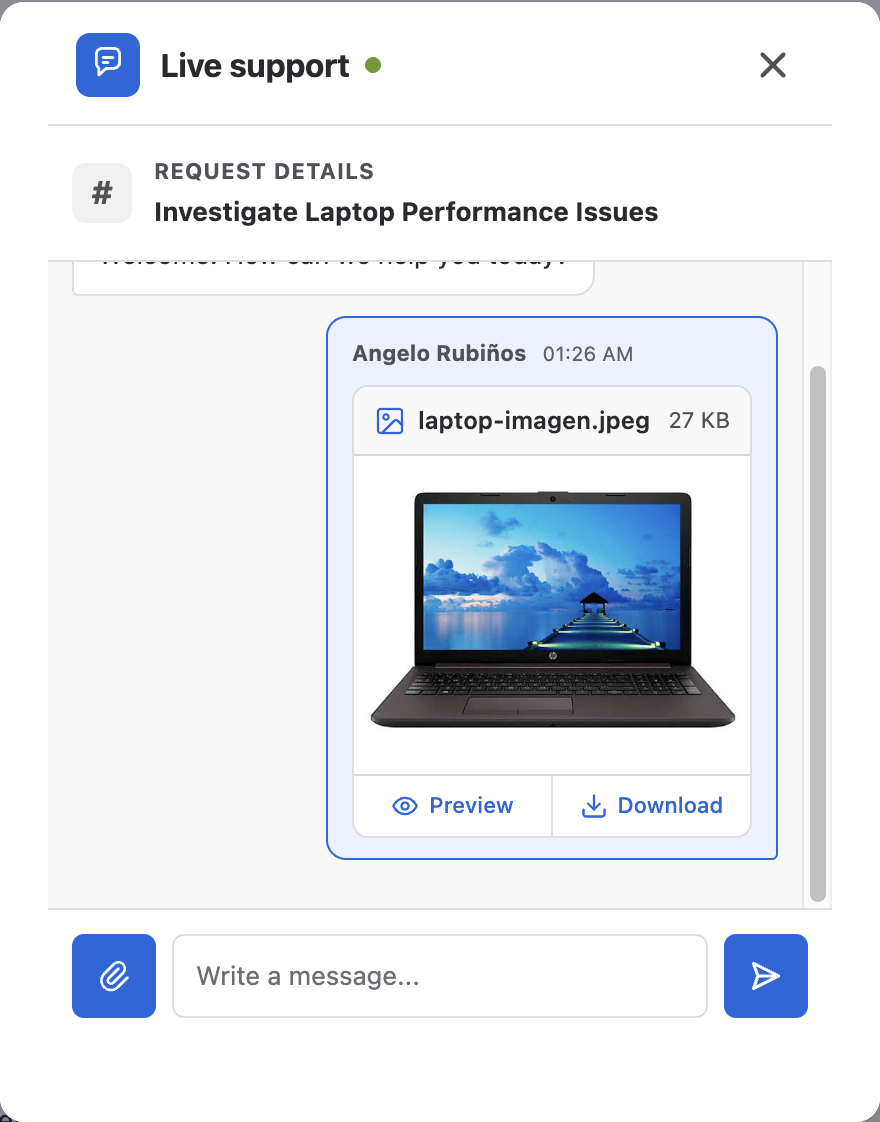
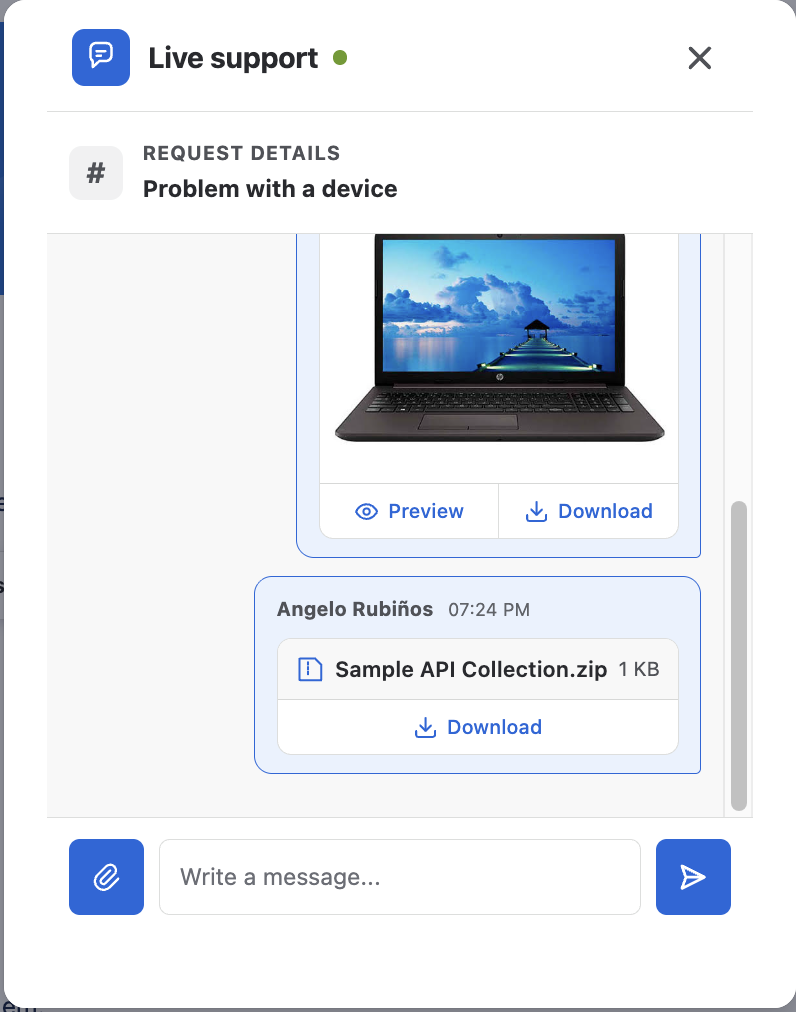
- Images are shown inside the conversation with the Preview and Download buttons.
- Other files are downloaded with Download. While they load, the card shows Loading....
- In a closed chat you cannot send messages or files.
Active chat recovery
Your chat session remains active if you reload the page, accidentally close the widget, or temporarily lose connection. The conversation is recovered from the server when you reopen the chat. It only restarts if the request no longer exists or the chat was closed.
Mobile usage
On small screens, the widget automatically adapts and can occupy the full screen. This allows you to read the conversation and type more comfortably.
Recent history and notices
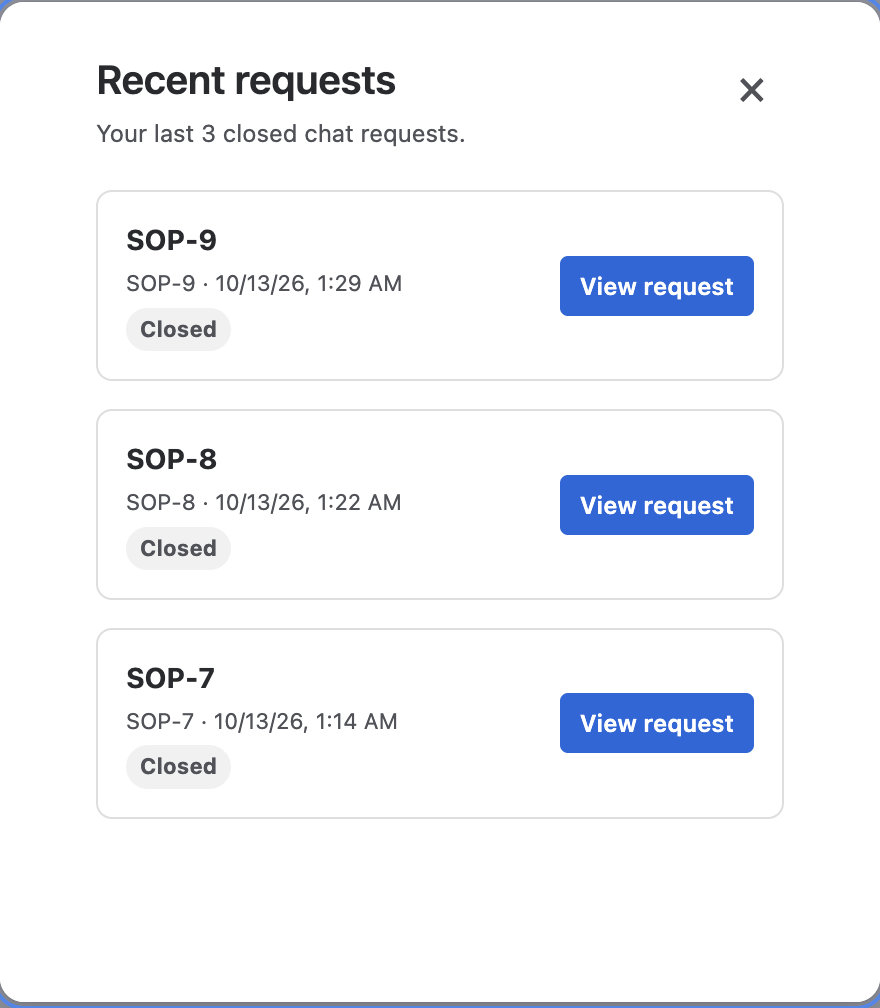
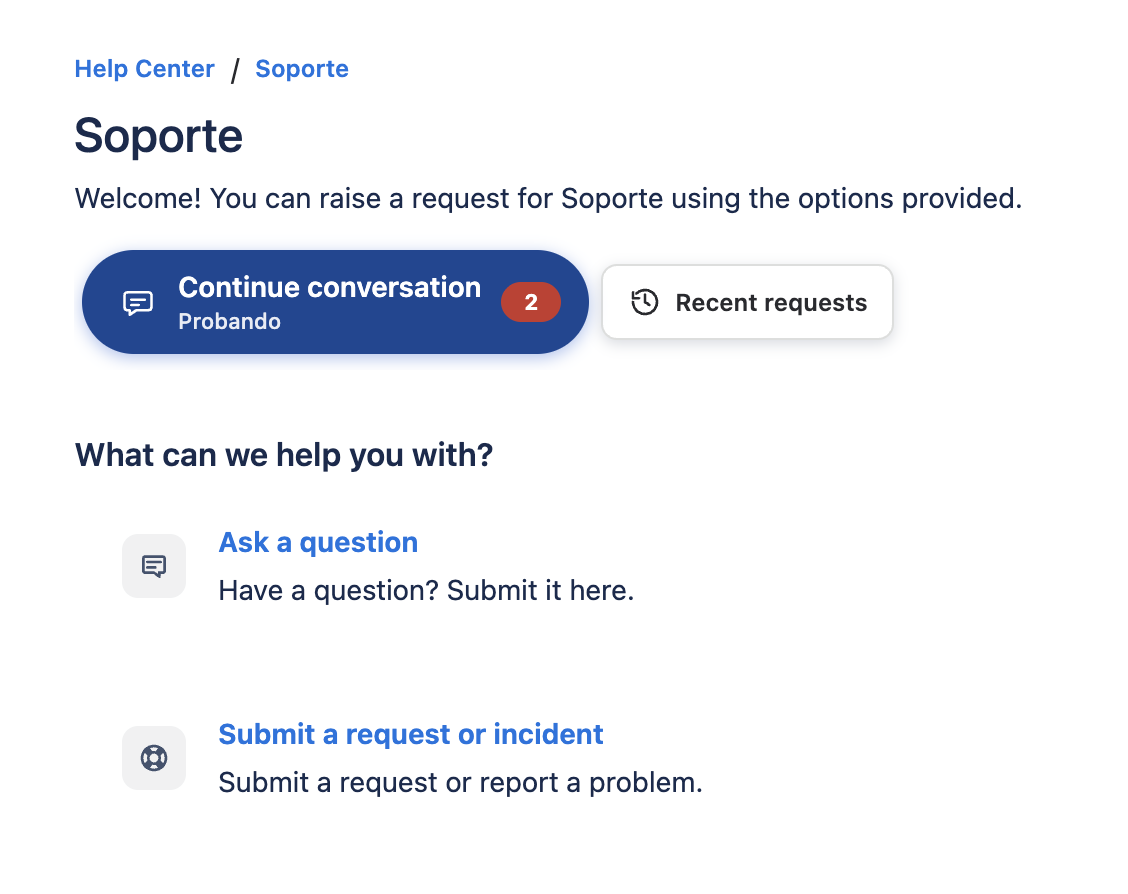
- The chat button remembers up to three recent requests in this browser so you can resume them.
- That history is local: it does not replace the active conversation, which stays on the server and is recovered when you reopen it.
- If the panel is closed or minimized, the button shows the number of new messages from the agent.
Chat closure
The chat ends when the agent resolves the associated request. You will see a message indicating that the conversation has been closed.
On closure, you can rate the support with the Jira Service Management survey. Depending on the portal configuration, you will have to complete it before starting another conversation; if it is not required, you can open a new one right away.
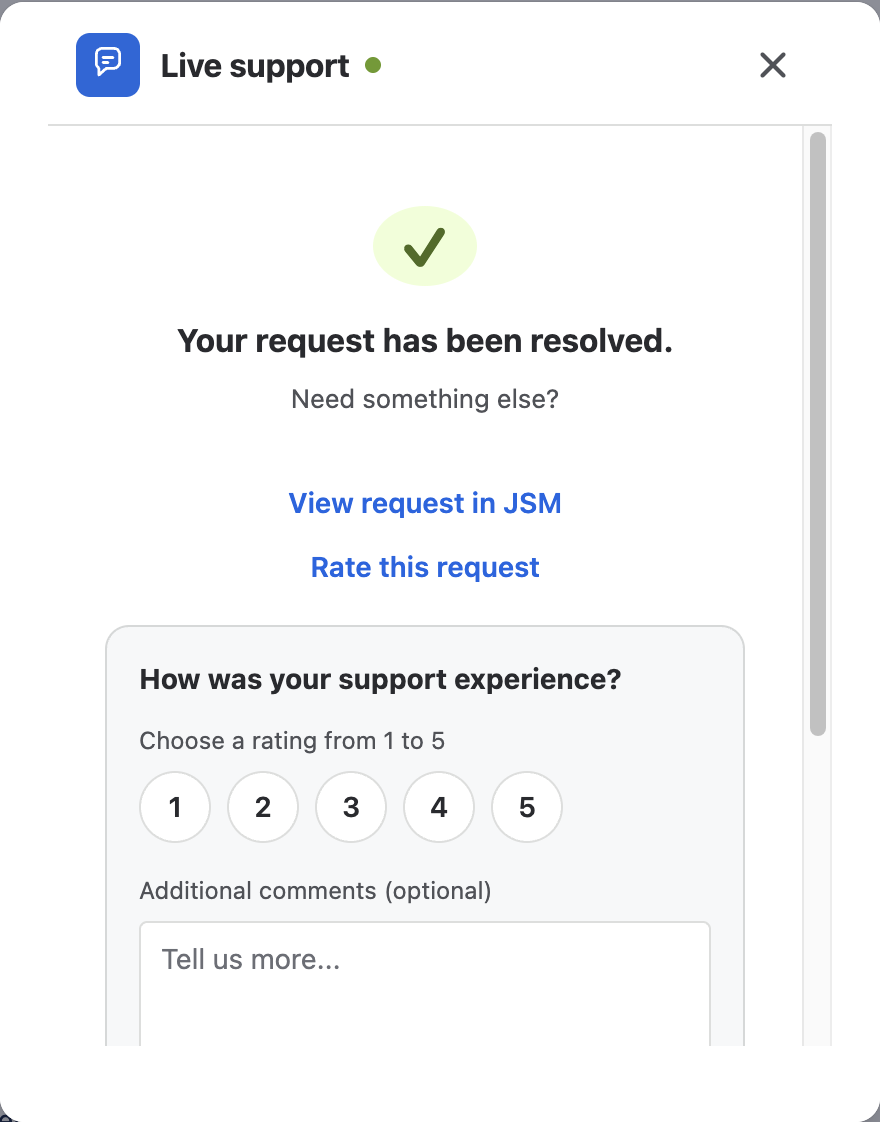
If you need additional assistance after closure, start a new chat from an enabled portal.