Using the Attachment Field
This guide describes how to work with an Attachment Field (Adjuntos) custom field already configured by your administrator. If you still do not see the field on your issue screens, check with your Jira administrator: it probably just needs to be added to the relevant screen.
Files you upload through the field are stored as native Jira attachments. As a user, the way you attach, view, download, and remove files is the same on every screen where the field appears.
Attaching files to the field
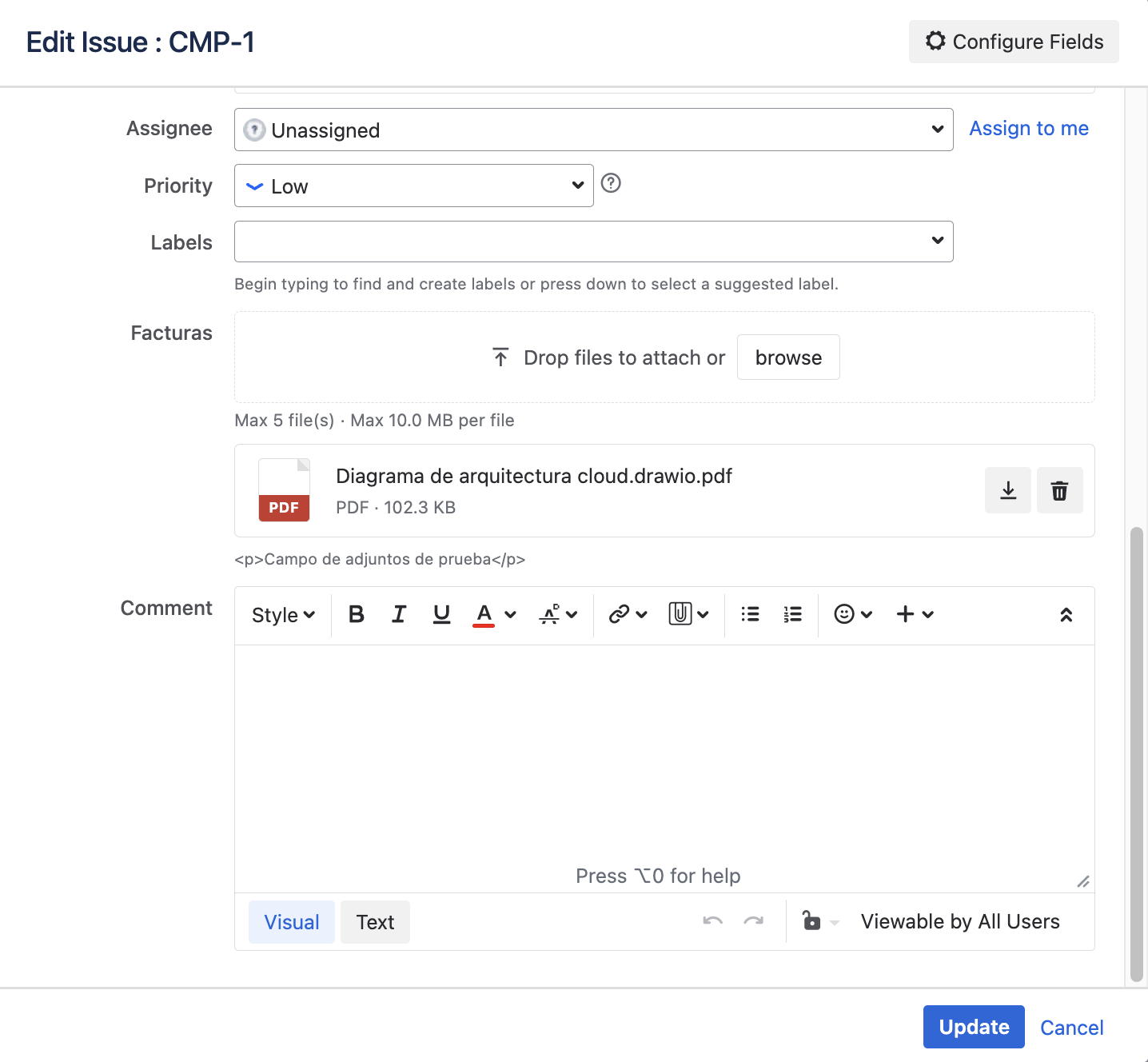
When the Attachment Field is part of an issue's Create, Edit, or Transition screen, or the JSM portal request form, it appears as a file upload area.
- Open the issue create, edit, or transition form (or the request form in the portal).
- Locate the Attachment Field (the exact name is defined by the administrator, for example "Invoices" or "Photo evidence").
- Drag and drop the files onto the field, or click browse to choose them.
- Wait for the upload to finish: you will see the "Uploading…" indicator while the files are being uploaded.
- Save your changes (or submit the request, if you are in the portal).
The picker itself shows the current limits configured by your administrator: "Max N file(s)", "Types: …", and "Max … per file".
You cannot save the issue (or submit the request) while an upload is in progress. If you try, Jira shows the notice "Wait until the files finish uploading before saving or creating the issue.". Once the upload finishes, you can save as usual.
On the issue create screen and in the JSM portal, the issue does not exist yet when files are attached: the upload still completes and the files are associated with the field as soon as the issue is created.
Possible error messages
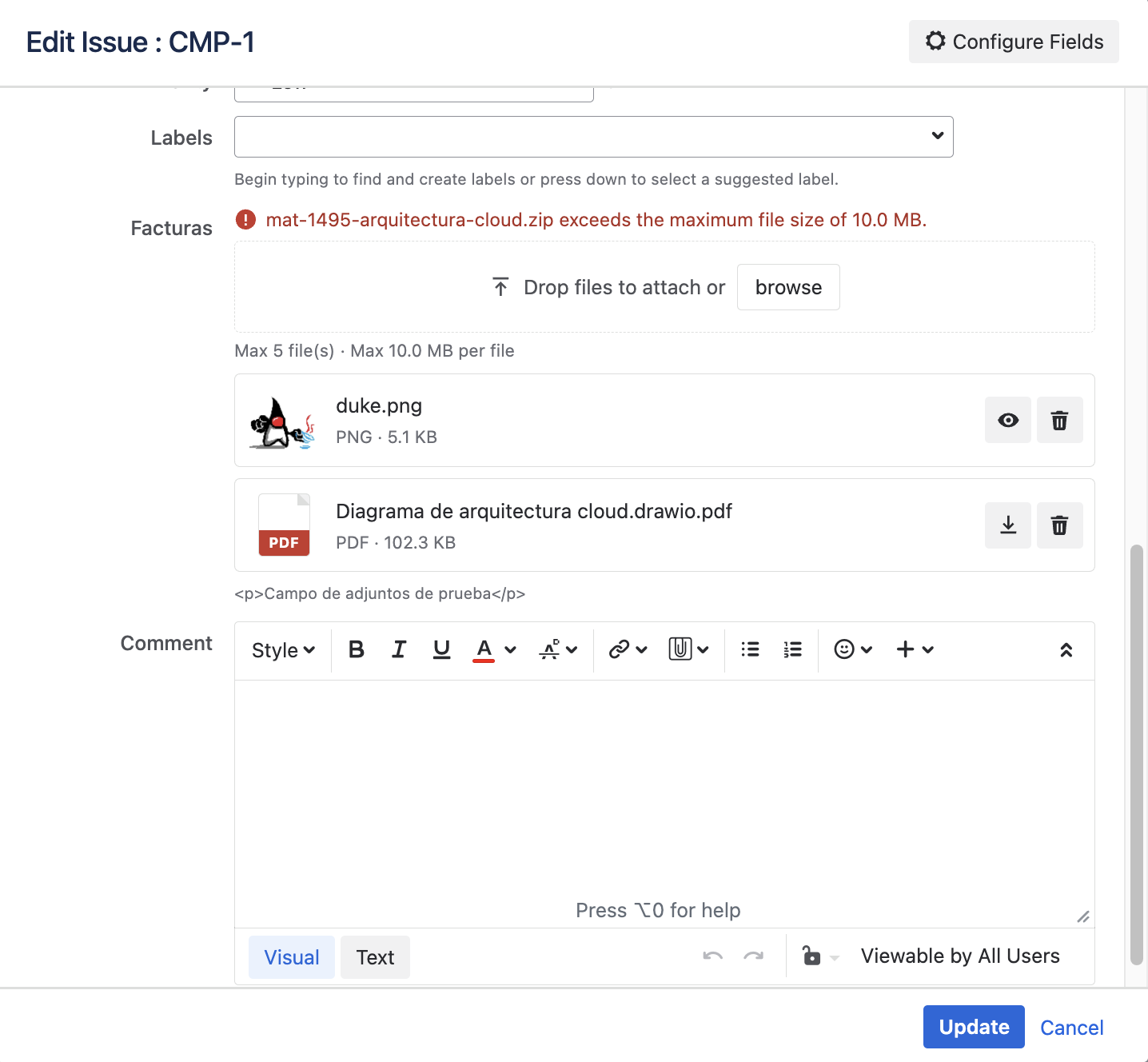
If a file does not meet the restrictions configured for the field, it is rejected the moment it is selected, with a message stating the cause:
- Maximum number of files reached: the field already has the allowed maximum ("Too many files. Maximum allowed: N."). Remove one of the existing files to upload a new one.
- Invalid file type: "{file} has an invalid file type. Allowed: …". The file does not belong to any of the categories or extensions configured for this field.
- File too large: "{file} exceeds the maximum file size of …". The file exceeds the maximum size configured for this field.
If you get any of these messages, check the file's type and size, or ask your administrator about the current limits.
Viewing files on the issue
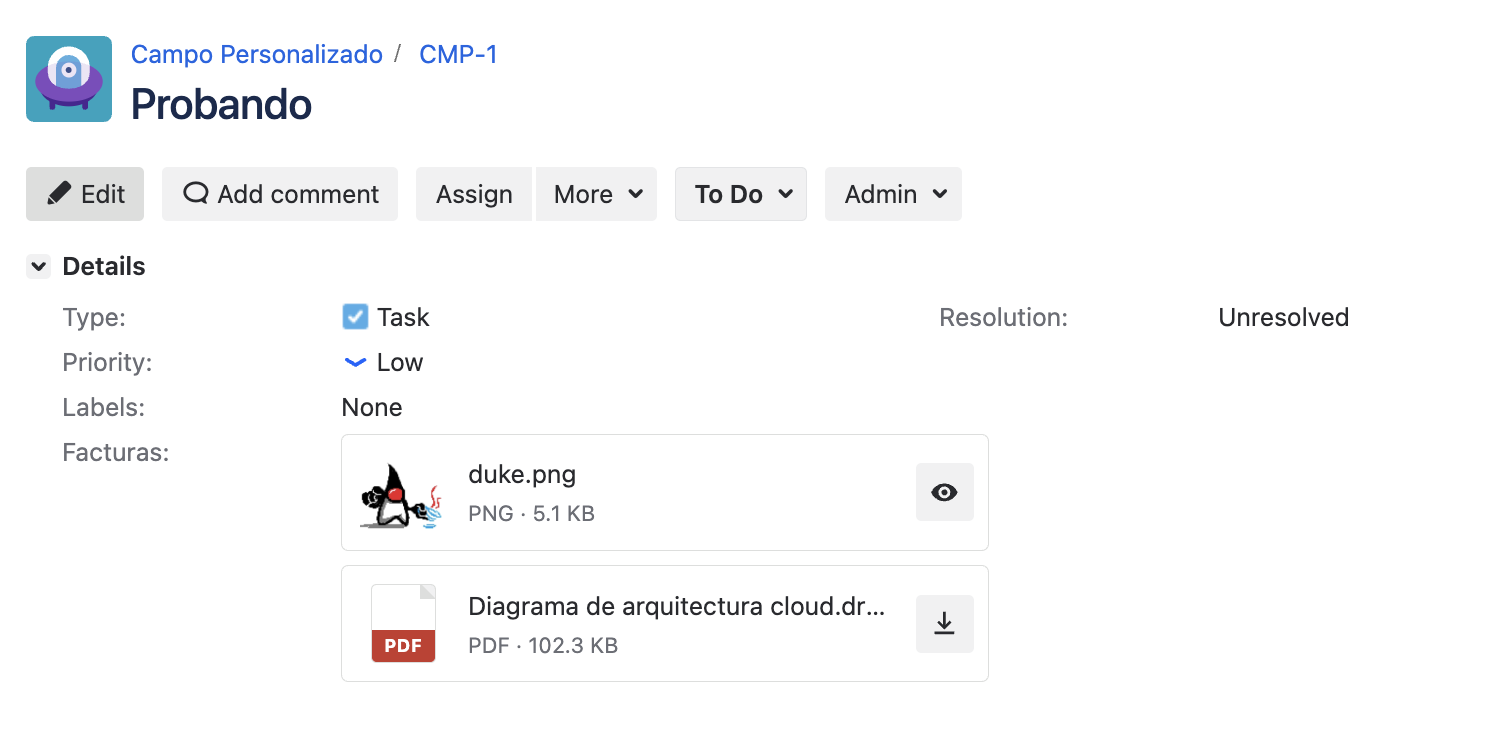
Once saved, each file appears inside the field as a card, with:
- A thumbnail if it is a supported image (
jpg,jpeg,png,gif,webp,bmp) or a type icon with the extension (for examplePDF,DOCX) otherwise. - The file's original name and a line with its type and size.
- A preview icon (eye) if the file can be previewed, or a download icon if it cannot. These are text-less controls: hover over the icon to see what it does.
When the field has several files, the cards are shown stacked, one below another.
Viewing a file (preview)
Click the preview icon (eye) on the file's card. A built-in viewer opens without downloading the file.
- Raster images (
jpg,jpeg,png,gif,webp,bmp) and text files (txt,csv,tsv,md,json,xml,log) can be previewed. - PDF, Office documents,
svg,tiff, and other formats are not previewed: those files only show the download icon. - Files larger than 8 MB are not previewed either.
- For text files, the preview shows the content truncated to 20,000 characters.
If the preview cannot load, the viewer shows "Could not load the preview.".
Downloading a file
Click the download icon on the card of the file you want. The file downloads with its original name. This is the only control available for formats that cannot be previewed.
Removing a file
Open the issue in edit mode (or the create / transition screen, if the field is on that screen) and use the Remove control on the card of the file you want to delete. You will be asked to confirm: "Remove {file}? It will be permanently deleted when you save.", with the Keep option to cancel.
When you remove a file and save, the corresponding native attachment is permanently deleted from the issue. It cannot be recovered once deleted.
To replace a file, remove the old one and attach the new one in the same edit session.
Independence between fields
An Attachment Field's files are specific to that field on that particular issue:
- Different Attachment Fields on the same issue store files separately and do not mix with each other, even though they are all stored as native attachments on the same issue.
- A parent issue's field does not include files from its sub-tasks, and vice versa.
- If two Attachment Fields share the same file limit, the limit applies per field, not to the issue's total.
Showing the field on the Jira Service Management portal
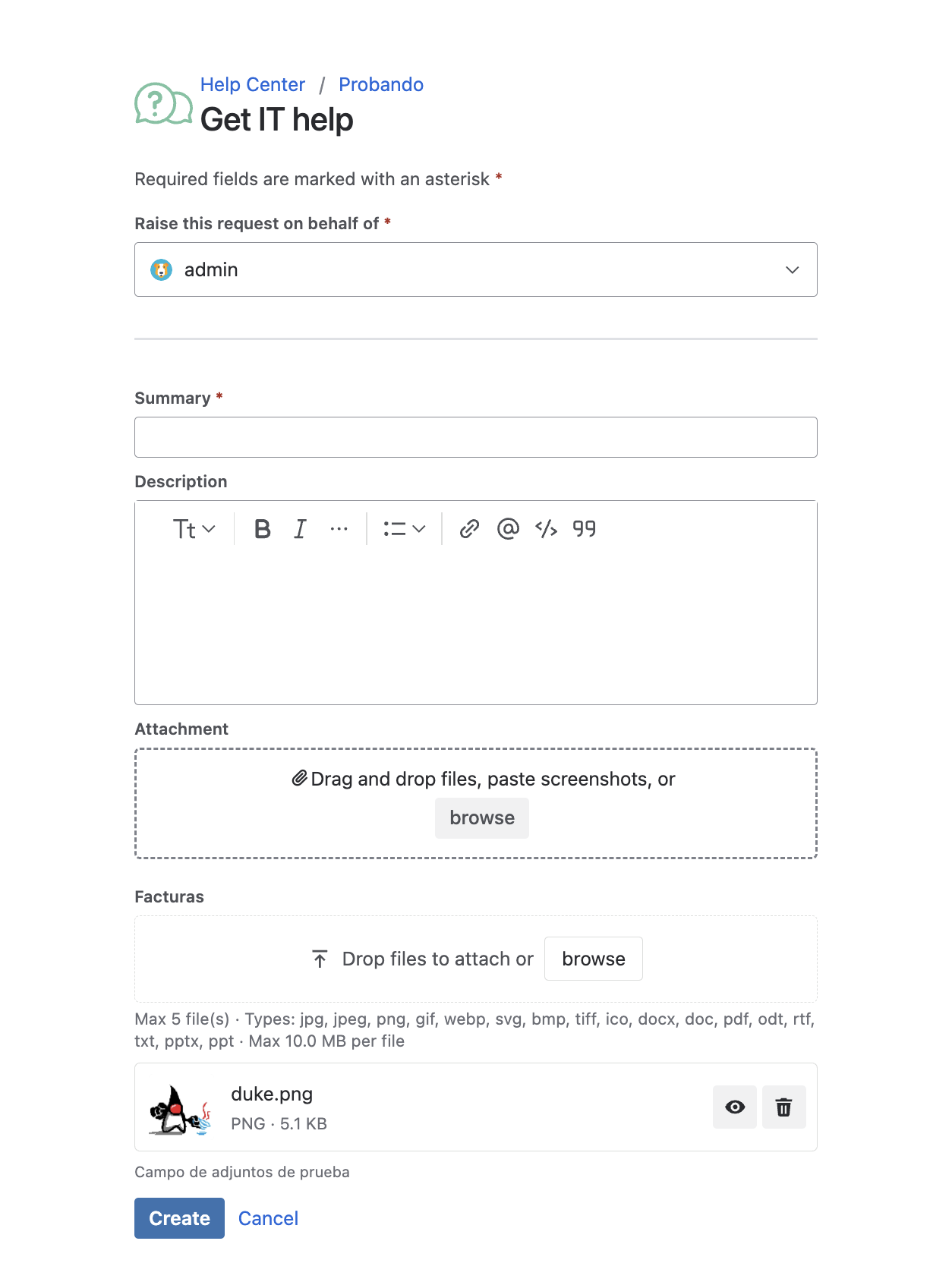
If your instance has Jira Service Management and the administrator enabled the "Show this field on the Jira Service Management customer portal" checkbox in the field's context, customers can:
- Attach files when raising a request, with the same quantity, type, and size restrictions as the field.
- View, preview, and download the files in the request details, with the same card view as the agent view.
If your instance does not use Jira Service Management, the field works as usual on the issue screens; there is simply no customer portal to display it on.
Differences from the native attachments panel
The Attachment Field is a filtered view over the issue's native attachments: files you upload through the field also appear in the issue's Attachments panel. The difference is what each one shows:
| Aspect | Attachment Field (Admin Essentials) | Native Attachments panel |
|---|---|---|
| What it shows | Only the files uploaded through that specific field | All attachments on the issue, no matter where they came from |
| Upload restrictions | Configurable by the administrator (quantity, type, and size) | No per-field restrictions |
| JQL | "Field name" is not EMPTY / is EMPTY | attachments is not EMPTY |
If you want to find issues that have files in a specific Attachment Field using JQL, use the field name:
"Invoices" is not EMPTY
attachments is not EMPTY does detect files uploaded through the field (because they are native attachments), but it does not tell you which field they come from.
It is not possible to filter by the name, extension, or type of a specific file using JQL, neither on the field nor on the native panel. You can only filter by the presence or absence of files.
When the field is empty
If the field has no files, Jira shows its usual empty placeholder on the issue view. If the field is not marked as required in the project, you can save it empty without any error.