Workflow Expression Condition
The JQL / Expression Condition (Admin Essentials) hides a workflow transition button when the work item does not meet a Jira expression defined by the administrator. If the work item does meet the condition, the button appears normally and the transition can be executed.
Unlike workflow validators, which block the transition after the user attempts it, the condition acts before: the button simply does not appear. This prevents users from seeing transition options that do not apply to their work item at that point in time.
The Workflow Expression Condition is available exclusively in company-managed spaces. Team-managed spaces do not support this type of workflow extension.
The Atlassian Forge jira:workflowCondition module is currently in Preview status. The feature is functional in production, but its capabilities, behaviour, and availability are subject to change by Atlassian. Validate the behaviour in a test environment before deploying it to critical workflows.
When to use a condition instead of a validator?
| Condition | Validator | |
|---|---|---|
| Behaviour | Hides the transition button if the work item does not meet the criterion | Always shows the button; blocks with an error after the attempt |
| User experience | The user does not see transitions that do not apply | The user attempts and receives an error message |
| Recommended use | Workflows where some transitions only apply to certain work items | Workflows where the user should always see the transition, but with validation on confirm |
Use the condition when you want to simplify the workflow view: if the work item does not meet certain criteria (priority, type, field value), the transition button should not be visible to any user.
Add the condition to a transition
-
In Jira, open the workflow you want to modify (workflow editor of a company-managed space, or Jira settings → Work items → Workflows).
-
Select the transition to which you want to add the condition.
-
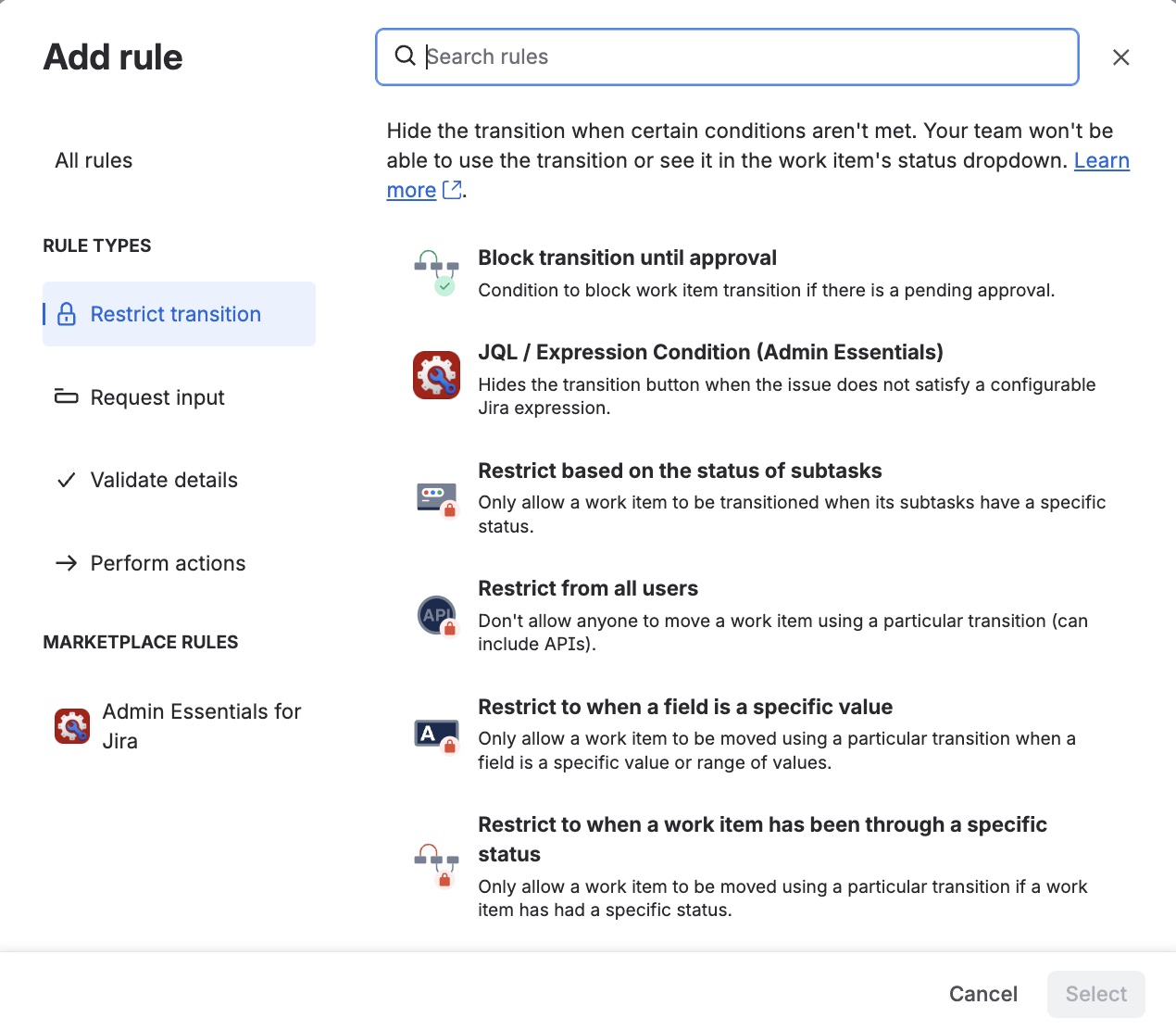
Click Add rule.
-
Under Restrict transition, select JQL / Expression Condition (Admin Essentials) and click Select.
-
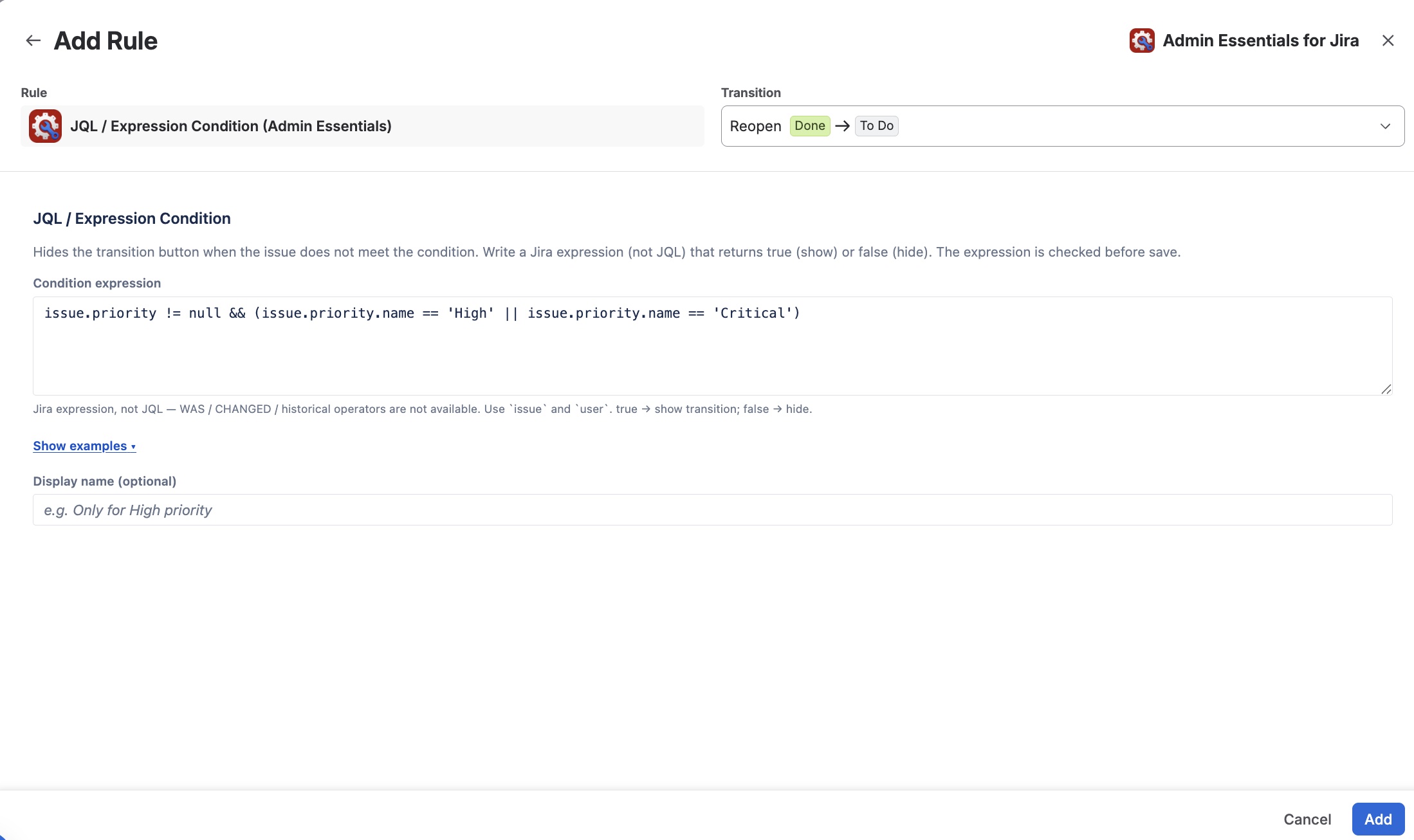
Configure the expression (see next section) and click Add.
-
Publish the workflow for the changes to take effect.
Configure the condition
When adding or editing the condition, a configuration form opens with the following fields:
Jira expression
Enter the Jira expression that the work item must satisfy for the transition to be visible. The expression must return a boolean value (true to show the button, false to hide it).
The expression is validated before saving: if it contains syntax errors, the form will indicate this and prevent saving until the expression is corrected.
Examples of valid expressions:
issue.priority != null && issue.priority.name == 'High'
Shows the transition only if the priority is "High".
issue.issuetype.name == 'Bug'
Shows the transition only if the work type is "Bug".
issue.assignee != null
Shows the transition only if the work item has an assigned user.
issue.fields.customfield_10020 != null
Shows the transition only if a specific custom field has a value.
Display name (optional)
Enter a descriptive name to identify this condition in the transition's condition list (for example, "High priority only" or "Requires assignee"). If left blank, the generic condition name is shown.
Important limitations
The condition evaluates Jira expressions, which is Atlassian Forge's own expression language, distinct from classic JQL. Key differences:
- History operators are not supported:
WAS,CHANGED,WAS IN,WAS NOT, and similar operators are not available. It is not possible to evaluate the previous state of a work item or its value history. - Free JQL syntax is not supported: clauses such as
project = "My Project"orstatus = "In Progress"are not valid. Useissue.project.key == "ABC"orissue.status.name == "In Progress"instead. - Custom fields are referenced by their internal ID (for example,
issue.fields.customfield_10020), not by their visible name.
The expression must resolve to true or false. If the expression is invalid or throws an error at evaluation time, the condition behaves as false and the transition button is hidden.
Behaviour in the workflow
- If the expression returns
true: the transition button is shown to the user. The transition proceeds normally. - If the expression returns
false: the transition button does not appear for any user. The work item remains in the current state. - Evaluation occurs each time the work item is loaded in the view. If the work item changes (for example, an assignee is set), the button will appear or disappear on the next page load.
Differences from existing validators
| Aspect | Condition (Expression Condition) | Validator (Fields Required / Field Dependency / Attachment Count) |
|---|---|---|
| When it acts | On work item load (before the attempt) | On transition confirm (after the attempt) |
| Visible effect | The transition button does not appear | The button appears; the transition is blocked with an error message |
| User feedback | No message; the button simply does not exist | Error message listing the fields or conditions that failed |
| Availability | Company-managed only | Company-managed and team-managed |
| Module status | Preview (Forge) | Available in production |