How to configure and use attachment labels
FileUtils Pro labels help you organize attachments by space instead of relying only on file names. You can use labels such as Contract, Evidence, or Invoice.
The location of Attachments depends on the Jira space type. There are two access paths, but both lead to the same Space attachments view, where you can browse files and open Manage labels to create or edit labels.
Open Attachments by space type
Jira Service Management spaces
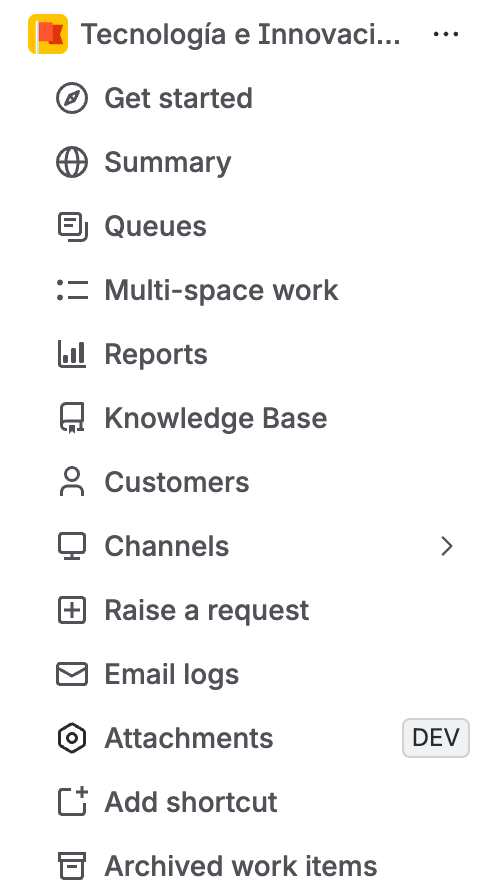
In a JSM space, open the space options menu and select Attachments. This option appears as a space action; it is not inside Settings.
Jira Project-type spaces
In a Project-type space, open the Kanban board and select the More tab. In the dropdown menu, select Attachments to open the space attachment view.
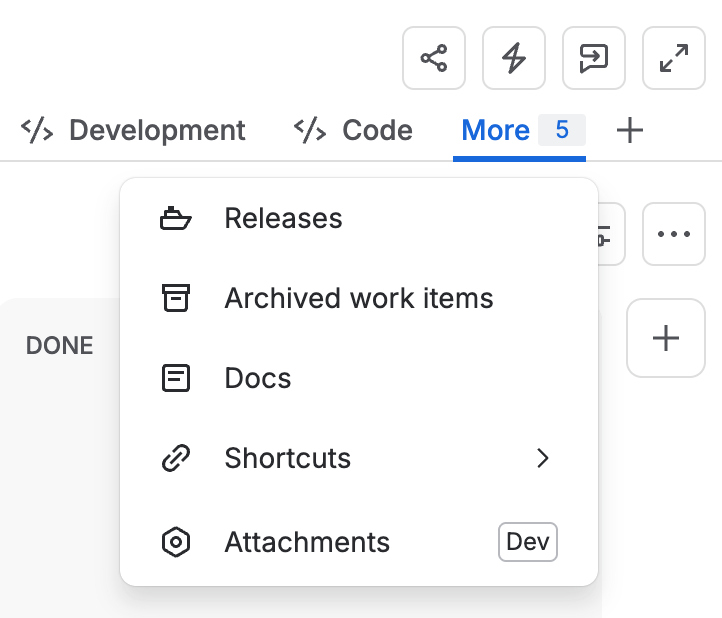
In JSM spaces, the option appears directly in the space actions. In Project-type spaces, it appears under More on the Kanban board. Both paths lead to the same Space attachments view.
Open label management
In the Space attachments view, select Manage labels. From there you can:
- Create a reusable label for the space.
- Set or change its color.
- Edit an existing label's name.
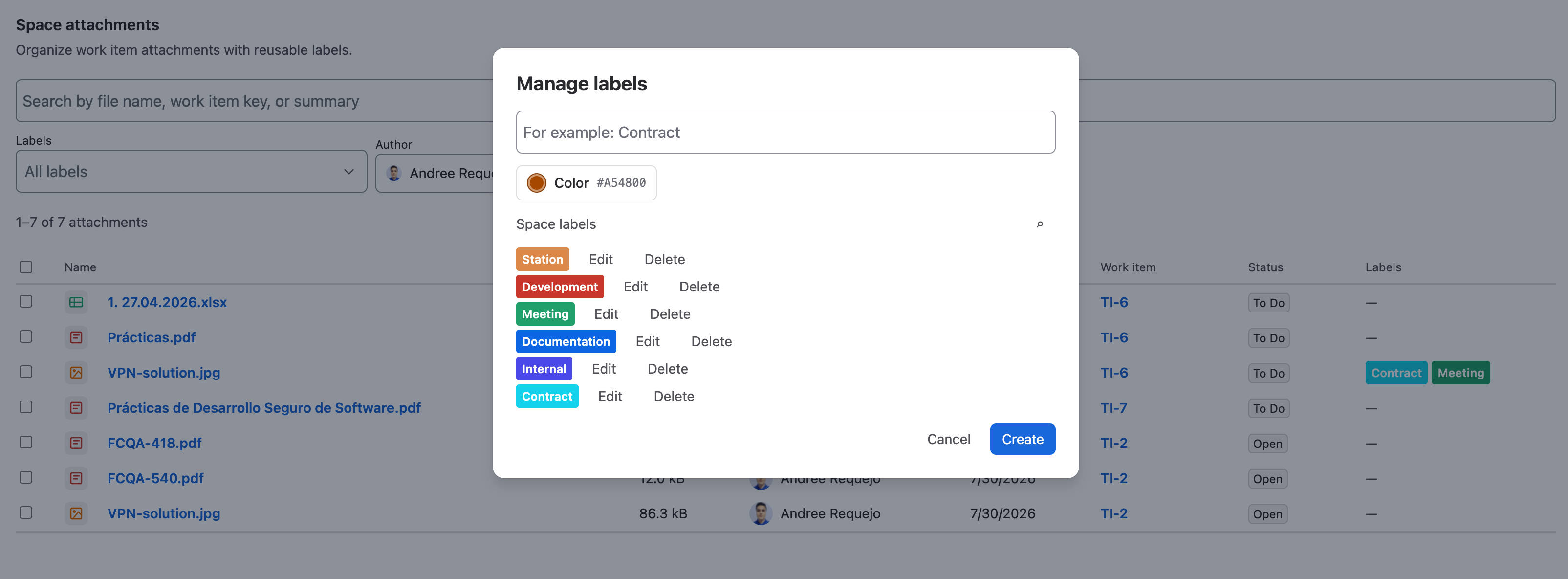
To assign or remove labels in bulk from this view, see Space attachments. To manage attachments from an individual work item, see Attachment Labels panel.
Labels created in Manage labels can be reused on other attachments in the same space.