Work item panel
The Cross-Site Sync panel shows the link status, the remote work item, and the actions available to your account. When no link exists, the message and action depend on applicable rules and your permissions: with matching rules and edit permission, you can escalate; with no active rules, an administrator can open rule settings; if rules match but you cannot edit, the panel only explains that you lack permission.
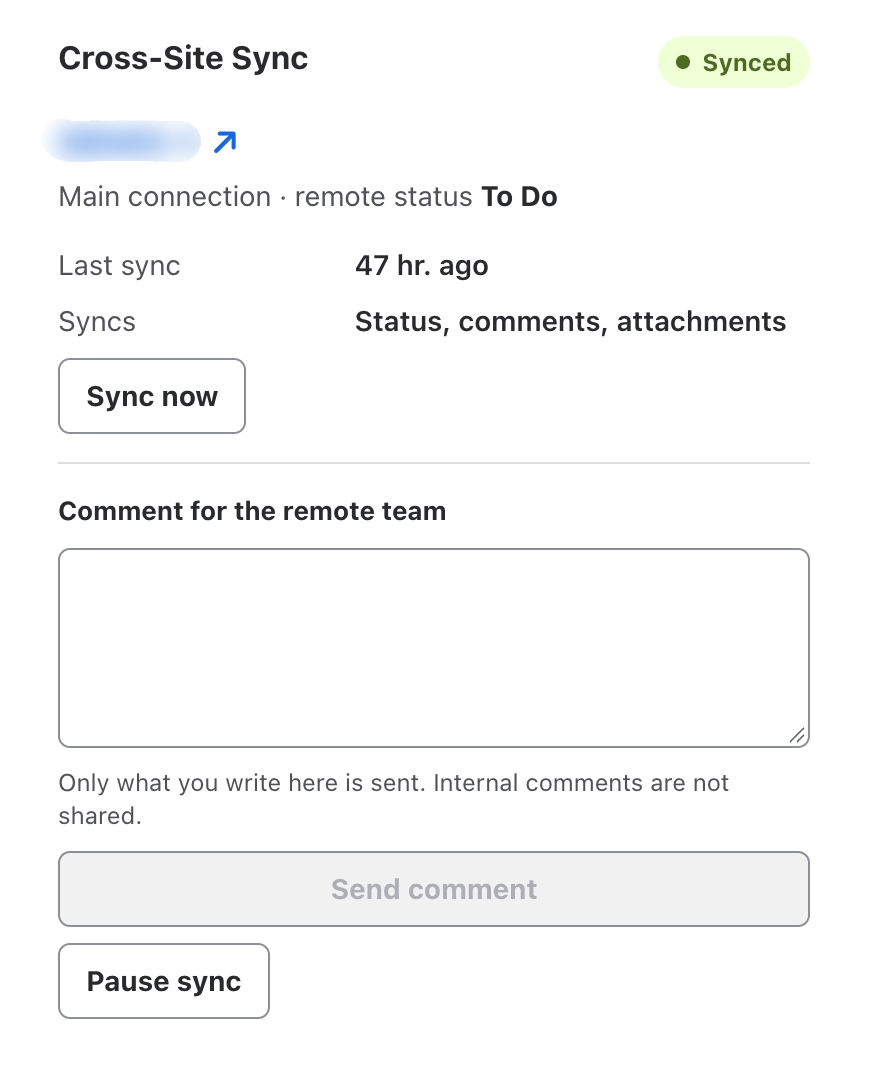
When a work item is linked, the panel provides a link to the remote work item and shows the sync status, the remote work item's status, the last sync time, and what is being synced. Jira also keeps a native remote link between the two work items.
Link statuses
| Status | Meaning |
|---|---|
| Unlinked | No remote work item is associated. |
| Creating | The app is creating the remote work item. |
| Synced | The remote work item is associated and syncing is active. |
| Error | The latest operation did not complete. The message explains the problem, and the user's changes are kept. |
| Paused | Syncing is stopped. Pending jobs are kept and can continue when you resume. |
| Archived | The remote work item remained in Done for the configured period; the app stops checking it for status changes. |
| Unlinking | The app is removing the sync relationship. |
| Relinking | The app is associating the local work item with an existing remote work item. |
If the remote work item is deleted, the app detects that it is unavailable and shows an error on the link. The local work item's status does not change when the remote status changes. Remote changes are reported in a comment on the local work item; the notice does not run a local transition.
Available actions
Depending on the status, rule, and your permissions, the panel may offer:
- Sync now: retrieve available remote changes (status, comments, and attachments allowed by the rule). It appears only when the link has the Synced badge, has a remote key, and you can edit the work item. It is not shown for Error, Paused, Archived, Creating, Unlinking, Unlinked, or Relinking links. It is available on both plans and can be used once every two minutes per link. The time label is Last sync.
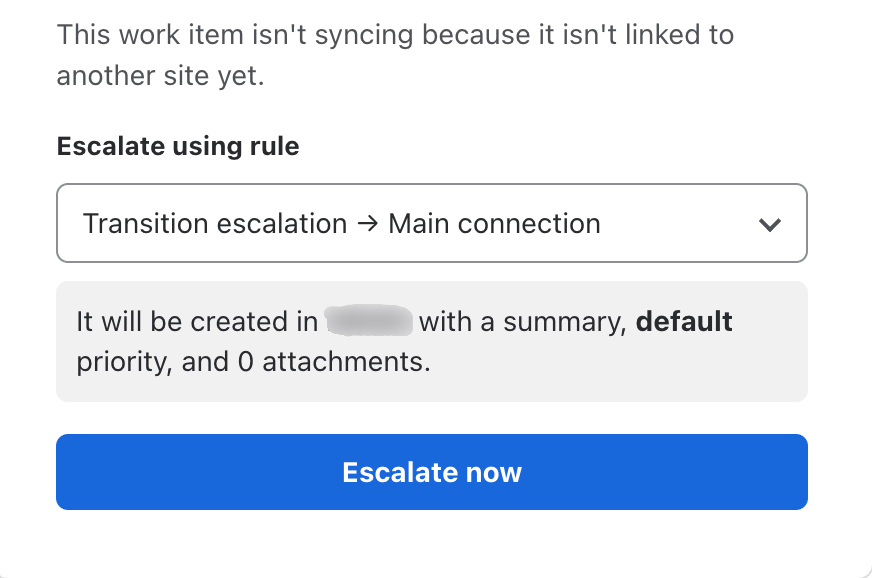
- Escalate now: choose a rule, review what will be created, and confirm escalation.
- Relink: when a link is already Unlinked, associate the local work item with an existing remote work item without creating a duplicate.
- Send comment: explicitly send a comment to the remote team. The panel clarifies that internal notes are not shared.
- Retry, Notify the administrator, Pause sync, or Resume sync: resolve a failed operation, notify the administration team, or stop and continue syncing. The administrator notice appears in the administration overview; it is not sent by email.
Sync now requests are recorded in the link's activity log with who requested them and when. Automatic sync from the remote site runs hourly on the free plan and every five minutes on the paid plan; manual sync retrieves changes before that cycle.
This version's interface does not provide an Unlink action. As a result, you cannot start the flow that leads to the Unlinked state from the panel, and Relink is not available as a complete procedure. Pause sync only stops sending changes temporarily; it does not remove the link.
Comments and attachments
Comments received from the remote site include an authorship header. Jira Service Management keeps the internal or public visibility configured in the rule. Comments written by the technical account are not imported again.
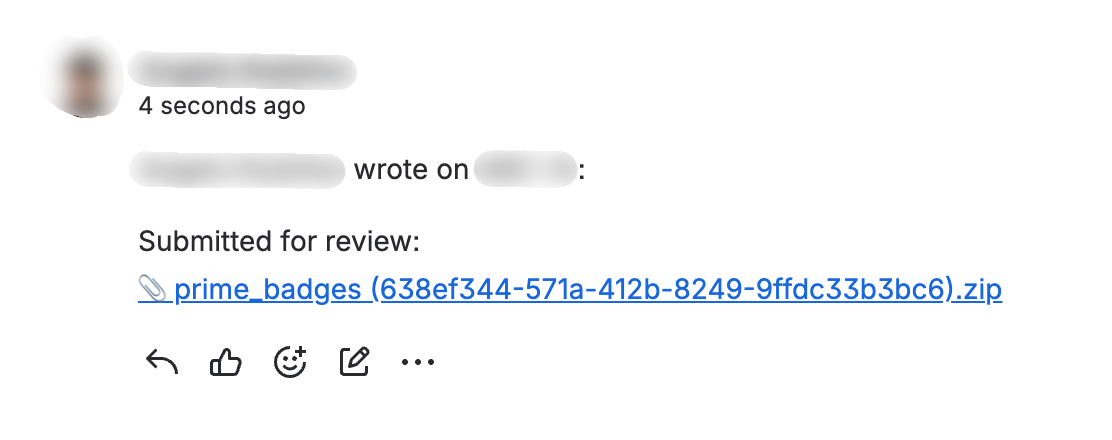
When a synced comment cites an attachment, the app copies the file to the destination before posting the comment and adds a link to the copy. This also applies to PDFs and other non-image files.
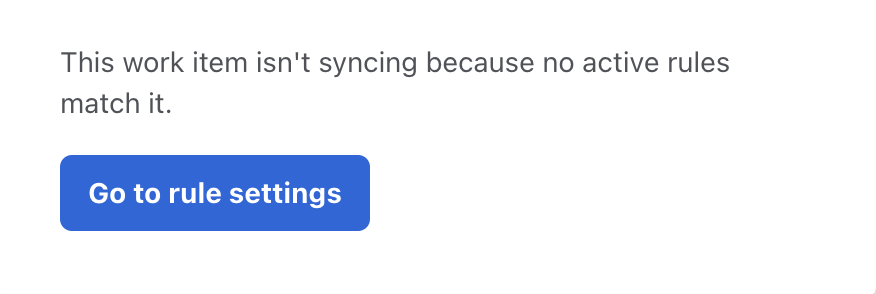
When matching rules and edit permission are available, the panel says This work item isn't syncing because it isn't linked to another site yet, offers Escalate using rule, and shows Escalate now. With no active rules, it says This work item isn't syncing because no active rules match it; administrators see Go to rule settings, while users without that permission only see the message. If a rule matches but you cannot edit, it says This work item isn't syncing because you don't have permission to link it and offers no action.
New attachments covered by the All new policy are also copied after the initial escalation. Transferred images are attached to the destination work item; they are not displayed inline in the comment.