Hierarchy panel (Parent → Children)
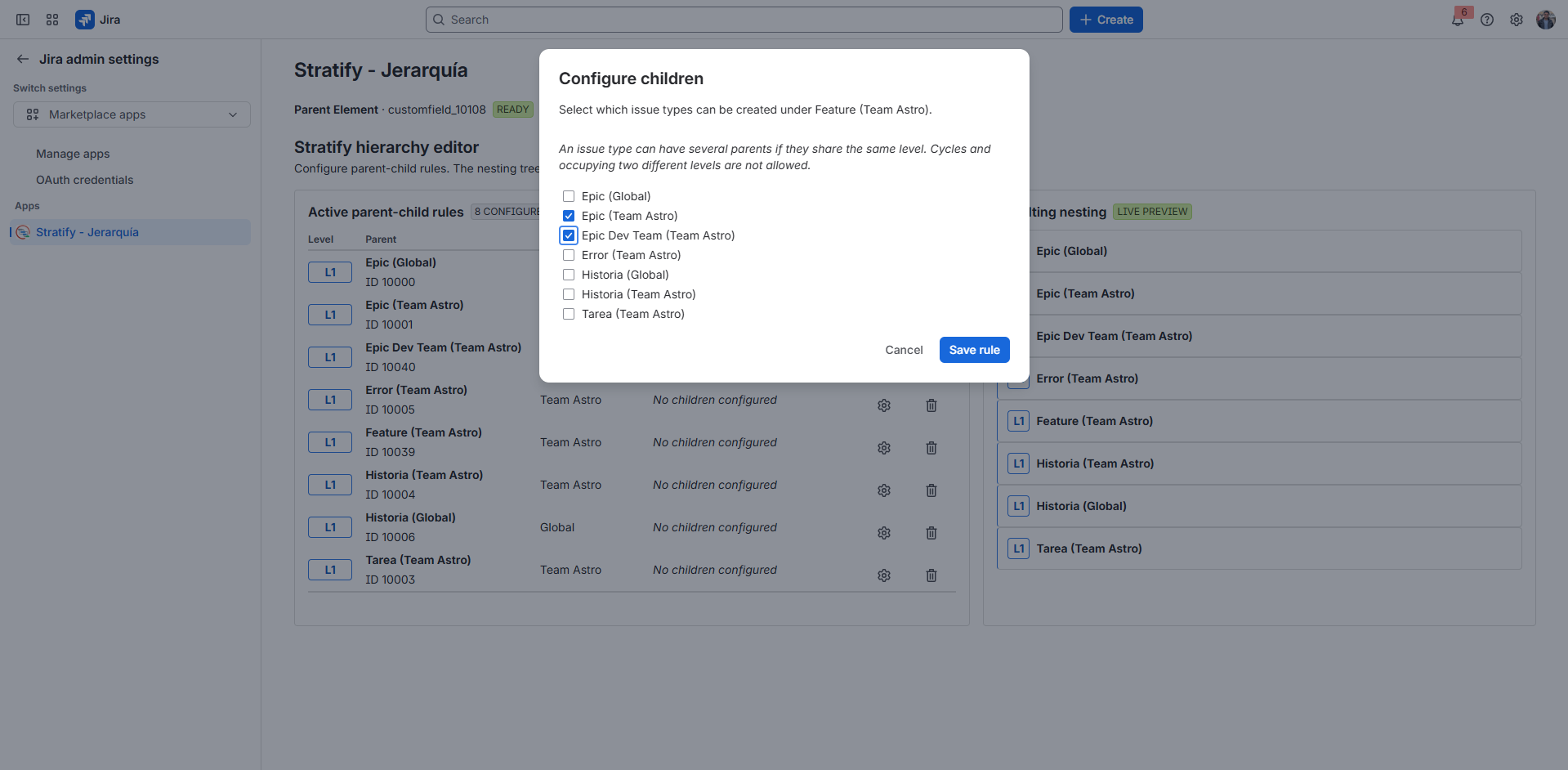
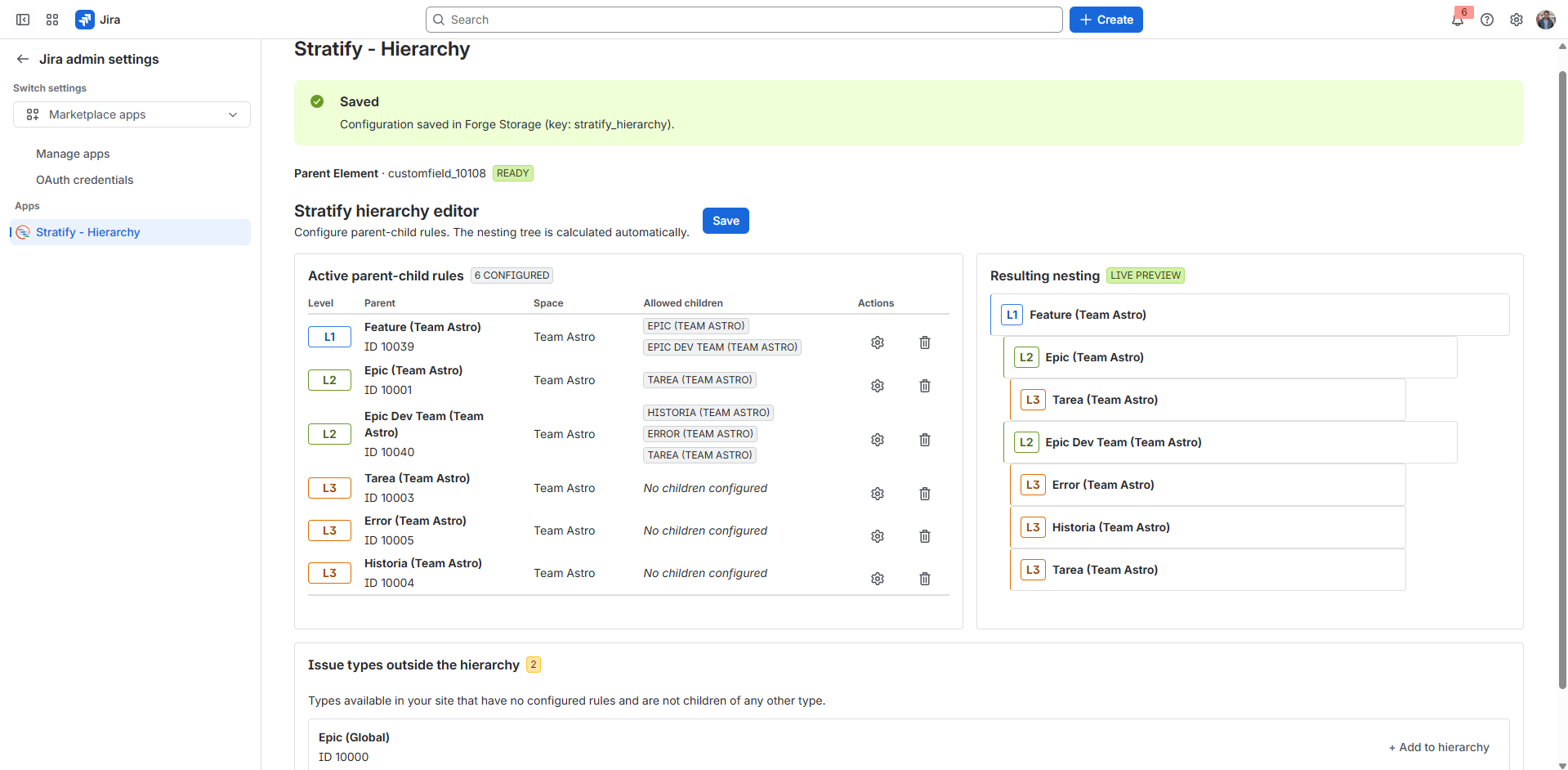
The admin panel defines which issue types can be children of which parent. That is how you model levels and containers (OKR, SAFe, Initiative → Epic → Story, or another tree on the site). The model is a tree, not a linear list: one parent can have several child types (for example Epic → Story, Bug, and Task).
The configuration is saved and loaded (Forge storage). The Gantt uses these rules, together with the Parent Element field, to nest bars.
How to configure the rules
- Open Stratify administration (Apps → Stratify, or the app’s admin entry).
- You will see the issue types available on the site.
- In the Parent → Children editor or modal, pick a parent type and the allowed child types.
- Review the live preview of the resulting tree.
- Save. Until a configuration is saved, the panel shows an empty state with guidance for the first save.
Good practice
- Start from the highest container in your model (Initiative, Objective, Portfolio, and so on).
- Allow only the child types the team actually uses; an overly wide tree makes the Gantt harder to read.
- After saving, check a test plan: bars should nest according to Parent Element and these rules.
Permissions and the Gantt
JQL ingest and sync run as the user who is using the Gantt. That user needs:
- To see the work items in the JQL.
- To edit the dates (and agreed fields) of issues that will be synced.
A user without edit permission can still view the plan, but sync will fail on those issues. The sync summary keeps failed drafts with the error.
When the hierarchy is ready, continue in the User Guide.