App Configuration
The Live Chat for JSM administration panel is accessed from the Jira sidebar. From version 1.0.0, you can manage each service portal's configuration independently. Version 1.1.0 added the initial chat form, the initial message with an optional response, and the native JSM satisfaction survey. Version 1.1.1 does not change this configuration.
Accessing the configuration panel
- In the Jira sidebar, click Apps → Your apps → Live Chat for JSM.
- The configuration panel will open with the list of portals.
Configure multiple portals
Each configuration connects a service portal to the project, Service Desk, and request type where chats will be created. Each portal maps to a single Service Desk. The Request Type is required when the portal is active.
In the list of configured portals you can review:
- The Jira Service Management project.
- The associated Service Desk.
- The request type.
- Whether the portal is Active.
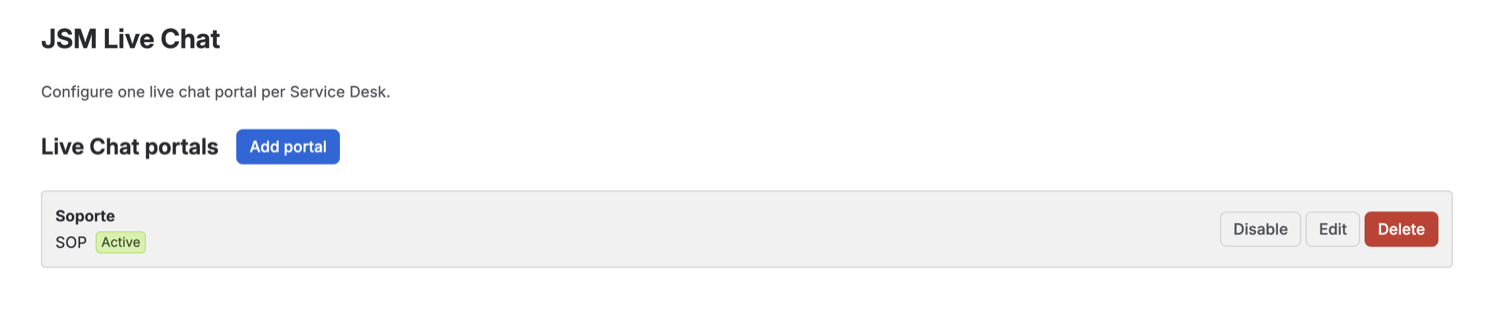
Add a portal
- In the Jira sidebar, click Apps → Your apps → Live Chat for JSM.
- Click Add portal.
- Select a Jira Service Management project.
- Select the Service Desk associated with that project.
- Select the Request Type customers will use to start the chat.
- Configure the initial team message and the chat closing statuses. Optionally, add the initial form and the native JSM satisfaction survey.
- If needed, configure who can handle chats.
- Check Active to show the widget on that portal.
- Save the configuration.
Only Jira Service Management projects are shown. Projects from other products or types cannot be used for chat.
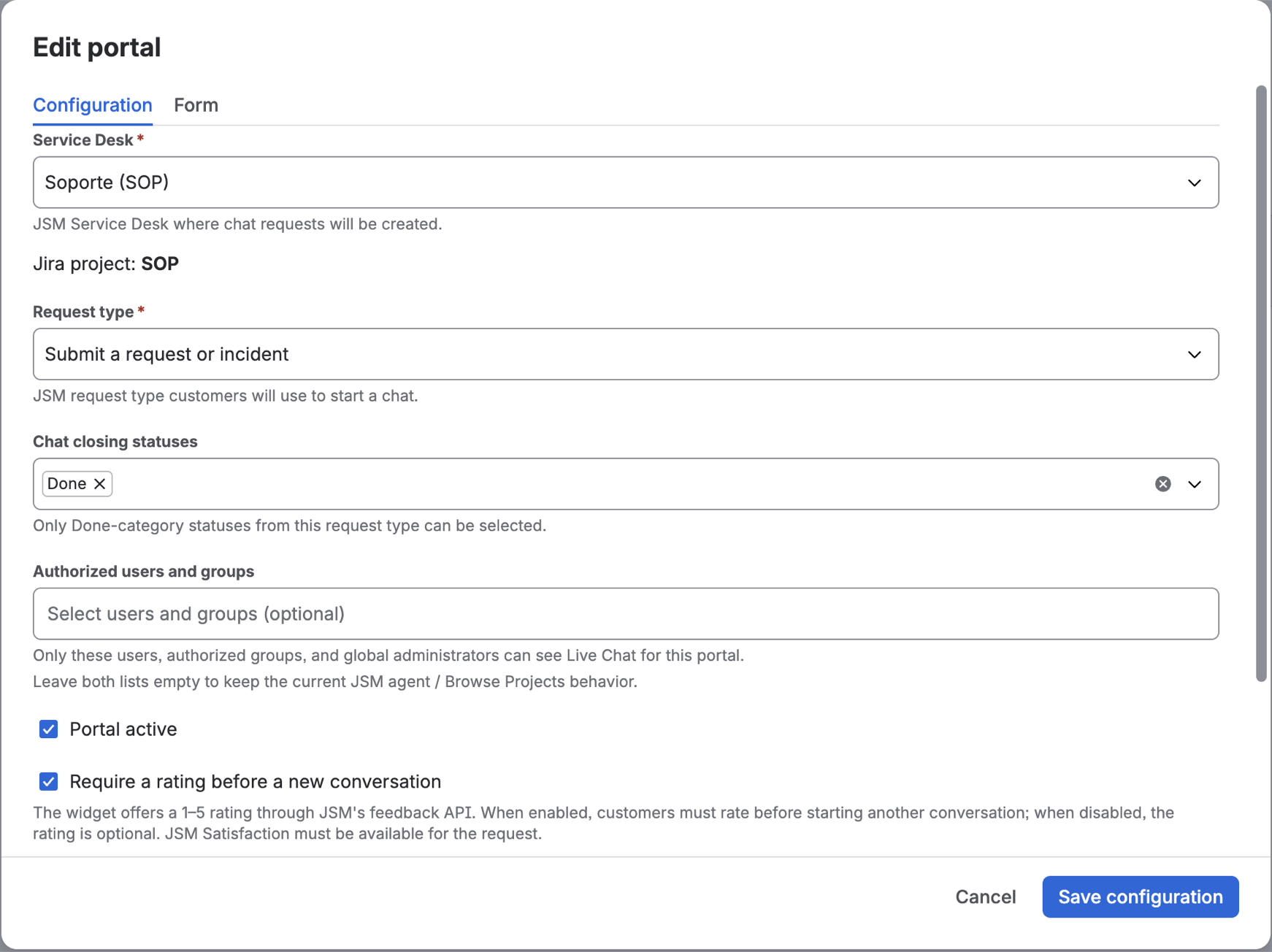
Edit, activate or deactivate a portal
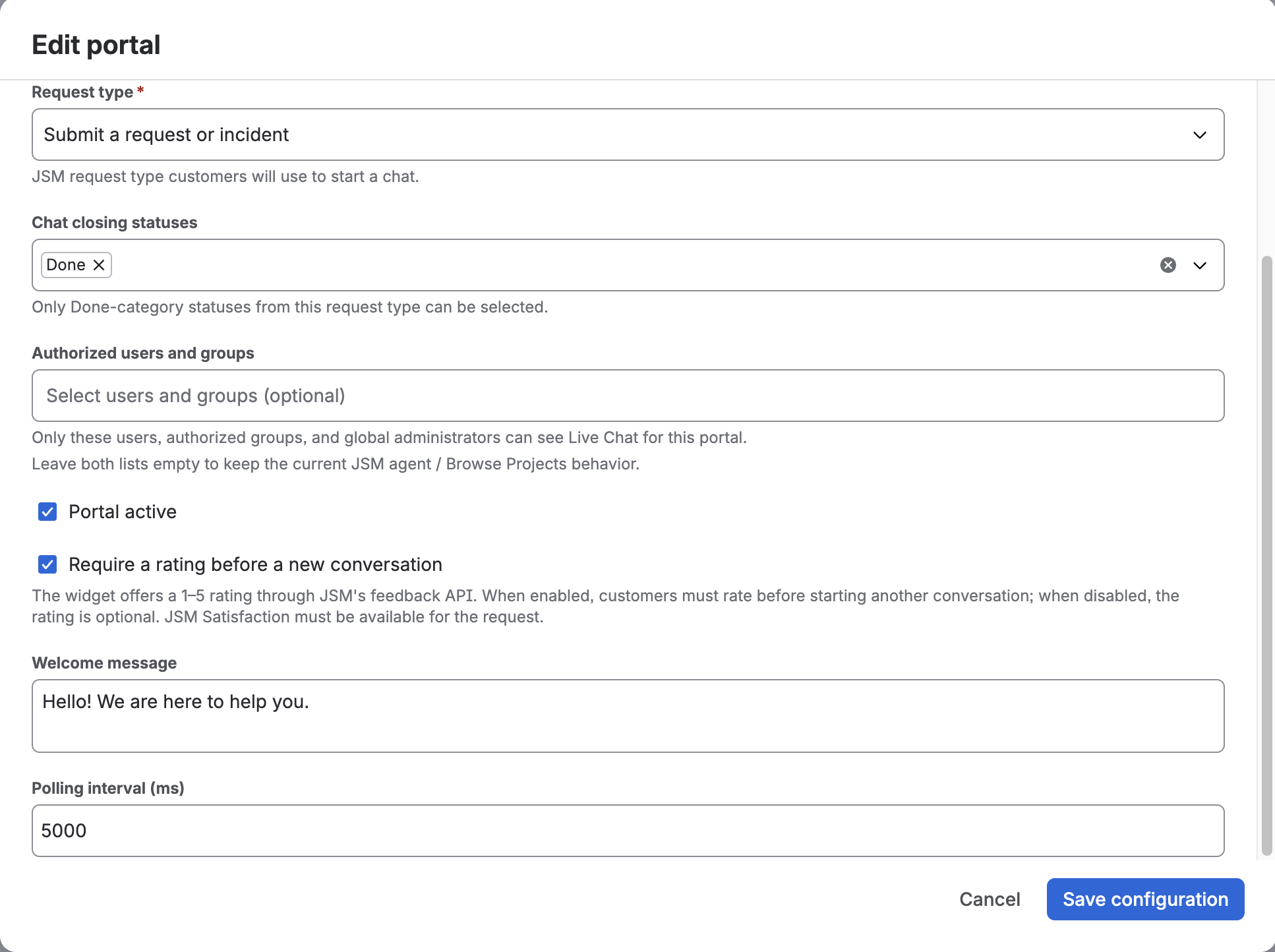
Select a portal from the list and click Edit to change its data. Each portal retains its own configuration:
- Project and Service Desk where requests will be created.
- Request Type, which must include the Description field.
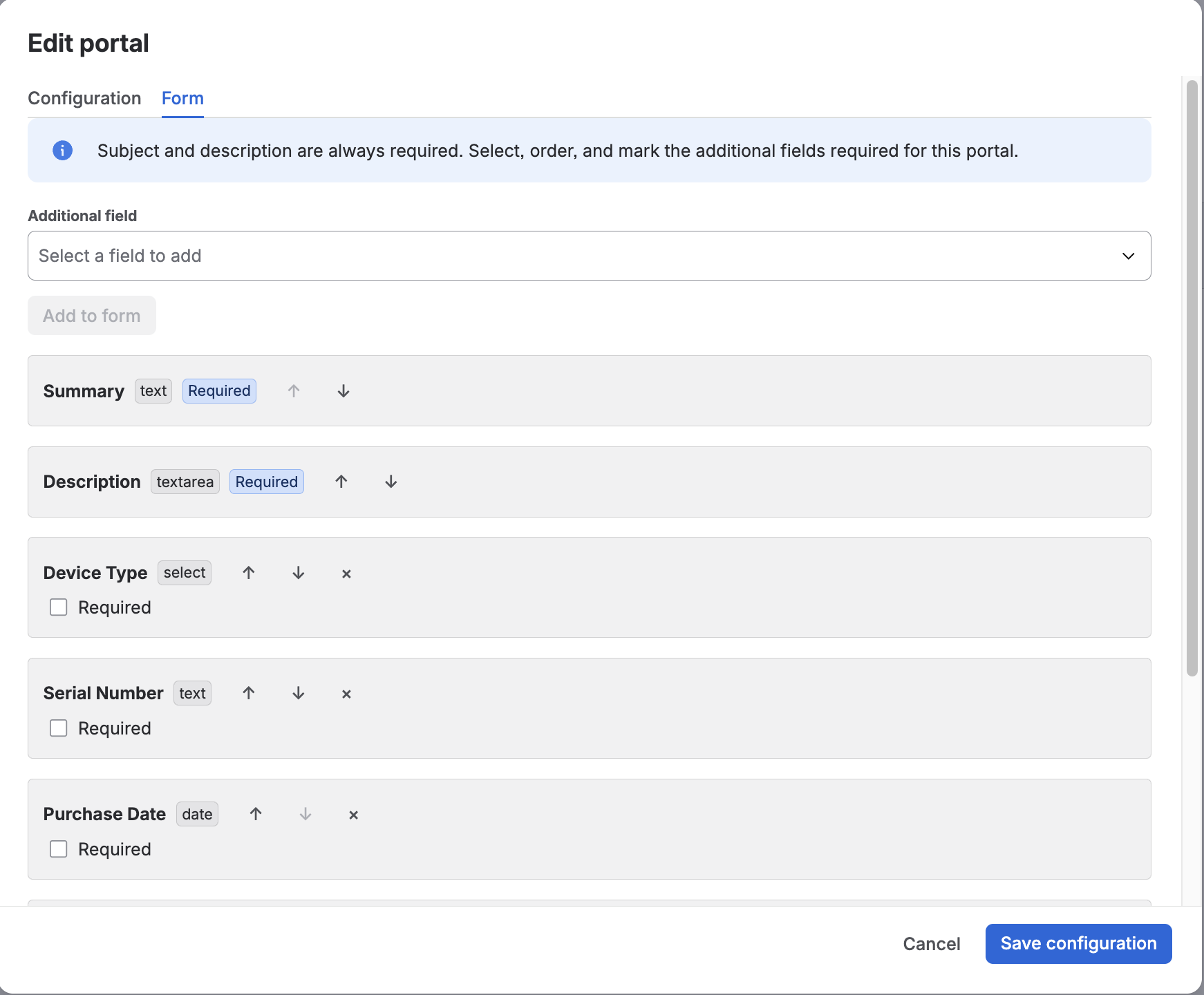
- Initial form with the fields the customer fills in before typing.
- Initial message the customer sees as the first team bubble, with its optional response.
- Native JSM satisfaction, which can be required before another conversation.
- Agent access that defines which users and groups can open that portal's tray.
- Polling (ms), which determines how often new messages are checked.
- Closing statuses, which indicate when the conversation ends.
- Active, which controls whether the widget appears on the portal.
Unchecking Active does not delete the portal configuration. The widget stops appearing and no chats are created from that portal until you reactivate it.
Delete a portal
Click Delete next to the portal you no longer want to use and confirm the action. When deleted, the app stops offering chat on that portal. This action does not delete requests or chat history that were already created in Jira.
Control agent access (ACL)
For each portal you can specify which people can handle conversations from the Live Chat tray:
- authorizedUsers: Add individual authorized users.
- authorizedGroups: Add Jira groups whose members can handle conversations.
- You can combine users and groups as needed.
Empty lists mean normal access (JSM agent, Browse Projects, project admin). Lists with values mean only those users/groups have access, plus Jira global administrators.
Global administrators retain access even if not included in these lists. Access applies per portal: a person authorized on one portal does not automatically get access to others. If a person is not authorized, they won't see Live Chat on the project page and cannot open that portal's tray.
The widget's public configuration does not expose ACL lists. This information is only visible to administrators in the configuration panel.
Initial chat form
For each portal you can choose the fields of the request type the customer fills in before chatting. You can order them and mark which are required. Summary and description are always present.
Supported field types: text, number, date or date and time, single select, multi-select, and cascading select.
The widget creates the JSM request with the submitted values, and the agent reviews them in the request details. If a portal has no form configured, the chat starts directly with the customer's message, as in version 1.0.0.
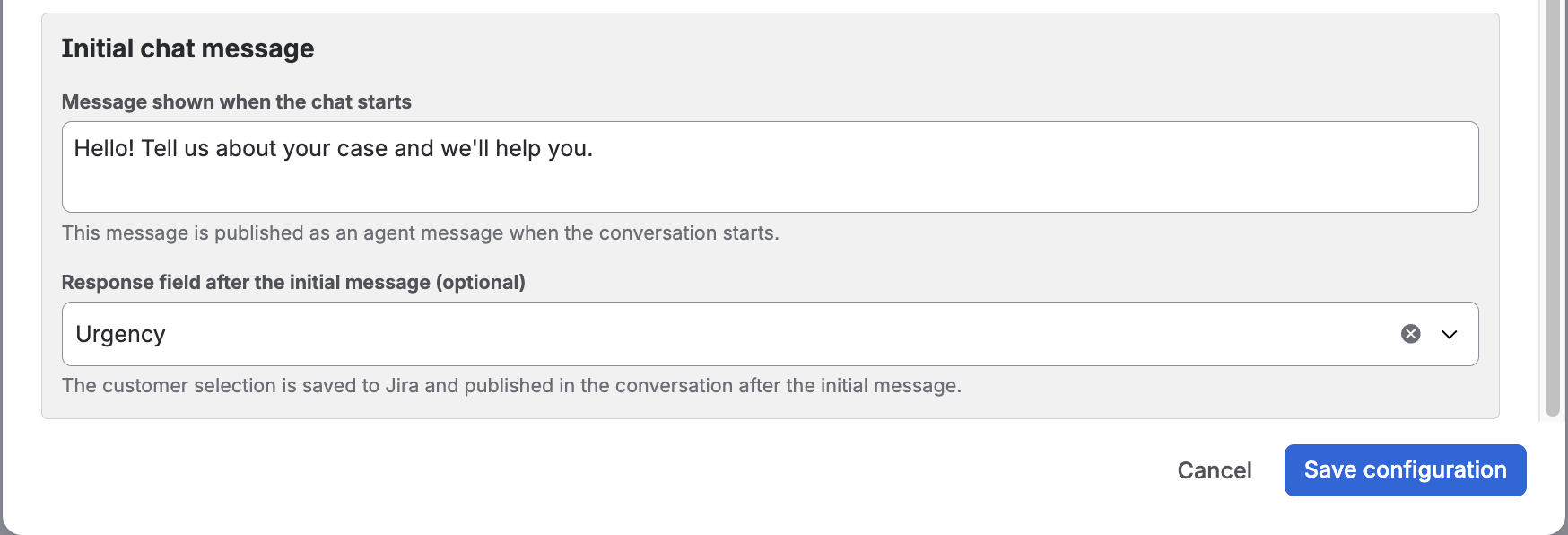
Initial team message
The initial message is shown as the first team bubble when the customer opens the chat. The suggested value is: Hello, how can we help you?. Use plain text, no HTML tags.
Optionally, the message can include a single-select question. The customer's answer is saved to the corresponding Jira field and posted in the thread.
If the portal has no initial message configured, no bubble is shown.
Native JSM satisfaction
Support rating uses the native Jira Service Management survey; the app does not have its own survey.
- Each portal decides whether the survey is required before opening another conversation. It is enabled by default.
- JSM prerequisites: satisfaction must be enabled and the Request resolved notification configured.
- If the survey is required, New conversation is enabled when the customer completes it, or when no survey is available.
- If it is not required, the customer can start another conversation right away.
Polling (ms)
Polling (ms) indicates how often the widget checks for new messages. The default value is 5000 milliseconds (5 seconds). A lower value may show messages sooner but increases the number of requests to Jira.
Closing statuses
In Closing statuses, enter the workflow statuses that should end the chat, separated by commas. For example: Resolved,Closed. It's important to enter them exactly as they appear in Jira so the Resolve option finds the correct closure.
Validations
The app checks the following before saving:
- There cannot be two configurations for the same Service Desk.
- The Request Type is required when the portal is active.
- The Request Type must include the Description field.
- The selected project must be a Jira Service Management project.
If data is missing or a configuration already exists for that Service Desk, a message will appear so you can correct it.