Introduction to Live Chat for JSM
Live Chat for JSM is a Forge app for Jira Service Management Cloud that enables real-time communication between service portal customers and support agents. Each conversation is automatically linked to a JSM request, so the team can review the entire history without leaving Jira.
This documentation describes version 1.1.0 (Forge 2.1.0). Updating from 1.0.0 is direct and keeps the portal configuration.
Key Features
-
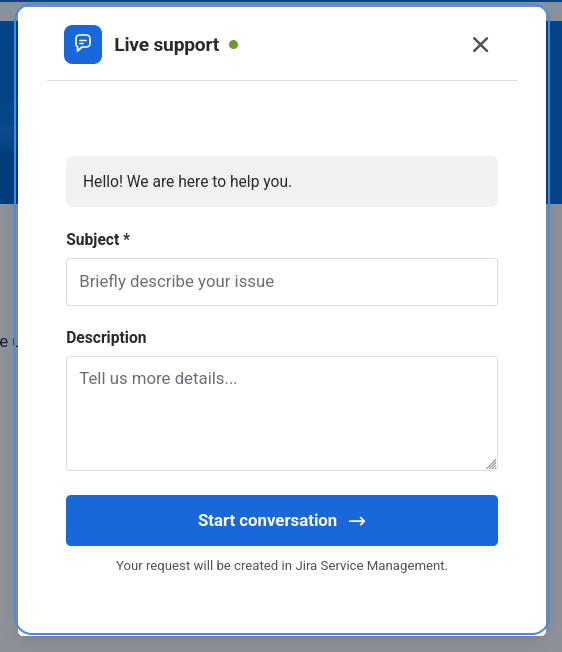
Portal chat widget: Customers can start a chat directly from the JSM service portal. The widget loads with the configuration of the service desk the customer is on.
-
Pre-chat form: Before typing, customers can fill in the request type fields the administrator configured for each portal. Summary and description are always present.
-
Initial team message: Configurable welcome bubble. If it includes an options question, the answer is saved on the request and appears in the thread.
-
Chat attachments: Customers and agents can attach up to five files per message, including pasted files. Images are previewed in the conversation; other files are downloaded.
-
Native JSM survey: On closure, customers can rate support with the Jira Service Management survey. The portal can require the survey before another conversation.
-
Recent history and notices: The launcher remembers up to three recent requests in the browser and shows how many new agent messages there are when the panel is closed or minimized.
-
Portal-based configuration: Administrators can configure multiple service portals independently from Apps → Your apps → Live Chat for JSM. Each portal is linked to a unique project, service desk, and request type.
-
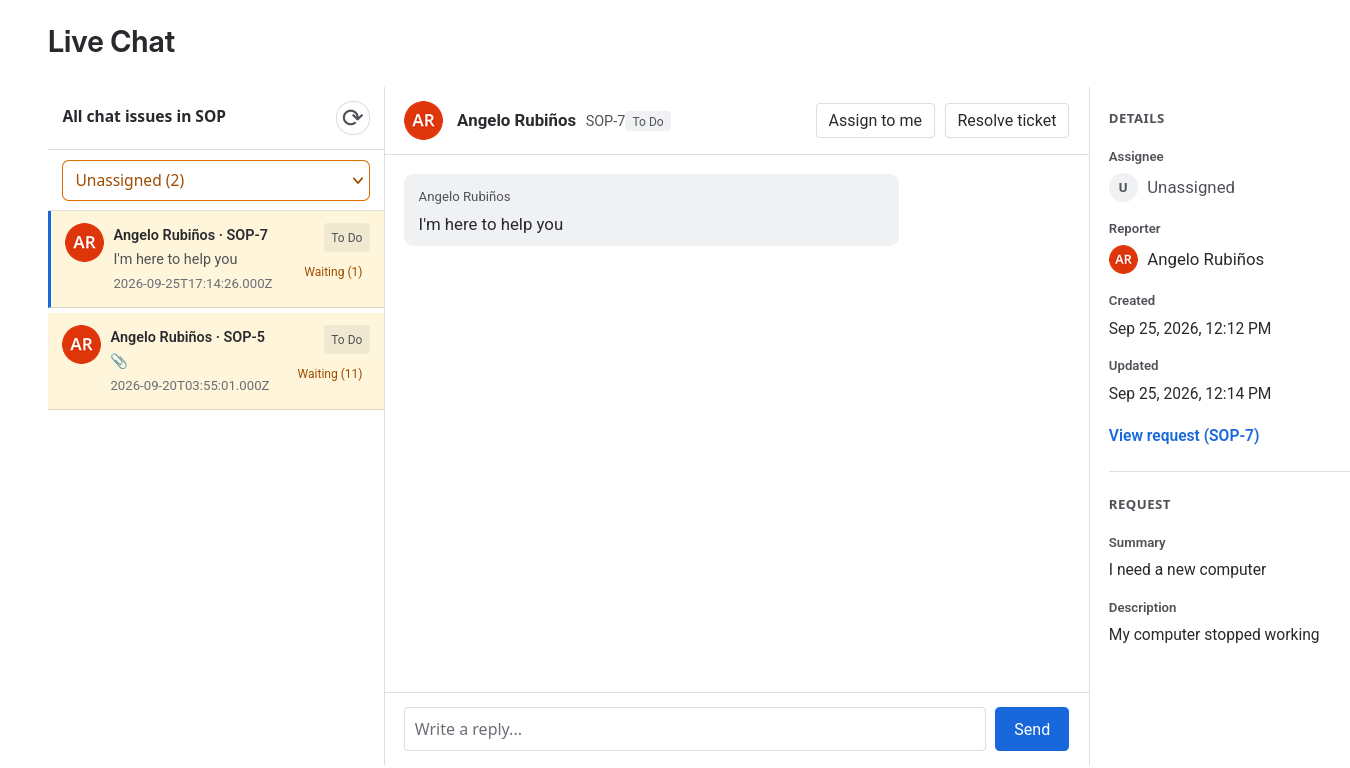
Agent tray: Authorized agents manage sessions from the project Live Chat page, with a three-column layout and queues to organize conversations.
-
Controlled inbox access: Administrators can restrict which users and groups can handle chats on each portal using authorization lists.
-
Single open conversation: Only one active conversation can exist per customer and portal. If the customer returns to the portal, the active chat is recovered from the server.
-
Automatic request creation: Each new chat automatically generates a JSM request, with messages stored as public comments on the request.
-
Auto-assignment: When an agent responds to or resolves a conversation from Jira, the request is automatically assigned to that agent.
-
Resolution with resolution: The agent can close the conversation by selecting a resolution and adding a transition comment.
-
Multilingual interface: The interface is available in English and Spanish, adapting to the language configured by the user in Jira.
Differences from Jira Live Chat (DC)
| Feature | Live Chat for JSM (Cloud) | Jira Live Chat (DC) |
|---|---|---|
| Platform | Atlassian Forge · JSM Cloud | Jira DC / JSM Data Center |
| Modules | jiraServiceManagement:portalHeader (Custom UI), jira:projectPage, jira:adminPage | Plugin Servlet + JS/CSS |
| Actions | Handled by the Forge app | Own REST servlet |
| WebSocket | No — uses polling | No — uses polling |
| Initial form | Available: request type fields per portal | Configurable with additional fields |
| Attachments | Available: up to 5 per message, with image previews | Supported |
| Satisfaction survey | Native JSM survey, can be required per portal | Native JSM survey |
This product is the Cloud equivalent of Jira Live Chat (DC). If you already use the Data Center version, check the differences before migrating.
Data model
- 1 chat = 1 JSM request: Each conversation creates or links to a request in the Service Desk associated with the portal.
- 1 message = 1 public comment: Chat messages are stored as public comments on the request.
- Label
jira-dc-live-chat: Requests created by the chat include this label for easy JQL searching.
Technical architecture
The app consists of three Forge modules:
| Module | Description |
|---|---|
| Widget / Launcher | Injected into the customer portal (jiraServiceManagement:portalHeader) via Custom UI. |
| Agent tray | Project page (jira:projectPage) showing queues and the conversation. |
| Administration panel | App page (jira:adminPage with useAsConfig) for portal configuration, accessed from Apps → Your apps. |
Next step: Installation Guide.