Secure Fortress Dashboard
The Jira Secure Fortress Dashboard is the unified control center for all your encrypted fields.
Accessing and Structuring the Dashboard
To access the dashboard:
- Go to the Jira Administration menu > Manage apps.
- In the left-hand sidebar, under the Secure Fortress section, click on Manage Settings.
This will take you to the main page of the add-on, which contains its own side navigation menu organized into two groups:
Configuration
- Fields: Manages the currently encrypted fields and their viewing permissions.
- Keys: Offers a key visualization panel of the encryption keys and their associated fields.
- Migration: Allows you to protect existing standard text fields or revoke the protection of encrypted fields. See Protecting Existing Fields.
System
- Logs: Displays the audit logs of all interactions.
Fields Section
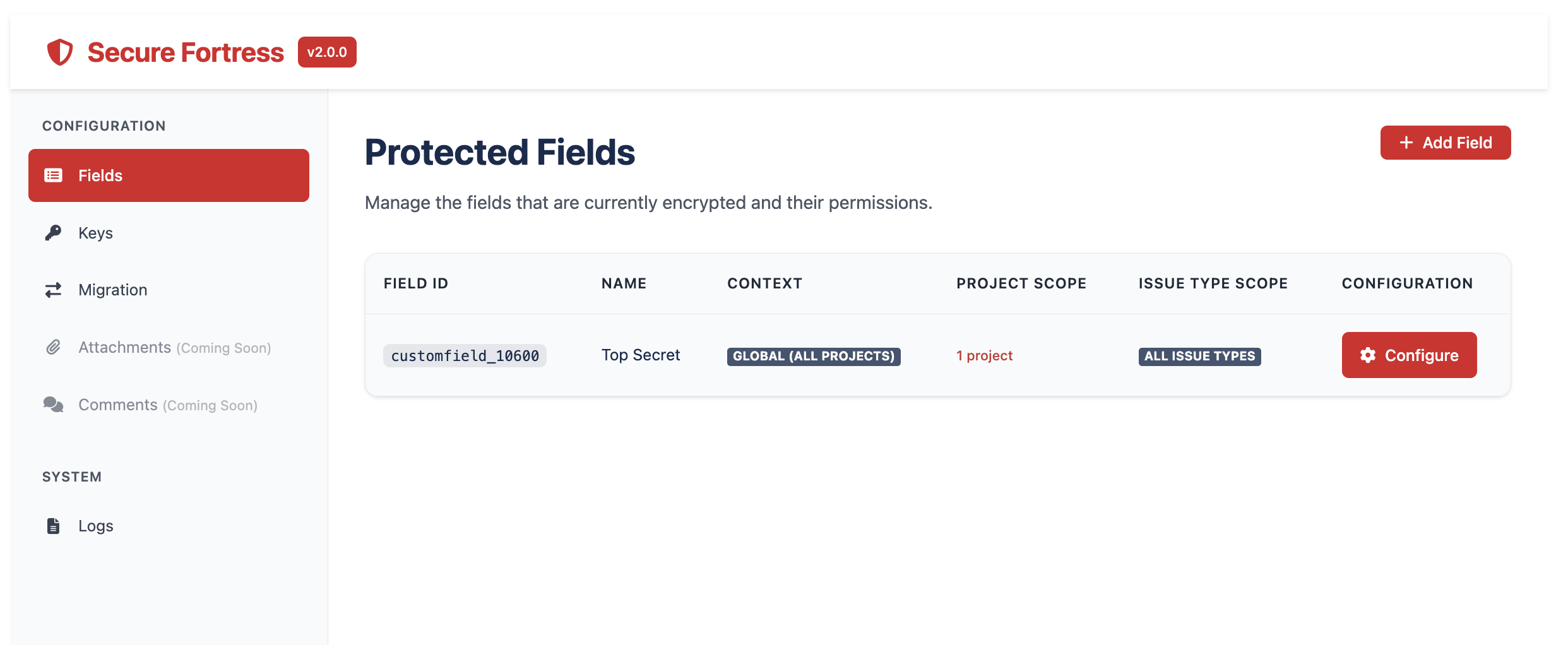
This is the default view when you enter the dashboard. It displays a list of all the "Encrypted Custom Fields" you have created in your Jira instance.
The table provides the following information and actions:
- Field ID: The unique identifier that Jira assigns to the field (e.g., customfield_10021).
- Name: The descriptive name of the field.
- Context: The Jira projects where the field is available.
- Configuration:
- Configure: Takes you to the field configuration page for that field, where you can define viewing permissions.
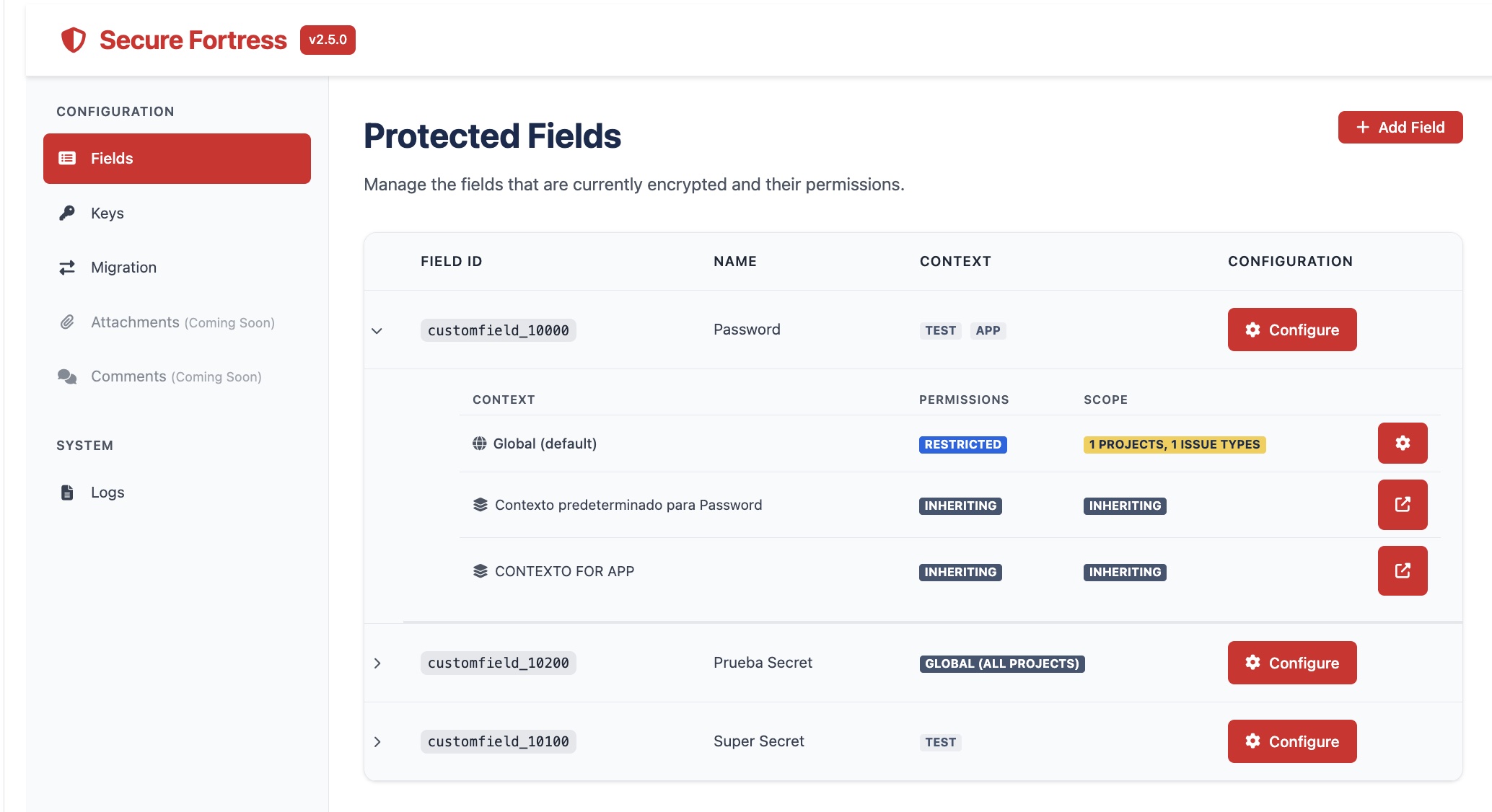
Per-field context view (new in 2.5.0)
Starting with version 2.5.0, each field in the list shows an expandable row that lists all its Jira contexts along with their configuration status. This lets you identify at a glance which contexts have custom configuration and which are inheriting the global settings — without leaving the dashboard.
When you expand a field, you will see one row per context with the following indicators:
- Global: The base configuration for the field. Still editable from the dashboard modal (behavior unchanged).
- Jira contexts: Each context shows two status badges:
- Permissions: indicates whether permissions are configured for this context or inheriting the global configuration.
- Scope: indicates whether the protection scope is configured for this context or inheriting the global configuration.
Context rows are read-only in the dashboard. To edit the configuration for a specific context, click the link shown in that row — it opens the field configuration screen directly at that context.
Key Visualization Panel
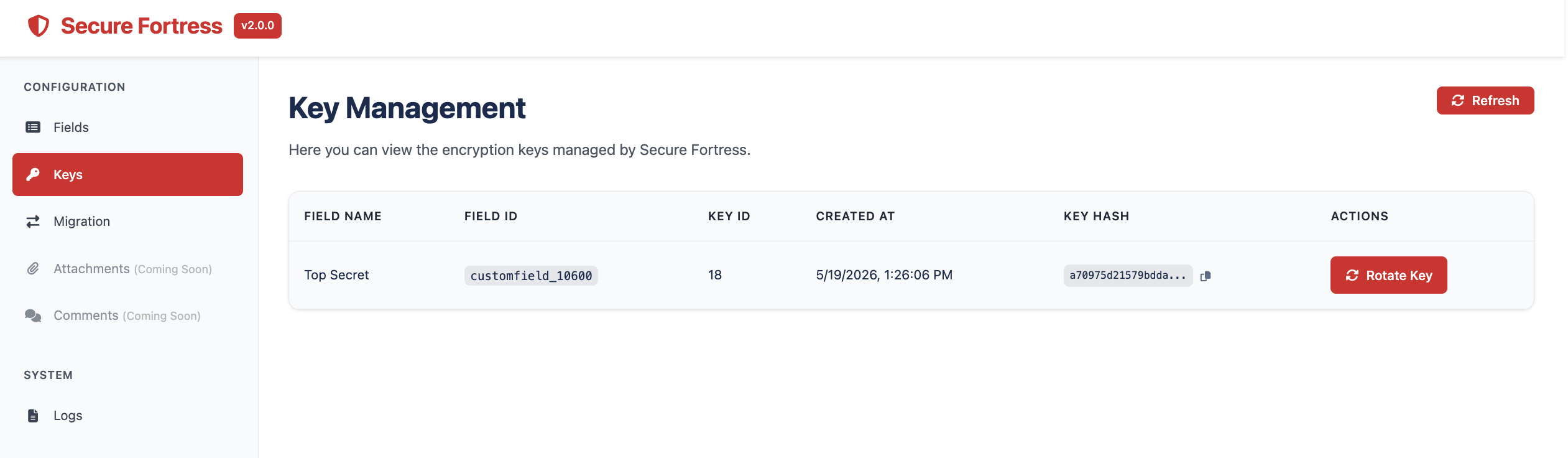
By selecting Keys in the dashboard's side menu, you will access a panel that provides a centralized view of all active encryption keys and their relationship with the custom fields. It is a key monitoring tool for Jira administrators.
The table displays:
- Field Name: The name of the custom field.
- Field ID: The ID of the custom field associated with that key.
- Creation Date: The date and time the key was created for the corresponding field.
- Key Hash: The encryption key generated for a field.
- Actions: Rotate key button to initiate key rotation for that field. The button is automatically disabled if a rotation is already in progress for that field.
For more information on how rotation works and how to interpret the progress panel, see Key Rotation.