Field Configuration
The configuration of each encrypted field allows you to precisely define who can view its content, either statically or dynamically.
Starting with version 2.3.0, you have two ways to access the configuration of a field:
- From the plugin administration panel: Navigate to the Secure Fortress Dashboard, locate the field in the Fields section, and click Configure.
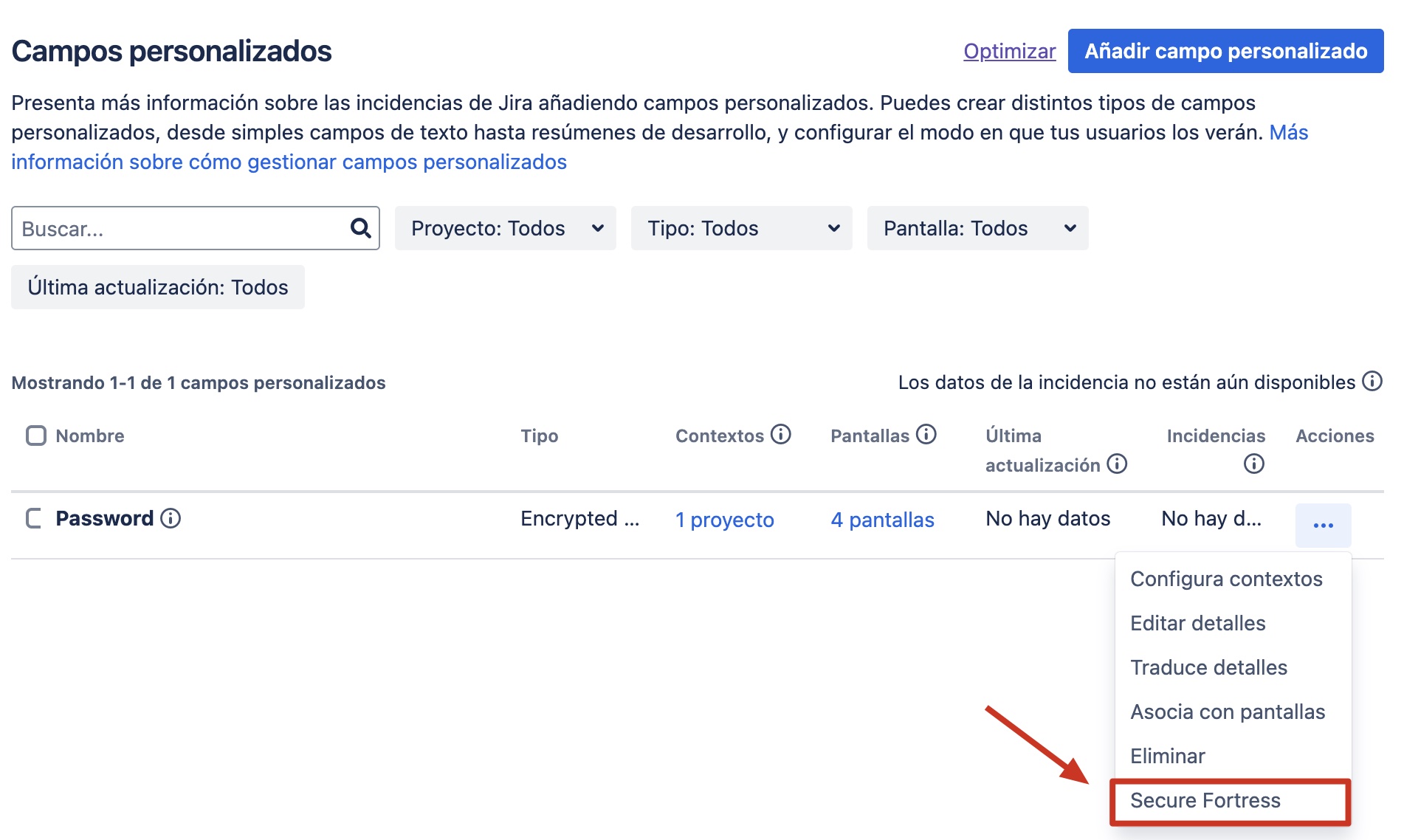
- From the native Custom Fields administration (new in 2.3.0): In Jira Admin → Custom Fields, open the ··· menu of the encrypted field and select Secure Fortress.
Regardless of which path you choose, changes made through one are reflected in the other, since both share the same configuration.
Native Access from Custom Fields
Starting with version 2.3.0, every encrypted field includes a Secure Fortress entry in the ··· menu on the Jira custom fields administration page. This lets you manage permissions and scope without leaving the native Jira workflow.
To access the field configuration from the native flow:
- Navigate to Jira Admin → Issues → Custom fields.
- Locate the encrypted field you want to configure.
- Click the ··· menu for the field and select Secure Fortress.
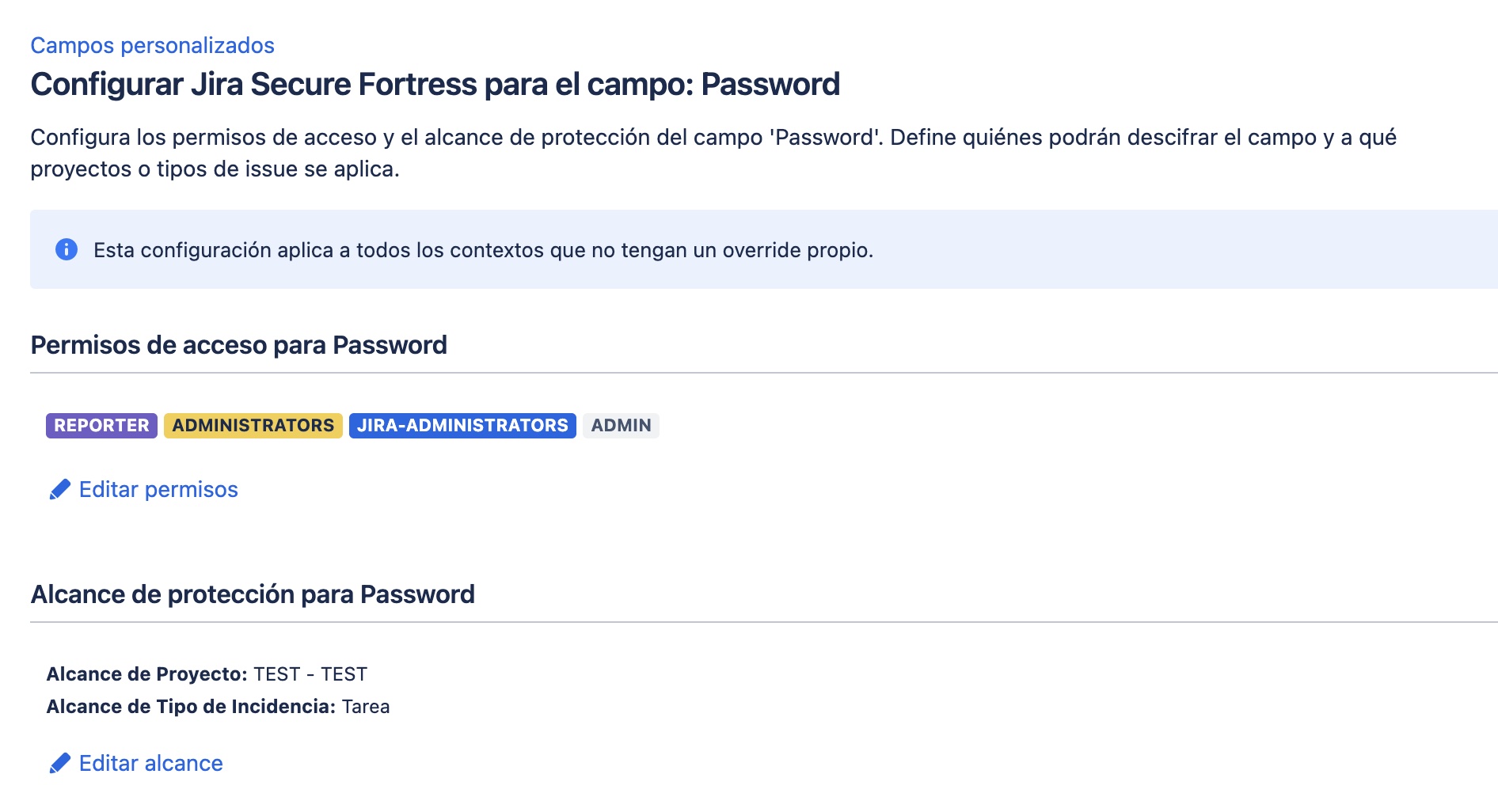
The field configuration page opens with two sections:
- Access permissions: view and edit the users, groups, issue roles (Reporter, Assignee, Creator, Watchers), and project roles authorized to decrypt the field.
- Protection scope: configure whether the protection applies globally, by project, or by issue type.
You can also reach the configuration page directly by navigating to /plugins/servlet/secure-fortress-field?customFieldId=customfield_XXXXX, replacing XXXXX with the numeric ID of the field.
In version 2.3.0, the configuration made on this page applies to all contexts of the field. Per-context configuration will be available in release 2.4.0.
The page itself displays an informational notice about this limitation.
Permission Types
Static Permissions (Groups and Users)
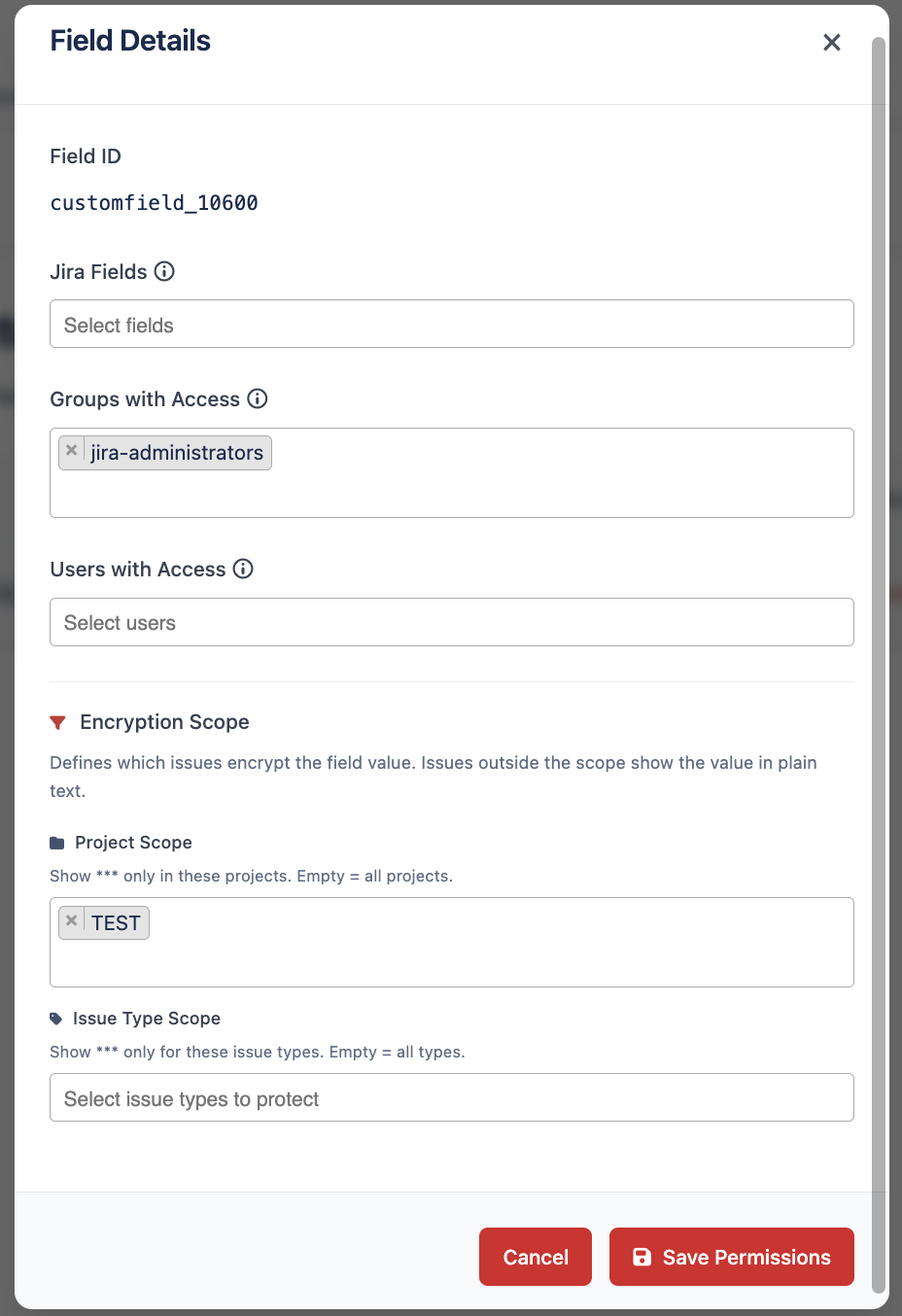
In the configuration window, you can directly assign viewing permissions to:
- Jira Groups: Select one or more groups. All their members will be able to see the field's value.
- Individual Users: Select one or more specific users to grant them access.
Dynamic Permissions (By Role in the Issue)
This functionality allows you to automatically grant viewing permissions based on the user's role within a specific issue. It is ideal for workflows where access to information depends on who is responsible for the issue.
- Grant permission to Assignee: If this option is selected, the user who is currently assigned to the issue will have permission to view the field's value.
- Grant permission to Reporter: If this option is selected, the user who created the issue (the reporter) will always be able to see the field's value.
Dynamic permissions are evaluated in real-time. If an issue is reassigned, the new assignee will gain access, and the previous one will lose it (unless they have permission through another means).
Protection Scope
When configuring an encrypted field, you can define the scope of the protection, meaning which part of your Jira instance the encryption will apply to. This allows you to protect only the issues that contain sensitive information and avoid unnecessary encryption in projects where it adds no value.
In the configuration window you will find three scope options:
- Global: The field is protected across the entire Jira instance. This is the default behavior and applies to any issue that uses this field.
- By project: Protection applies only to issues in the projects you select. In unselected projects, the field will not be processed by the add-on.
- By issue type: Protection applies only to issues of the selected issue types (e.g., Incident or Change Request).
When you choose By project or By issue type, a multi-select picker allows you to choose one or more items from the corresponding list.
The configured scope is clearly displayed in the administration panel, so you can quickly identify the coverage of each encrypted field.
Encryption and decryption are only applied to issues within the configured scope. Issues outside the scope are not processed by the add-on.
To save any changes to the configuration, click the Save Permissions button.
Any user who does not meet any of the permission rules (neither static nor dynamic) will not be able to see the field's content and will instead see the message [NO ACCESS], as explained in the user guide.
If you need to return this field to its original standard text state, you can revoke its protection from the Migration section of the Secure Fortress Dashboard. Please note that this action is irreversible and removes all configured permissions. See Protecting Existing Fields for details.