Required Fields on Transition Validator
The Required Fields on Transition validator blocks a workflow transition when one or more issue fields are empty at the moment of execution. It is useful when a workflow step requires a minimum set of information before moving forward (for example, "Resolved" without a recorded root cause, or "In Review" without an assignee).
Unlike marking a field as required globally, this validator lets you define which fields are required in each individual transition, without affecting other screens or other workflow steps.
When to use this validator
- Make sure an issue has a resolution comment before being closed.
- Require that the root cause, impact or action plan is filled in before moving to "In Analysis".
- Guarantee that an issue has an estimate or a due date before being moved to "In Progress".
- Enforce that the Assignee is set before taking an acceptance transition.
The validator does not add the fields to the transition screen and does not modify the rest of the workflow: it only checks that the fields are populated when the transition is executed. If you want the user to fill them in during the transition itself, make sure those fields are also included in the corresponding transition screen.
Add the validator to a transition
- Navigate to Jira Administration > Issues.
- In the left sidebar, under Workflows, click Workflows.
- Find the workflow you want to modify and click Edit.
- Select the transition you want to add the rule to and open the Validators tab.
- Click Add validator.
- From the list of available validators, select Required Fields on Transition and click Add.
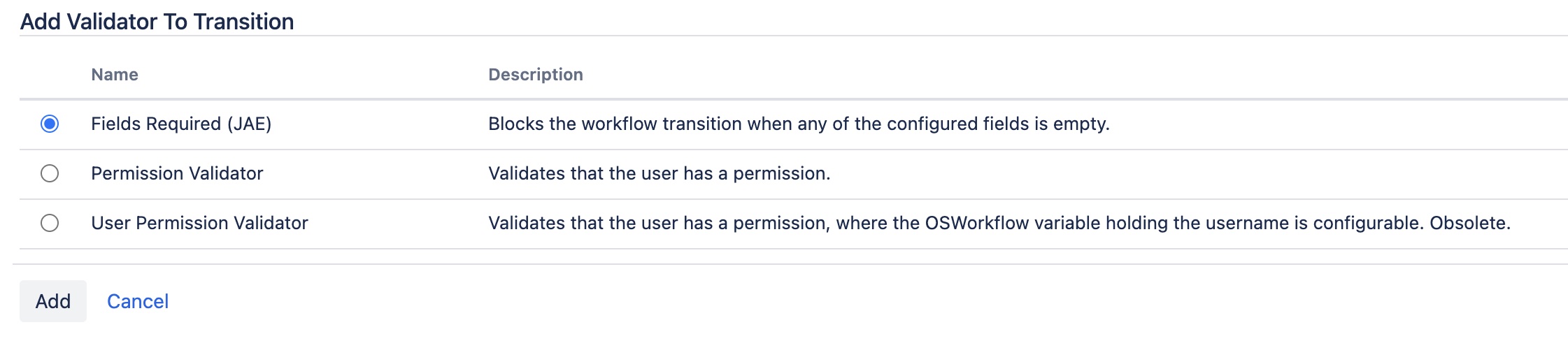
- Configure the required fields (see next section) and save.
- Publish the workflow so the changes take effect.
Configure the required fields
When you add or edit the validator, a form is displayed with the following elements:
- Required fields — Multi-select containing all custom and standard issue fields available in Jira. Check the fields that must be populated when the transition is executed.
- Custom error message (optional) — Text displayed to the user when one or more fields are empty. If left blank, the add-on's default message is used.
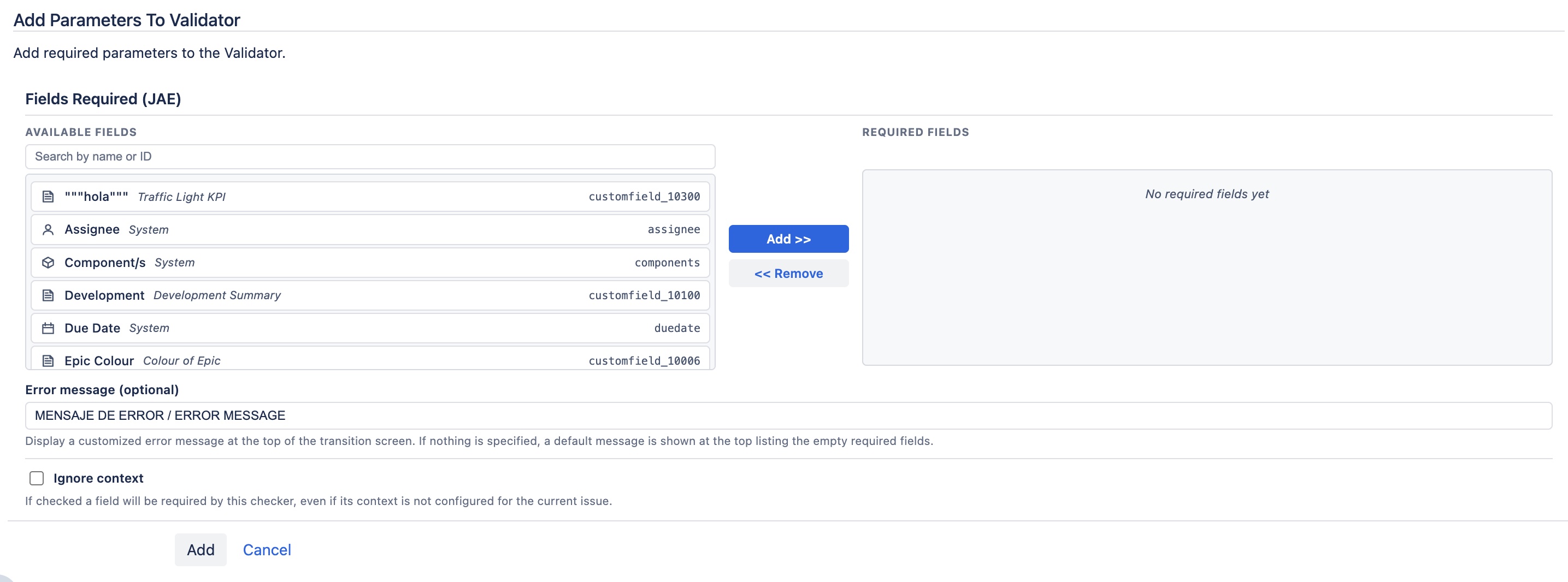
After saving, the selected fields will appear summarized in the transition's validator list. You can edit the validator at any time to add or remove fields.
Behavior at transition time
When a user attempts to execute the transition:
- If all required fields are populated, the transition runs normally.
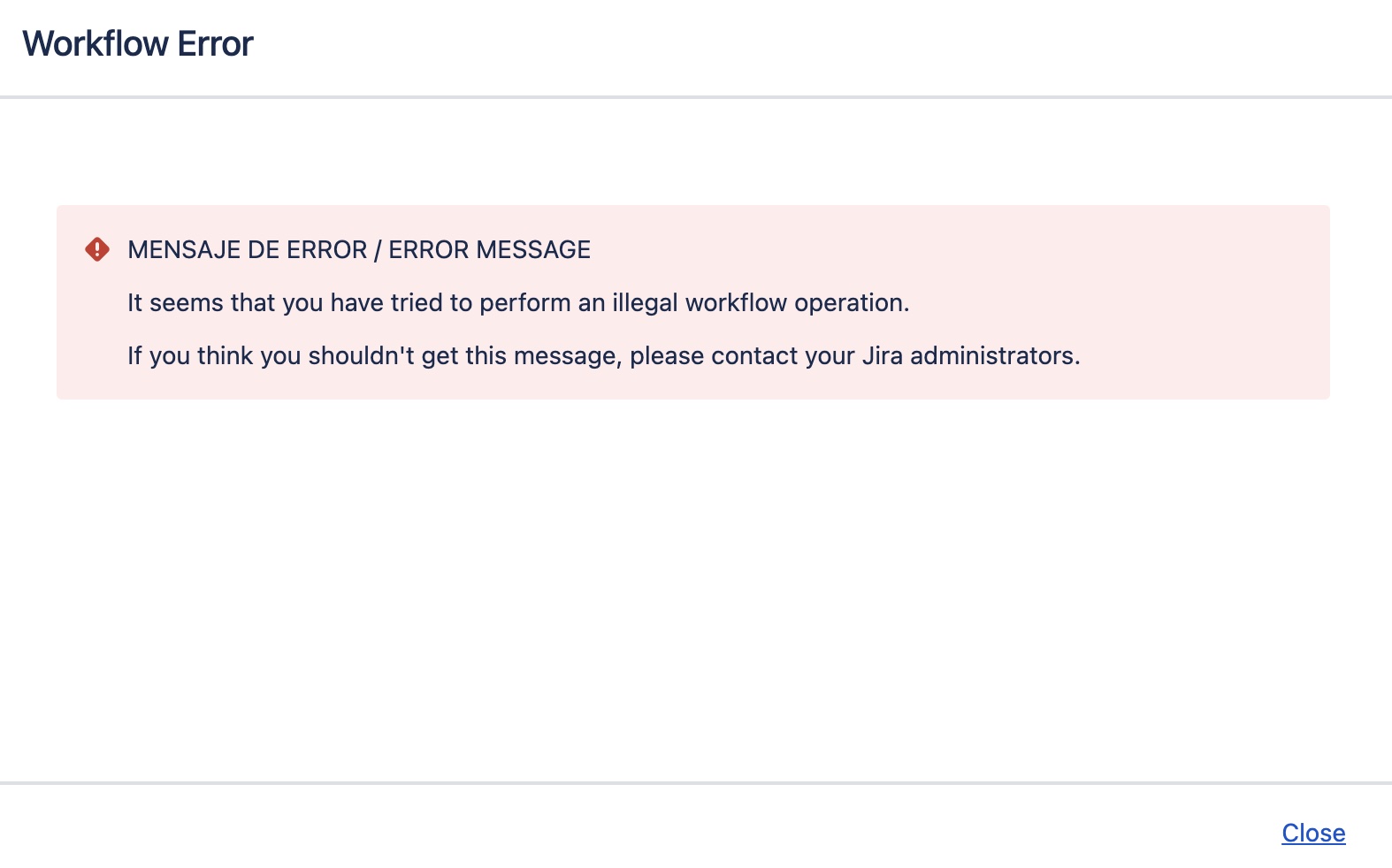
- If one or more fields are empty, the transition is aborted and Jira displays an error message clearly indicating which fields are missing. The issue stays in the previous state and no change is recorded.
Fields are considered "populated" when they contain a non-empty value according to Jira's standard rules (non-empty text, a number, a selected date, at least one user in a user-picker field, etc.).
For the best experience, we recommend attaching a screen to the transition that contains the required fields. This way the user sees the fields to fill in before confirming the transition, instead of discovering the error at the very end.
Example: closing an issue with resolution and comment
Consider the "Resolve" transition in a support project workflow. The team needs to make sure no issue is closed without a resolution and a closing comment.
- Edit the "Resolve" transition of the workflow.
- Add the Required Fields on Transition validator.
- Select the fields:
ResolutionComment
- (Optional) Enter the custom message: "To close this ticket, you must record a resolution and a comment explaining the closure."
- Save and publish the workflow.
From that point on, any attempt to execute the "Resolve" transition without those fields populated will be blocked with the configured message.
Errors and messages
- Default message: "The following fields are required to execute this transition: {list of fields}."
- Custom message: the text entered in the configuration, shown to the user as-is.
Messages are displayed in the user's active Jira language (English or Spanish) when the default text is used. If you set a custom message, it will always be shown exactly as you wrote it.
Internationalization (i18n)
All administrative texts of the validator (name, description in Jira's catalog, configuration form labels and default error messages) are internationalized and respect the Jira user's language, with English and Spanish support included.