Attachment Field
The Attachment Field (Adjuntos) custom field lets you attach one or more files to a specific issue field, such as Invoices, Evidence photos, or Supporting documents, independently of the other fields on the same issue. Each field stores its own list of files: different Attachment Fields on the same issue do not share files with each other.
Files uploaded to the field are stored as native Jira attachments. The field only stores the identifiers of the attachments that belong to it and shows a filtered view: only the files uploaded through that specific field, even though the issue's native Attachments panel still lists every attachment on the issue.
This section describes how to create the field, configure its limits per context, and understand its behavior.
Creating the Attachment Field
-
Go to Jira Administration > Issues.
-
In the left sidebar, under the Fields section, click Custom fields.
-
Click Add custom field in the upper-right corner.
-
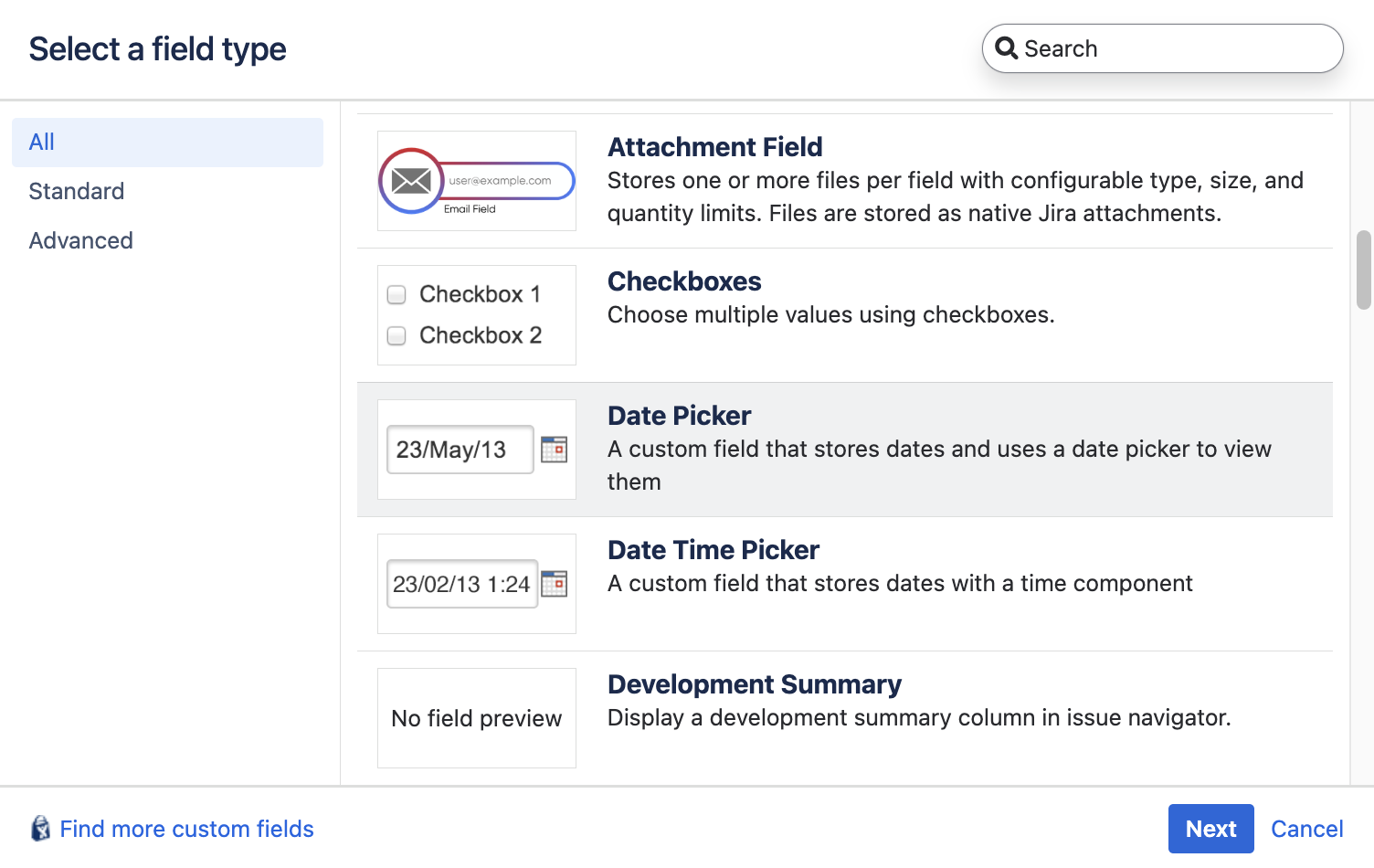
On the "Select a field type" screen, search for and select Attachment Field (Campo de Adjuntos). Click Next.
💡 You will recognize it by the name Attachment Field and by its description: "Stores one or more files per field with configurable type, size, and quantity limits. Files are stored as native Jira attachments." The type name is displayed in the user's language (English or Spanish).
-
Name and Description:
- Enter a Name for the field (for example, "Invoices", "Photo evidence", "Supporting documents").
- Add an optional Description. This text appears below the field to guide users.
-
Click Create.
-
Associate to screens: Jira will ask you to select the screens where the field will appear (issue create, edit, transition, and view). Check the relevant ones and click Update.
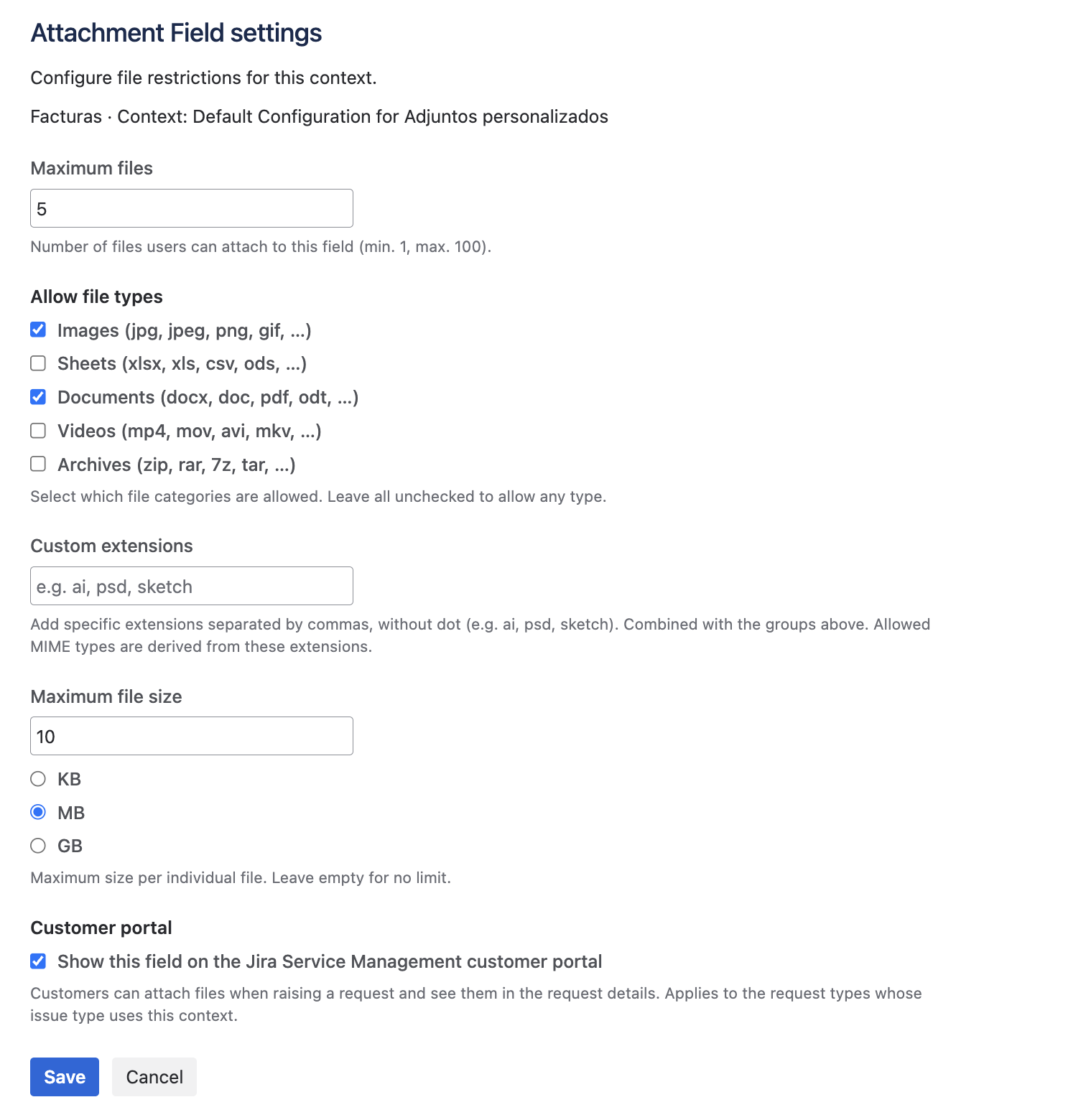
The field is now available on the configured screens. A newly created context starts with the default values: maximum 5 files, 10 MB per file, any file type, and not shown on the customer portal.
Context configuration
Attachment Field limits are always tied to the field's active configuration context (FieldConfigContext). This means you can define different rules per project or issue type, according to the contexts you have created on the field.
To configure a context:
- Go to Jira Administration > Issues > Custom fields.
- Locate the Attachment Field you created and click the actions icon (
⋯) > Configure. - On the field configuration page you will see the list of associated contexts. Each context shows an additional row named Attachment limits (Límites de adjuntos) provided by this add-on, with a summary of the current state (maximum files, allowed types, and size limit).
- Click Edit to the right of the Attachment limits row.
- In the Attachment Field settings form (Configuración del Campo de Adjuntos), adjust the parameters described below.
- Click Save.
Configuration parameters
| Parameter | Description | Default value |
|---|---|---|
| Maximum files | Number of files users can attach to this field. Accepts a whole number between 1 and 100. | 5 |
| Allow file types | Accepted file categories: Images, Sheets, Documents, Videos, and Archives. Several can be checked. If none is checked, any type is allowed. | None (any type) |
| Custom extensions | Additional allowed extensions, separated by commas and without a dot (for example ai, psd, sketch). They are added to the checked groups. Only letters and numbers are allowed. | Empty |
| Maximum file size | Maximum size per individual file, expressed in KB, MB, or GB. If left empty, there is no size limit. | 10 MB |
| Customer portal | Checkbox "Show this field on the Jira Service Management customer portal". Customers can attach files when raising a request and see them in the request details. Applies to request types whose issue type uses this context. | Disabled |
You can have several contexts for the same field, one per project or issue type, and apply different restrictions in each one. For example, the "Invoices" field may allow only PDF and spreadsheet files in the accounting projects context, and also images in the support projects context.
File type groups
Checking a group allows every extension it contains:
| Group | Extensions |
|---|---|
| Images | jpg, jpeg, png, gif, webp, svg, bmp, tiff, ico |
| Sheets | xlsx, xls, csv, ods, tsv |
| Documents | docx, doc, pdf, odt, rtf, txt, pptx, ppt |
| Videos | mp4, mov, avi, mkv, webm, flv |
| Archives | zip, rar, 7z, tar, gz, bz2 |
Configuration validation errors
The form validates the input before saving and shows specific messages when:
- Maximum files is not a whole number greater than 0 → "Please enter a whole number greater than 0."
- Maximum files exceeds the allowed cap → "The maximum number of files is 100."
- Custom extensions contain disallowed characters → "Extensions may only contain letters and numbers, separated by commas (e.g. ai, psd, sketch)."
- Maximum file size is not a number greater than 0 → "Please enter a size greater than 0."
Upload validation
Each file is validated the moment it is selected, with a clear message when it does not meet the context restrictions:
- Quantity: if the field has already reached the configured maximum, no more files are accepted until one is removed. Message: "Maximum number of files reached." / "Too many files. Maximum allowed: {0}."
- Type: validation is by extension. In addition, if the browser reports a real MIME type (other than empty or
application/octet-stream), it must also match the allowed extension. Message: "{0} has an invalid file type. Allowed: {1}." - Size: the file cannot exceed the configured maximum size. Message: "{0} exceeds the maximum file size of {1}."
The file picker always shows the context's current limits: "Max {0} file(s)", "Types: {0}", and "Max {0} per file".
While files are uploading ("Uploading…"), Jira blocks saving or creating the issue and shows the notice "Wait until the files finish uploading before saving or creating the issue.". This ensures every file is correctly associated with the field.
Available surfaces
The Attachment Field is available on the following Jira surfaces:
- Issue view: each file is shown as a card (see the Card view section).
- Create screen: allows attaching files while creating the issue.
- Edit screen: allows adding, previewing, downloading, or removing files on existing issues.
- Transition screen: allows attaching files during a workflow transition.
- Jira Service Management (JSM) portal: optional. If JSM is installed, the field is enabled for the portal in the corresponding context and the request type uses that context, customers can attach files when raising a request and see them in the request details. The card view is the same as in the agent view.
The add-on does not require JSM. On an instance without Jira Service Management, the field works as usual on the issue view, create, edit, and transition screens; the only difference is that there is no customer portal to display it on.
Uploading while the issue is being created
When creating an issue or in the JSM portal, there is no issue yet to attach the files to. The upload still completes: the user waits for it to finish before saving or submitting the request, and the files are associated with the field as soon as the issue is created.
Card view
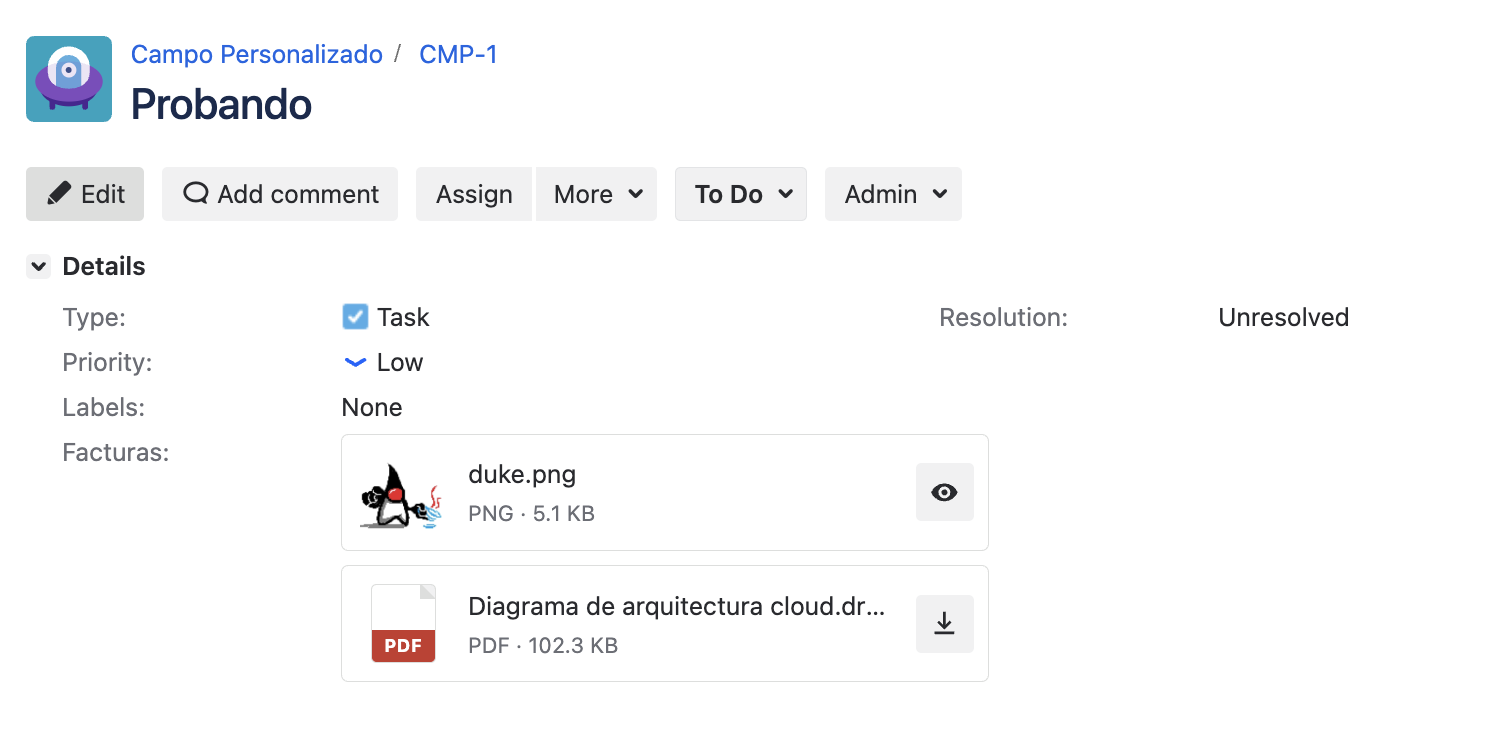
Each file is represented as an independent card, with:
- A thumbnail for supported raster images (
jpg,jpeg,png,gif,webp,bmp), or a type icon with the extension (for examplePDF,DOCX) for other formats. A maximum of 5 thumbnails are shown per field; beyond that, cards use the type icon. - The file's original name and a line with type · size (for example
PDF · 1.4 MB). - A preview icon (eye) when the file can be previewed, or a download icon when it cannot. These are text-less controls with a tooltip on hover.
When the field has several files, the cards are shown stacked. Formats that cannot be safely previewed (SVG, TIFF, PDF, Office documents) always use the type icon.
Preview rules
| Format | Preview | Download |
|---|---|---|
Raster images: jpg, jpeg, png, gif, webp, bmp | ✅ | ✅ |
Text: txt, csv, tsv, md, json, xml, log | ✅ | ✅ |
PDF, Office documents, svg, tiff, ico, and others | ❌ | ✅ |
- Files larger than 8 MB are not previewed; they can only be downloaded.
- In text previews, content is truncated to 20,000 characters.
- The preview opens in a built-in viewer ("Loading preview…"), without downloading the file.
Storage: native Jira attachments
Every file uploaded through the field is created as a native attachment on the issue. The field does not store the binaries: it only stores the identifiers of the attachments that belong to it, and the preview and download are served directly from those native attachments.
| Aspect | Attachment Field (Admin Essentials) | Native Attachments panel |
|---|---|---|
| What it shows | Only the files uploaded through that specific field | All attachments on the issue, no matter where they came from |
| Upload restrictions | Configurable per context (quantity, type, and size) | No per-field restrictions |
| Independence | Each field keeps its own list | A single panel with every attachment on the issue |
| When removing a file | Permanently deletes the native attachment | Permanently deletes the attachment |
| When uninstalling the add-on | Files remain on the issue | Not applicable |
The issue's Attachments panel lists all attachments, including those added through this field and those added manually. If you need to know which files belong to a specific field, check the field itself: it only shows its own.
Search support (searcher) and JQL
The Attachment Field is registered with a searcher that allows filtering by presence or absence of files using the is EMPTY and is not EMPTY operators:
"Invoices" is not EMPTY
"Photo evidence" is EMPTY
where Invoices is the name you assigned to the field when creating it.
attachments is not EMPTY evaluates the issue's native Attachments panel as a whole and now does detect files uploaded through the field (because they are native attachments), in addition to any other attachment on the issue. It does not identify which field each file comes from: for that, keep using the field name.
It is not possible to search by the name, extension, or type of a specific file using JQL, neither on the field nor on the native panel. You can only filter by the presence or absence of files.
Internationalization (i18n)
All Attachment Field interface texts (the field type name, per-context configuration, validation messages, card view, preview, download, and remove) are internationalized and respect the Jira user's language, with English and Spanish support included in the package.