Using the Attachment Field
This guide describes how to work with an Attachment Field custom field already configured by your administrator. If you cannot see the field on your work item screens, contact your Jira administrator — the field may only need to be added to the appropriate screen.
As of version 1.8.0, files you upload through the field are stored as native attachments of the work item (previously they lived in storage of the app's own). For you as a user, the way you upload, view, download, and delete files does not change.
Upload files to the field
When the Attachment Field is part of the Create, Edit, or Transition screen of a work item — or of the JSM portal request form — it appears as a file upload area.
- Open the create, edit, or transition form for the work item.
- Locate the Attachment Field (the exact name is defined by your administrator, for example "Invoices", "PQR Evidence").
- Click Upload file or drag and drop files directly onto the field.
- Save your changes.
You can upload several files at once, up to the maximum your administrator configured for the field. If the files do not meet the configured restrictions (type, size, or count), the field will show an error message before allowing you to save.
Possible error messages
- Maximum file count reached: The field already holds the maximum allowed number of files. Delete an existing file to be able to upload a new one.
- File type not allowed: The file does not belong to any of the categories or extensions configured for this field.
- File too large: The file exceeds the maximum size per file configured for this field.
If you receive any of these messages, verify the type and size of the file you are trying to upload, or contact your administrator for the current limits.
Transitions that require a number of files
Your administrator can require a minimum or maximum number of files in the field to run a transition (for example, "at least 2 pieces of evidence to approve"). If the field has fewer or more files than allowed, Jira rejects the transition with a message that names the field, for example: "Evidence needs at least 2 file(s); it has 1."
Add or remove files in the field and try again. If the transition has a screen with the field, the files you add on that screen already count.
View files on the work item
Once saved, each file appears inside the field as a card, with:
- A thumbnail of the file (JPG, PNG, GIF, WEBP images) or a type icon (PDF, Word, Excel, and other documents).
- The original filename and a line with its type and size.
- A single icon: preview (eye) if a preview is available, or download if it is not. These are icon-only controls: hover over one to see its tooltip.
When the field holds several files, the cards are shown stacked, one below the other. This view is the same on both the agent/issue view and the Jira Service Management portal.
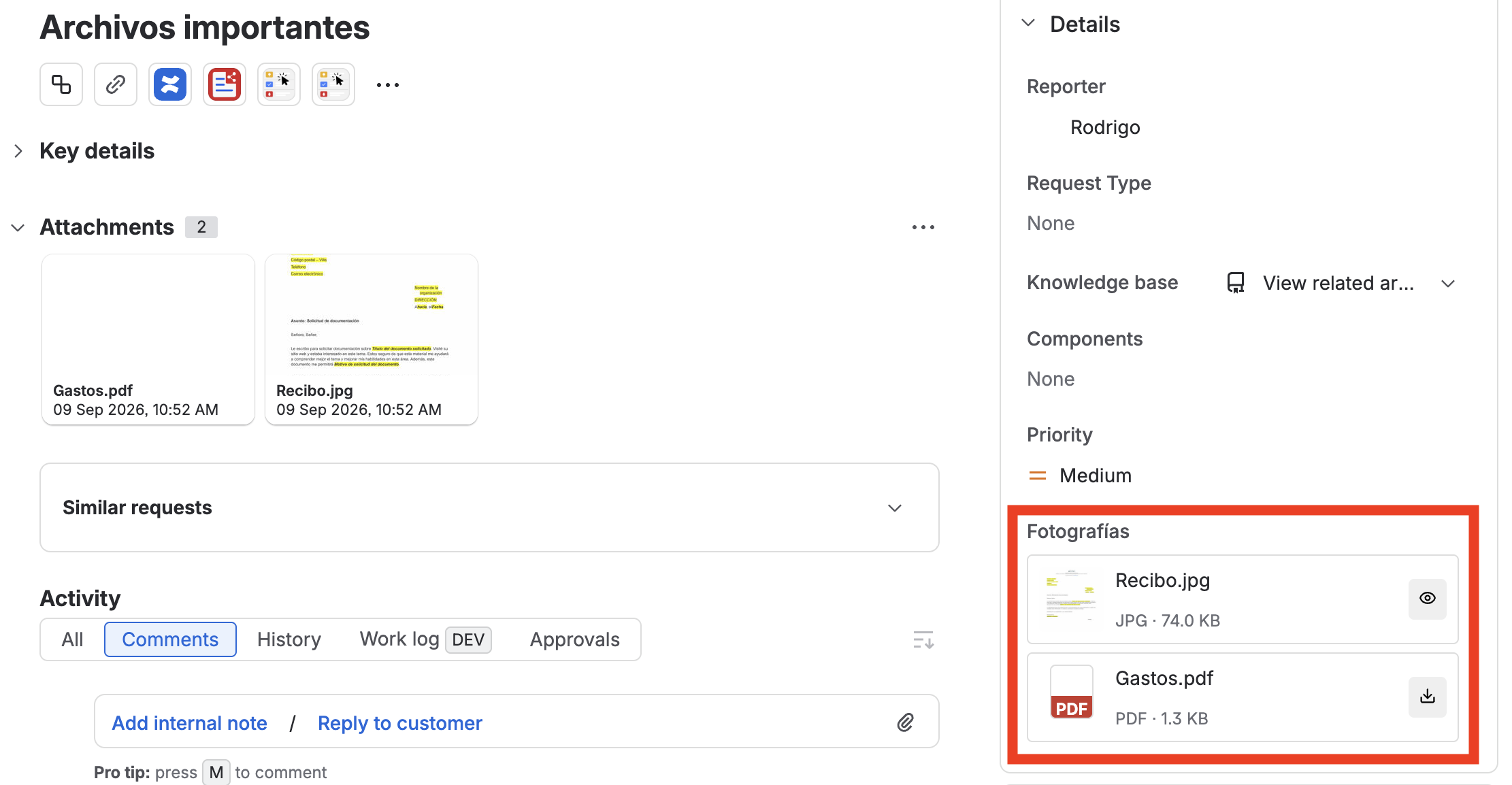
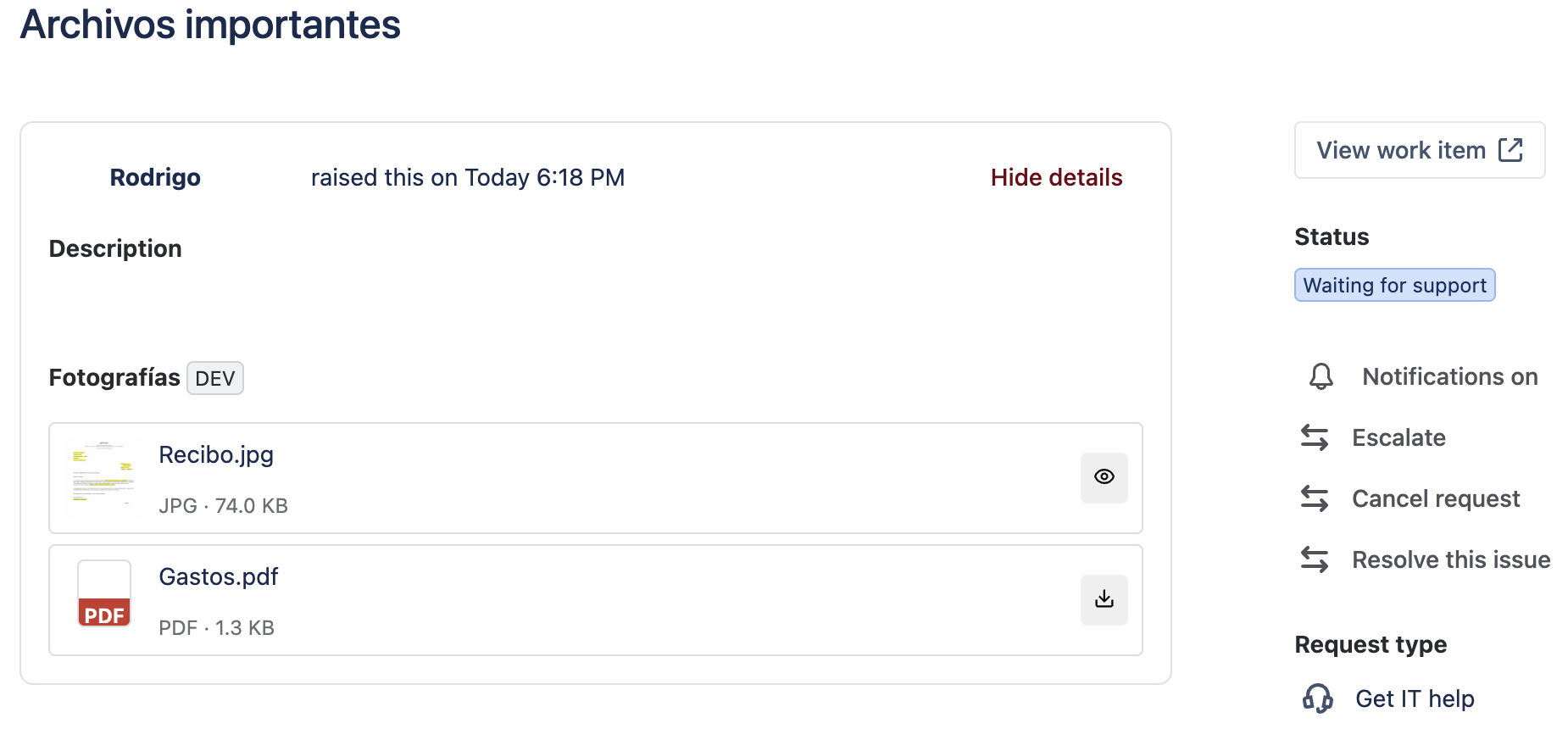
Each field manages its own files independently. If the work item has multiple Attachment Fields (for example, "Invoices" and "Photographs"), the files in each field are independent and are not mixed between them.
View a file
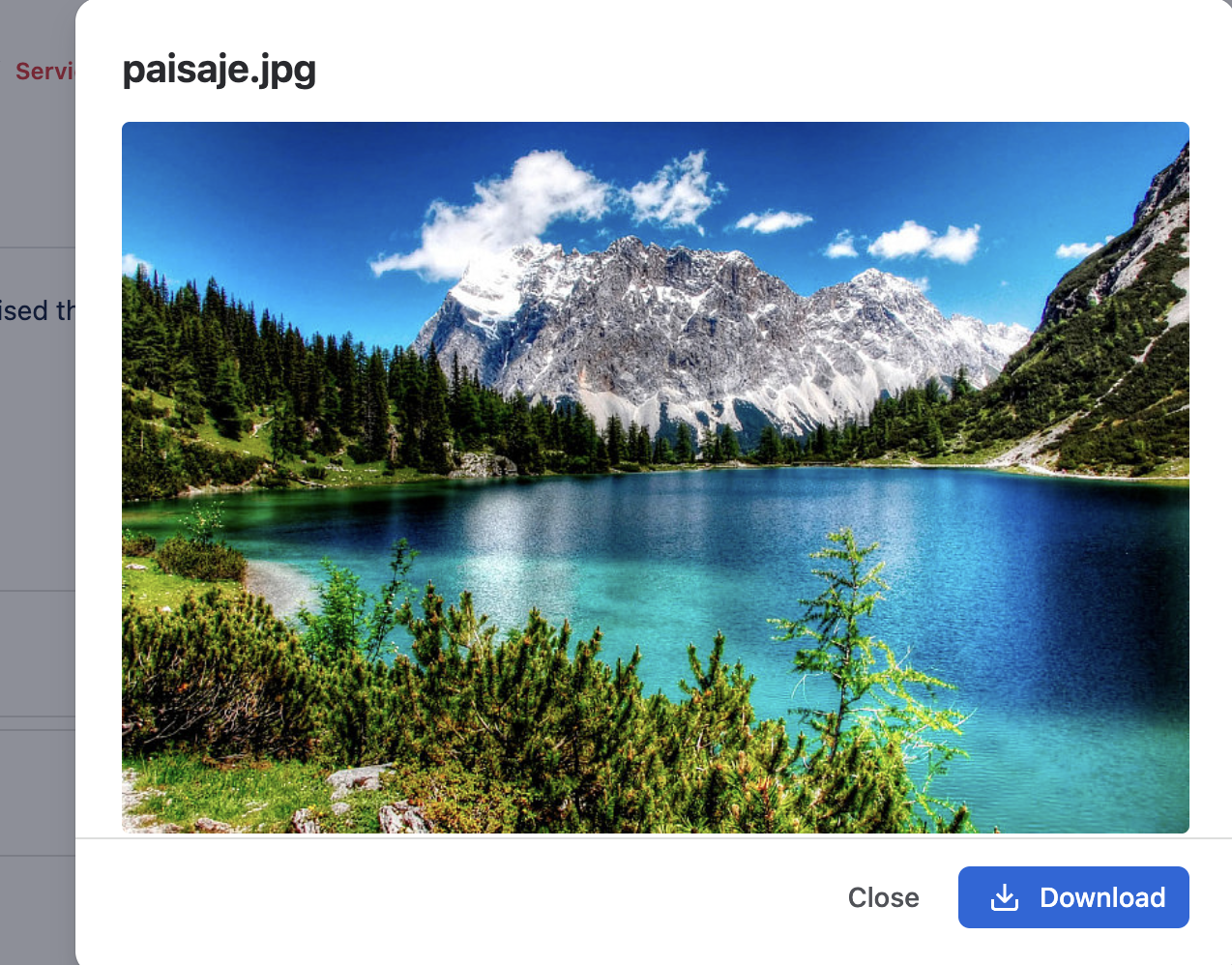
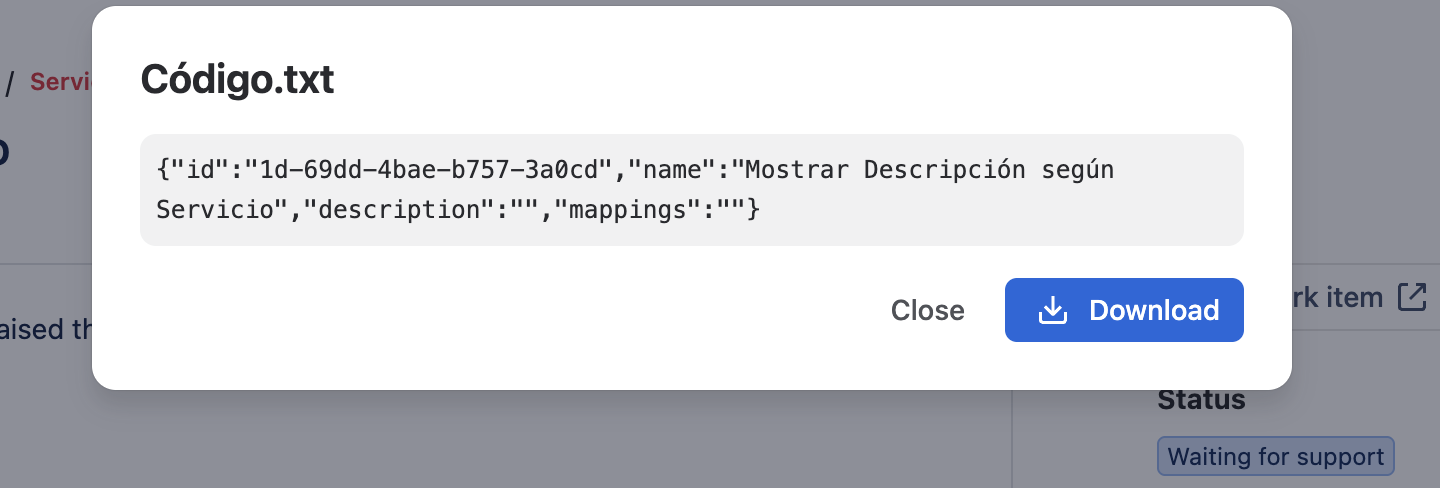
From the work item view or the JSM portal, click the preview icon (eye) on the file's card. A window opens with the file's content and two buttons:
- Download: saves the file with its original filename.
- Close: closes the preview.
Images (JPG, PNG, GIF, WEBP, BMP) and text files (TXT, CSV, JSON, XML, and similar) have a preview. Other formats (PDF, Word, Excel, SVG, TIFF…) don't open the preview: their card shows the download icon directly.
Download a file
There are two ways to download a file from the work item view or the JSM portal:
- If the card shows the download icon, click it.
- If the card shows the preview icon (eye), open the preview and click Download.
Either way, the file downloads with its original filename. On the edit screen, each file shows the preview and download icons side by side.
Delete a file
Open the work item in edit (or the create / transition screen, if the field is on that screen) and use the delete control on the card of the file you want to remove. You will be asked to confirm before proceeding.
Deleting a file from the field permanently deletes the corresponding native attachment (or, if the file predates version 1.8.0, the object in the app's own storage). Either way, it cannot be recovered once deleted.
Independence between fields and between parent and child work items
Files in an Attachment Field are specific to that field on that particular work item:
- Different fields on the same work item store files separately, even though as of version 1.8.0 both save their new attachments as native attachments of the same work item.
- A parent work item's field does not include the files from its subtasks, and vice versa.
This independence holds because the field only shows the files whose identifier it has stored — not everything on the work item's native Attachments panel. For example, a parent work item's invoices do not appear in associated subtasks.
Differences from Jira's native attachments
As of version 1.8.0, the Attachment Field is a filtered view over the work item's native attachments: new files you upload through the field are stored as native attachments and also appear in the Attachments panel. The difference is what each place shows and how you search:
| Aspect | Attachment Field (Admin Essentials) | Native Attachments panel |
|---|---|---|
| What it shows | Only the files uploaded through that specific field | Every attachment on the work item, wherever it came from |
| JQL | "Field name" is not EMPTY / is EMPTY | attachments is not EMPTY |
| Upload restrictions | Configurable by administrator (type, size, count) | No per-field restrictions |
| Independence | Each field is independent | A single panel with every attachment on the issue |
To find work items that have files in a specific Attachment Field using JQL, use the field name:
"Invoices" is not EMPTY
attachments is not EMPTY does detect files uploaded through the field (because they are now native attachments), but does not let you tell which field they came from.
If your work item has files uploaded before version 1.8.0, those files still live in the app's own storage (they are not migrated automatically) and do not appear in the native Attachments panel or in attachments is not EMPTY, even though the field still shows them normally as a card.