Phone Number Custom Field
The Phone Number Field custom field stores a single phone number per work item, validates the format on save, and renders it on the issue view as a clickable tel: link. It fits use cases such as service-desk requester records, customer profiles, contact details for sales prospects, and any other workflow where a number captured today should be one tap away from a call tomorrow.
Create the Phone field
-
In Jira, click the Settings (gear) icon in the top-right corner.
-
Select Issues.
-
In the left sidebar, under Fields, click Custom fields.
-
Click Create custom field in the top-right corner.
-
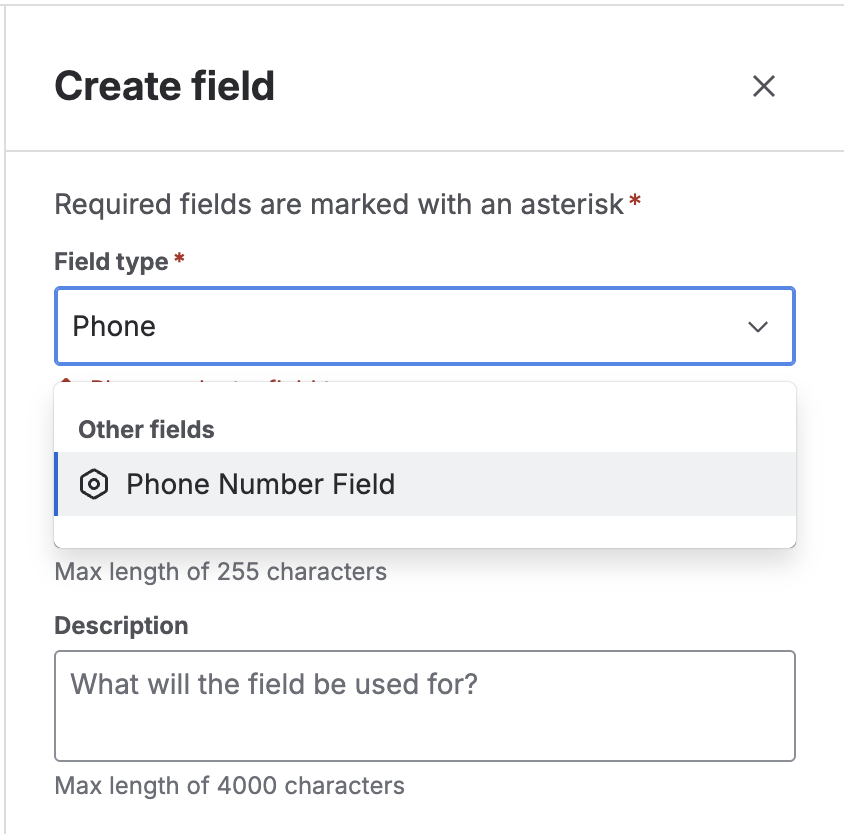
On the "Select a field type" screen, find and pick Phone Number Field. Click Next.
💡 You'll recognize it by its description: "Stores a single phone number." and the phone icon.
-
Name and description:
- Enter a Name (e.g. "Requester phone", "Sales contact").
- Add an optional Description.
-
Click Create.
-
Associate to screens: Pick the relevant screens (create, edit, transition, view) and click Update.
The field is now ready to be captured on issues.
Accepted formats
The add-on validates each number on the client (as the user types) and on the server (on save) with the same pattern, so an invalid number cannot slip through the REST API.
The following formats are accepted:
- International (E.164):
+51999888777,+1 800 555 0100. - Local with separators:
999-888-777,(01) 234-5678. - Reasonable mix of spaces, dots, dashes, and parentheses around the digits.
Constraints:
- Total length between 7 and 25 characters (including the optional leading
+and the dial code). - Only digits and the visual separators
+, space,.,-,(,). - The first meaningful character must be a digit or
+(no letters, no symbols like&or#).
As of version 3.1.0, the field stores numbers in the format +<dialCode> <localNumber>, for example +51 943 824 375. Older values (without a dial code) are automatically completed with the context country when the issue is edited.
The add-on checks that the value is a reasonable phone number (length, allowed characters, first character), but does not perform per-country verification: a number with code +51 is not checked against Peru's specific length rules. This is a deliberate design decision to maximise flexibility and minimise false negatives.
If the value fails any rule, Jira shows "The value is not a valid phone number." and refuses to save.
Because final validation runs as a Jira expression on the server, it also applies when an issue is created or edited via the Jira Cloud REST API or external integrations. Invalid numbers cannot bypass browser-side validation by going through a different door.
Capture with the country selector
As of version 3.1.0, the Phone field edit UI presents a structured inline layout with two parts:
- Country selector (searchable dropdown): lists ~250 countries per ISO 3166-1, showing the flag, country name, and dial code (
+51,+1, etc.). The user can type in the dropdown to filter by country name or code. - Local number field (free text): the user types only the local part of the number, without needing to prefix the country code.
The add-on combines both parts on save: +<dialCode> <localNumber>.
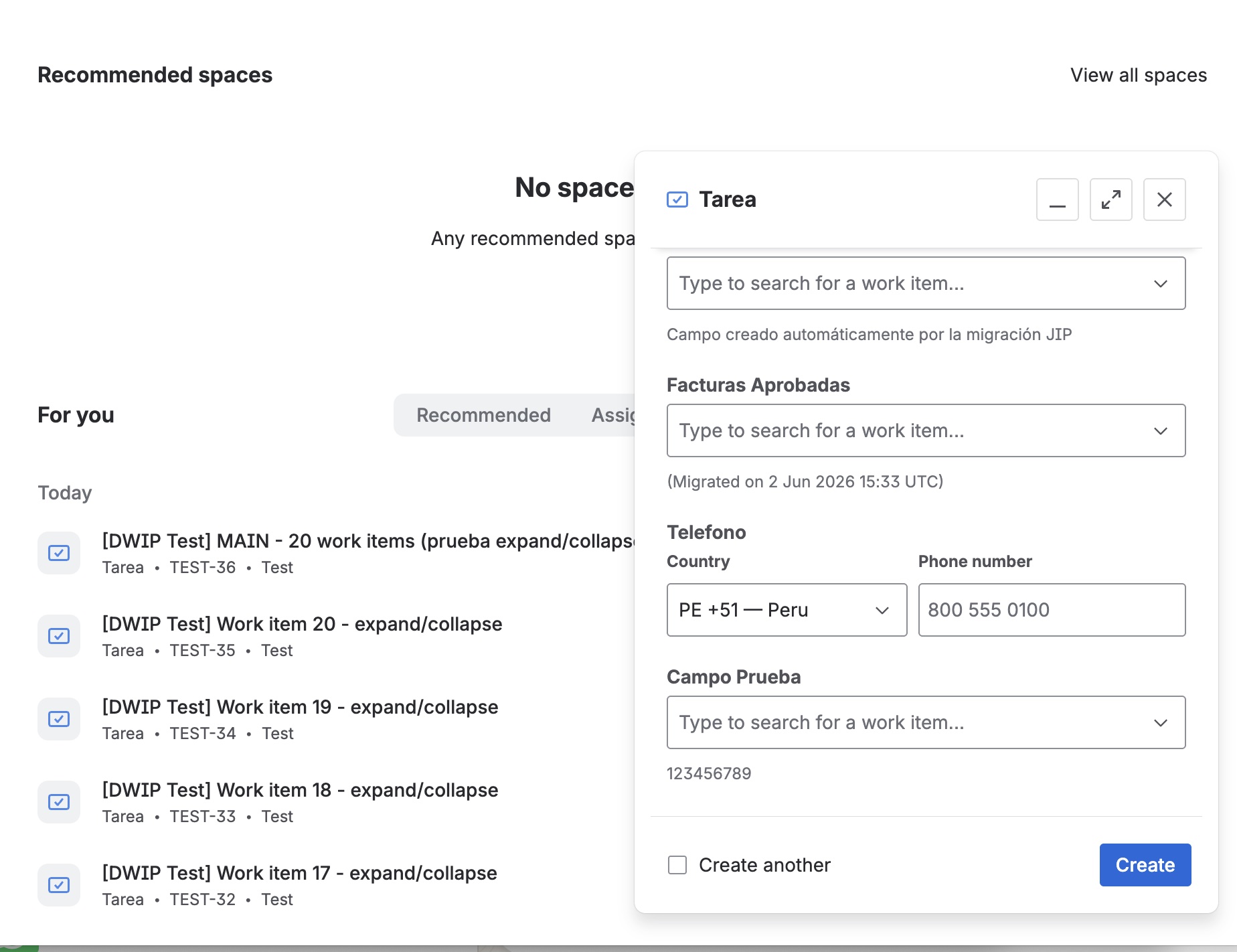
When opening the create screen with an empty field, the selector is pre-populated with the country configured in the field context (see "Configure the default country per context"). When editing a saved number, the add-on automatically splits it into country and local number using phoneParser.js. If the saved value has no dial code (values from before v3.1.0), it is completed with the context country. If no country is configured in the context, the system falls back to PE (Peru).
Entry on the create screen
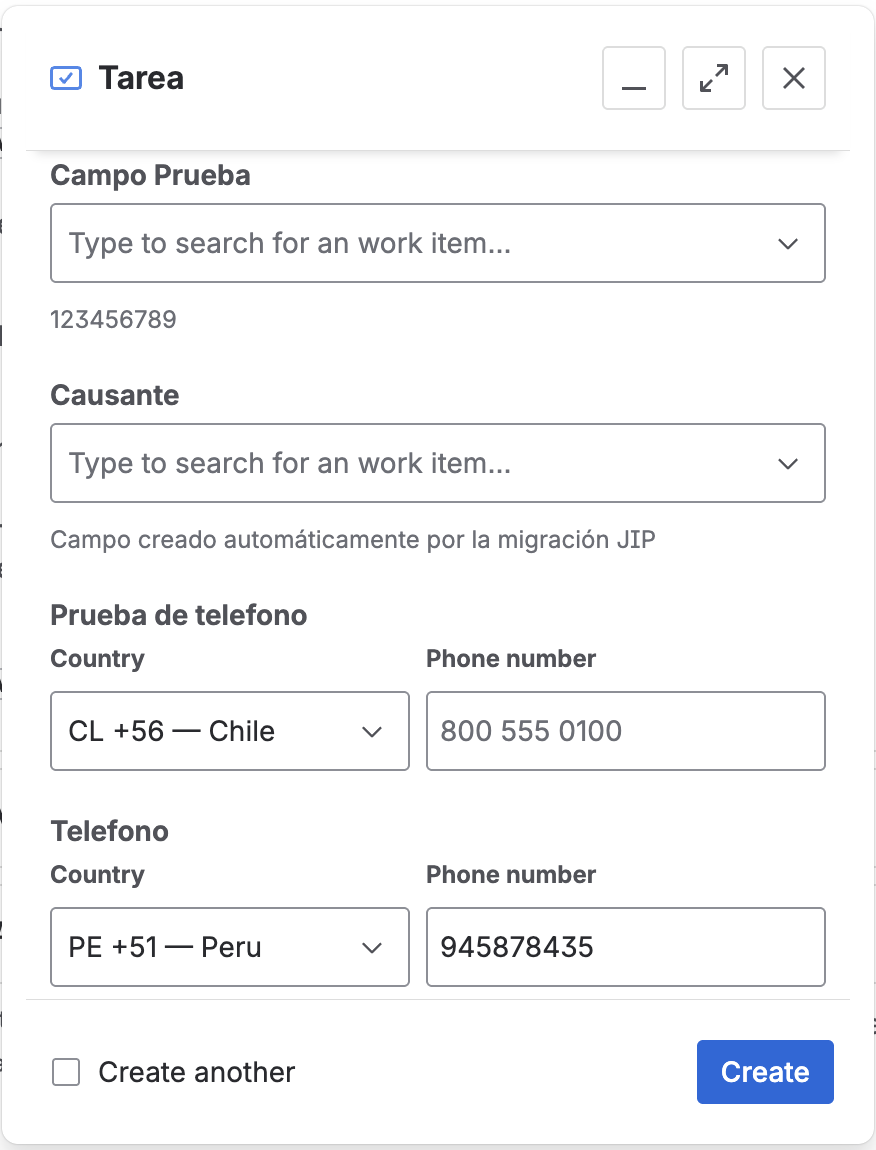
In the Create issue dialog, the field appears with the new structured UI: the country selector pre-populated from the context configuration and the local number field ready to type in. The user just needs to confirm the country (or change it if needed) and type the local number. The add-on validates the format after a brief pause; if the value is invalid an error message appears below the field and the Create button blocks the submit until it is corrected.
Configure the default country per context
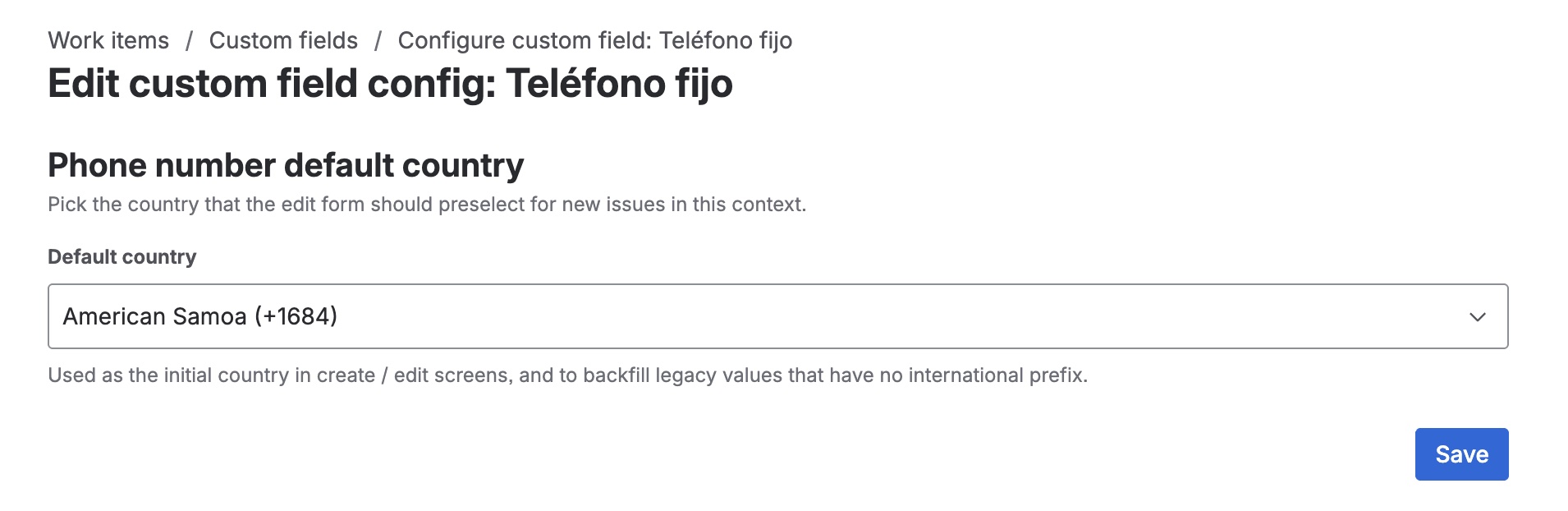
Administrators can set the default country that appears pre-selected in the dropdown for each field context. This is especially useful when different projects or issue types operate in different countries.
To configure the default country for a context:
- In Jira, click the Settings (gear) icon in the top-right corner.
- In the sidebar, under the Work items section, click Custom fields.
- Find the Phone Number Field you want to configure and click Configure.
- On the "Configure custom field" screen, select the context you want to configure.
- In the Default country field, select the desired country (for example,
PEfor Peru,GBfor United Kingdom,MXfor Mexico). - Click Save.
You can have multiple contexts for the same field, each associated with a different set of projects or issue types, and set a different country in each one. For example, the "Requester phone" field can use PE in the Latin America context and GB in the UK context.
If a context has no configured country, the selector will use PE (Peru) as a fallback. Always configure the country for all active contexts to avoid an incorrect pre-selection for your users.
Rendering on the issue view
Once saved, the number appears on the issue view next to a mobile icon, rendered as a clickable tel: link. The display format is:
📱 PE +51 943 824 375
This shows the country code (ISO), the dial code, and the local number. Clicking it opens the user's default phone app (the system dialer on mobile devices; FaceTime, Teams, Skype, etc. on desktops where one is configured).
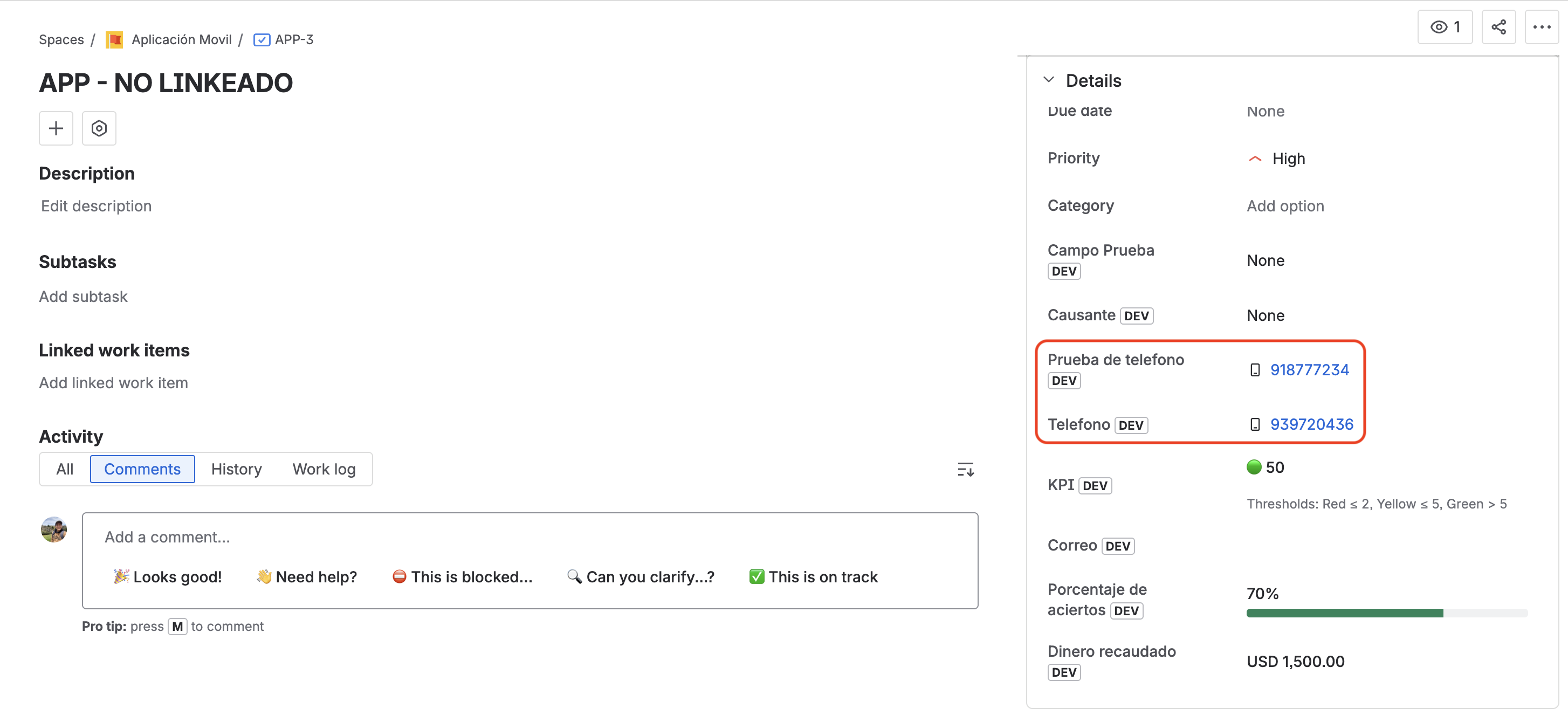
The link only contains digits (plus an optional leading +): visual separators are stripped when building the href, so the dialer doesn't try to dial them. The number the user sees keeps the separators as they were typed.
Search and JQL support
The field is registered with type: string, which enables JQL's exact-match string operators. As of version 3.1.0 the stored value includes the dial code, so queries should include it:
| Operator | Supported | Example |
|---|---|---|
= | ✅ | "Requester phone" = "+51 943 824 375" |
!= | ✅ | "Requester phone" != "+51 000 000 000" |
in / not in | ✅ | "Requester phone" in ("+51 943 824 375", "+51 998 765 432") |
is EMPTY / is not EMPTY | ✅ | "Requester phone" is not EMPTY |
~ / !~ (partial) | ❌ | (not supported by Forge for type: string) |
Partial-match operators (~, !~) are not supported for Forge string custom fields. This is an Atlassian Forge platform limitation, not an add-on issue. For lists of phones use the in (...) operator.
Optional field behaviour
If the field is not marked as required in your project, it can be left blank without error and the issue is saved with no value.
What's new in version 3.1.0
From version 3.1.0 onwards, the Phone Number Field includes a country selector and lets you set a default country per field context from the field's Contexts and default value screen.
Add-on updates are applied automatically on Jira Cloud; administrators don't need to take any manual steps to receive this version.
Phone numbers saved in earlier versions remain valid. When editing an existing value, the add-on automatically splits the stored value into country and local number.