Percentage Custom Field
The Percentage Field custom field stores a value between 0 and 100 and renders it as a horizontal progress bar with colour bands (red / yellow / green) defined per field context.
It fits use cases such as showing the progress of a task, the compliance level against an objective, the adoption of an initiative, test coverage, etc.: any "0 to 100" indicator where the team needs to see at a glance whether the value sits below, within, or above the desirable level.
Create the Percentage field
-
In Jira, click the Settings (gear) icon in the top-right corner.
-
Select Issues.
-
In the left sidebar, under Fields, click Custom fields.
-
Click Create custom field in the top-right corner.
-
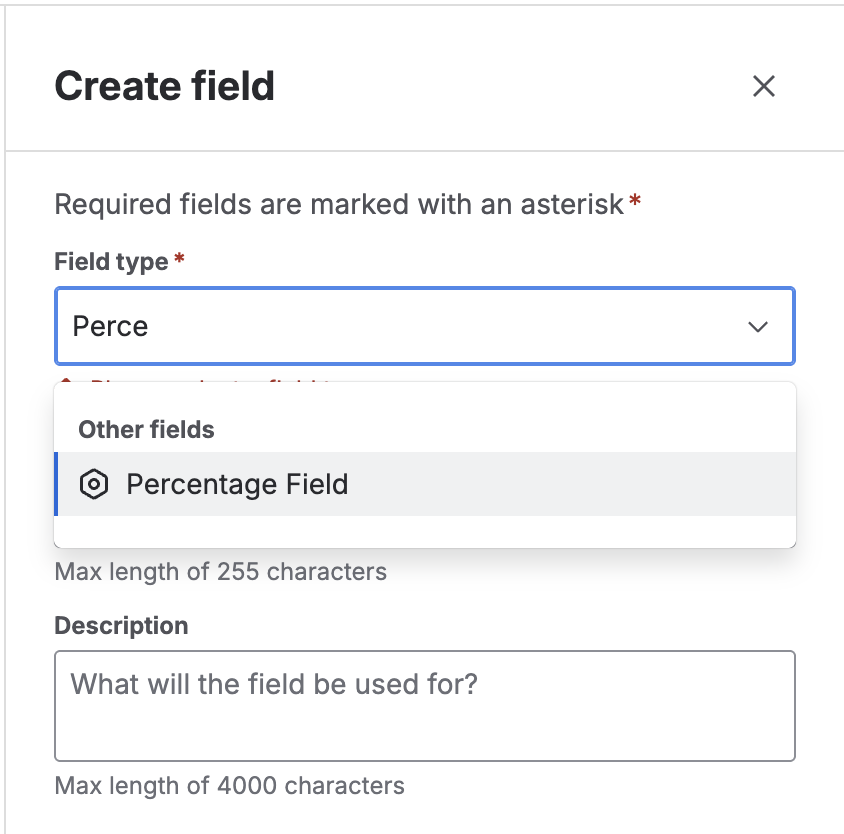
On the "Select a field type" screen, find and pick Percentage Field. Click Next.
💡 You'll recognize it by its description: "Numeric field between 0 and 100, rendered as a horizontal progress bar with a colored status indicator."
-
Name and description:
- Enter a Name (e.g. "Progress", "Test coverage", "Compliance").
- Add an optional Description.
-
Click Create.
-
Associate to screens: Pick the relevant screens and click Update.
The field is now available. If no thresholds are configured for the context, the bar uses sensible defaults: red < 40, yellow 40–69, green ≥ 70.
Configure the colour thresholds per context
Percentage Field thresholds are tied to the field context, so you can define different bands per project or issue type.
Threshold model
Each context takes two numeric values in the 0–100 range:
- At-risk from — Starting at this value, amounts render in yellow. Below it they render in red.
- On-track from — Starting at this value, amounts render in green.
The rule is:
| Issue value | Bar colour |
|---|---|
value < At-risk from | 🔴 Red |
At-risk from ≤ value < On-track from | 🟡 Yellow |
value ≥ On-track from | 🟢 Green |
Invariant
The editor enforces At-risk from < On-track from. If you enter values that don't respect this relation, the form refuses to save.
Steps to configure thresholds
-
Go to Settings → Issues → Custom fields.
-
Find the Percentage field you created and click the actions menu (
⋯) → Contexts and default value. -
On the field contexts page, open the context you want to configure.
-
Inside the context you'll see a section provided by Admin Essentials called Percentage colour thresholds.
-
Complete the form:
- At-risk from: e.g.
40. - On-track from: e.g.
70.
- At-risk from: e.g.
-
Click Save.
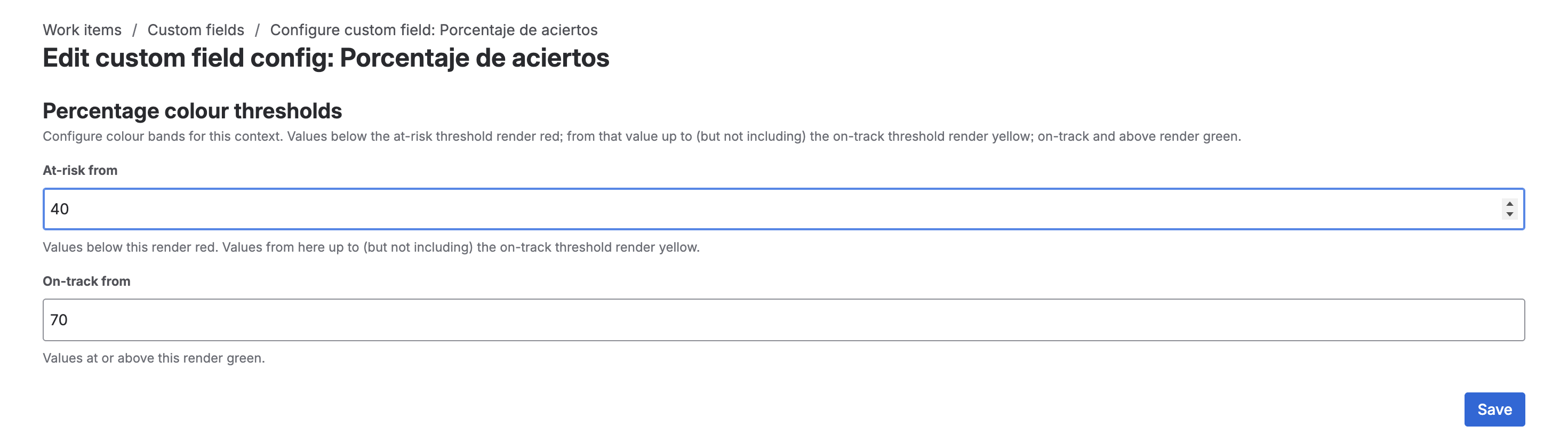
After saving, issues in that context will start rendering the bar with the matching colours.
Example: test coverage per project
Imagine a platform team measuring test coverage across services, where:
- Below
60is considered insufficient (red). - Between
60and80is acceptable (yellow). - From
80upwards is healthy (green).
Context configuration:
- At-risk from:
60 - On-track from:
80
A different team can use stricter thresholds (At-risk from: 70, On-track from: 90) without duplicating the field — just define different thresholds on their own context.
Possible validation errors
The editor validates input and shows specific messages when:
- Any of the fields is empty → "This field is required."
- The entered value is not a valid number → "Please enter a valid number."
- The value falls outside
0–100→ "Value must be between 0 and 100." At-risk fromis greater than or equal toOn-track from→ "At-risk threshold must be strictly less than the on-track threshold."
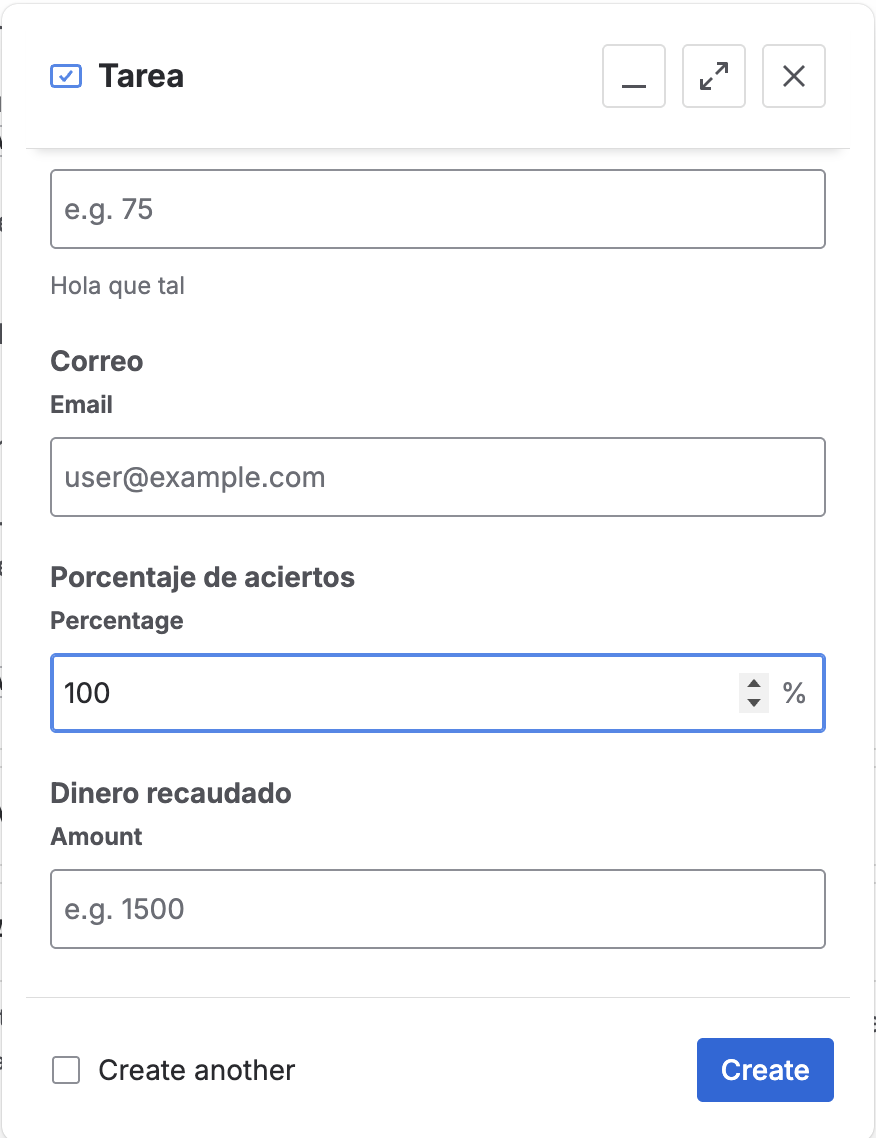
Entry on the create screen
In the Create issue dialog, the field appears as a numeric input. Validation on entry only accepts values in the 0–100 range. If the user tries to save an out-of-range value, Jira shows "Value must be between 0 and 100." and blocks the save.
Rendering on the issue view
On the issue view, the value is rendered as a horizontal progress bar that fills proportionally to the value (0% to 100%). The bar colour reflects the active band according to the context's thresholds.
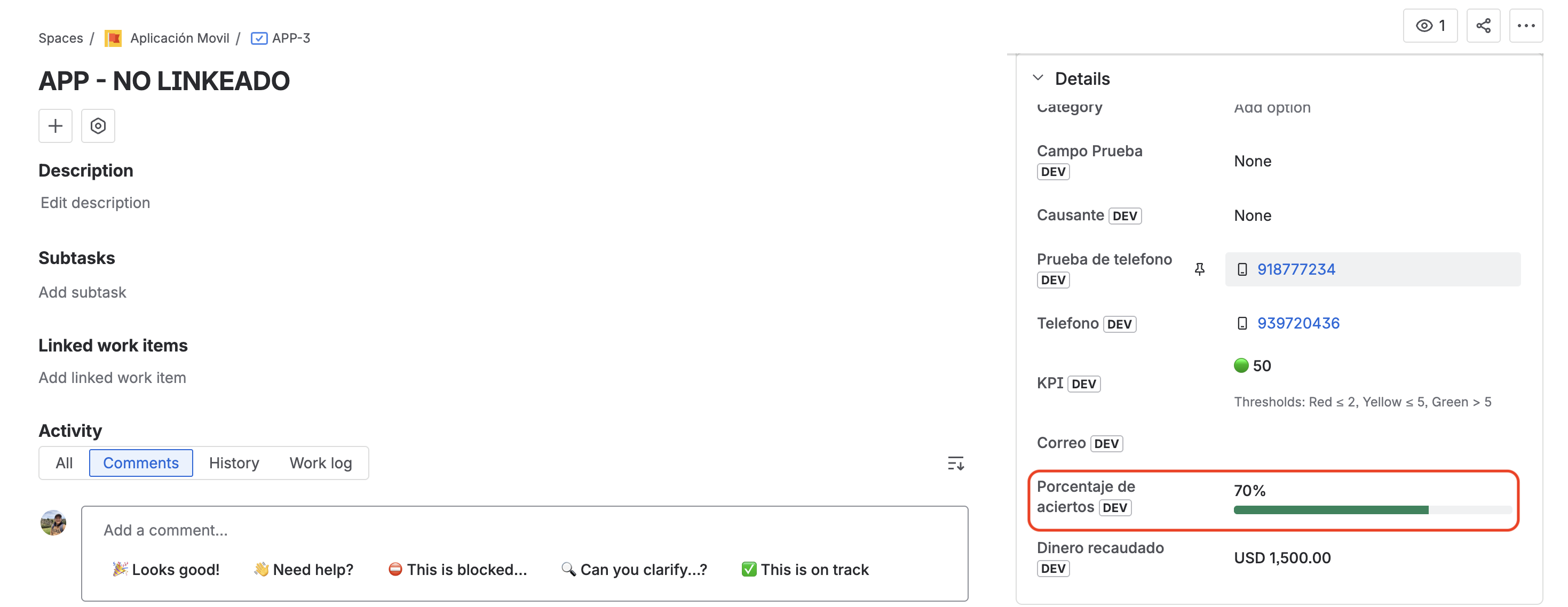
The indicator is accessible: it includes role="progressbar" and an aria-label with the current percentage, so screen readers can convey the information correctly.
Search and JQL support
The field is registered with type: number, which enables JQL's standard numeric operators:
| Operator | Supported | Example |
|---|---|---|
= / != | ✅ | "Progress" = 100 |
< / <= / > / >= | ✅ | "Progress" >= 70 |
is EMPTY / is not EMPTY | ✅ | "Progress" is not EMPTY |
in / not in | ✅ | "Progress" in (50, 75, 100) |
JQL compares the stored numeric value. To list "all issues in red in this project", combine the query with the same thresholds the context uses: "Progress" < 40 (with the default configuration).