Dashboard gadgets
LogSense for Jira provides two gadgets for reviewing and managing time information from a Jira dashboard:
- Billable hours: displays the monthly billable-hours report and the tickets that exceed their estimate.
- Pending approvals: displays worklogs awaiting approval and lets authorized users approve or reject them without opening each issue.
Add a gadget to the dashboard
- Open the Jira dashboard where you want to display the information.
- Click Add gadget.
- Search for the LogSense gadget you want to use.
- Click Add and configure the gadget.
Billable hours gadget
Configuration
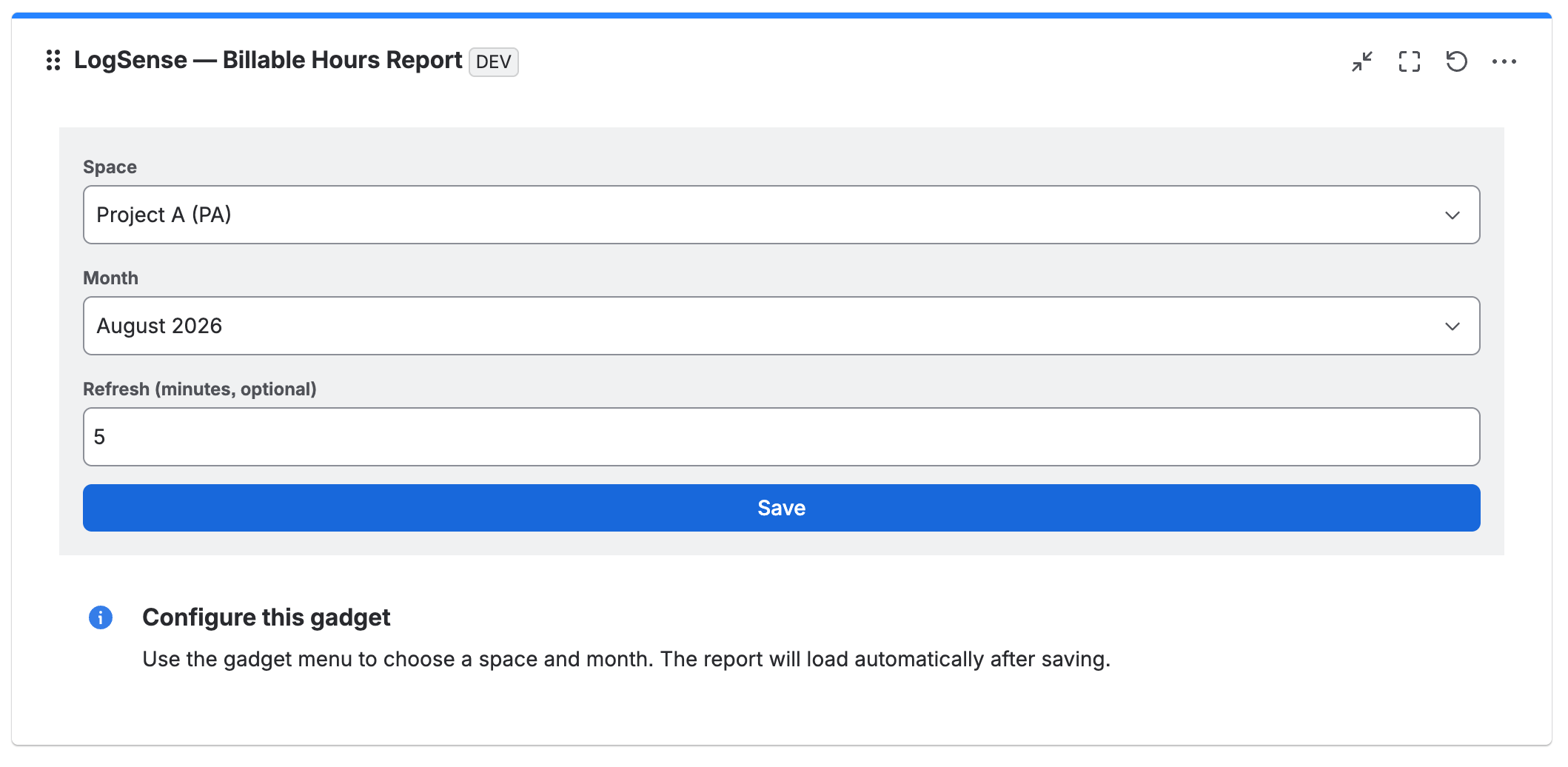
After adding the gadget, configure:
- Space: the space whose worklogs will be included in the report.
- Month: the month you want to review, using the
YYYY-MMformat. - Refresh: an option to refresh the information periodically, when available.
The current month is selected by default. Click Save to store the configuration.
Automatic report loading
After the space and month are saved, the report loads automatically every time you open the dashboard. You no longer need to enter a From/To range or click Generate on every visit.
If the gadget has no saved space or month, it displays a guided empty state so you can complete the configuration.
Tickets that exceed the estimate
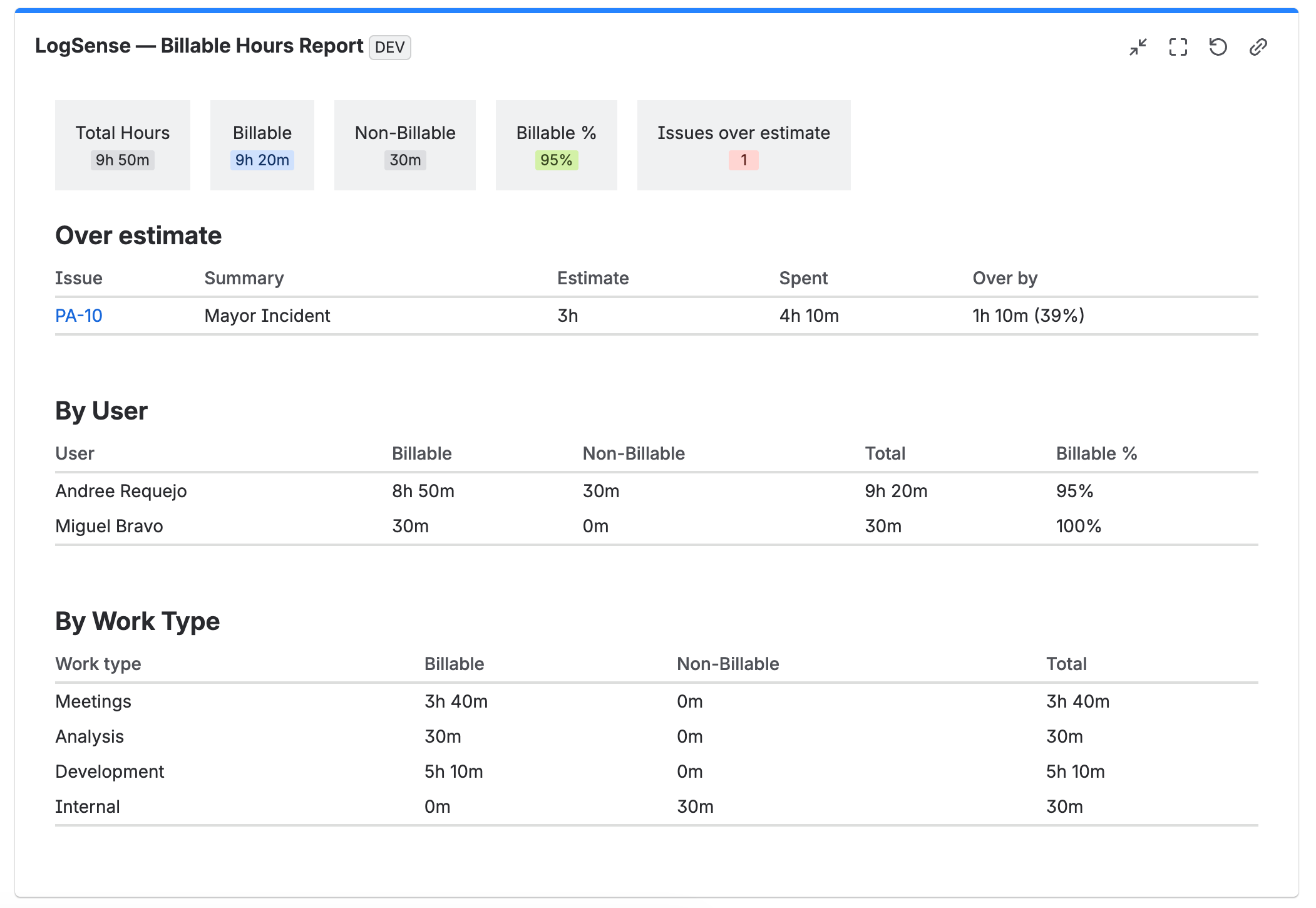
The billable hours gadget includes a section that identifies tickets whose total LogSense time exceeds their original estimate.
The table displays the following columns:
| Ticket | Summary | Estimate | Logged | Excess |
|---|---|---|---|---|
| Ticket key linked to Jira | Ticket summary | Original estimate | Time counted by LogSense | Time and percentage above the estimate |
The counter shows how many tickets exceed the estimate. Tickets without an original estimate are not shown in this section.
Logged is the sum of worklogs that count toward LogSense. Worklogs in PENDING status are not included until they are approved. Excess is the difference between the logged total and the original estimate. The calculation uses the ticket's total LogSense time, not only the hours logged during the selected month.
Pending approvals gadget
Configuration
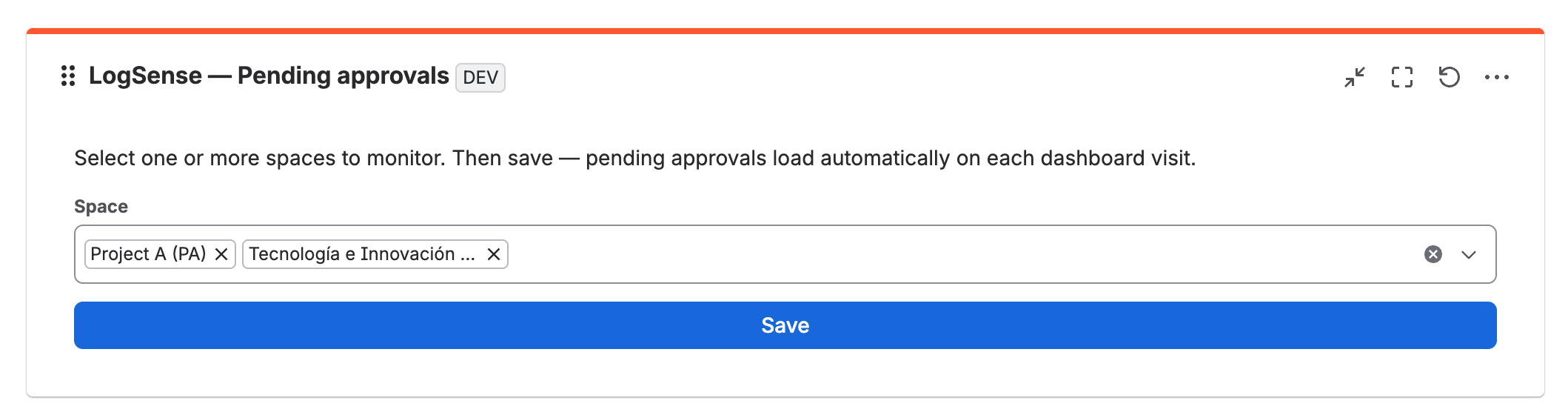
The Pending approvals gadget is intended for users who approve worklogs. In the gadget editor, select one or more spaces to monitor and, optionally, configure the refresh interval.
Save the configuration so the gadget automatically checks pending worklogs for those spaces whenever you open the dashboard.
Review and act on pending worklogs
When the dashboard opens or refreshes, the gadget automatically loads worklogs in PENDING status for the configured spaces. You do not need to select dates or click a Load button.
When pending worklogs exist, the gadget displays a notice with the count and accumulated hours. The list includes the issue, author, date, hours, work type, notes, and space when multiple spaces are monitored.
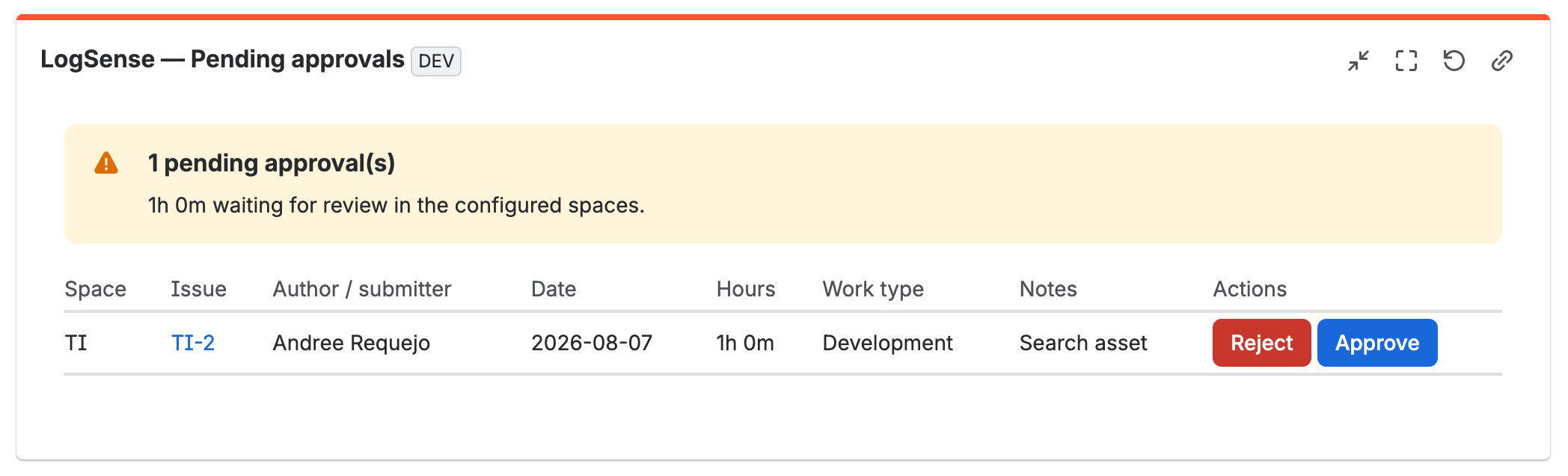
Users included in the space's approver list can use the Approve and Reject actions. After an action, the row disappears, the count is updated, and the pending KPI in the Billable hours gadget is refreshed.
Users who are not approvers receive a clear message and cannot use the actions. The same applies when the approval workflow is not enabled for the space.
Query limits and history
The gadget checks recent pending worklogs within the server lookback period. If the result exceeds that limit, it displays a notice indicating that the list may be truncated. It does not include an action to approve all worklogs at once.
Empty state
When no spaces are configured, or when there are no pending worklogs for the selected spaces, the gadget displays a clear empty state.
